
Have you ever updated your WordPress theme only to find that things don’t look quite right? Maybe a feature you loved has disappeared, or the design doesn’t quite fit your brand anymore.
You’re not alone. Updates are meant to improve your site, but sometimes they can lead to unexpected issues. The good news is, you can revert your theme to its previous version and restore the look and functionality you love. In this guide, you’ll learn how to un update your WordPress theme safely and efficiently.
By following these simple steps, you can regain control over your site’s appearance and functionality, ensuring it perfectly aligns with your vision once again. Keep reading, because this solution could save you time, stress, and potentially, your website’s user experience.
Reasons To Revert A WordPress Theme Update
Sometimes, theme updates can cause problems. A new update might break your website design. It may also remove some features you like. Compatibility issues with plugins are common. An update might slow down your site. If your site loads slowly, visitors might leave. Themes might have bugs after an update. These bugs can make your site look bad. Important features might not work anymore. Security issues can arise if a theme update is not safe. Always check if the update is necessary. Think about backing up your site first. This way, you can restore it if needed.
Backup Your Website
Backing up your website is very important. It saves your work. It protects against loss. Mistakes can happen anytime. Hackers can attack. A backup keeps your content safe. It gives peace of mind. Restoring is easy with backups. You can fix errors quickly. Always have a recent backup. It helps in emergencies. Don’t skip this step.
Backing up WordPress is simple. Use plugins like UpdraftPlus. They are very helpful. Follow the steps. First, install the plugin. Then, set it up. Choose your backup location. Cloud is a good choice. Schedule regular backups. Weekly or daily is best. Keep several copies. Test your backup. Make sure it works. You need a good plan.
Identify The Previous Theme Version
First, find the current theme version in WordPress. Go to the dashboard. Click on “Appearance” and then “Themes”. Your active theme shows its version. Write this down. Next, check the theme’s folder for an older version. Open the “wp-content/themes” directory. Look at the files for version info. Each file might have a version number. Find one with an older version number. This is crucial for restoring an older theme.
Theme version info is usually in a file named style.css. Open this file with a text editor. Look for lines at the top. They have details like the theme’s name and version number. This is where you find the version information. Use this to make sure you have the correct version.
You may need to download an older version. Visit the theme’s website or the WordPress repository. Search for the theme’s name. Download the version you want. Save this file safely. You will need it to replace the current theme version. Make sure the file is not corrupted. This ensures a smooth process when changing back.
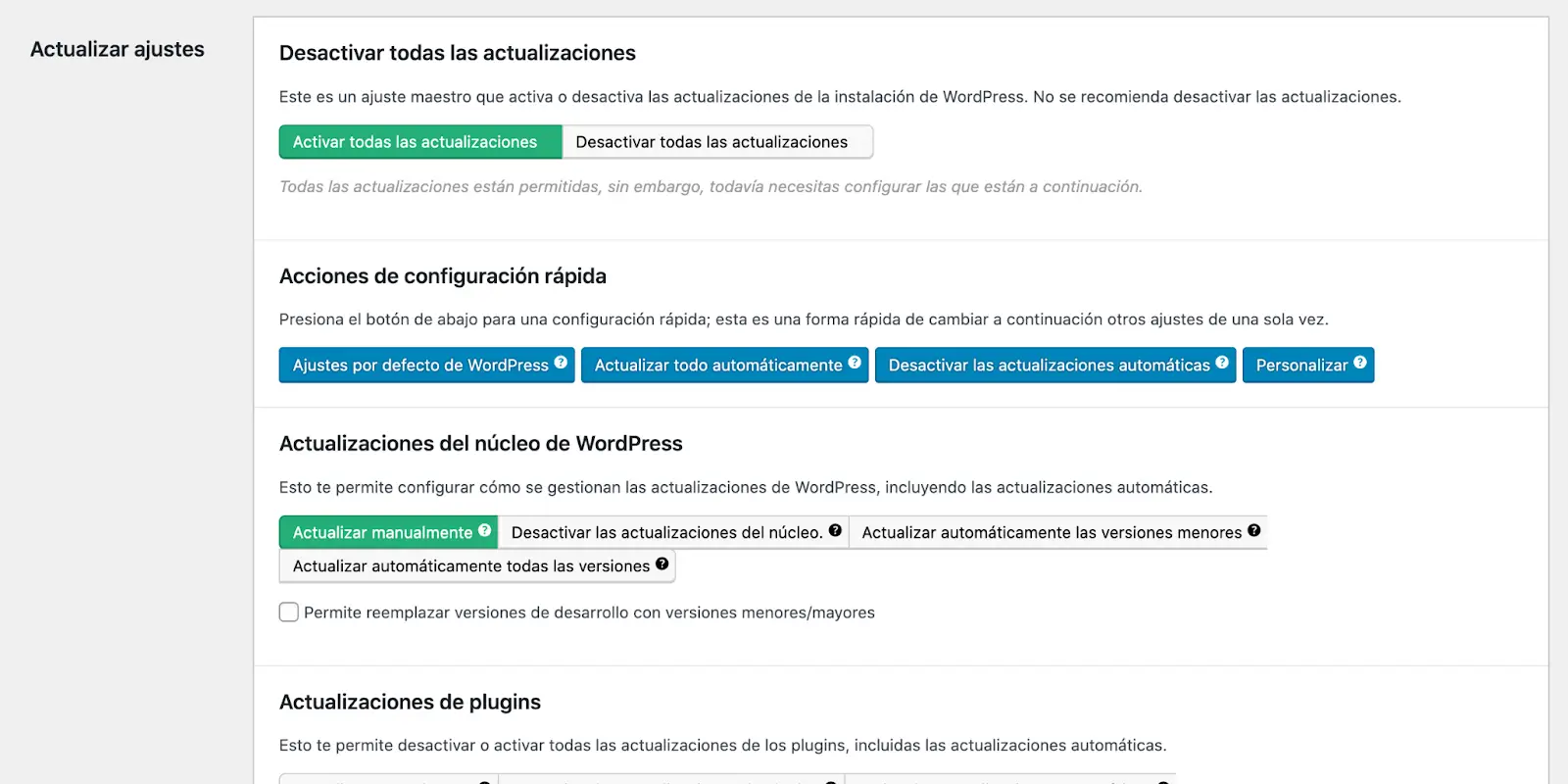
Credit: wetopi.com
Manual Reversion Process
Reverting a WordPress theme update involves restoring the previous version manually. First, download the older theme version. Then, access your site’s file manager and replace the updated theme files with the older ones. Ensure compatibility to prevent site issues.
Accessing Theme Files Via Ftp
First, download an FTP client like FileZilla. Next, open the program and connect to your server. You will need your FTP credentials to log in. Find the “wp-content” folder. Inside, locate the “themes” folder. This is where your theme files live. Download the current theme files to your computer for backup. This step is very important.
Replacing Theme Files With Older Version
Find the older version of your theme. You might have it saved on your computer. If not, check the theme’s official website. Download the older version if needed. Use your FTP client again. Upload the older theme files to the “themes” folder. Make sure to overwrite the existing files. Refresh your website to see changes. Your theme should now be back to its older version.
Using A Theme Version Control Plugin
A theme version control plugin helps revert unwanted updates in WordPress themes. Easily restore previous versions without hassle. Protect your site’s design by managing theme changes effectively.
Choosing The Right Plugin
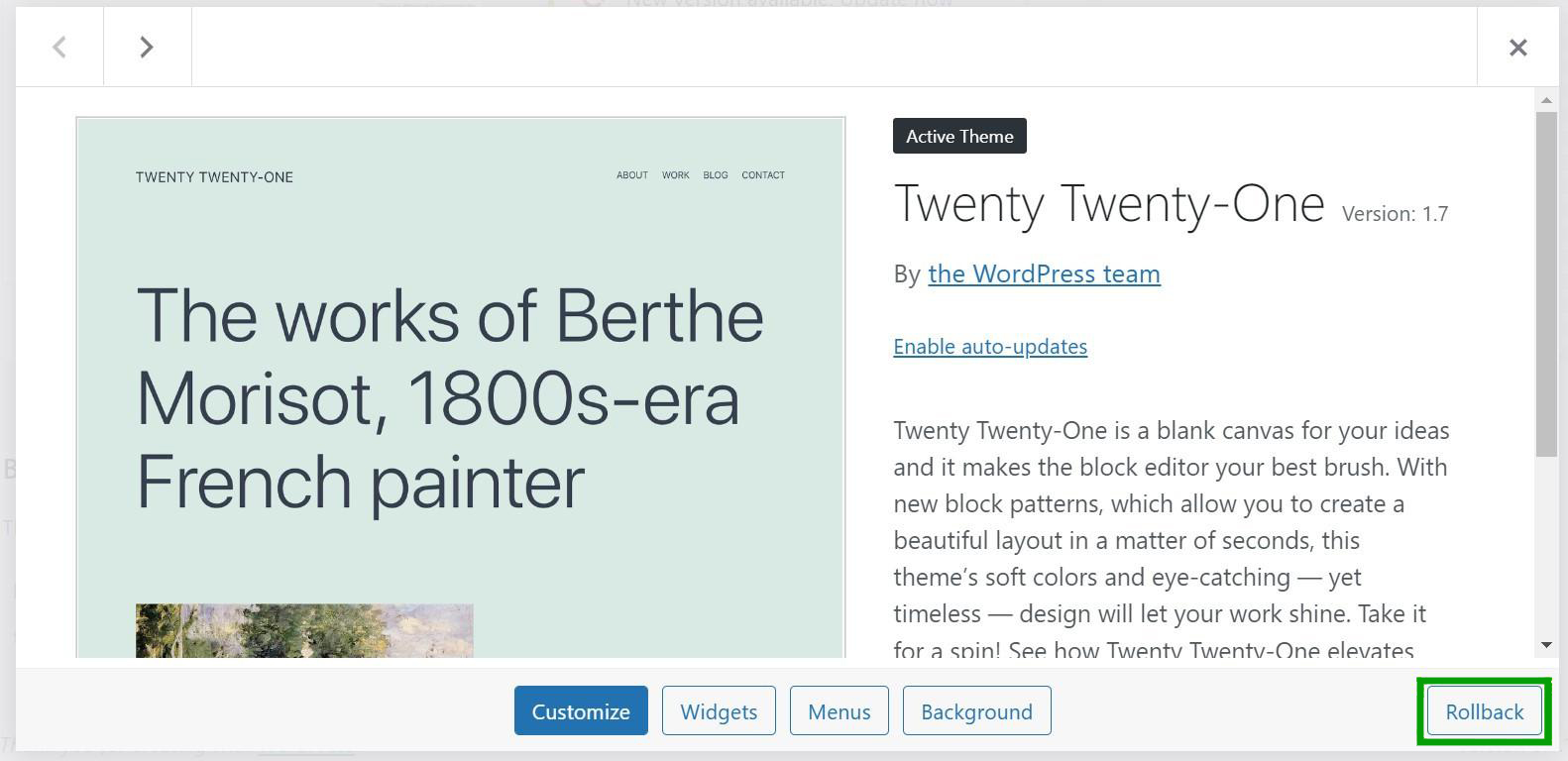
Many plugins help control theme versions. Choose one with good reviews. Check compatibility with your theme. Look for plugins updated regularly. Read user feedback. Ensure the plugin is easy to use. Some popular plugins include WP Rollback and VersionPress. They offer reliable features. Test the plugin before using it on a live site. Make a backup first. This ensures safety if problems occur.
Step-by-step Plugin Usage
First, install the chosen plugin. Activate it from the dashboard. Find the rollback option in the theme menu. Select the desired theme version. Click to start the rollback process. Wait for confirmation. Check the site after rollback. Ensure everything works fine. Repeat the process if needed. Always backup before changes. This prevents data loss. Follow instructions carefully for best results.

Credit: www.wpcrafter.com
Testing The Reverted Theme
Ensure your website is working fine. Check all links and buttons. They should be clickable. Make sure the images load quickly. See if the text is easy to read. If something looks strange, it might need fixing.
Make sure the theme works on different devices. Use a phone and a tablet to check. Also, try different browsers like Chrome and Firefox. Look for any broken parts. A working theme is important for visitors. Keep testing until it feels right.
Preventing Automatic Updates
Disabling theme auto-updates keeps your website stable. Go to the WordPress dashboard. Click on the “Themes” tab. Find the theme you want to change. Click on the “Enable Auto-updates” link. It will turn off auto-updates. This stops unwanted changes.
Managing Update Notifications
Stay informed about updates. Visit the theme’s page often. Check for new updates. You can also use email alerts. Set them up in your WordPress settings. This way, you won’t miss important updates. Always backup before updating. This keeps your data safe.
Best Practices For Theme Management
Always create backups before making changes. This is very important. Use backup plugins to save your site. This keeps your data safe. Also, update your theme regularly. Updates fix bugs and add new features. They keep your site secure. Regular updates are crucial for your website’s health.
Use a staging environment for testing changes. It is a copy of your site. Test updates here first. This helps avoid problems on your live site. Always test before making changes live. It keeps your site running smoothly. Staging is a good practice for safe updates.
Credit: jetpack.com
Frequently Asked Questions
How Do I Revert A WordPress Theme Update?
To revert a WordPress theme update, first, access your website’s backup. Restore the backup from before the update. If no backup exists, manually upload the old theme version via FTP. Always backup your site regularly to avoid future issues.
Can You Undo Theme Updates In WordPress?
Yes, you can undo theme updates by restoring a previous backup. Use a backup plugin or your hosting provider’s backup feature. If no backup is available, download the older theme version and upload it via FTP. Regular backups are essential for website safety.
Is It Safe To Downgrade WordPress Themes?
Downgrading WordPress themes is generally safe if done correctly. Always backup your site before making changes. Restoring from a previous backup is the safest method. Consider testing the downgrade on a staging site first. Ensure compatibility with your plugins and WordPress version.
Why Would You Un-update A WordPress Theme?
Un-updating a WordPress theme might be necessary if new updates cause issues. These could be compatibility problems with plugins or loss of customizations. Always test updates in a staging environment first. Having regular backups can simplify the rollback process when issues arise.
Conclusion
Un-updating your WordPress theme can solve many issues. Follow simple steps to revert changes. Check compatibility before you start. Always back up your site. This prevents data loss. Use FTP access for better control. This method restores previous settings effectively.
Regular updates are important, but sometimes reverting is necessary. Keep your website secure. Stay informed on theme changes. Protect your site from unexpected errors. A well-managed site improves user experience. Make informed decisions about theme updates. Your site’s stability depends on it.
Understanding the process helps maintain your site better.



