
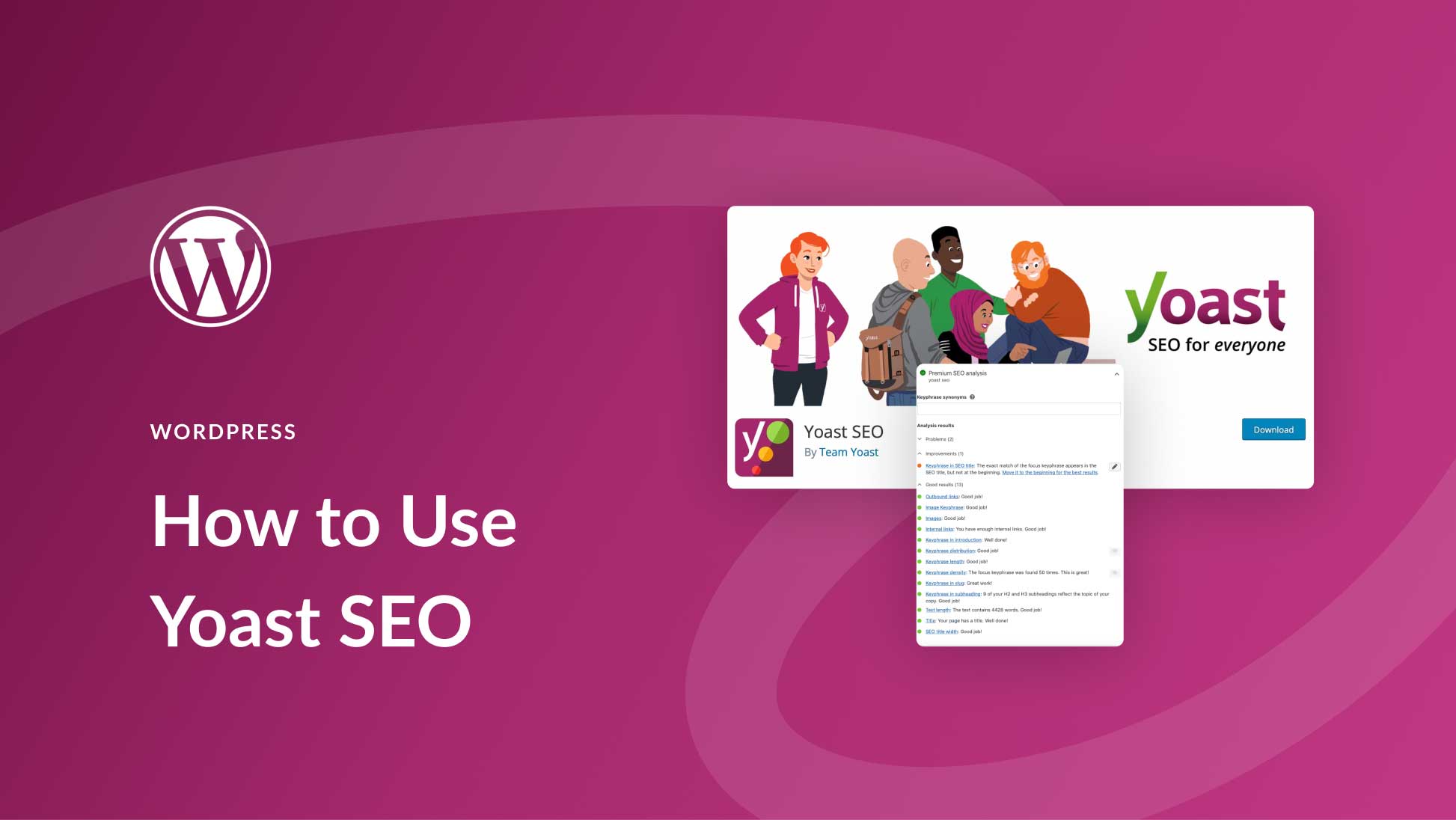
If you want your WordPress site to rank higher on search engines, setting up Yoast SEO is a must. But if you’re unsure where to start, don’t worry—you’re in the right place.
This guide will walk you through every step to get Yoast SEO working perfectly for your website. By the end, you’ll have a powerful tool helping your content reach more people, without any confusion or technical hassle. Ready to boost your site’s visibility and attract more visitors?
Let’s dive in.
Credit: yoast.com
Installing Yoast Seo Plugin
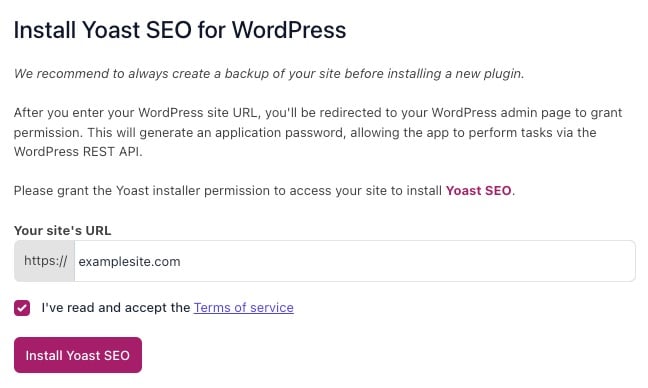
Installing the Yoast SEO plugin on your WordPress site is the first step to improving your website’s search engine presence. This plugin helps you optimize your content easily without needing technical skills. The installation process is quick and straightforward. Follow the steps below to add Yoast SEO to your website and start optimizing your pages and posts.
Finding The Plugin In WordPress
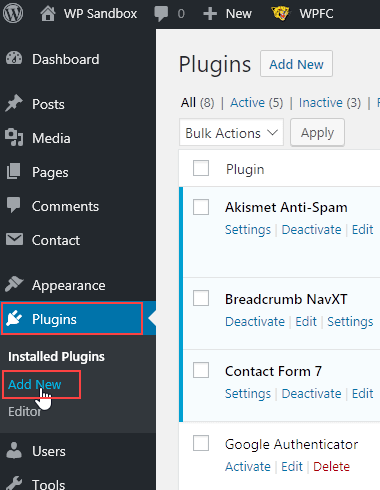
Log into your WordPress dashboard. On the left side, find the “Plugins” menu and click it. Then, select “Add New.” In the search bar on the top right, type “Yoast SEO.” The plugin will appear in the search results. Look for the one named “Yoast SEO” by Team Yoast. It will have a high number of active installs and good ratings.
Installing And Activating
Click the “Install Now” button next to the Yoast SEO plugin. WordPress will download and install the plugin files. After installation, click the “Activate” button. Once activated, the Yoast SEO plugin will add a new menu item to your dashboard. You can now start configuring the plugin settings to optimize your website content effectively.
Configuring Basic Settings
Configuring the basic settings in Yoast SEO is the first step to improve your website’s search engine presence. This setup ensures the plugin works well with your site’s structure. It helps you control how your content appears in search results. Let’s break down the key parts of this process.
General Settings Overview
The General Settings section is where you start. It gives you quick access to the main features of Yoast SEO. Here, you can enable or disable tools like readability analysis and SEO analysis. Turning these on helps you write better content. You can also access the plugin’s dashboard to see important notifications.
Connecting To Webmaster Tools
Connecting Yoast SEO to webmaster tools helps you track your site’s performance. It links your website to Google Search Console, Bing Webmaster Tools, and others. You need to copy verification codes from these services. Paste them into Yoast’s Webmaster Tools tab. This step confirms your site ownership and improves indexing.
Setting Up Your Site Info
Setting your site info tells search engines about your website type. You choose if your site represents a person or an organization. Then, enter your site name and logo if available. This info appears in search results and knowledge panels. Correct setup boosts your site’s trust and recognition online.
Optimizing Titles And Meta Descriptions
Optimizing titles and meta descriptions is key for better search engine visibility. These elements appear in search results and influence clicks. Clear, relevant titles and descriptions attract more visitors to your site. Yoast SEO helps customize these parts easily to improve your WordPress site’s SEO.
Customizing Title Templates
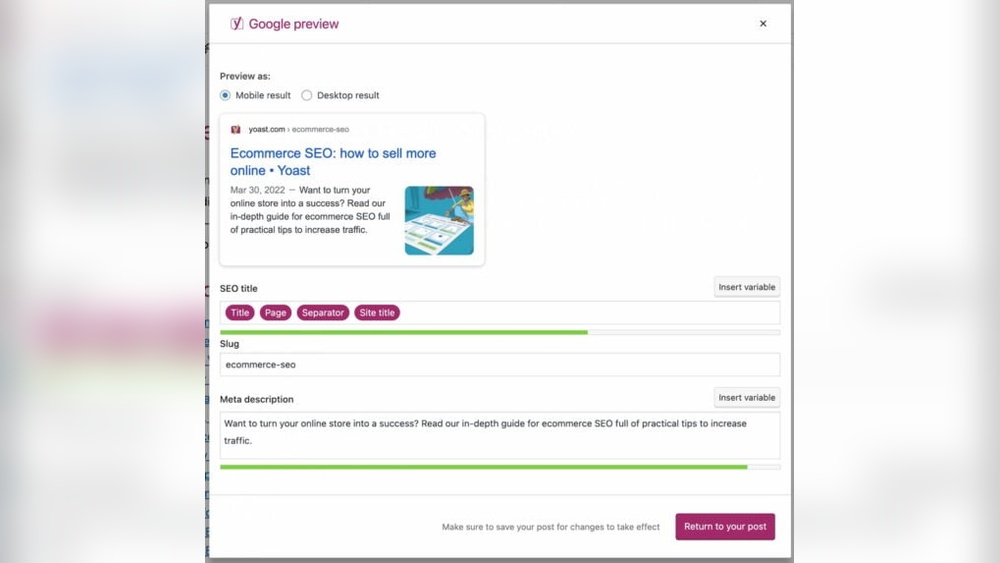
Title templates set a standard format for all page titles. Yoast SEO lets you create these templates quickly. Use variables like site name, page title, and separator. For example, “%%title%% | %%sitename%%” shows the page title followed by your site name. Keep titles short and clear. Avoid keyword stuffing. A good title helps search engines and users understand your page.
Writing Effective Meta Descriptions
Meta descriptions summarize page content in search results. Write descriptions that explain your page clearly and briefly. Include important keywords naturally. Keep it under 160 characters to avoid cut-off in results. Make descriptions interesting to invite clicks. Yoast SEO shows a preview of how descriptions appear. Use this feature to improve your meta descriptions easily.
Credit: www.hostpapa.com
Managing Sitemap Settings
Managing sitemap settings in Yoast SEO helps search engines find your content. It improves site indexing and boosts your SEO. Proper sitemap settings ensure only important pages appear in search results. This section shows how to manage these settings effectively.
Enabling Xml Sitemaps
Start by turning on XML sitemaps in Yoast SEO. Go to the SEO menu and select “General.” Click the “Features” tab. Find “XML sitemaps” and toggle it to “On.”
Save changes to activate the sitemap. This creates a sitemap index file automatically. It lists all important pages and posts for search engines. You can view your sitemap by clicking the question mark icon next to the toggle.
Excluding Content From Sitemaps
Some pages may not need to appear in your sitemap. Examples include thank you pages or login pages. To exclude content, go to the “Search Appearance” section in Yoast SEO.
Under “Content Types,” choose the post type you want to exclude. Toggle “Show in search results?” to “No” for that content. Yoast SEO will remove this content from the sitemap.
Repeat this for categories or tags you want to exclude. Excluding unnecessary content keeps your sitemap clean. It helps search engines focus on your best pages.
Setting Up Social Media Integration
Social media is key to reaching more visitors. Setting up social media integration in Yoast SEO helps your website connect smoothly with platforms like Facebook and Twitter. This setup improves how your site looks when shared and makes your profiles easy to find. Follow these steps to make your social media work well with Yoast SEO.
Linking Social Profiles
Start by linking your social profiles in Yoast SEO. Go to the Yoast SEO dashboard and click the “Social” tab. Enter the URLs of your Facebook, Twitter, Instagram, and LinkedIn accounts. This helps search engines associate your website with your social media pages. It also shows your profiles in search results, making them easier for visitors to find.
Configuring Open Graph Tags
Open Graph tags control how your content looks on social media. Enable Open Graph in the “Social” tab under Facebook settings. Add a default image that appears when you share a page without a specific image. Write a clear site title and description for social shares. This setup ensures posts from your site look attractive and professional on social media.
Credit: www.elegantthemes.com
Using Yoast Seo Content Analysis
Using Yoast SEO Content Analysis helps improve your website’s SEO step-by-step. It guides you in writing content that search engines can easily understand. The tool gives instant feedback on your posts and pages. This way, you can fix issues quickly and make your content better.
The content analysis checks keywords, meta descriptions, and overall structure. It also looks at how readable your text is. Clear feedback helps you write in a way that attracts more visitors. Below are key ways to use Yoast SEO Content Analysis effectively.
Optimizing Posts And Pages
Start by entering your focus keyword in Yoast SEO. The tool checks if you use this keyword enough. It looks for the keyword in titles, headings, and the first paragraph. Yoast also checks meta descriptions for keyword presence. This helps search engines understand your page topic.
Check the SEO score shown by Yoast. Aim for a green light, meaning your SEO is good. Fix any red or orange signals by adjusting your text. Make sure your keyword feels natural in the content. Avoid stuffing or repeating it too much.
Improving Readability Scores
Yoast SEO also scores readability. It looks at sentence length, paragraph size, and use of passive voice. Short sentences and small paragraphs improve clarity. Use transition words to connect ideas smoothly. Avoid long, complex sentences that confuse readers.
The tool highlights difficult words or phrases. Replace these with simpler ones for better understanding. Check for passive voice and change it to active where possible. A good readability score keeps readers engaged and on your site longer.
Advanced Yoast Seo Features
Yoast SEO offers advanced features to improve your website’s search engine ranking. These tools help control how search engines view your site. They also improve user experience and avoid duplicate content issues.
Using these features correctly makes your site easier to navigate. It also helps keep your content unique and organized. Let’s explore some key advanced options in Yoast SEO.
Managing Breadcrumbs
Breadcrumbs show the path users take to reach a page. They help visitors understand your site’s structure. Breadcrumbs also improve SEO by making your site easier to crawl.
To enable breadcrumbs in Yoast SEO, go to the Search Appearance settings. Turn on breadcrumbs and customize the separator and labels. Then add the breadcrumb code to your theme files or use a plugin. This lets search engines and visitors see your site’s hierarchy clearly.
Setting Canonical Urls
Canonical URLs tell search engines which page version is the main one. This avoids duplicate content penalties. Duplicate content can hurt your SEO ranking.
Yoast SEO automatically sets canonical URLs for your pages. You can also manually set them in the advanced tab of the Yoast meta box. Use canonical URLs to point to your preferred page when content appears in multiple places.
Redirect Manager Basics
Redirects send users from an old URL to a new one. This keeps visitors from landing on broken pages. Redirects also preserve SEO value when you change URLs.
The Redirect Manager in Yoast SEO lets you create and manage redirects easily. You can add 301 redirects for permanent moves. It also tracks redirect errors and suggests fixes. Using redirects keeps your site healthy and user-friendly.
Troubleshooting Common Issues
Setting up Yoast SEO on WordPress can sometimes lead to small problems. These issues can stop the plugin from working well. Knowing how to fix common problems helps keep your website SEO-friendly. This section covers two typical issues and how to solve them quickly.
Plugin Conflicts
Sometimes, Yoast SEO may not work well with other plugins. This happens when two plugins try to do the same thing. The site may slow down or show errors. To find conflicts, deactivate all plugins except Yoast SEO. Then, activate each plugin one by one. Check your site after each activation. When the problem returns, you found the conflicting plugin. Look for an alternative plugin or contact support for help.
Fixing Sitemap Errors
Sitemap errors stop search engines from reading your site properly. Yoast SEO creates sitemaps automatically. If you see errors, clear your website cache first. Next, check your robots.txt file. Make sure it does not block the sitemap URL. Sometimes, permalink settings cause sitemap issues. Go to WordPress settings and save permalinks again without changes. This refreshes the sitemap link. If errors stay, disable and enable the XML sitemap feature in Yoast SEO. These steps often fix common sitemap problems.
Frequently Asked Questions
What Is Yoast Seo And Why Use It?
Yoast SEO is a WordPress plugin that improves your website’s search engine rankings. It helps optimize content, meta tags, and keywords. The plugin also offers readability analysis and XML sitemaps, making SEO easier for beginners and experts alike. It’s essential for boosting online visibility.
How Do I Install Yoast Seo On WordPress?
To install Yoast SEO, go to your WordPress dashboard. Navigate to Plugins > Add New. Search for “Yoast SEO,” then click Install Now and Activate. The plugin will appear in your dashboard menu, ready for configuration.
How To Configure Yoast Seo For Best Results?
Use the Yoast SEO configuration wizard to set up your site. Fill in your website type, company info, and social profiles. Customize titles and meta descriptions for better click-through rates. Regularly update content based on Yoast’s SEO analysis for optimal results.
Can Yoast Seo Improve My Website’s Speed?
Yoast SEO is lightweight and doesn’t affect site speed significantly. It focuses on content optimization rather than performance. However, using too many plugins together may slow your site. Always keep plugins updated for best performance.
Conclusion
Setting up Yoast SEO on WordPress is simple and effective. Follow each step carefully for best results. This tool helps your website rank better on search engines. It guides you to optimize content with ease. Keep your settings updated as your site grows.
Regular checks will keep your SEO strong. Start using Yoast SEO today to improve your site’s visibility. Small changes make a big difference over time. Your website can reach more visitors with proper SEO. Stay consistent and watch your site perform well.



