
Do you ever find yourself wondering about the inner workings of your WordPress site? Specifically, are you curious about the database that powers your content and helps keep everything running smoothly?
Understanding which database your WordPress site is using can be like opening a door to a deeper level of site management. It empowers you to make informed decisions, enhance your website’s performance, and troubleshoot issues more effectively. Picture this: a well-oiled machine where every piece fits perfectly, and you hold the key to unlocking its full potential.
Intrigued? You’re in the right place. You’ll discover exactly how to identify the database your WordPress site is using, giving you that extra edge in managing your digital presence. Stay with us, and unlock the secrets behind the scenes.
Locating WordPress Configuration File
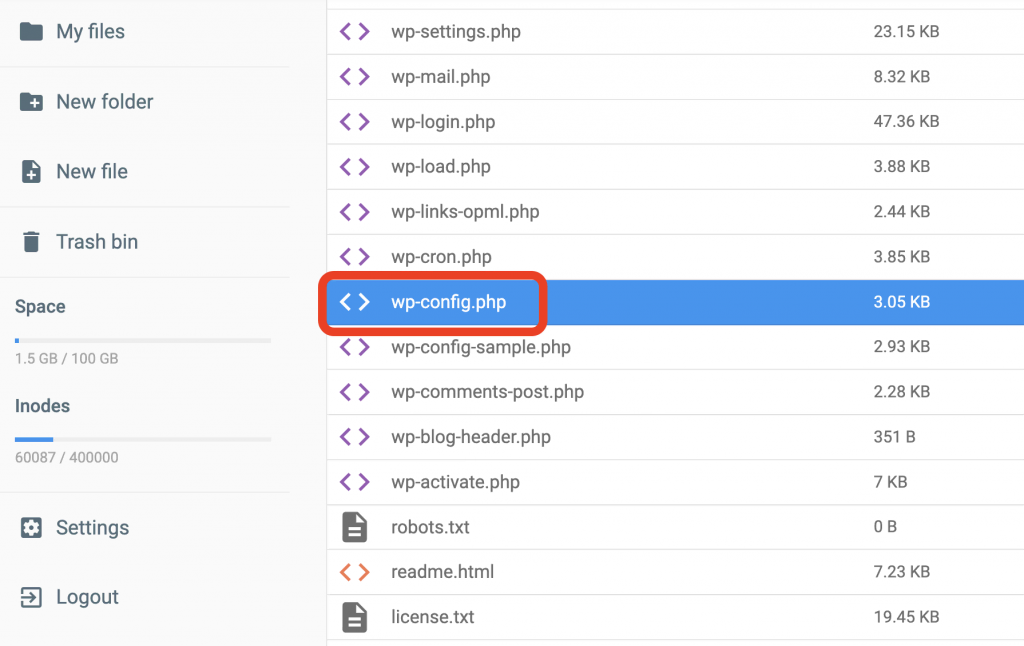
The wp-config.php file is key. It holds important data. This file tells you about your database. It shows the database name, user, and password. Locate it in your WordPress folder. Usually in the root directory. You need FTP access or use the hosting panel. Once found, open with a text editor. Be careful not to change anything. Changes can break your site.
Finding the file path is simple. Start from the public_html folder. Look for wp-config.php. It is in the main directory. Use a file manager if available. Double-check the folder name. WordPress installation might be in a subfolder. Check if you have multiple WordPress sites. Always verify the file path to avoid confusion.
Identifying Database Details
WordPress stores its data in a database. This is like a big box for data. To find the database name, open the WordPress folder. Look for a file named wp-config.php. Open it. Inside, you will see a line that says define('DB_NAME', 'your_database_name');. The name inside the quotes is the database name.
The database user is who talks to the database. In the wp-config.php file, find the line with define('DB_USER', 'your_database_user');. The name inside is the user. This user helps WordPress get its data.
The database host is where the database lives. Again, check the wp-config.php file. Look for define('DB_HOST', 'your_database_host');. The host can be a name like localhost. It tells WordPress where to find the data.
Using Phpmyadmin
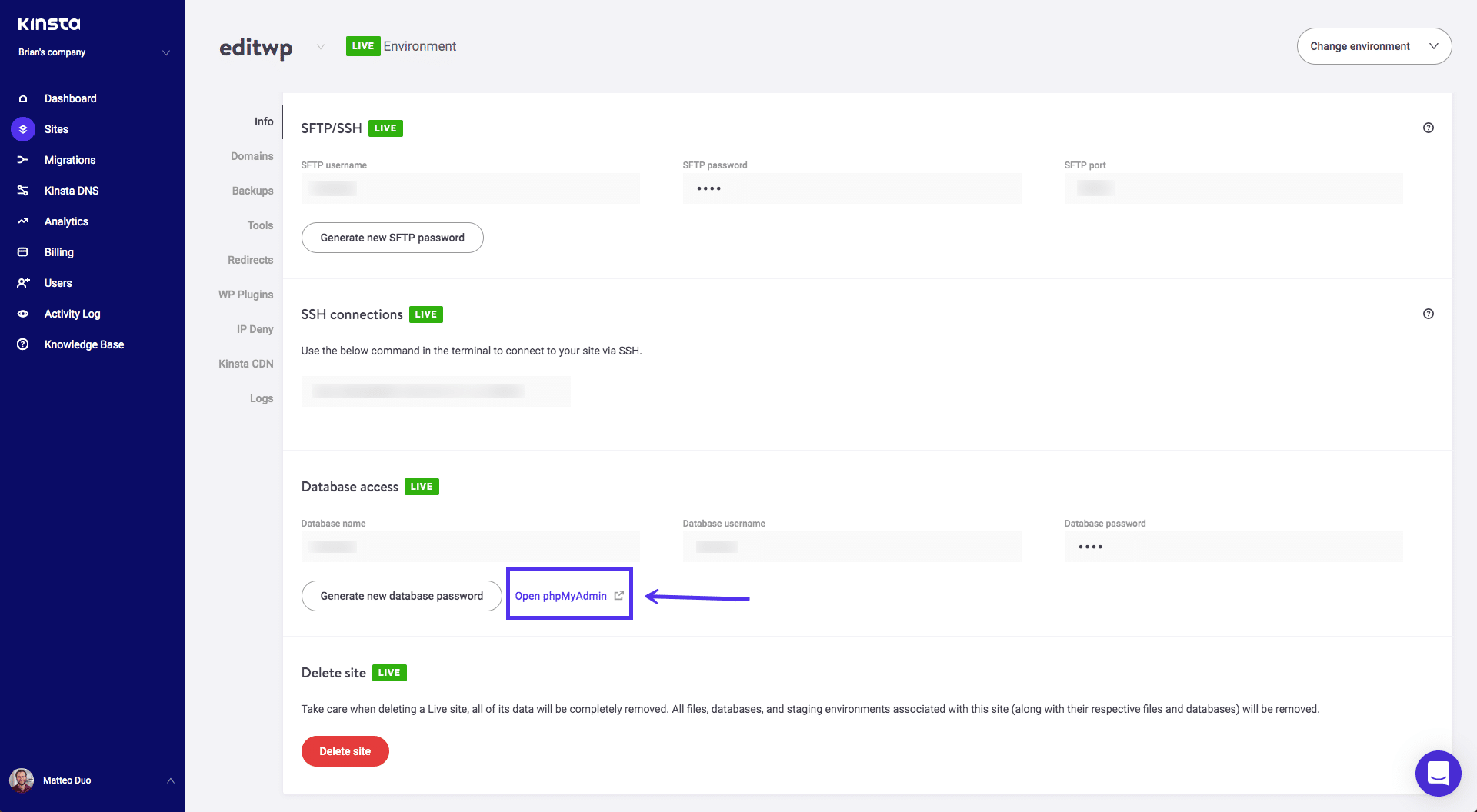
To find your WordPress database, use phpMyAdmin. This tool helps you manage databases. First, log in to your hosting control panel. Look for the phpMyAdmin icon and click it. You will see many databases listed here. Each database has a name.
After you open phpMyAdmin, look for the database name. This is usually the same as your WordPress site. Click on the name to see more details. You can view tables inside the database. These tables hold data for your site. Look for a table named wp_options. It contains important site info. The table helps you find the database settings. Now you know which database WordPress is using.
Credit: kinsta.com
Accessing Via Hosting Control Panel
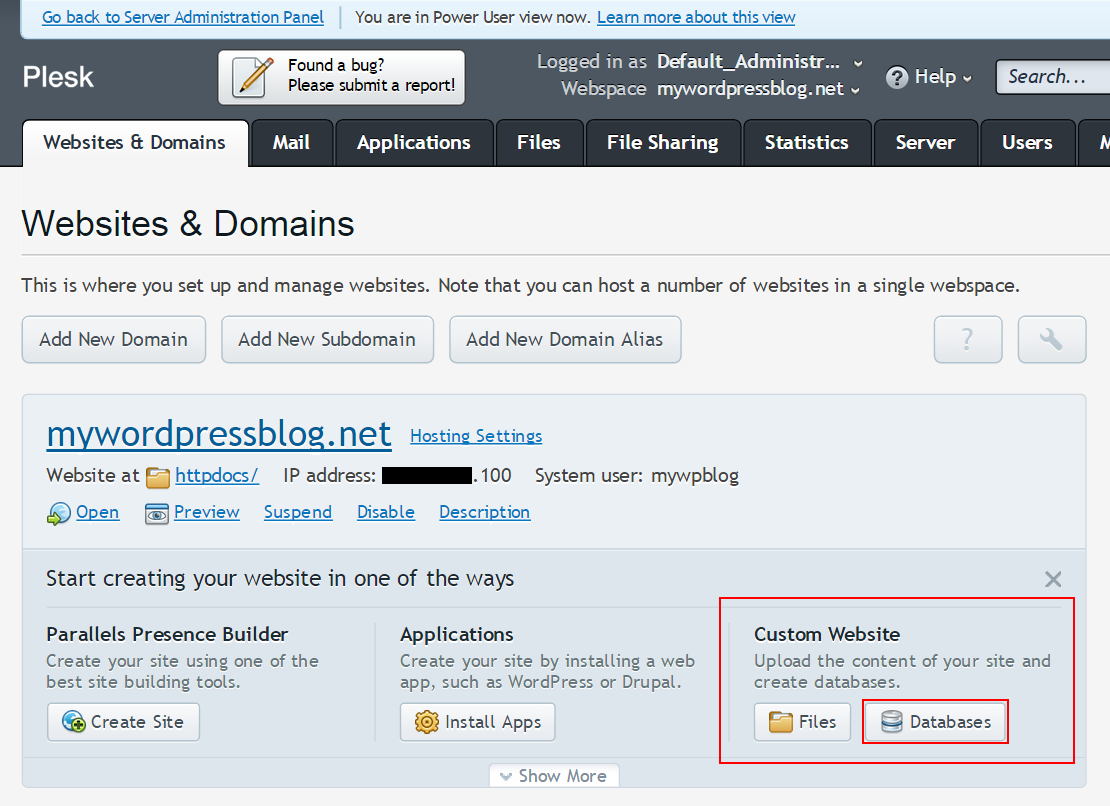
First, log in to your hosting account. Find the section labeled Control Panel. It may be called cPanel or something similar. Look for a section called Databases. This is where you can find your site’s database information.
Inside the Databases section, find phpMyAdmin. Click on it to open. This is a tool to manage databases. You will see a list of databases. Look for the one with your site’s name. If unsure, check the wp-config.php file in your website’s folder. It shows the exact database name.
Command Line Method
SSH helps to connect to your server. It is a secure way. First, open a terminal on your computer. Then, type ssh username@hostname. Replace “username” with your username. “Hostname” is your server’s name. Press enter. You may need to enter a password.
Once logged in, you can navigate directories. Use commands like cd to change folders. Find the WordPress files. Usually, they are in the public_html directory.
After finding your files, look for wp-config.php. This file has database details. Use the command nano wp-config.php to open it. Look for DB_NAME. This shows the database name. Other details like username and password are also there.
To run database commands, type mysql -u username -p. Replace “username” with your database username. Enter the password when asked. Now, you can execute SQL commands on your WordPress database.
Credit: codex.wordpress.org
Security Considerations
Ensuring database security is crucial for WordPress sites. Check your database by accessing the wp-config. php file. This file contains the database name and login details, essential for protecting your website’s data. Always safeguard these credentials to prevent unauthorized access.
Ensuring File Permissions
Keep your WordPress files safe. Set correct file permissions. This protects against unwanted access. Files should be readable by the server. But others shouldn’t change them. Folders should have permissions of 755. Files should have 644 permissions. These numbers are not random. They mean specific access levels. Avoid setting permissions to 777. This gives everyone full access. It’s like leaving your door open. Be careful and protect your site.
Securing Database Credentials
Keep your database credentials private. They are like keys to your site. Store them safely in the wp-config.php file. Never share these details. Use strong passwords for extra safety. Include numbers, symbols, and letters. Change passwords regularly. This keeps hackers away. If you suspect a breach, change your credentials. Act quickly to secure your site. Remember, a safe database is a happy database.
Credit: www.hostinger.com
Frequently Asked Questions
How Can I Find My WordPress Database Name?
You can find the database name in the wp-config. php file. Locate the line that defines ‘DB_NAME’. Access this file via your hosting control panel or FTP client. It’s usually located in the root directory of your WordPress installation.
What Tools Show WordPress Database Details?
Tools like phpMyAdmin can display your WordPress database details. Access phpMyAdmin through your hosting control panel. It provides a user-friendly interface to view database tables and settings. It’s a widely used tool for managing databases efficiently.
Where Is Wp-config.php Located In WordPress?
The wp-config. php file is in the root directory of your WordPress site. It’s typically found in the main folder where WordPress is installed. You can access it through your hosting control panel or via an FTP client.
Can I Change My WordPress Database Name?
Changing the database name requires editing the wp-config. php file. Update the ‘DB_NAME’ line with the new database name. Ensure the new database is properly configured in your hosting environment. Backup your site before making changes to avoid data loss.
Conclusion
Discovering your WordPress database is straightforward. Follow the steps outlined above. Understanding your database helps manage your site better. It ensures smooth updates and troubleshooting. Always keep your database information secure. Regular backups are crucial. They protect your data from unexpected issues.
Knowledge of your database enhances your WordPress experience. It empowers you to handle technical tasks. Stay informed and maintain your site effectively. This knowledge boosts your confidence. You can now manage your WordPress site with ease. Remember, a well-maintained database is key.
Enjoy a seamless blogging journey.


