Have you ever found yourself facing the daunting task of saving a WordPress theme, unsure of where to begin or what steps to follow? You’re not alone.
Many WordPress users, whether beginners or seasoned pros, encounter this challenge. The good news is that you can easily save a theme with just a few simple steps. Imagine the relief of having your theme securely saved, ready to be restored or transferred whenever needed.
This guide is designed to empower you with the knowledge you need to confidently save a WordPress theme, ensuring your hard work and creativity are always protected. Keep reading, and discover how straightforward and rewarding this process can be.
Credit: themes4wp.com
Preparing Your WordPress Environment
Check if you can log into WordPress. Use your username and password. Make sure the internet is working. If you can’t log in, reset your password. Follow the steps on the login page. Sometimes, the password is forgotten. That’s okay. Just reset it. Ask someone for help if needed.
It’s important to backup your site. This saves your work. Use tools like UpdraftPlus. The plugin helps backup easily. You need a storage space. Google Drive or Dropbox works. Save the files safely. Backup protects your data. You won’t lose your work.
Locating The Theme Files
First, log in to your WordPress account. Find the Dashboard on the left. It’s like a home for your website tools. Click the Appearance tab. This lets you see your themes. You can manage and edit them here.
After opening Appearance, look for the Theme Editor
In the Theme Editor, find the Theme Directory. This folder has all theme parts. Look for files like style.css and functions.php. These are key files. Save them carefully. They hold important theme code.
Downloading Theme Files
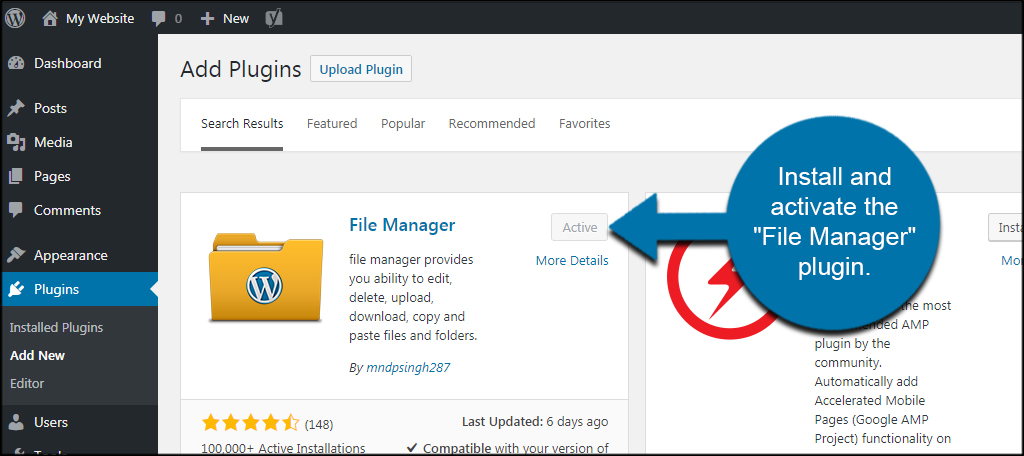
Open the File Manager in your hosting account. Navigate to the wp-content folder. Find the themes folder inside. Right-click on your theme folder. Click Download. Save the theme files to your computer.
Install an FTP client like FileZilla. Connect to your website using your FTP credentials. Go to wp-content/themes. Right-click the theme folder. Choose the Download option. Files will download to your computer.
Log into your cPanel account. Find the File Manager tool. Open it and go to wp-content/themes. Select your theme folder. Click the Compress option. Download the zipped file to your computer.
Credit: themeforest.net
Saving Theme Customizations
Custom CSS gives your site a unique look. Exporting it is important to keep your design safe. Go to the Customizer in WordPress. Find the Additional CSS section. Copy the CSS code. Save it in a text file. This file helps you in emergencies. It keeps your design intact.
Theme Options control many site features. Navigate to the theme settings. Look for an Export option. Some themes have it. If not, check if a plugin can do it. Save these settings in a file. This file is your safety net. It brings back your site settings when needed.
Widgets add functionality to your site. Backing up them ensures your site stays functional. Use a plugin to export widgets. Some plugins offer one-click backup. Save the exported file. This file keeps your widgets safe. Restore them easily if something goes wrong.
Verifying Theme Backup
Ensure every file is present in your theme folder. Double-check for missing CSS, PHP, and image files. Each file is crucial for theme functionality. Open the folder and compare files with the original theme. Look for any differences or missing items. This step prevents theme errors after restoration.
Install WordPress on your local computer. Upload the theme to test its functionality and appearance. Local testing helps identify errors without affecting your live site. Check the layout and features. Ensure everything works as expected. Local testing is a safe way to verify your backup.
Credit: www.greengeeks.com
Restoring A Saved Theme
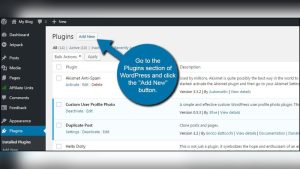
First, go to your WordPress dashboard. Click on Appearance, then Themes. Choose Add New and then Upload Theme. Select your saved theme file. Click Install Now. Wait for the theme to upload. It might take a few minutes. Once done, click Activate.
Open the Customizer from your dashboard. Check if your settings are still there. Sometimes, customizations do not transfer. You might need to redo some settings. This includes fonts, colors, and logos. Be patient and check everything.
Look at your website. Check each page. Make sure everything looks right. Sometimes errors appear after uploading a theme. If you see any, go back to the dashboard. Check your theme settings. Fix any mistakes. Ask for help if needed.
Frequently Asked Questions
How Do I Export A WordPress Theme?
To export a WordPress theme, access your WordPress dashboard. Navigate to Appearance > Themes. Select the theme you want to export. Use a plugin like “Duplicator” or “All-in-One WP Migration” for easy export. These plugins create a backup file you can download.
Can I Save A WordPress Theme Manually?
Yes, you can save a theme manually. Use an FTP client to access your server. Navigate to the “wp-content/themes” directory. Download the theme folder you want to save. Ensure you have a backup of your database and settings.
What Tools Help Save A WordPress Theme?
Tools like “Duplicator,” “All-in-One WP Migration,” and “UpdraftPlus” help save WordPress themes. These plugins simplify the export process. They create backup files, including themes, plugins, and database. Choose a tool based on your needs and preferences for easy theme management.
Is Saving A WordPress Theme Difficult?
Saving a WordPress theme is not difficult. With plugins like “Duplicator” or manual FTP access, the process is straightforward. Follow instructions and ensure you have backups. This ensures your theme and site data are safe and easily restorable if needed.
Conclusion
Saving a WordPress theme is easy with the right steps. Focus on backing up your files regularly. This keeps your site safe from unexpected issues. Use plugins to simplify the process. They help manage your theme effectively. Remember to check updates.
Updated themes offer better security and features. Stay organized by naming files clearly. This helps in locating them quickly. Practice these tips often. Your WordPress site will remain secure and efficient. Happy blogging!