
Are you tired of scrolling through endless theme templates on your WordPress site, unsure of which ones are truly necessary? You’re not alone.
Many WordPress users find themselves overwhelmed by the clutter of unused templates that slow down their sites and complicate their design process. Imagine how much easier your WordPress experience could be with a streamlined selection of themes tailored to your exact needs.
In this guide, you’ll discover simple, step-by-step instructions on how to remove unwanted theme templates from your WordPress site. Picture the satisfaction of a clean, efficient workspace where every element serves a purpose. By the end of this article, you’ll not only have a tidier theme library but also a faster, more responsive website. Let’s dive into the process and transform your WordPress site together.
Understanding WordPress Themes
WordPress themes change how your site looks. They offer different designs and styles. Themes come with various features. Some themes are simple. Others have many options. You can choose the theme that fits your needs.
Themes are crucial for your website. They affect user experience. A good theme makes your site easy to use. It helps users find information quickly. A theme also impacts your site’s speed. A fast theme keeps visitors happy.
Reasons To Remove Theme Templates
Old templates can slow down your website. This can make users leave quickly. Removing unused templates can help speed up your site. A faster site is better for visitors. It also helps your site rank higher on search engines.
Unused templates can have security holes. This can let bad people access your site. Removing these templates can protect your site from attacks. Keep your site safe by using only needed templates.
Old templates may not work with new updates. This can cause your site to break. Removing old templates can ensure everything works well. Always use updated templates for best results.
Preparing For Theme Removal
Always start by creating a backup of your website. This saves all your important data. Use plugins like UpdraftPlus or BackupBuddy. These tools make it easy. Store your backup in a safe place. Cloud storage is a good option. This ensures your website is safe.
Make changes in a staging environment first. This is a copy of your website. It helps you test without affecting the live site. Use plugins like WP Staging. They create a duplicate site. Test all changes here to ensure everything works well.
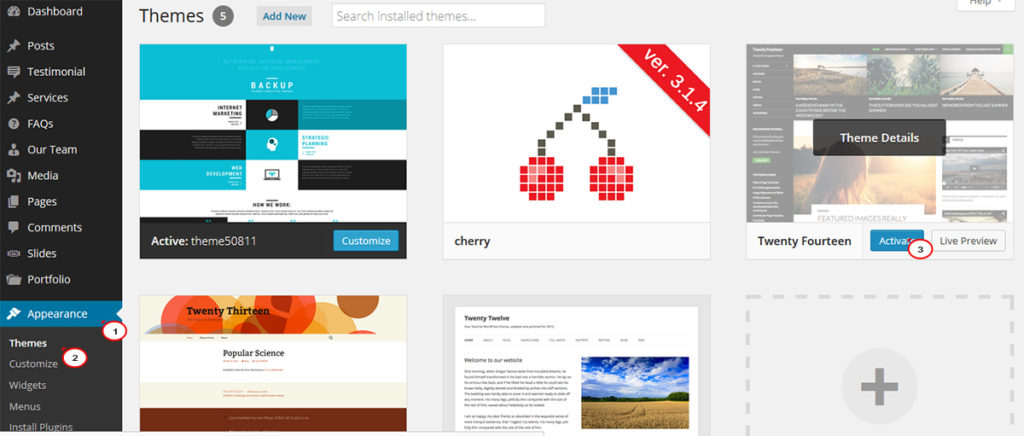
Check for themes you don’t use. Go to your WordPress dashboard. Click on Appearance, then Themes. Look for inactive themes. These are the ones you might remove. Keeping only necessary themes keeps your site clean and fast.
Credit: www.templatemonster.com
Step-by-step Guide To Removing Themes
First, log into your WordPress dashboard. You need your username and password. Once logged in, find the dashboard menu. It’s on the left side.
Click on “Appearance” in the menu. Then select “Themes”. This opens the theme page. Here, you see all your themes.
Find the theme you don’t need. Click on it to see details. Then click “Delete” at the bottom right. Confirm you want to delete. The theme is now gone.
Alternative Methods For Theme Removal
FTP helps to delete themes easily. Connect to your server using an FTP client. Locate the wp-content folder. Inside it, find the themes folder. Identify the theme to remove. Right-click on the theme folder. Choose the delete option. This action removes the theme from the site. Ensure you don’t delete the active theme. Double-check before deleting anything.
cPanel offers a simple method for theme removal. Log into your cPanel account. Navigate to the File Manager section. Open the public_html directory. Inside, locate the wp-content folder. Find the themes folder. Select the theme you wish to remove. Click the delete button. Confirm the deletion. Check your site to ensure it functions well. Always back up your site before making changes.

Credit: crocoblock.com
Troubleshooting Common Issues
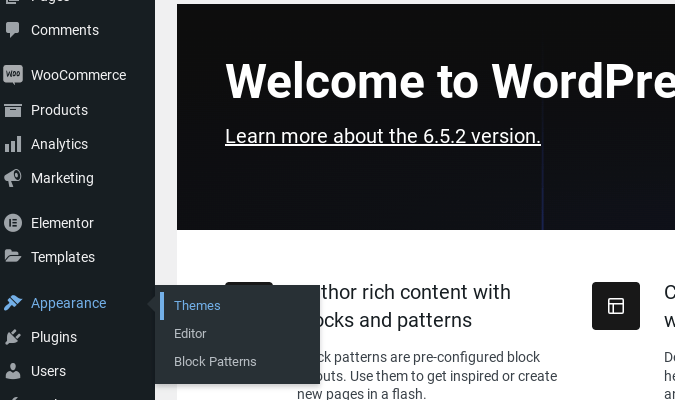
Removing theme templates in WordPress can solve many issues. Navigate to your dashboard, select ‘Appearance’, then ‘Editor’. Locate the template file, delete or replace it. This step ensures your website functions smoothly without unwanted design elements.
Dealing With Theme Dependencies
Some themes need special files to work. Deleting a theme can break these files. This causes your site to not show correctly. Always check what a theme needs before deleting it. Look for any extra plugins or scripts it uses. Make a list of these items. Keep a backup in case you need them again. Check your site’s error logs for missing files. Fix these errors by adding the files back.
Resolving Errors After Deletion
Errors may pop up after removing a theme. Blank pages or broken links are common. First, check your site settings. Make sure all links point to the right place. Your menu and widgets might need fixing. Update them to use the new theme parts. Clear your browser cache to see changes. You can also try re-saving your permalinks. This often fixes broken pages. If problems stay, reinstall the old theme. This helps find what went wrong.
Best Practices After Theme Removal
Always clear your cache after removing a theme. This helps to show the latest changes. Go to your WordPress dashboard. Find the cache plugin. Click on it. Then, choose the option to clear cache. This can fix many display issues on your site.
Check your site’s performance regularly. Use tools like Google PageSpeed Insights. They help find problems. Slow sites make users unhappy. Fix any problems quickly. Keep your site running fast and smooth.
Make sure all other themes are updated. Updates fix bugs and add new features. Go to your dashboard. Click on themes. Update any themes that need it. This keeps your site safe and working well.
Credit: www.crazyegg.com
Frequently Asked Questions
How Do I Safely Remove WordPress Theme Templates?
To safely remove WordPress theme templates, first, switch to a default theme like Twenty Twenty-One. Deactivate and delete the unwanted theme via the WordPress dashboard. Make sure to back up your website before making any changes to prevent data loss.
Can Removing A Theme Affect My Site?
Yes, removing a theme can affect your site if it’s active. Your website’s design and functionality may change. To avoid issues, always switch to a new theme before deleting the old one. Ensure your new theme supports all necessary plugins and features.
What Are The Steps To Delete A WordPress Theme?
To delete a WordPress theme, go to Appearance > Themes in your dashboard. Click on the theme you want to remove, then select “Delete” in the theme details window. Confirm your action to permanently remove the theme from your WordPress installation.
Is It Necessary To Back Up Before Removing Themes?
Yes, it’s essential to back up your website before removing themes. Backing up ensures you won’t lose any data or settings if something goes wrong. Use a reliable backup plugin or your hosting provider’s backup feature to create a complete backup.
Conclusion
Removing WordPress theme templates is simple with the right steps. Start by backing up your site to prevent data loss. Navigate to the WordPress dashboard and locate your theme files. Delete unwanted templates carefully. Check your website after changes to ensure functionality.
Troubleshooting may be necessary. Seek support if issues arise. Regular maintenance keeps your site clean and efficient. Keep exploring WordPress features to enhance your site. Understanding these processes boosts confidence in managing your website. Practice these steps regularly. Your WordPress experience will improve as you refine your skills.



