
Have you ever installed a new WordPress theme, only to find it cluttered with demo content that you didn’t ask for? You’re not alone.
It’s a common hiccup that many WordPress users face, and it can be quite frustrating. You want your website to reflect your unique vision, not someone else’s template. The good news is, removing demo content from your WordPress theme is easier than you might think.
Imagine finally seeing your own content shine, unclouded by placeholders and generic images. With a few simple steps, you can clear the clutter and make your site truly yours. Ready to transform your website into a personalized masterpiece? Let’s dive into the process and get you on the path to a cleaner, more professional-looking site.
Credit: www.wpzoom.com
Backup Your WordPress Site
Backing up your WordPress site is very important. It keeps your data safe. Always create a backup before making big changes. You can use plugins like UpdraftPlus or BackWPup. These tools help you save your site’s data.
You can also use your web host’s backup service. Check if your host offers backups. This adds extra safety. Store your backup in a safe place. Use cloud services like Google Drive or Dropbox. This keeps your backup secure.
Regular backups are a smart habit. They protect you from data loss. Restoring from a backup is easy if you need it. Always be prepared. It’s better to be safe than sorry.
Credit: www.wpzoom.com
Access WordPress Dashboard
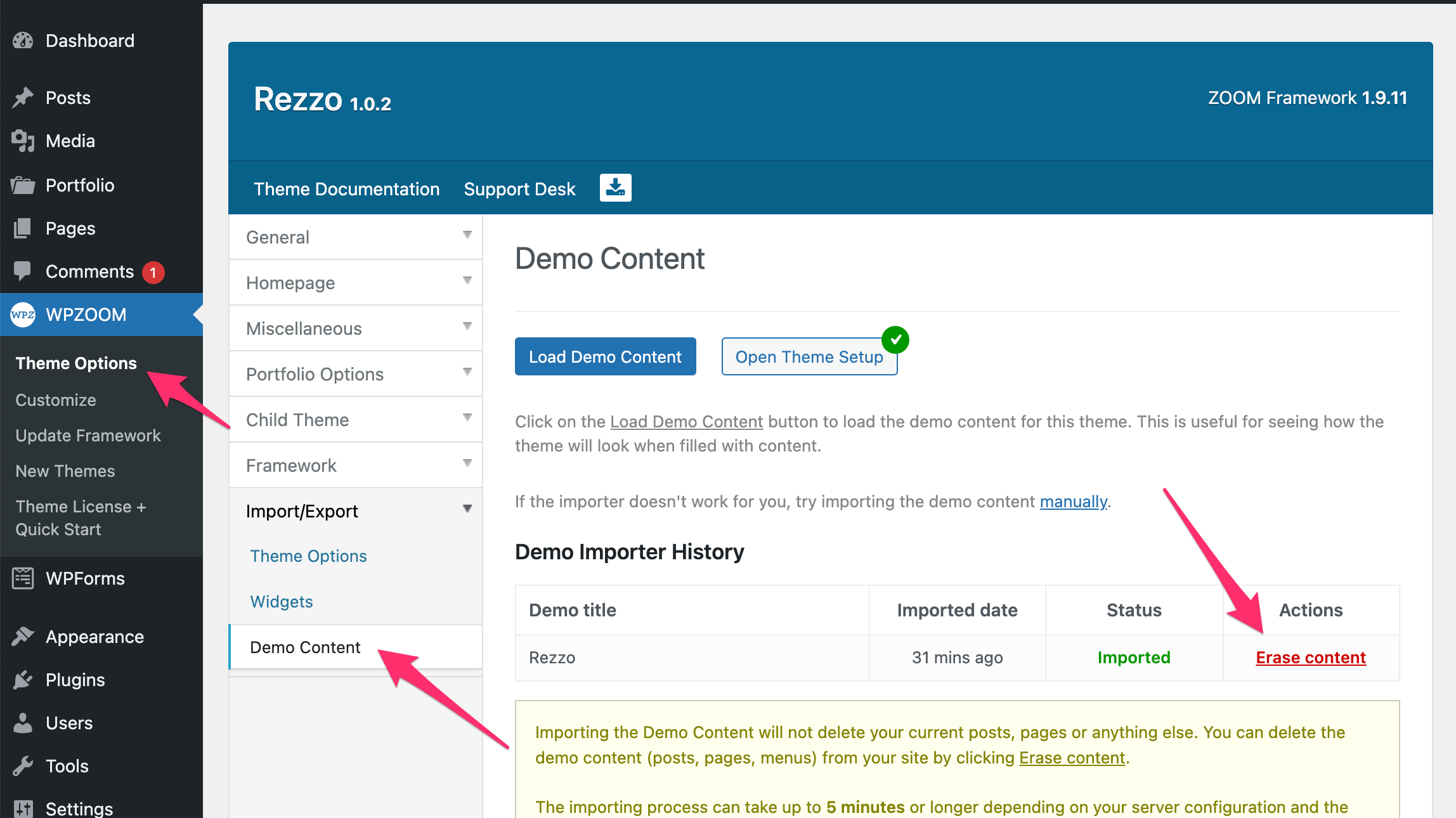
First, open your browser. Type your website address. Add /wp-admin at the end. Press enter. You will see the WordPress login page. Enter your username. Type your password. Click the Log In button. Now, you are in the WordPress dashboard.
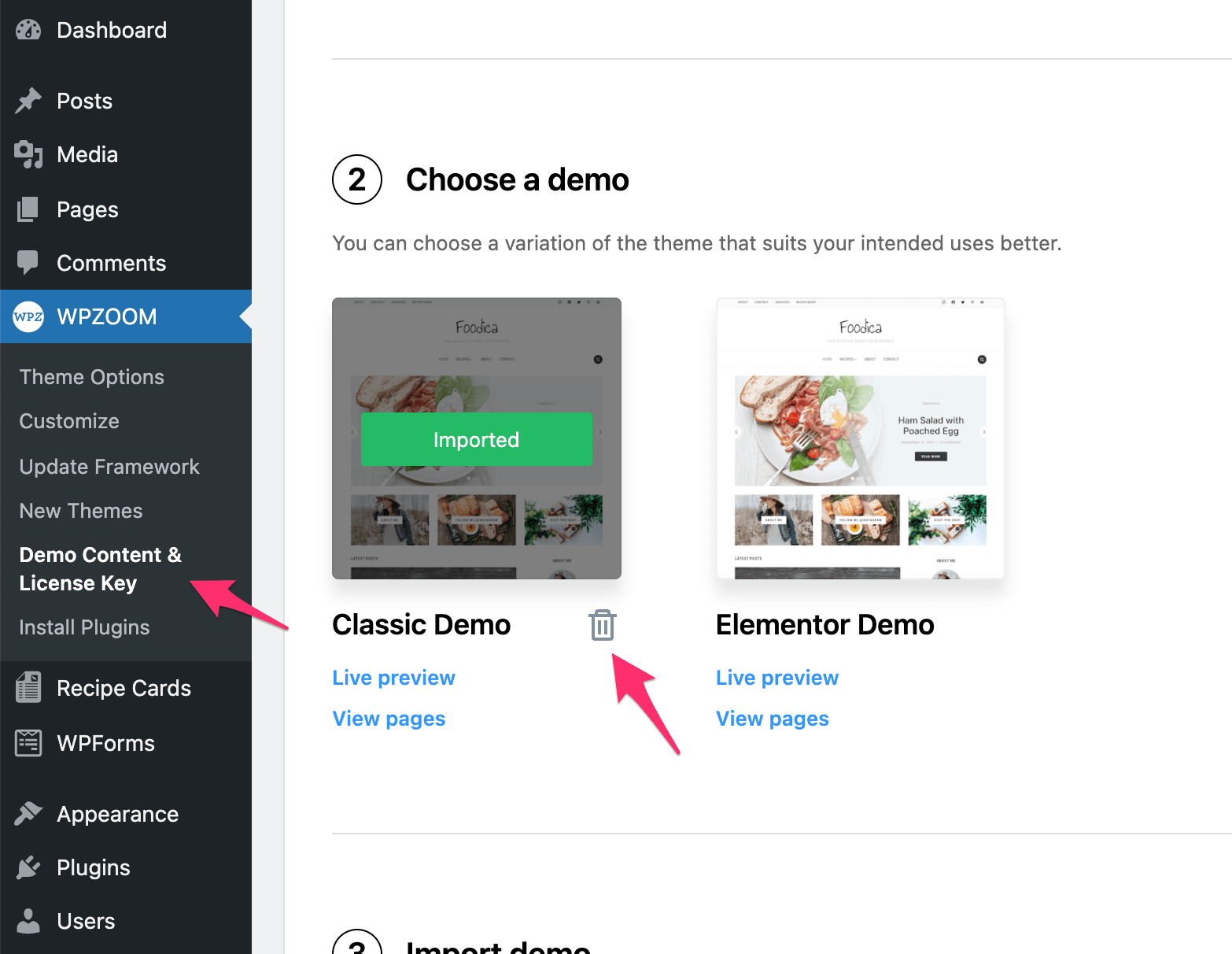
Look for the Appearance menu. Find Demo Content or Theme Options. Click on it. Now, you can manage demo content. Remove the content you don’t need. Save your changes. Check your website to see the updates.
Identify Demo Content
Check the Pages section in your WordPress dashboard. Look for any pages that are not yours. These are often marked as “Sample” or “Demo”. Delete these pages to clean your site. This helps make your site look better.
Visit the Posts section to find unwanted demo posts. They might have titles like “Hello World” or “Demo Post”. Click on them and choose “Trash” to remove. Removing them keeps your blog unique.
Open the Media Library to spot demo images or files. These often include stock photos or logo samples. Select each unwanted file and click “Delete”. This saves space and speeds up your site.

Credit: www.youtube.com
Delete Unwanted Pages
Many WordPress themes come with demo pages. These pages are not needed. To remove them, go to your WordPress dashboard. Find the Pages section. Click on it. A list of pages will appear. Look for the pages you don’t need. Check the box next to each page. Then, click on the Bulk Actions dropdown. Choose Move to Trash. This deletes the selected pages.
Always check the Trash folder. Ensure unwanted pages are there. If you need more space, empty the trash. This action removes pages permanently. Removing unwanted pages keeps your site clean. It improves site speed too.
Remove Demo Posts
Demo posts are often used to fill space on new websites. They can make your site look messy. To remove them, go to your WordPress dashboard. Find the Posts section. Click on All Posts. A list of all your posts will appear.
Select the demo posts you want to delete. Use the checkbox next to each post. Then, click the Bulk Actions dropdown menu. Choose Move to Trash and press Apply. This will remove the selected posts.
Check the Trash folder if needed. You can restore posts from there. Keep your website clean and organized.
Clear Media Library
Bulk Delete helps to remove many files at once. This saves time. First, open the WordPress dashboard. Click on “Media.” Select “Library.” Choose files you want gone. Use “Bulk Select” to mark many files. Press “Delete” to remove them. This clears up space. Makes your site run faster.
Check Unused Files to find more files you don’t need. Some files are not used on your site. They take up space. To check, use plugins like “Media Cleaner.” These tools find unused files. They help to delete them safely. Always back up files before deleting. This prevents loss of important data. Cleaning unused files keeps your library neat.
Reset Widgets And Menus
Widgets show in sidebars. Demo themes have sample widgets. To remove them, go to Appearance > Widgets. Drag unwanted widgets to the left. This deletes them. You can add new widgets to empty spaces.
Menus guide visitors. Demo themes have sample menus. To reset, go to Appearance > Menus. Select the demo menu from the dropdown. Click Delete Menu to remove it. Create a new menu for your site. Add pages and links you want.
Themes might have extra settings. Check for a Reset button in the theme options. This button clears demo content. Always save changes after resetting. Your site should now look clean and custom.
Uninstall Demo Plugins
Go to the WordPress dashboard. Click on the Plugins menu. Find all demo plugins listed. Check the box next to each plugin. Click on Deactivate first. This stops them from running. After deactivation, select Delete to remove them. Confirm the action when prompted.
Removing plugins frees up space. It also makes your site faster. Always be sure to backup your website. Backing up helps if something goes wrong. After removing, check your site. Ensure everything works fine.
Check For Theme-specific Demo Content
Some themes come with demo content. This content helps you set up your site. Check the theme’s options. Find out if the demo content is there. Look for a demo importer tool. This tool often adds the sample content. Remove the demo content from the posts, pages, and media library.
Go to your dashboard. Click on posts or pages. Delete unwanted demo posts. Repeat this for pages and media. Check the widgets area. Some themes add demo widgets. Remove these if they exist. Review the menus. Remove any demo menu items. Always save your changes.
Verify Clean Installation
Open your website in a web browser. Look at each page carefully. Check for any demo content like images or text. This helps spot unwanted content. Make a list of what you see. This way you know what to remove. Ensure all pages load correctly. Check the home page first. Then move to other sections. This makes the job easier.
Look for any error messages on your site. These may appear as warnings. Errors can cause problems later. Fixing them early is best. Use tools to help find errors. Some plugins can help too. Double-check everything on the site. This ensures your site runs smoothly. Avoid skipping this step. It saves time in the long run.
Frequently Asked Questions
How Do I Remove Demo Content?
Access your site’s admin panel. Locate the demo content section. Select the content you wish to delete. Click ‘Remove’ or ‘Delete’ button. Confirm the deletion to remove demo content permanently.
How Do I Remove Theme Content In WordPress?
To remove theme content in WordPress, go to the dashboard. Navigate to Appearance > Themes and activate a different theme. Delete unwanted theme files by clicking “Theme Details” and selecting “Delete. ” Ensure you backup your site before making changes to avoid data loss.
What Is Demo Content In WordPress?
Demo content in WordPress includes pre-designed templates, text, images, and settings. It’s used to preview themes and layouts. This content helps users understand theme functionality and design possibilities. It’s often included with theme installations to give a realistic site demonstration.
How Do I Change My WordPress Theme Without Losing Content?
Changing your WordPress theme won’t affect your content. Backup your site first. Install the new theme, activate it, and customize its settings. Content remains safe since themes don’t alter posts, pages, or media. Test functionality and layout after activation to ensure everything looks correct.
Conclusion
Removing demo content from your WordPress theme is simple. Follow the steps outlined above. Your website will look clean and professional. Regular maintenance keeps your site fresh. Check your content regularly for unwanted items. Keep your site organized and clutter-free.
This enhances user experience and search engine rankings. Managing demo content improves your site’s performance. A clean site attracts more visitors. It boosts engagement and credibility. Keep learning and exploring WordPress features. It makes managing your website easier. Enjoy your clean, demo-free WordPress site.
Your efforts will pay off in the long run.



