
Are you struggling to send your visitors to the right place on your WordPress site? Knowing how to redirect a WordPress page can save you from losing traffic and hurting your search rankings.
Whether you’ve moved content, fixed broken links, or want to guide users to a new page, setting up redirects is essential. You’ll discover simple, step-by-step methods to redirect your WordPress pages quickly and effectively. Stick with me, and you’ll master this skill to keep your site running smoothly and your visitors happy.
Reasons To Redirect WordPress Pages
Redirecting WordPress pages is a common task for website owners. It helps keep your site organized and user-friendly. Redirects guide visitors and search engines to the right content. They prevent errors and improve the overall experience. Here are some important reasons to redirect WordPress pages.
Fixing Broken Links
Broken links frustrate visitors. They lead to pages that no longer exist. Redirects send users to working pages instead. This keeps visitors on your site longer. It also prevents lost traffic and bad impressions.
Improving Seo
Search engines dislike dead or missing pages. Redirects pass ranking power from old URLs to new ones. This helps keep your site’s search rankings stable. Redirects ensure search engines index the right content.
Managing Site Structure
As your site grows, some pages may move or change. Redirects help keep your links clean and organized. They make sure visitors find content easily. Good structure improves usability and site navigation.
Redirecting Old Content
Old pages may become outdated or irrelevant. Redirecting them to newer pages keeps content fresh. It guides users to the latest information. This avoids confusion and improves trust in your site.
Credit: www.lupagedigital.com
Types Of WordPress Redirects
Redirects help send visitors from one URL to another. They ensure users find the right content. Redirects improve user experience and maintain search engine rankings. Different types of redirects serve various purposes in WordPress.
301 Permanent Redirect
A 301 redirect tells browsers and search engines the page moved permanently. It passes SEO value to the new URL. Use 301 redirects when you change a page’s address for good. This helps keep your website’s ranking steady.
302 Temporary Redirect
A 302 redirect shows the move is temporary. It does not pass SEO value to the new page. Use 302 redirects when you want visitors to see a different page for a short time. Search engines keep the old URL indexed.
Meta Refresh Redirect
This redirect uses a small code in the page’s HTML header. It refreshes the page after a few seconds and sends visitors to a new URL. Meta refresh is less SEO friendly and can slow down user experience. Use it only if other redirects are not possible.
Javascript Redirect
JavaScript redirects run on the visitor’s browser using code. They load the current page first, then redirect. Search engines may not always follow these redirects properly. Use JavaScript redirects for special cases, but avoid them for SEO purposes.
Redirecting Using Plugins
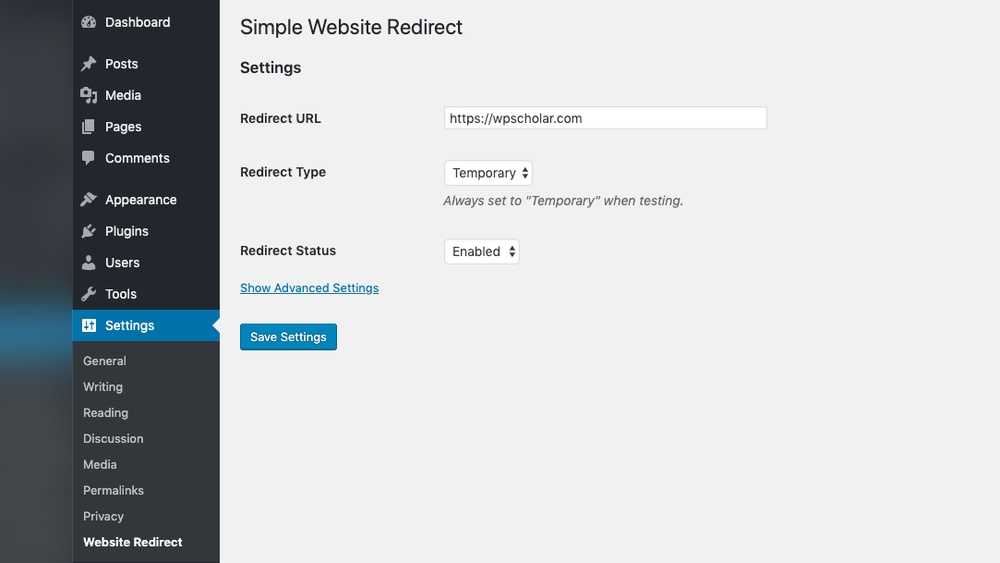
Redirecting WordPress pages using plugins is simple and effective. Plugins handle all the technical work. You do not need to edit code or server settings. This method saves time and reduces errors.
Plugins offer easy tools to set up and manage redirects. They help keep your site organized. Also, they improve user experience by avoiding broken links. Many plugins provide tracking features to monitor redirects.
Choosing The Right Plugin
Pick a plugin that fits your needs. Look for ones with good ratings and regular updates. Check if the plugin supports your WordPress version. Popular options include Redirection and Simple 301 Redirects. Read reviews to find reliable choices.
Setting Up Redirection Plugin
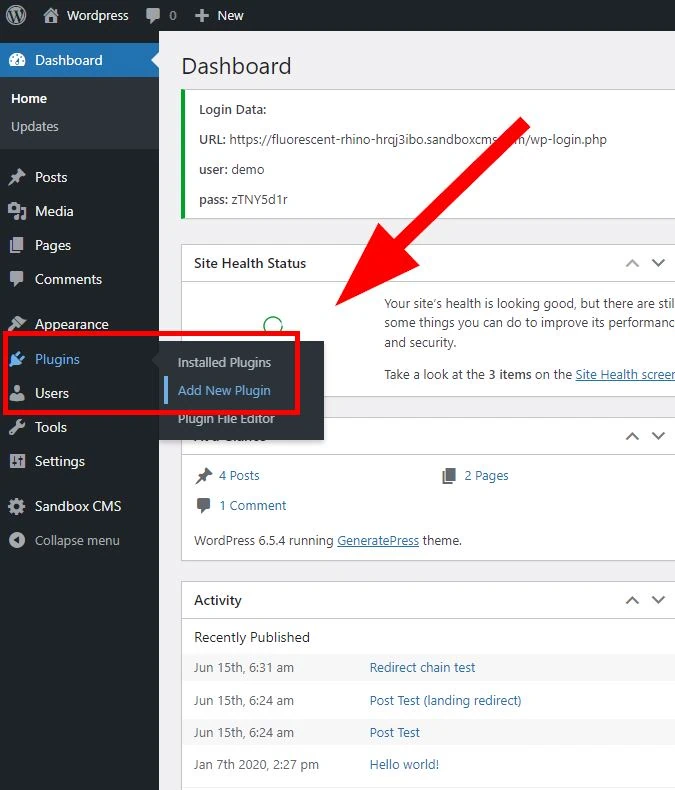
Install the plugin from the WordPress dashboard. Activate it after installation. Go to the plugin settings to configure basic options. Usually, the default settings work well. Enable logging if you want to track redirects.
Creating Redirects With Plugins
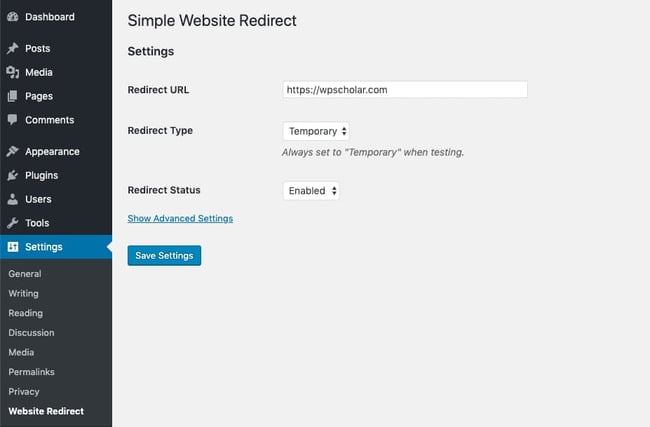
Open the plugin’s redirect manager. Enter the old URL and the new target URL. Choose the redirect type, usually 301 for permanent moves. Save the redirect rule. Test the redirect by visiting the old URL in a browser.
Managing And Monitoring Redirects
Review the list of active redirects regularly. Delete or update any that are no longer needed. Use the plugin’s logs to check redirect performance. Fix any errors or loops that appear. Good management keeps your site healthy and users happy.

Credit: totalwptheme.com
Manual Redirects With .htaccess
Manual redirects using the .htaccess file give you full control over your WordPress site’s URL changes. This method is fast and reliable. It helps you send visitors from old pages to new ones without losing SEO value. It works well for permanent redirects, known as 301 redirects.
This section explains how to find your .htaccess file, add redirect rules, and check if the redirects work. Follow these steps carefully to avoid site errors.
Accessing .htaccess File
The .htaccess file is in your WordPress root folder. Use an FTP client or your web host’s file manager to open it. It might be hidden, so enable “show hidden files.”
Make a backup of the .htaccess file before editing. This helps you restore it if something goes wrong. Open the file with a plain text editor to make changes.
Adding 301 Redirect Rules
To create a redirect, add this line to your .htaccess file:
Redirect 301 /old-page-url/ https://yourwebsite.com/new-page-url/Replace /old-page-url/ with the path of your old page. Replace the full URL with the new page’s address. Add one redirect rule per line for multiple redirects.
Place these rules above the WordPress section in the .htaccess file to avoid conflicts.
Testing Manual Redirects
After saving changes, test your redirects in a browser. Enter the old URL and see if it goes to the new page. Clear your browser cache if you don’t see the change.
Use online redirect checkers to confirm the 301 status. Fix any errors by reviewing your .htaccess rules carefully. Correct syntax is important for redirects to work.
Redirects Via Functions.php
Redirects via functions.php offer a direct way to control page navigation. This method lets you add custom code that sends visitors to another URL. It works well for simple redirects without extra plugins. You can target specific pages or set rules for multiple redirects.
This approach is flexible and fast. It keeps your site light and organized. Coding inside functions.php helps you manage redirects alongside other theme functions.
Editing Functions.php Safely
Always backup your site before editing functions.php. A small mistake can break your site. Use a child theme to avoid losing changes after updates. Access the file via FTP or the WordPress theme editor. Work carefully and test changes on a staging site first.
Adding Redirect Code Snippets
Insert redirect code at the end of functions.php. Use wp_redirect() with exit; to stop loading the old page. For example:
function custom_redirect() { if (is_page('old-page')) { wp_redirect(home_url('/new-page/'), 301); exit; } } add_action('template_redirect', 'custom_redirect');This code sends users from “old-page” to “new-page” with a permanent redirect (301). Adjust URLs and conditions as needed.
Handling Conditional Redirects
You can set different redirects based on conditions. Check user roles, device types, or query parameters. For instance, redirect mobile users to a mobile-friendly page. Use WordPress conditional tags inside your function.
Example:
function mobile_redirect() { if (wp_is_mobile() && is_page('services')) { wp_redirect(home_url('/mobile-services/'), 302); exit; } } add_action('template_redirect', 'mobile_redirect');This code sends mobile visitors from “services” page to “mobile-services” page with a temporary redirect (302).
Common Redirect Mistakes To Avoid
Redirects help guide visitors and search engines to the right page. Mistakes in redirects can cause problems for your site’s traffic and ranking. Avoid common errors to keep your site running smoothly and improve user experience.
Creating Redirect Loops
A redirect loop happens when two or more URLs redirect to each other. This trap causes browsers to load endlessly. It confuses visitors and search engines. Check your redirects carefully to prevent loops. Test each redirect link before making it live.
Using Incorrect Redirect Types
Not all redirects are the same. A 301 redirect means a permanent move. A 302 redirect means temporary. Using the wrong type can hurt SEO. Choose 301 for pages that moved forever. Use 302 only for short-term changes. This helps search engines understand your site better.
Ignoring Redirect Chains
Redirect chains happen when a URL redirects to another URL that also redirects. Chains slow down site loading and waste crawl budget. Keep redirects direct and short. One redirect per URL is best. Clean up any long redirect paths for better site performance.
Tools To Check And Test Redirects
Checking and testing redirects ensures your WordPress site runs smoothly. Redirects guide visitors from old URLs to new ones. This helps keep your site’s SEO strong and user experience seamless. Several tools make it easy to check if redirects work correctly.
Online Redirect Checkers
Online redirect checkers show the full redirect path for any URL. They confirm if a page redirects properly and how many steps it takes. These tools are simple to use and do not need installation. Enter your URL, and the tool shows the redirect chain instantly. They help spot redirect loops or errors fast.
Browser Developer Tools
Most browsers have built-in developer tools to test redirects. Open the Network tab and load the URL to see HTTP status codes. You can watch redirect responses like 301 or 302 in real time. This method is free and does not require extra software. It also helps troubleshoot redirect problems on your site.
Seo Audit Tools
SEO audit tools analyze redirects as part of a site health check. They report broken redirects, chains, and loops that affect SEO. These tools provide detailed reports to fix redirect issues. Using them regularly keeps your site optimized and user-friendly. Many offer free versions with essential redirect checks.
Credit: blog.hubspot.com
Frequently Asked Questions
How Do I Redirect A WordPress Page Easily?
You can redirect a WordPress page using plugins like Redirection or by editing the. htaccess file. Plugins provide a user-friendly interface, while. htaccess requires coding knowledge. Both methods help improve SEO by forwarding visitors to the correct page automatically.
Can I Redirect WordPress Pages Without A Plugin?
Yes, you can redirect WordPress pages without a plugin by adding redirect rules in the. htaccess file or using PHP code in your theme’s functions. php file. This method requires basic coding skills and is useful for simple, permanent redirects to improve user experience.
What Is The Best Plugin For WordPress Page Redirection?
The Redirection plugin is the most popular choice for WordPress page redirection. It is free, easy to use, and supports 301 redirects, 404 error tracking, and conditional redirects. This plugin helps manage redirects efficiently without touching any code.
Will Redirects Affect My WordPress Seo Ranking?
Properly implemented redirects, especially 301 redirects, maintain SEO rankings by passing link equity to the new page. Incorrect or excessive redirects can harm SEO. Always use redirects to guide visitors and search engines smoothly to relevant content.
Conclusion
Redirecting a WordPress page helps keep your site organized and user-friendly. It guides visitors to the right content without confusion. Simple steps make the process easy, even for beginners. Regularly check your redirects to avoid broken links. Proper redirection also improves your site’s SEO and ranking.
Try these tips to manage your pages smoothly. Your website will run better, and visitors will stay longer. Keep your site updated and clear for the best results.



