
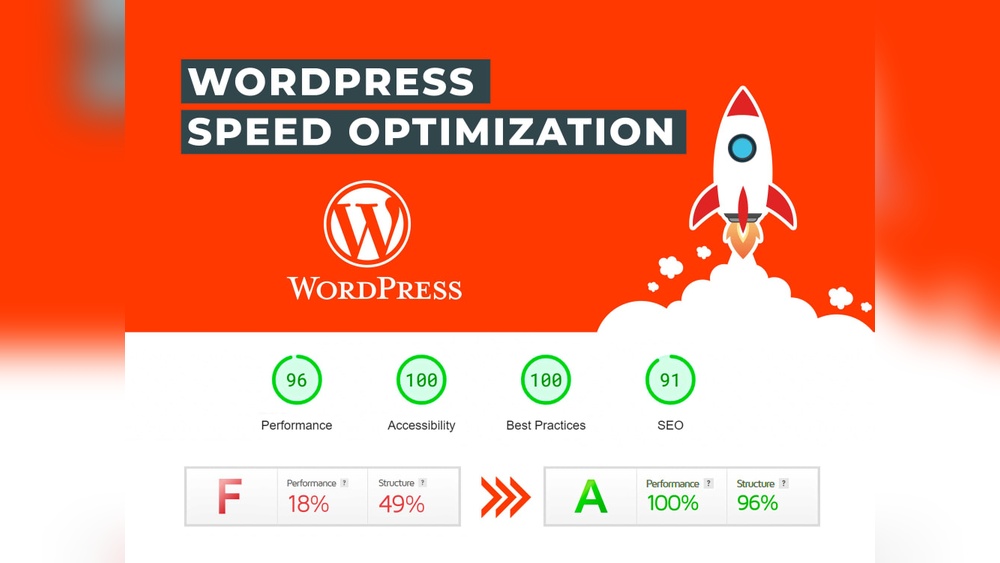
Is your WordPress website loading slowly? If so, you’re not alone—and it’s hurting your chances of keeping visitors and growing your audience.
Imagine your visitors clicking away before your page even fully appears. Frustrating, right? But here’s the good news: you have the power to fix this. By optimizing your site’s speed, you can create a smooth, fast experience that keeps people engaged and coming back for more.
You’ll discover simple, effective ways to boost your WordPress site’s speed—no technical jargon, just clear steps you can follow right now. Ready to make your website faster and stronger? Let’s dive in.
Why Speed Matters
Speed is a crucial factor for any WordPress website. Visitors expect pages to load quickly. Slow sites cause frustration and increase bounce rates. Fast loading keeps users happy and encourages them to stay longer. Website speed also affects how search engines rank your site. Improving speed is a key step in building a successful online presence.
Impact On User Experience
Users prefer websites that load in seconds. Slow pages cause impatience and lost interest. Visitors may leave if a site takes too long. Fast websites provide smooth browsing and easy access. Good speed improves overall satisfaction and trust.
Seo Benefits
Search engines rank faster sites higher. Speed affects your position in search results. A quick site gets more visibility and traffic. Search engines use speed as a ranking signal. Optimizing speed helps improve your SEO performance.
Conversion Rates
Faster websites lead to better conversions. Users complete purchases or sign-ups more often. Slow sites cause users to abandon carts or forms. Improving speed increases sales and leads. Speed helps turn visitors into customers.
Measuring Website Speed
Measuring the speed of your WordPress website is the first step to improve it. Without knowing the current speed, changes may not be effective. Tools and metrics help you see how fast your site loads for visitors. Regular speed tests keep your site running smoothly and improve user experience.
Popular Speed Testing Tools
Several free tools check website speed easily. Google PageSpeed Insights analyzes your site and gives tips. GTmetrix shows detailed performance scores and loading times. Pingdom offers a simple way to test speed from different locations. These tools are user-friendly and provide clear results.
Key Performance Metrics
Focus on important numbers to understand your site speed. Load time shows how long the page takes to appear. Time to First Byte (TTFB) measures server response speed. Largest Contentful Paint (LCP) indicates when main content loads fully. Cumulative Layout Shift (CLS) tracks page stability during loading.
Interpreting Results
Look for high scores and low times for a fast site. A load time under 3 seconds is ideal. High TTFB means slow server or hosting issues. Large CLS values suggest layout shifts that annoy visitors. Use the tool recommendations to fix problems step by step.
Choosing The Right Hosting
Choosing the right hosting is the first step to speed up your WordPress site. Hosting affects how fast your site loads and how well it performs. Picking a good host means your visitors get a smooth experience. Poor hosting can make your site slow and lose visitors. Understanding the types of hosting helps you decide what fits your needs.
Shared Vs Dedicated Hosting
Shared hosting means many websites share one server. It is cheaper but slower. Your site’s speed depends on others using the same server. Dedicated hosting gives you a whole server just for your site. It costs more but is much faster. Your site runs smoothly with no interruptions from others.
Managed WordPress Hosting
Managed WordPress hosting is built for WordPress sites only. It handles updates, security, and backups for you. This hosting is faster because it is optimized for WordPress. It also offers better support for WordPress problems. It saves you time and helps keep your site running fast.
Server Location And Its Effect
Server location affects how fast your site loads for visitors. The closer the server is, the faster the site loads. A server far away takes longer to send data. Choose a host with servers near your visitors. This reduces delay and improves user experience on your site.
Optimizing Images
Images often slow down WordPress websites. Optimizing them helps load pages faster. This keeps visitors happy and reduces bounce rates. It also improves your SEO ranking by speeding up your site.
Image Compression Techniques
Compress images before uploading to your site. Compression reduces file size without much quality loss. Use tools like TinyPNG or ShortPixel for easy compression. Smaller files load faster and save bandwidth. Avoid using uncompressed images directly from cameras or design software.
Using Correct Formats
Choose the right format for each image type. JPEG works well for photos with many colors. PNG is best for images with transparency or fewer colors. WebP is a modern format offering high quality with small size. Using the correct format improves loading speed and image clarity.
Lazy Loading Images
Lazy loading means images load only when visible. It delays loading images below the fold until users scroll down. This reduces initial page load time. WordPress supports lazy loading by default. Plugins can add more control over this feature. Faster initial load improves user experience and SEO.
Leveraging Caching
Caching stores copies of your website files. This reduces loading times for visitors. It helps servers deliver pages faster. Caching also lowers the load on your hosting server. This is essential for a smooth user experience on WordPress sites.
There are different types of caching to use. Each type targets a specific part of your website. Using them together improves speed greatly.
Browser Caching
Browser caching saves website files on a user’s device. These files include images, CSS, and JavaScript. When users visit again, files load from their device. This cuts down load time significantly. Set expiration dates for these files in your website’s code. This tells the browser how long to keep them. It reduces repeated downloads and speeds up return visits.
Page Caching Plugins
Page caching plugins create static versions of your web pages. They serve these pages instead of loading WordPress scripts each time. This process saves server resources and speeds up page delivery. Popular plugins include WP Super Cache and W3 Total Cache. Choose a plugin that fits your site’s needs. Configure it to clear cache regularly to show fresh content.
Object Caching
Object caching stores database query results. This prevents repeated queries for the same data. It improves site speed, especially for dynamic content. Use caching systems like Redis or Memcached. These tools keep data ready for quick access. Object caching reduces server load and speeds up database calls.

Credit: unlimitedwp.com
Minifying Css, Js, And Html
Minifying CSS, JS, and HTML means removing extra spaces, comments, and characters. This process reduces file size. Smaller files load faster, improving website speed and user experience. Minification helps browsers load content quicker and lowers bandwidth use. It is a simple but effective step to optimize your WordPress site.
Tools For Minification
Several tools can minify your website files easily. Plugins like Autoptimize and W3 Total Cache offer built-in minification options. Online tools such as CSS Minifier and JSCompress work well for quick tasks. These tools clean your code without breaking it. Choose a tool based on your comfort and site needs.
Combining Files
Combining multiple CSS and JavaScript files into one reduces HTTP requests. Fewer requests speed up the loading time. Plugins like WP Rocket and Fast Velocity Minify help combine files automatically. This method lowers server load and improves page performance.
Avoiding Render-blocking
Render-blocking files delay page display. CSS and JS files often cause this issue. Use async or defer attributes to load JavaScript without blocking. Place CSS that is critical for above-the-fold content inline. Load other styles after the main content appears. This approach makes your site appear faster to visitors.
Using Content Delivery Networks
Using a Content Delivery Network (CDN) can greatly improve your WordPress website’s speed. A CDN stores copies of your site’s files on servers around the world. When a visitor accesses your site, the CDN delivers content from the server nearest to them. This reduces load time and improves user experience.
CDNs also help reduce the load on your main server. They make your site more reliable during traffic spikes. Many websites use CDNs to ensure fast and smooth performance.
Benefits Of Cdns
CDNs reduce the distance between users and your website’s content. This lowers the time it takes to load pages. Faster loading keeps visitors happy and reduces bounce rates.
They also improve website security. CDNs can block malicious traffic and prevent attacks. Your main server handles less traffic, improving stability.
CDNs support high traffic volumes. This helps your site stay online during sudden visitor spikes. Overall, CDNs boost speed, security, and reliability.
Popular Cdn Providers
Several CDN providers offer easy integration with WordPress. Cloudflare is a popular choice with a free plan. It offers good performance and security features.
KeyCDN is another option known for simple setup and affordable pricing. It has servers worldwide for fast delivery.
StackPath provides strong security and fast content delivery. It also offers a user-friendly dashboard for managing your CDN settings.
Setting Up Cdn With WordPress
First, choose a CDN provider and create an account. Most providers offer step-by-step setup guides.
Install a caching or CDN plugin on your WordPress site. Popular plugins include W3 Total Cache and WP Rocket.
Connect the plugin to your CDN by entering the required API keys or URLs. Enable CDN integration in the plugin settings.
Test your website speed after setup. Confirm that the CDN delivers your content correctly. Your site should load faster for visitors worldwide.
Optimizing WordPress Plugins
Plugins add great features to a WordPress website. But too many plugins or heavy plugins slow down your site. Optimizing plugins helps your site load faster. It also improves user experience and SEO rankings. Focus on choosing the right plugins and managing them well.
Identifying Heavy Plugins
Some plugins use a lot of resources. They increase page load time. Use tools like Query Monitor or P3 Plugin Profiler. These tools show which plugins slow your site. Check plugin reviews for performance issues. Remove or replace the heaviest plugins first.
Keeping Plugins Updated
Plugin developers release updates to fix bugs and improve speed. Running outdated plugins can cause slowdowns. Update plugins regularly to keep your site secure and fast. Always back up your site before updating plugins.
Replacing With Lightweight Alternatives
Not all plugins are equal in size and speed. Find simple plugins that do the same job. Lightweight plugins use less code and load faster. Choose plugins with good ratings and regular updates. Test new plugins on a staging site before live use.
Implementing Amp
Implementing AMP on your WordPress site helps improve loading times on mobile devices. AMP stands for Accelerated Mobile Pages. It creates lightweight versions of your pages. These pages load faster and offer a better experience for visitors using phones or tablets.
Faster pages can reduce bounce rates and increase visitor engagement. AMP also helps your site perform better in mobile search results. Setting it up is simple and can benefit many WordPress users.
What Is Amp?
AMP is a technology that speeds up mobile web pages. It uses a special HTML format that limits certain elements. This makes pages load almost instantly. AMP strips down heavy scripts and styles. It focuses on fast content delivery.
Many search engines prefer AMP pages for mobile users. It improves the usability of your website on small screens. AMP pages are stored in a cache to load quickly anywhere.
Setting Up Amp In WordPress
Start by installing an AMP plugin from the WordPress repository. Popular options include the official AMP plugin by WordPress. Activate the plugin and configure basic settings. You can choose how AMP pages appear on your site.
Check your site’s AMP pages after setup. Use Google’s AMP test tool to ensure there are no errors. Customize templates if needed for branding. Keep your content updated and test regularly.
Pros And Cons
AMP improves loading speed and user experience on mobile devices. It can boost your search rankings for mobile searches. AMP pages use less data, which helps visitors with slow connections.
On the downside, AMP limits some design and functionality options. Some plugins or scripts may not work with AMP. You may need to maintain two versions of your pages. This can require extra work and testing.
Weigh these points before deciding to implement AMP on your WordPress site.
Credit: www.wordfence.com
Database Optimization
Optimizing your WordPress database helps speed up your website. The database stores all your content and settings. Over time, it collects unnecessary data that slows down your site. Cleaning and maintaining the database keeps your site fast and smooth.
Cleaning Unnecessary Data
Remove old post revisions, spam comments, and trashed items. These take up space and slow down queries. Deleting expired transients and unused tables also helps. A clean database reduces the load on your server. This improves page load times for visitors.
Using Database Optimization Plugins
Plugins like WP-Optimize or Advanced Database Cleaner simplify cleanup. They scan and remove junk data safely. These tools also repair and optimize database tables. Running a plugin regularly keeps your database efficient. No need to edit tables manually or use complex commands.
Scheduling Regular Maintenance
Set up a schedule to clean and optimize your database. Weekly or monthly maintenance keeps data manageable. Many plugins offer automated tasks for this purpose. Regular optimization prevents database bloat and performance drops. Consistent care ensures your site stays quick and reliable.
Reducing External Scripts
Reducing external scripts is a key step to speed up a WordPress website. Many sites use scripts from other sources to add features. These scripts can slow down your page load time. Removing or limiting them helps your site load faster and improves user experience.
External scripts include ads, analytics, social media buttons, and fonts. Each script adds extra requests and delays. Optimizing these scripts lowers the total load on your server and browser.
Impact On Load Time
External scripts increase the number of files a browser must load. Each script adds extra time before the page fully appears. Too many scripts cause slowdowns and lag. Visitors may leave if your site takes too long to load.
Scripts from slow servers also delay your page. Some scripts block other parts from loading quickly. Reducing these scripts lowers delays and speeds up your site.
Managing Third-party Scripts
Review all third-party scripts used on your site. Remove those that are not essential. Use plugins to control when and how scripts load. Delay loading scripts until after the main content shows.
Host important scripts locally if possible. This reduces dependence on external servers. Keep scripts updated to avoid security risks and improve speed.
Alternatives To Heavy Scripts
Use lightweight libraries or code snippets instead of large scripts. Replace social media buttons with simple links or icons. Choose faster analytics tools or limit tracking to key pages.
Use system fonts instead of loading custom web fonts. Optimize images and videos to reduce the need for extra scripts. These small changes help your site load quickly without losing features.
Credit: www.cloudways.com
Monitoring And Maintaining Speed
Keeping your WordPress website fast requires constant attention. Speed can drop over time due to updates, new content, or added plugins. Monitoring and maintaining your website’s speed ensures visitors have a smooth experience. It also helps your site rank better on search engines. This section covers key steps to track and maintain your site’s performance.
Regular Speed Audits
Run speed tests often to catch slowdowns early. Use tools like Google PageSpeed Insights or GTmetrix. These tools show what parts of your site need improvement. Check loading times, image sizes, and script performance. Compare results over time to see if changes help.
Automating Performance Checks
Set up automatic tests to save time. Use plugins or services that run regular speed reports. Receive alerts if speed drops below a set limit. Automation keeps you informed without manual checks. Fix issues before they hurt user experience.
Staying Updated With Best Practices
Follow the latest WordPress speed tips. Update themes, plugins, and WordPress core regularly. Outdated software can slow your site or cause errors. Learn about new optimization tools and techniques. Apply proven methods to keep your site quick and reliable.
Frequently Asked Questions
How Can I Speed Up My WordPress Website?
Optimize images, use caching plugins, and choose a fast hosting provider. Minimize CSS and JavaScript files. Use a content delivery network (CDN) to improve load times globally.
What Plugins Help Improve WordPress Site Speed?
Popular plugins like WP Rocket, W3 Total Cache, and Autoptimize optimize caching and minification. They reduce page load times and improve user experience effectively.
Does Image Optimization Affect WordPress Speed?
Yes, optimized images load faster and reduce server load. Compress images without losing quality and use modern formats like WebP for better speed.
How Important Is Hosting For WordPress Speed?
Hosting greatly impacts speed. Choose a reliable, fast server with good uptime. Managed WordPress hosting often provides optimized environments for better performance.
Conclusion
Speed matters for every WordPress website. Fast sites keep visitors happy and improve rankings. Use simple tools like caching, image compression, and a good hosting service. Clean your site by removing unused plugins and themes. Test your site speed often to spot issues early.
Small steps add up to a smoother, quicker site. Keep improving regularly to stay ahead. A fast website means better user experience and more success.



