
Are you struggling to customize the menu in your WordPress 2017 theme? You’re not alone.
Many WordPress users find themselves puzzled when trying to adjust their website’s menu layout. A well-organized menu is crucial for guiding your visitors exactly where you want them to go. Imagine leading your audience seamlessly through your site, helping them find what they need effortlessly.
This guide will show you step-by-step how to move your menu in the WordPress 2017 theme, ensuring your site is both user-friendly and visually appealing. Stick around, and you’ll soon master this essential skill, enhancing your website’s functionality and your visitors’ experience.
Credit: www.elegantthemes.com
Accessing WordPress Dashboard
Accessing the WordPress dashboard allows users to move menus in the 2017 theme easily. Navigate to “Appearance” and select “Menus” to rearrange or edit menu items. Save changes to update the website’s navigation structure seamlessly.
Logging Into WordPress
First, open your browser. Type in your website URL. Add “/wp-admin” at the end. Press “Enter”. Now, you see the login page. Enter your username and password. Click the “Log In” button. You now enter the dashboard.
Navigating To Appearance
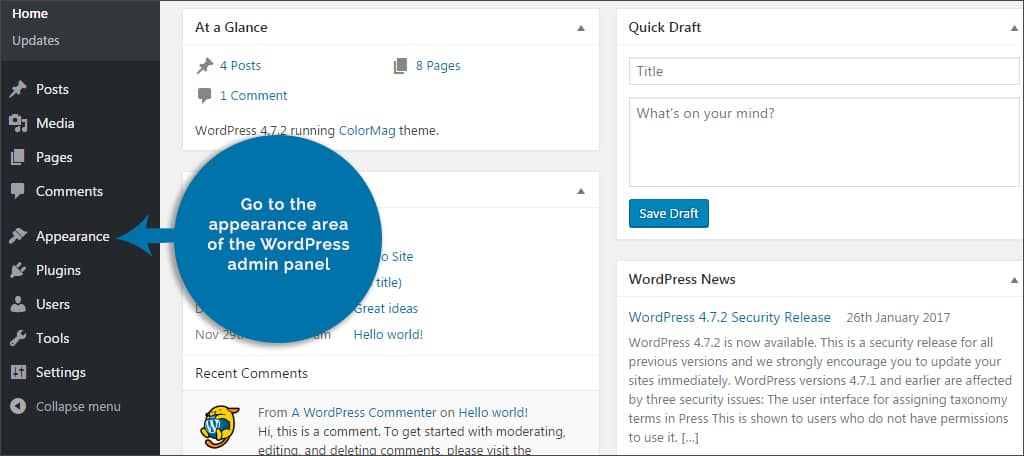
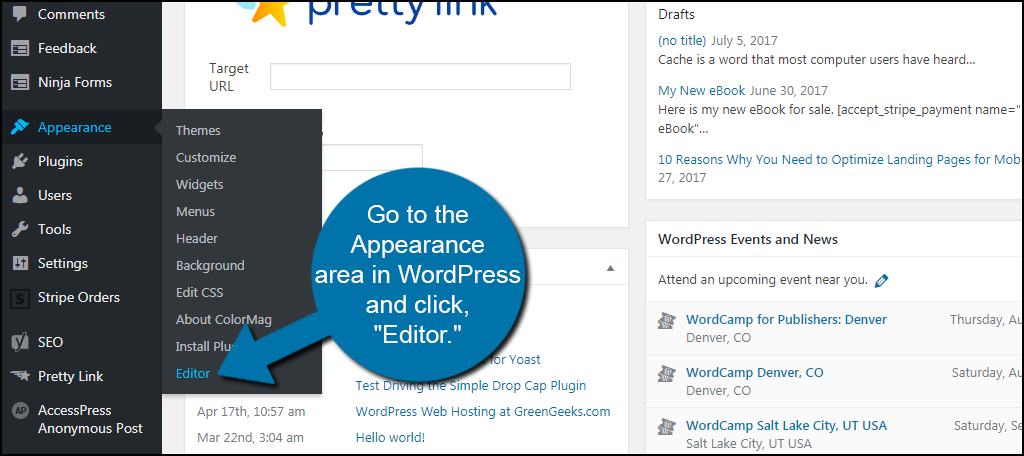
Look at the left side of the screen. Find the menu. Spot the “Appearance” option. Click on it. A dropdown menu appears. Choose “Menus” from this list. Now, you can see all menu settings. Here, you can make changes.
Understanding Menus In WordPress
Menus help users find pages. They guide visitors to important places. In WordPress, menus are easy to manage. You can add or remove items quickly. Menu structure decides how items appear. Items can be pages, links, or categories. Each item shows in a list. Lists can be simple or nested. Nested lists have sub-items. Sub-items appear under main items. This makes menus look tidy. You can reorder items by dragging. Dragging changes their position.
WordPress themes have menu spots. These spots are called menu locations. Locations may be in the header or footer. Some themes offer sidebar menus. You choose where menus appear. Move menus by selecting a new location. Changing locations is easy. Use the customizer or menu settings. Some themes have many locations. Others have just a few. It’s good to know your theme options. This helps in planning your site menu.
Editing Menus
Adding a new menu item is easy. First, go to the Appearance section in your dashboard. Click on Menus. You will see a list of your current menus. Find the Add Items button. Choose the page or link you want. Click Add to Menu. Your new item will appear in the menu list. Remember to click Save Menu when done.
Removing a menu item is simple. Look for the menu you want to edit. Find the item you wish to delete. Click on the small arrow next to it. A drop-down will appear. Click the Remove button. This will delete the item from the menu. Do not forget to hit Save Menu after removing the item.
Changing Menu Location
The primary menu is important for navigating your site. To move it, go to the WordPress dashboard. Find the Appearance tab. Click on Menus. You will see a list of menus. Select the one you wish to change. Look for Menu Settings. Check the box for Primary Menu. Save your changes. Your menu will appear in its new spot.
The secondary menu is useful for extra links. Moving it is easy. Visit your WordPress dashboard. Go to Appearance and then Menus. Choose the menu to adjust. Find Menu Settings again. Click the option for Secondary Menu. Save your settings. This menu will now show up where you want.
Customizing Menu Appearance
CSS helps to change the look of your menu. It makes the menu more colorful. You can set the background color to blue or green. Change the font size to big or small. Adjust the spacing between words. You can make the menu look bold or italic. CSS adds special effects like shadows. It helps the menu stand out.
Every theme has its own style. You can mix your menu with the theme. This makes the menu look like part of the website. Use the theme’s colors and fonts. It helps the menu match the website’s design. Always check the menu on different devices. Make sure it looks good on phones and tablets. A well-integrated menu makes the site easy to use.
Troubleshooting Menu Issues
Struggling with menu placement in the WordPress 2017 theme? Adjusting your menu location is easy. Access the WordPress dashboard, navigate to Appearance, and select Menus. From there, you can drag and drop menu items to your preferred location, ensuring a seamless navigation experience.
Common Problems And Fixes
Many users face menu issues in WordPress 2017 theme. Menus may not show up in the right spot. Sometimes, the menu items get mixed up. This can be confusing. First, check the menu location settings. Go to Appearance, then Menus. Ensure your menu is assigned to a location. Next, check for conflicting plugins. Turn off all plugins. Then, turn them back on one by one. This will help find the problem plugin. Updating your theme can also help. Always keep your theme and plugins up-to-date.
Using Plugins For Assistance
Plugins can fix menu problems. Use a plugin like Max Mega Menu. It helps in creating and managing menus. This plugin is easy to use. Install it from the plugin store. Then, activate it. It gives you more control over your menu. Plugins like WP Super Cache might also help. They clear cache issues. This can solve display problems. Remember to check plugin compatibility. Some plugins may not work well together. Always read user reviews before installing.
Saving And Previewing Changes
Easily save and preview menu changes in the WordPress 2017 theme by clicking the “Save Menu” button. Use the “Customize” feature to see real-time updates, ensuring your new menu layout looks perfect before going live.
Saving Menu Adjustments
Click Save Menu to keep your changes. This button is at the top. The changes will stay saved. Ensure all menu items are correct. Double-check links and names. Check the menu order. Saving protects your adjustments. Never forget to save. Changes need to be saved often. Saving is important. It makes sure your work is safe.
Previewing On Live Site
Preview your menu changes on the live site. Look for the Preview button. It shows how your menu looks. Check for errors or mistakes. Ensure everything works well. The preview is like a test. You see the real site view. Fix any problems you find. Preview before showing the world. It helps you catch mistakes early.
Credit: www.greengeeks.com
Credit: www.greengeeks.com
Frequently Asked Questions
How To Move The Menu In WordPress 2017 Theme?
To move the menu in the WordPress 2017 theme, go to the WordPress Dashboard. Navigate to Appearance > Menus. Drag and drop the menu items to rearrange them. Save your changes to update the menu’s position on your site.
Can I Change Menu Location In WordPress 2017?
Yes, you can change the menu location. Go to Appearance > Menus. Under the ‘Menu Settings’, select the desired display location for your menu. Save your changes. This will update where the menu appears on your WordPress site.
What Are The Menu Customization Options?
WordPress 2017 theme offers several customization options. You can change the menu’s order, add or remove items, and assign menus to different locations. Access these options in the WordPress Dashboard under Appearance > Menus. Customize it to fit your site’s needs.
Is It Possible To Create A Dropdown Menu?
Yes, you can create a dropdown menu. In the Menus section, drag an item slightly to the right under another. This creates a submenu. Save your changes to make the dropdown menu appear on your site.
Conclusion
Mastering the WordPress 2017 theme menu is now simpler. Follow the steps, and your site menu will move effortlessly. Practice makes perfect. Spend time experimenting with different layouts. Explore design options to enhance user experience. A well-placed menu boosts navigation.
Visitors find content faster. This guide helps you achieve an organized, attractive site. Menu placement is crucial in web design. Your WordPress site becomes more user-friendly. Keep learning and improving your skills. Customizing WordPress can be fun and rewarding. Enjoy creating a site that stands out.
Your website deserves the best look and feel.



