
Are you tired of your website’s header vanishing whenever visitors scroll down? You’re not alone.
Many WordPress users face this frustrating issue, and it can impact your site’s functionality and user experience. A disappearing header can leave your website looking unprofessional and make it difficult for visitors to navigate. But don’t worry, you’re about to discover how to keep your header fixed, ensuring it stays visible and enhances your site’s appeal.
In this guide, you’ll learn simple, effective techniques to make your WordPress header stay put. Ready to transform your website’s look and feel? Let’s dive in and get your header to stand its ground!

Credit: www.flawlessthemes.com
Sticky Header Basics
Sticky headers keep the top menu visible. This helps users find pages fast. Navigation becomes easy. Users don’t scroll back to the top. This saves time. Websites look more professional. Sticky headers can improve the user experience. More time on a site can mean more engagement. This can lead to better visitor retention. It is an important feature for many websites.
Some themes do not support sticky headers. This makes setup hard. Code changes might be needed. Not all users know how to code. This can be a problem. Sticky headers can also slow down pages. This affects website speed. Slow websites can lose visitors. It’s vital to find a balance. Some plugins can help solve these issues.
Credit: www.liquidweb.com
Theme Compatibility Check
Start by finding your theme’s name. Go to the WordPress dashboard. Click on Appearance. Then click on Themes. The active theme is listed first. Write down the theme’s name. This helps in the next steps.
Visit your theme’s settings. Look for a Header or Sticky Header option. Some themes have built-in support. If you see this option, enable it. If not, don’t worry. Other solutions exist.
Using Plugins For Sticky Headers
Enhance your WordPress theme with sticky headers using plugins. They ensure the header stays visible as users scroll. This feature improves navigation, making websites user-friendly and engaging.
Popular Plugins Overview
Many plugins help make headers sticky. Sticky Menu, Sticky Header is a popular choice. It allows easy customization. Another option is Sticky Header on Scroll. This plugin works well with most themes. WP Sticky offers advanced options. Users like its flexibility.
Installation And Setup
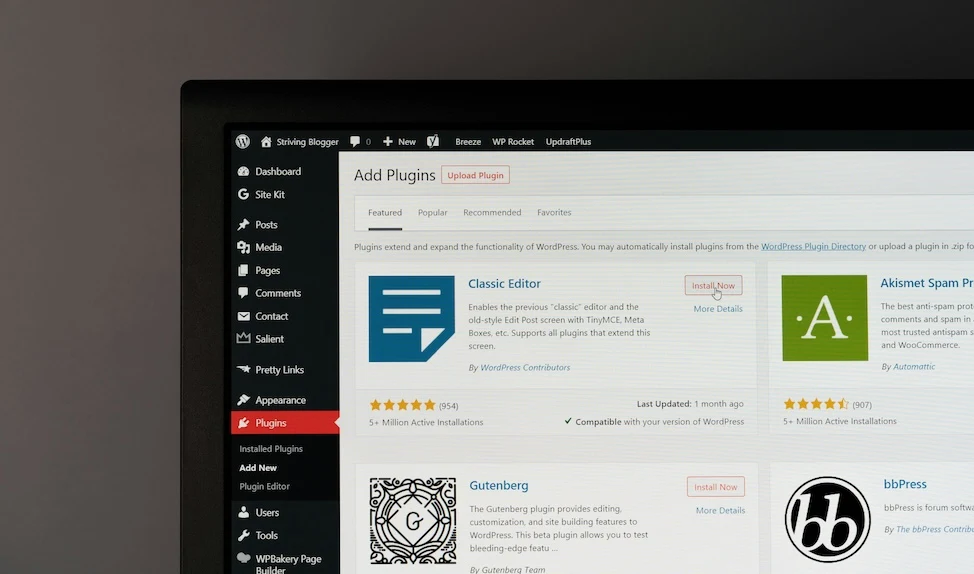
Installing a plugin is simple. First, go to the WordPress dashboard. Click on Plugins, then Add New. Search for your desired plugin. Click Install, then Activate. Setup varies by plugin. Usually, find settings under Appearance or Settings. Adjust the header options as needed.
Custom Code Solutions
CSS can make your header stay visible. Add a CSS class to your header. Use position: sticky; in your style sheet. Set top: 0; to fix the header at the top. This makes the header stick when you scroll. Make sure the header’s parent has a defined height. Try adjusting z-index to ensure the header stays on top.
JavaScript can enhance sticky headers further. Use JavaScript to listen for scroll events. Check if the page is scrolling. Add a class to the header when scrolling. This class can change the header’s look. Remove the class when scrolling stops. JavaScript can also smooth header transitions. Simple code makes big changes.
Testing And Troubleshooting
Fixing a disappearing header in a WordPress theme involves checking theme settings and customizing CSS. Ensure the header is not set to hide in the theme options. If needed, use custom CSS to keep it visible across all pages.
Common Issues
Headers often disappear in WordPress themes. This can confuse users. Common issues include CSS conflicts and theme bugs. Sometimes, plugins cause problems. A missing header makes navigation hard. Users may leave your site if they can’t find links. Check your theme settings first. Ensure the header is enabled. Look for any CSS codes that hide the header. These codes often start with “display: none”. Remove or fix them. Update your theme regularly. Updates fix bugs. Keep plugins updated too. Old plugins might break your site.
Debugging Techniques
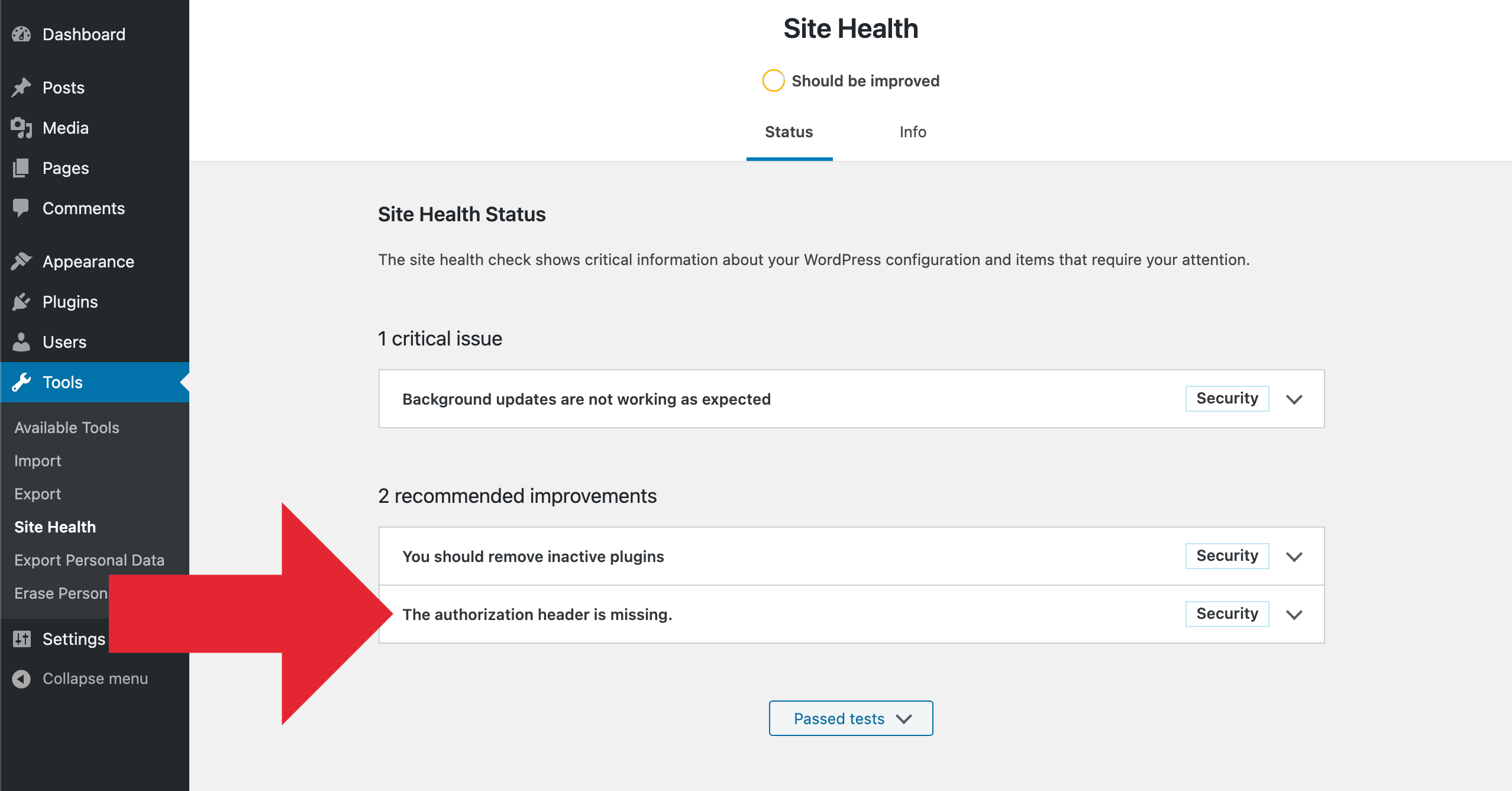
Debugging helps solve header issues. Use inspect element in browsers. Right-click the header area. Then, choose “inspect”. Check for CSS rules hiding the header. If codes are wrong, correct them. Disable plugins one by one. This checks if a plugin causes the problem. Change themes temporarily. This helps see if the theme is the issue. Clear your browser cache. Cached data might show an old version. Use debugging plugins for more help. These plugins show errors clearly. Always back up your site before big changes.
Responsive Design Considerations
Mobile users need easy navigation. Headers should be visible on small screens. Use CSS media queries to adjust header size. Keep buttons and links large for touch screens. Avoid too much content in the header. This helps in faster loading.
Different browsers can show websites differently. Use standard HTML and CSS. Test your site in popular browsers like Chrome, Safari, and Firefox. Ensure that the header does not disappear in any browser. Use tools like BrowserStack for testing. Keep the design simple for better compatibility.
User Experience Improvements
Headers should stay visible. They help users navigate. This improves user experience. A disappearing header can confuse visitors. Keep your header fixed. This means it won’t move as users scroll. Add clear menus. Use simple colors. Avoid too many animations. Each element should have a purpose.
Design should be clean. Focus on clarity. Users need to find information quickly. Make buttons large enough. Use readable fonts. Limit text on the header. Every detail matters. Check responsiveness on all devices.
Headers must be accessible. Screen readers should read them easily. Use proper tags like . Ensure contrast between text and background. This helps people with vision issues. All links should be keyboard-friendly. Test your site with accessibility tools. Improve where needed.
Alt text on images is vital. Describe images clearly. Users with disabilities rely on this. Every user deserves an easy experience. Accessibility is about inclusiveness. Make your site welcoming for all.
Credit: digwp.com
Frequently Asked Questions
How To Keep Header Fixed In WordPress Theme?
To keep your header fixed, use the CSS property `position: fixed;`. Add this to your theme’s stylesheet. Ensure the header has appropriate `z-index` and width settings. This helps the header remain visible as users scroll. Always back up your stylesheet before making changes.
Why Does My WordPress Header Disappear On Scroll?
Headers might disappear due to CSS settings like `position: absolute;`. Check your theme’s CSS and adjust to `position: fixed;`. This ensures the header remains visible during scrolling. Testing these changes in a child theme is advisable.
Can Plugins Help Fix A Disappearing Header?
Yes, plugins like “Sticky Menu (or Anything) on Scroll” can help. They provide easy options to make headers sticky. Plugins are user-friendly and require minimal coding knowledge. Always ensure the plugin is compatible with your WordPress version.
What Role Does Z-index Play In Header Visibility?
The `z-index` property controls the layering of elements. A low `z-index` may cause the header to be hidden. Set a higher `z-index` for your header to ensure it stays on top. This ensures visibility over other elements.
Conclusion
Keeping headers visible enhances user experience. A disappearing header confuses visitors. Simple fixes often solve this issue. Check theme settings first. Explore plugins for quick solutions. Custom code can help too. Always back up your site before changes. Experiment with different methods.
Choose what suits your needs best. Troubleshooting takes patience and practice. Maintain consistency across your website. A stable header offers clarity. Visitors appreciate smooth navigation. Implementing these tips boosts site usability. Your website deserves a seamless experience. Keep refining and updating your skills.
Happy blogging!



