
Are you struggling to find the right way to log in to your WordPress admin dashboard? You’re not alone.
Getting quick and easy access to your site’s backend is the first step to managing your content, customizing your design, and growing your online presence. In this guide, you’ll discover simple, clear steps to log in without frustration. By the end, you’ll feel confident navigating your WordPress admin like a pro—saving time and avoiding common pitfalls.
Keep reading to unlock your site’s full potential today.
Credit: www.hostinger.com
Accessing The Login Page
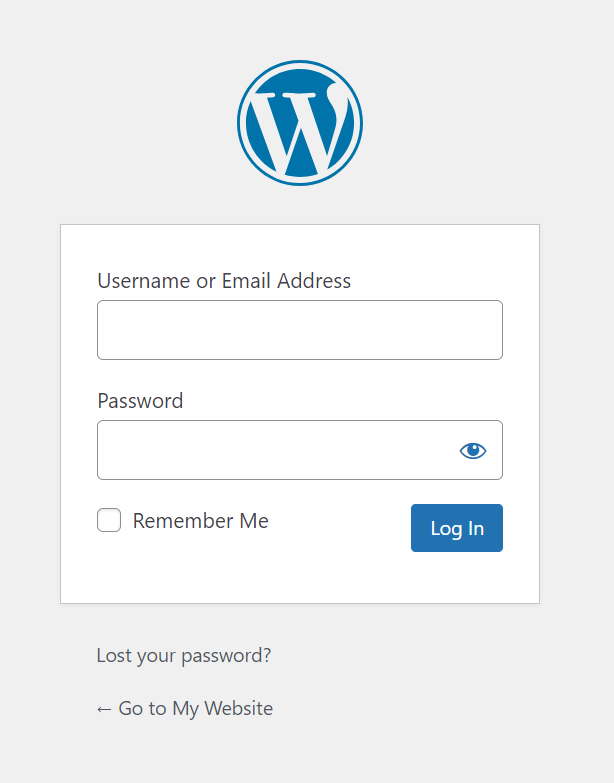
Accessing the WordPress admin login page is the first step to managing your website. This page lets you enter your username and password. Once logged in, you can add posts, change designs, and manage settings. Knowing the correct URL to reach this page is important. It helps you avoid confusion and saves time.
Default WordPress Login Urls
WordPress uses standard URLs to access the login page. The most common URL is yourwebsite.com/wp-admin. Typing this URL in your browser redirects you to the login screen. Another option is yourwebsite.com/wp-login.php. Both URLs work the same way. Use these if you have not changed your login page address.
Custom Login Url Options
Many website owners change their login URLs for better security. Custom URLs stop hackers from finding the login page easily. Plugins like WPS Hide Login help you create a new URL. For example, instead of /wp-admin, you might use /mylogin. Remember your new login URL. Without it, you cannot access your admin panel.
Credit: www.ionos.com
Entering Your Credentials
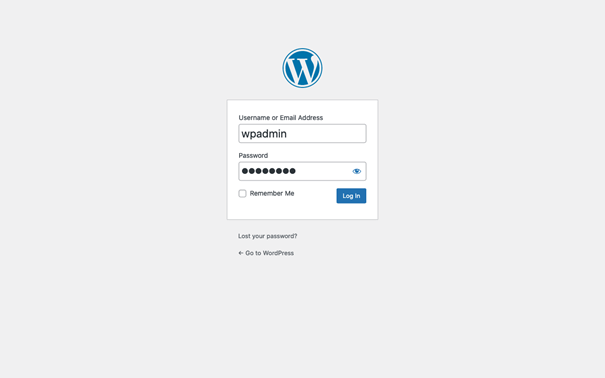
Entering your credentials is the key step to access your WordPress admin area. This process requires you to provide your username and password accurately. The login page is secure, so your information stays safe during entry.
Pay close attention to typing your details. Small mistakes can cause login errors. Knowing some tips about usernames and passwords can make this step easier.
Username And Password Tips
Choose a username that is easy to remember but hard to guess. Avoid using common names or simple words. Use a mix of letters and numbers if possible.
Your password should be strong. Combine uppercase letters, lowercase letters, numbers, and symbols. Avoid simple passwords like “123456” or “password”. Change your password regularly for better security.
Using Email To Login
WordPress allows using your email address instead of your username. This can be easier to remember. Enter the email linked to your WordPress account in the username field.
Make sure your email is correct and active. Using email helps if you forget your username. It also offers a smoother login experience.
Resetting Your Password
Resetting your WordPress admin password is simple and quick. It helps you regain access if you forget your login details. This process keeps your website secure and accessible only to you.
Using The Forgot Password Link
On the WordPress login page, find the “Lost your password?” link. Click this link to start the reset process. It directs you to a page where you enter your username or email.
Reset Via Email Instructions
After submitting your username or email, check your inbox. WordPress sends a reset link to your registered email address. Click the link and follow the steps to create a new password.
Troubleshooting Login Issues
Login issues on WordPress can block access to your website’s admin area. These problems are often simple to fix with some basic steps. Troubleshooting helps find the exact cause and solve it fast. Follow clear methods to restore your login access quickly.
Clearing Browser Cache And Cookies
Sometimes, old cache and cookies cause login errors. Clear your browser cache to remove stored data. This action refreshes your browser and can fix login problems. Clear cookies related to your WordPress site. Restart the browser and try logging in again.
Disabling Plugins Causing Conflicts
Plugins can sometimes block the login page. Disable all plugins to check if one causes the issue. Use FTP or hosting control panel to rename the plugins folder. This step turns off all plugins at once. Try logging in after disabling plugins. Reactivate plugins one by one to find the problem.
Checking Hosting Server Status
Your hosting server might be down or facing issues. Check your hosting provider’s status page for any outages. Server problems can stop WordPress from loading properly. Contact hosting support if you see ongoing server issues. Wait for the server to be fixed before trying again.
Enhancing Login Security
Protecting your WordPress admin login is key to keeping your site safe. Strong login security stops hackers from gaining access. It also helps avoid data loss and site damage. Simple steps make a big difference in security. Follow these tips to enhance your login safety.
Enabling Two-factor Authentication
Two-factor authentication adds a second step to login. After entering a password, you confirm with a code sent to your phone. This extra step blocks many unauthorized logins. Many WordPress plugins offer easy setup for two-factor authentication. Use this method to add a strong layer of protection.
Using Strong Passwords
Passwords protect your admin area from unwanted access. Use long passwords with letters, numbers, and symbols. Avoid common words, names, or simple patterns. Change passwords regularly to keep them secure. A strong password makes it much harder for hackers to break in.
Limiting Login Attempts
Limiting login attempts stops repeated guessing of passwords. Set a limit on how many times someone can try to log in. After several failed tries, block the IP address temporarily. This slows down attackers and protects your site from brute force attacks. Many plugins can help set this up easily.

Credit: jetpack.com
Logging Out Safely
Logging out safely from your WordPress admin area protects your site and personal information. It prevents others from accessing your dashboard if you share a computer or use public Wi-Fi. Always follow safe logout habits to keep your site secure.
Proper Logout Steps
Click your profile icon at the top right corner of the admin bar. Select the “Log Out” option from the dropdown menu. Wait for the logout confirmation page to load fully. Close the browser window or tab to clear session data. Avoid just closing the browser without logging out first.
Managing Multiple Sessions
WordPress lets you view and manage active sessions. Go to “Users” then “Your Profile” in the dashboard. Scroll to the “Sessions” section to see devices logged in. End any sessions you do not recognize or no longer use. This stops others from accessing your admin area without permission.
Frequently Asked Questions
How Do I Access WordPress Admin Login Page?
To access the WordPress admin login page, add “/wp-admin” or “/wp-login. php” to your site’s URL. For example, www. yoursite. com/wp-admin. This redirects you to the login screen where you enter your username and password to access the dashboard.
What Should I Do If I Forget WordPress Admin Password?
Click the “Lost your password? ” Link on the login page. Enter your username or email address to receive a password reset link. Follow the instructions in the email to create a new password and regain access to your WordPress admin area.
Can I Change WordPress Admin Username After Login?
WordPress doesn’t allow changing the default admin username directly. You must create a new user with admin rights, log in with that user, and delete the old admin account. This improves security and keeps your site safe from unauthorized access.
Why Can’t I Login To WordPress Admin Dashboard?
Login issues can stem from wrong credentials, browser cache, or plugin conflicts. Clear your browser cache, disable plugins via FTP, or reset your password to troubleshoot. Ensure your site URL and WordPress address settings are correct in the database.
Conclusion
Logging into your WordPress admin is quick and simple. Just remember your username and password. Use the right web address to reach the login page. Keep your details safe to avoid trouble. If you forget your password, use the reset option.
Regular logins help you manage your site easily. Stay calm and follow the steps carefully. Now, you are ready to work on your WordPress site.



