Have you ever stumbled upon a website and thought, “Wow, I love this design”? You’re not alone.
The right WordPress theme can make all the difference, transforming a site from bland to beautiful. But how do you figure out which theme a website is using? It might seem like a mystery, but it’s easier than you think.
Imagine having the power to instantly recognize themes, giving you the insight to enhance your own site. In this guide, you’ll discover simple tricks to uncover any WordPress theme, arming you with the tools to elevate your web presence. Stick around to unlock the secrets of web design mastery!

Credit: www.hostinger.com
Identifying WordPress Themes
Curious about a website’s WordPress theme? Start by checking the page source. Right-click and select “View Page Source.” Look for the style.css file. This file often reveals theme names. Another way is using online theme detector tools. These tools scan the site and provide theme details. Sometimes, the theme name is in the footer. Scroll down and check the footer for theme credits.
Browser extensions can also help. Install a theme detector extension. Click the extension icon while viewing the site. It shows theme information instantly. Some websites may hide theme details. In such cases, use the WordPress Theme Directory. Search the site’s name to find themes used. Exploring the developer tools in the browser can help too. Open developer tools and look for theme information under “Sources.”
Inspecting The Website’s Source Code
Open the website. Right-click anywhere. Choose “Inspect”. A panel will show. Look for style.css file. It’s often in the “wp-content/themes” folder. Click the file. Find the theme name at the top. It’s usually written in comments. Easy to spot. No special skills needed.
Find the theme folder in the source code. Look for style.css again. Search for the URL in the comments. It’s near the theme name. You may see a link. It usually points to the theme’s website. Copy the link. Paste it in your browser. Now you see the theme’s homepage.
Using Online Theme Detector Tools
There are many tools to find out the theme. Some popular ones include What WordPress Theme is That and WPThemeDetector. These tools are easy to use. They are free and provide quick results. Just enter the website URL. They will show you the theme name. Some tools also show plugins used.
Visit the theme detector website. You will see a search box. Type the website URL in the box. Click the search button. Wait a few seconds. The tool will show the theme name. It will also list details about the theme. This includes the author and version. Some tools also show similar themes.
Checking Theme Information In Browser Extensions
Discovering a site’s WordPress theme is simple with browser extensions. These tools reveal theme details quickly, helping users identify design elements and features. Perfect for those seeking inspiration or wanting to replicate a site’s look.
Recommended Extensions
Browser extensions can help you find a site’s theme. Wappalyzer and BuiltWith are popular choices. They are free and easy to use. Both show details about the site’s theme. You can also learn about plugins and other tools. Extensions work on most browsers. They save time and effort.
Steps To Use Extensions
Install the extension from the browser store. Click the icon when visiting a site. The extension will load the site’s details. Look for the theme name in the list. Some extensions offer more information. They might show theme version or author. Check carefully to get all details.
Exploring The Css Stylesheet
The stylesheet holds key details of a WordPress theme. You can find it by adding /style.css at the end of a website’s URL. This file often contains information like the theme’s name and author. Look for lines with “Theme Name” or “Author”. These lines give hints about the theme. It might also show the version of the theme. Sometimes, the license details are there too. This is how developers identify themes.
Theme details help understand a site’s look. The style.css file often lists the theme description. You can learn its purpose here. It might say if it’s for blogs or stores. The file might also show tags. Tags tell what features the theme has. Features like responsive design or custom menus. This is how themes are chosen for projects. It guides users in theme selection.

Credit: www.wpbeginner.com
Consulting The Website Owner
Finding the website owner is a good start. Look for the contact page on the site. You might find an email address or a contact form. Social media links can also be helpful. Try to send a polite message. Explain your interest in the WordPress theme they use.
Ask simple questions. What theme does the site use? Is it a custom theme or a popular theme? Are there any special features? Knowing these can help you decide if the theme fits your needs. Be respectful and patient while waiting for a reply.
Analyzing Themes In The WordPress Repository
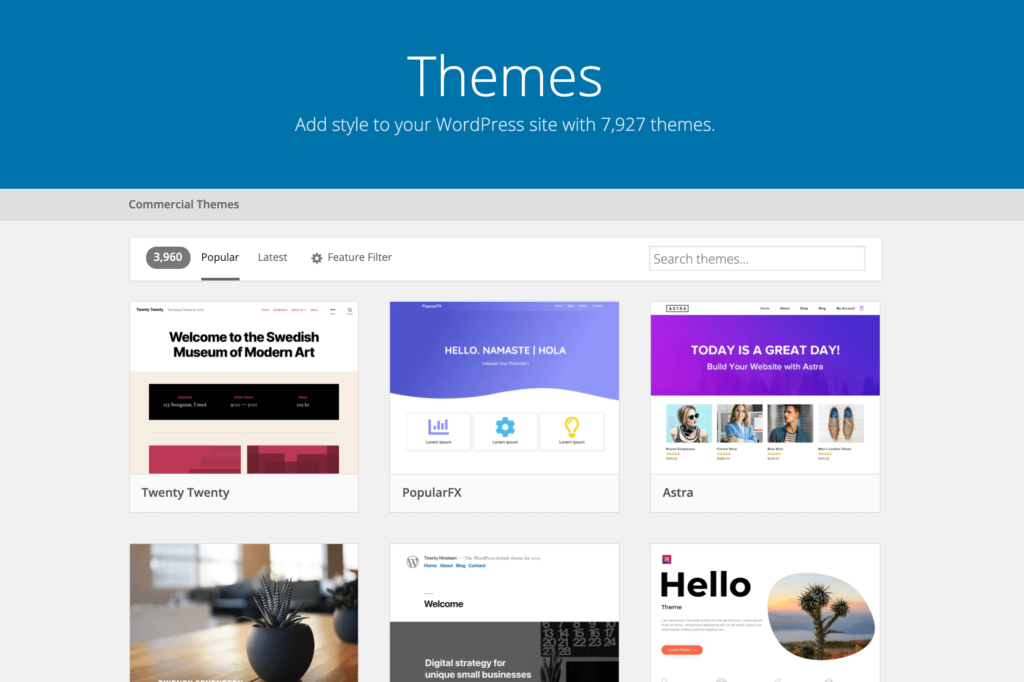
Many websites use WordPress themes. To find the theme, visit the WordPress repository. Type the theme name in the search box. See if it matches the site’s design. The repository has many themes. Some are free. Some need payment. Always check the features of the theme. Look at the design and layout. Make sure it is the same as the site you like.
Each theme has different features. Some themes are simple. Some are complex. Check the customization options. Look for colors, fonts, and layouts. See if it has a responsive design. This means it works on phones and tablets. Some themes support plugins. Plugins add more features to your site. Choose a theme that fits your needs.
Credit: torquemag.io
Frequently Asked Questions
How Can I Identify A WordPress Theme?
To identify a WordPress theme, use online tools like WPThemeDetector or What WordPress Theme Is That. These tools analyze the site’s source code to reveal the theme’s name. Alternatively, inspect the website’s code manually by viewing the source and searching for the theme folder in the stylesheets.
What Tools Detect WordPress Themes?
Tools like WPThemeDetector, What WordPress Theme Is That, and BuiltWith help identify WordPress themes. These tools scan the website’s source code to reveal the theme details. Using such tools is quick, providing the theme name and sometimes additional information about plugins used.
Why Should I Know A Site’s WordPress Theme?
Knowing a site’s WordPress theme helps replicate its design features. It offers insights into design trends and functionality. Understanding the theme can inspire your website design, ensuring it aligns with your brand’s aesthetics and user experience goals. It also aids in theme selection for your projects.
Can Plugins Help Detect WordPress Themes?
Yes, plugins like Theme Detector can identify WordPress themes. They analyze the site’s source code and provide theme details. Using plugins is an easy way to discover theme information without manual code inspection. They offer quick insights into the theme name, author, and version.
Conclusion
Finding the theme of a WordPress site is easy with the right tools. Use online tools or browser extensions. These can reveal the theme details quickly. You can also inspect the site’s code. Look for theme-specific files or comments. This method is more technical.
Knowing the theme helps in designing your own site. It offers inspiration and insights. The next time you’re curious about a website’s design, try these methods. They are simple and effective. Enjoy exploring and learning from different WordPress themes.