
Ever stared at your WordPress dashboard, puzzled about your role and its capabilities? You’re not alone.
Understanding your role within WordPress is crucial, whether you’re managing a personal blog, an online store, or a corporate site. Your role defines what you can do and what remains off-limits. Imagine the peace of mind you’ll gain knowing exactly what actions you can take and what responsibilities you hold.
In this guide, we’ll simplify everything for you. We’ll dive into how to easily identify your WordPress role, and why it’s essential for the smooth operation of your site. Stick around to empower yourself with the knowledge you need to navigate WordPress with confidence and control.
WordPress Role Basics
WordPress has different roles. Each role has its own permissions. The main roles are Administrator, Editor, Author, Contributor, and Subscriber.
The Administrator is the top role. They can do everything. They manage the site. They can change settings and add users.
The Editor can manage posts. They can publish, edit, and delete posts. They can also manage comments.
An Author can write and publish their own posts. They cannot edit others’ posts. They have limited permissions compared to Editors.
A Contributor can write posts. They cannot publish. Their work needs review before publishing. They have the least permissions.
A Subscriber can only read posts. They can also manage their profile. They have no permissions to write or edit.
Accessing The Dashboard
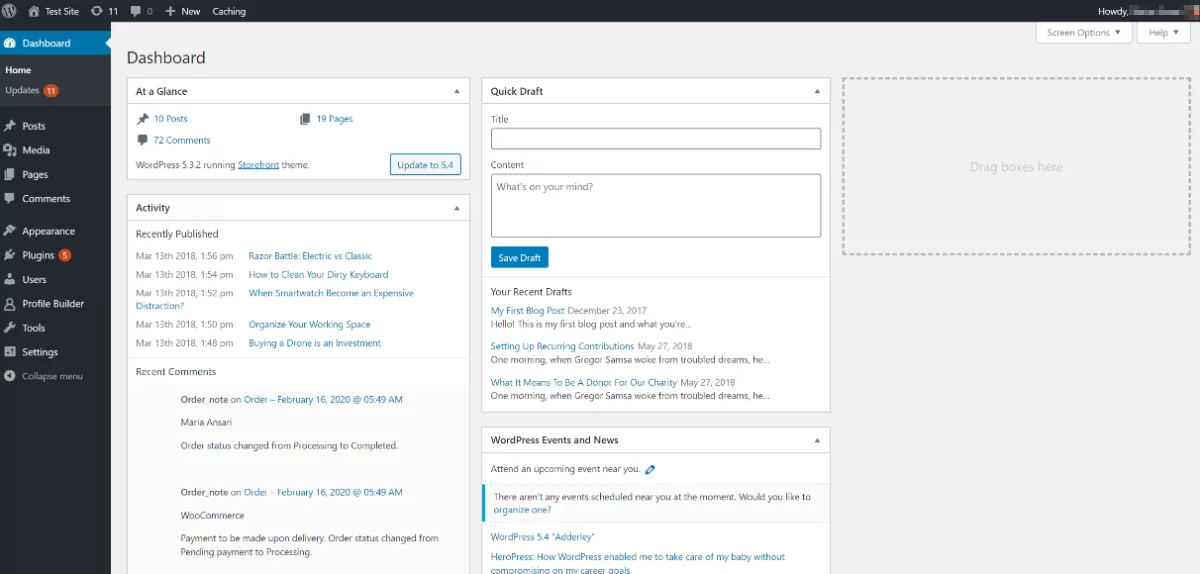
To find your role in WordPress, first log in. Use your username and password. Once logged in, you will see the dashboard. This is the main screen. Look for a menu on the side. Click on Users. A list of users will appear. Find your name in the list. Your role will be next to your name. Roles can be Administrator, Editor, Author, Contributor, or Subscriber. Each role has different powers. Administrators can do everything. Subscribers can read posts only. Understanding your role helps you know your duties.
Navigating User Profiles
Understanding your role in WordPress is essential. Each user has a specific role. Admins manage the site. Editors handle content. Authors write posts. Contributors submit articles. Subscribers read and comment. Each role has its own permissions. Admin can change site settings. Editors can publish and delete posts. Authors can write and manage their own posts. Contributors can write but need approval to publish. Subscribers can read posts and comment.
To find your role, check your profile. Log into WordPress. Go to your dashboard. Click on your name or profile picture. Your role is listed there. It might say admin, editor, author, or subscriber. Understanding your role helps you know what actions you can take on the site.
Credit: premio.io
Identifying Your Role
To find your role in WordPress, first log in to your dashboard. Click on Users in the menu. You will see a list of users. Locate your username and check the Role column. This will show your current role. Common roles include Administrator, Editor, and Subscriber.
Each WordPress role has specific capabilities. Administrators can change site settings. Editors can publish and manage posts. Authors can write and publish their posts. Contributors can write but not publish. Subscribers can read and comment. Understanding these roles helps manage your tasks better.
Common WordPress Roles
The Administrator has the most power on a WordPress site. They can change themes and add plugins. They manage users and can delete content. This role is usually reserved for website owners.
An Editor can publish and manage posts. They can also approve or remove comments. Editors oversee the work of authors and contributors. They do not have theme or plugin access.
An Author can write, edit, and publish their own posts. They cannot manage others’ posts. Authors cannot change site settings. This role is suitable for writers.
A Contributor can write and edit their posts. They cannot publish them. They need approval from an editor or admin. They also cannot upload files.
A Subscriber can only read posts. They can manage their profile. This role is for people who want updates. They have no power to make changes.
Credit: www.wpexplorer.com
Custom Roles And Permissions
WordPress lets you create custom roles with special permissions. These roles help you manage what users can do. You can give some users more power or keep some tasks safe. Each role has its own set of permissions.
Permissions decide what each role can do. Some roles can write posts. Others might only read. You can choose what’s right for each user. This makes your site safe and easy to manage.
To see your role, log in to WordPress. Go to your profile page. Here, you can check your role and permissions. Knowing this helps you understand what tasks you can do. If you need more access, talk to the site admin.
Role Management Plugins
Explore your WordPress role with the help of role management plugins. These tools reveal your permissions and capabilities effortlessly. Simplify your website management by understanding what access you have within the platform.
Popular Plugins
WordPress has many plugins for role management. These plugins help you control user roles. One popular plugin is Members. It is simple and easy to use. Another is User Role Editor. This plugin lets you change roles easily. Advanced Access Manager is also popular. It offers many features for role control. Each plugin has different features. They all help manage roles better.
Installing A Plugin
First, go to the WordPress dashboard. Click on Plugins, then Add New. Search for the plugin you want. Click Install Now next to the plugin. After it installs, click Activate. The plugin is now ready to use. Check its settings for more options. Now, you can manage roles easily.
Credit: www.cozmoslabs.com
Troubleshooting Role Issues
Many users find it hard to understand their WordPress role. This can lead to confusion. You might not have the right permissions. You may see missing options in the menu. Some features might not work as expected. These issues often arise when roles are not set correctly.
To fix this, check the roles in the dashboard. Make sure each user has the right role. Adjust if needed. Use tools like User Role Editor. This plugin helps in managing roles easily.
Sometimes, you need extra help. WordPress has a support forum. Here, you can ask questions. Get advice from other users. It is a great place to learn. You can also check the WordPress documentation. It has detailed guides. If problems continue, consider hiring an expert. They can solve complex issues.
Frequently Asked Questions
How Do I Check My WordPress Role?
To check your WordPress role, log into your dashboard. Go to Users > All Users. Find your username in the list. Your role will be listed next to your name. You can also view your role in Profile settings. This helps ensure you have the correct permissions.
Can I Change My WordPress Role?
Yes, you can change your WordPress role if you have administrative permissions. Go to Users > All Users. Find the user you want to edit. Click ‘Edit’ and choose a new role from the dropdown. Save the changes to update the role.
What Are The Different WordPress Roles?
WordPress offers several roles: Administrator, Editor, Author, Contributor, and Subscriber. Each role has different permissions. Administrators have full control, while subscribers have limited access. Understanding each role helps manage site permissions effectively.
Why Is My WordPress Role Important?
Your WordPress role determines your access level and permissions. It ensures security and organizes user capabilities. Having the right role prevents unauthorized access and maintains site integrity. It’s crucial for managing users and content efficiently.
Conclusion
Identifying your WordPress role is essential for effective site management. Understanding these roles helps streamline tasks and improve efficiency. Explore user settings and permissions for better control. Adjust roles based on your site’s needs. Regularly review user capabilities to maintain security and functionality.
Knowing your role boosts confidence in managing your WordPress site. Stay informed and proactive with role assignments. This awareness ensures smooth operation and optimal performance. Keep learning to enhance your WordPress experience. Embrace this knowledge for seamless management and growth.
Your site’s success depends on understanding user roles effectively.



