
Are you ready to give your website a fresh, new look? Installing a WordPress theme is the quickest way to transform your site without diving into complex coding.
But if the idea of changing themes sounds daunting, you’re not alone. Many people hesitate, fearing they might mess things up. Relax! You’re about to discover a simple, step-by-step guide that will make the process smooth and stress-free. Imagine the excitement of seeing your site come alive with a new design that captures your unique style.
Ready to get started? Keep reading, and you’ll be able to install a WordPress theme like a pro in no time!
Credit: help.market.envato.com
Choosing The Right WordPress Theme
Free themes are cost-effective. Great for beginners. They offer basic features. Premium themes cost money but provide more options. Better support and unique designs. Think about what your site needs. Sometimes, paying a little more is worth it. Free themes can lack updates. This might cause problems later. Choose wisely.
Websites need to look good on all devices. Phones, tablets, and computers. A responsive design helps with this. Many themes offer it. Always check if your theme is responsive. This means the site changes size on different screens. Keeps everything neat and tidy. Makes users happy. Google likes it too.
Themes come with different features. Some have sliders or galleries. Others offer color changes. Customization is important. It lets you make the site yours. Look for themes with easy customization. Drag and drop is a good feature. It makes building fun and simple. Always check the theme’s options before you pick.
Preparing Your Website For Theme Installation
Start by backing up your website to prevent data loss. Ensure all plugins and software are updated. Choose a suitable theme from the WordPress repository or a trusted source. Install the theme by navigating to the “Appearance” section. Upload your theme file and activate it.
Customize settings to match your preferences.
Backing Up Your Existing Site
Keep your site safe. Make a backup before adding a new theme. Use plugins like UpdraftPlus or BackupBuddy. Save your data on a cloud or external drive. This way, you can restore your site if needed. Check your backup files to ensure they are complete. Protect your site with regular backups.
Checking Theme Compatibility
Choose a theme that works well with your site. Check if the theme supports your version of WordPress. Some themes need newer versions. Look at the theme’s reviews and ratings. Ensure it fits your site’s needs. Check if the theme has responsive design. This means it looks good on phones and tablets. Make sure it supports the plugins you use. Compatibility is key for a smooth experience.
Installing A WordPress Theme Via Dashboard
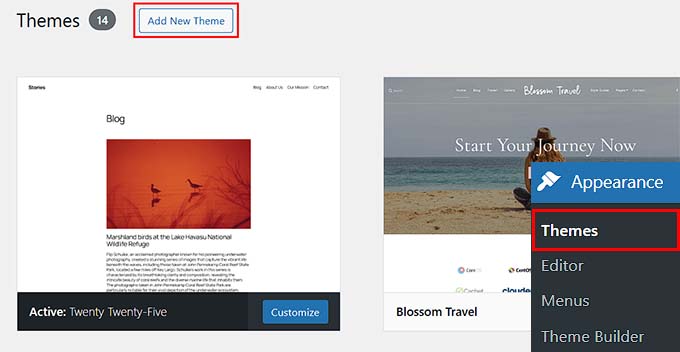
Log in to your WordPress dashboard. Find the sidebar on the left. Look for Appearance. Click on it. Now, select Themes. This opens the theme page. Here, you can see your current themes. Want a new one? Click Add New.
Have a theme file? Click Upload Theme at the top. Now, choose your file. Make sure it’s a .zip file. Click the Install Now button. Wait a moment. WordPress will upload it.
Once uploaded, you will see Activate. Click on it. This makes your new theme live. Want to see it? Visit your site. Now, your new theme is active. Enjoy your fresh look!
Installing A WordPress Theme Via Ftp
Begin by opening your FTP client. Use tools like FileZilla. Enter your server details. Fill in host, username, and password. Click connect. You now see your site files.
Locate the theme folder on your computer. It has your theme files. Find the wp-content folder on the server. Inside, open themes folder. Drag theme files from your computer. Drop them into this folder. Wait until upload finishes.
Activating The Theme In Dashboard
Log in to your WordPress dashboard. Go to Appearance then Themes. See the uploaded theme there. Click activate. Your theme is now active. Check your site. See the new look.
Customizing Your WordPress Theme
Installing a WordPress theme is simple. Start by logging into your WordPress dashboard. Navigate to “Appearance,” then “Themes. ” Click “Add New,” search for a theme, and hit “Install. ” Finally, activate your theme to see changes on your website.
Enjoy a fresh look with minimal effort.
Using The Theme Customizer
The Theme Customizer is a great tool. It helps change your site’s look. You can adjust colors and fonts. It’s easy to use. You can see changes instantly. Find the customizer under the Appearance menu.
Setting Up Menus And Widgets
Menus help visitors find pages. You can set them up easily. Widgets add features to your site. They can be placed in the sidebar or footer. Both are found under the Appearance menu. Drag and drop to arrange them.
Adjusting Layout And Colors
Layout gives your site structure. You can change it in the customizer. Choose between one or two columns. Colors make your site stand out. Select colors that match your brand. The right layout and colors make your site inviting.
Credit: www.wpbeginner.com
Troubleshooting Common Theme Installation Issues
Installing a WordPress theme on your website may seem tricky. Sometimes, problems arise during this process. Common issues include uploading errors and compatibility problems. Proper guidance can help navigate these challenges easily.
Fixing Broken Themes
Sometimes themes do not work as expected. This can cause frustration. To fix a broken theme, start by checking the theme files. Ensure all files are present. Missing files can break a theme. Try re-uploading the theme using FTP. This can solve the issue. If the theme is still broken, try activating a default theme. This helps identify if the problem is theme-related.
Resolving Compatibility Conflicts
Compatibility issues can cause themes not to display well. Make sure the theme matches your WordPress version. An old theme may not work with the latest version. Check if any plugins are causing conflicts. Deactivate all plugins and test the theme. Reactivate plugins one by one to find the conflict. Always keep themes and plugins updated. Updates fix bugs and compatibility issues.
Maintaining Your WordPress Theme
Installing a WordPress theme involves accessing the dashboard and navigating to ‘Appearance’. Choose ‘Themes’ and click ‘Add New’. Select a theme, then hit ‘Install’ followed by ‘Activate’.
Updating Your Theme
Keeping your WordPress theme updated is very important. New updates fix bugs and add features. Always check for updates in your dashboard. Click on “Appearance” and then “Themes”. Here, you can see if updates are available.
Updating themes is easy. Click the “Update” button to start. Your theme will update automatically. Make sure to back up your site before updating. This helps prevent data loss.
Security Best Practices
Security is crucial for your website. Use strong passwords. Avoid using simple words or numbers. Change passwords regularly.
Install security plugins. These plugins protect your site from hackers. They scan for threats and block suspicious activity.
Keep your theme and plugins updated. Updates often include security patches. Regular updates help keep your site safe.
Credit: wpengine.com
Frequently Asked Questions
How Do I Install A WordPress Theme?
To install a WordPress theme, go to your WordPress dashboard. Click on “Appearance” and then “Themes. ” Choose “Add New” and search for the theme you want. Click “Install” and then “Activate” to make it live on your site.
Can I Upload My Own Theme To WordPress?
Yes, you can upload your own theme. In the WordPress dashboard, go to “Appearance” > “Themes” > “Add New. ” Click “Upload Theme,” select your theme file, and click “Install Now. ” Finally, activate the theme.
What Is The Best Place To Find WordPress Themes?
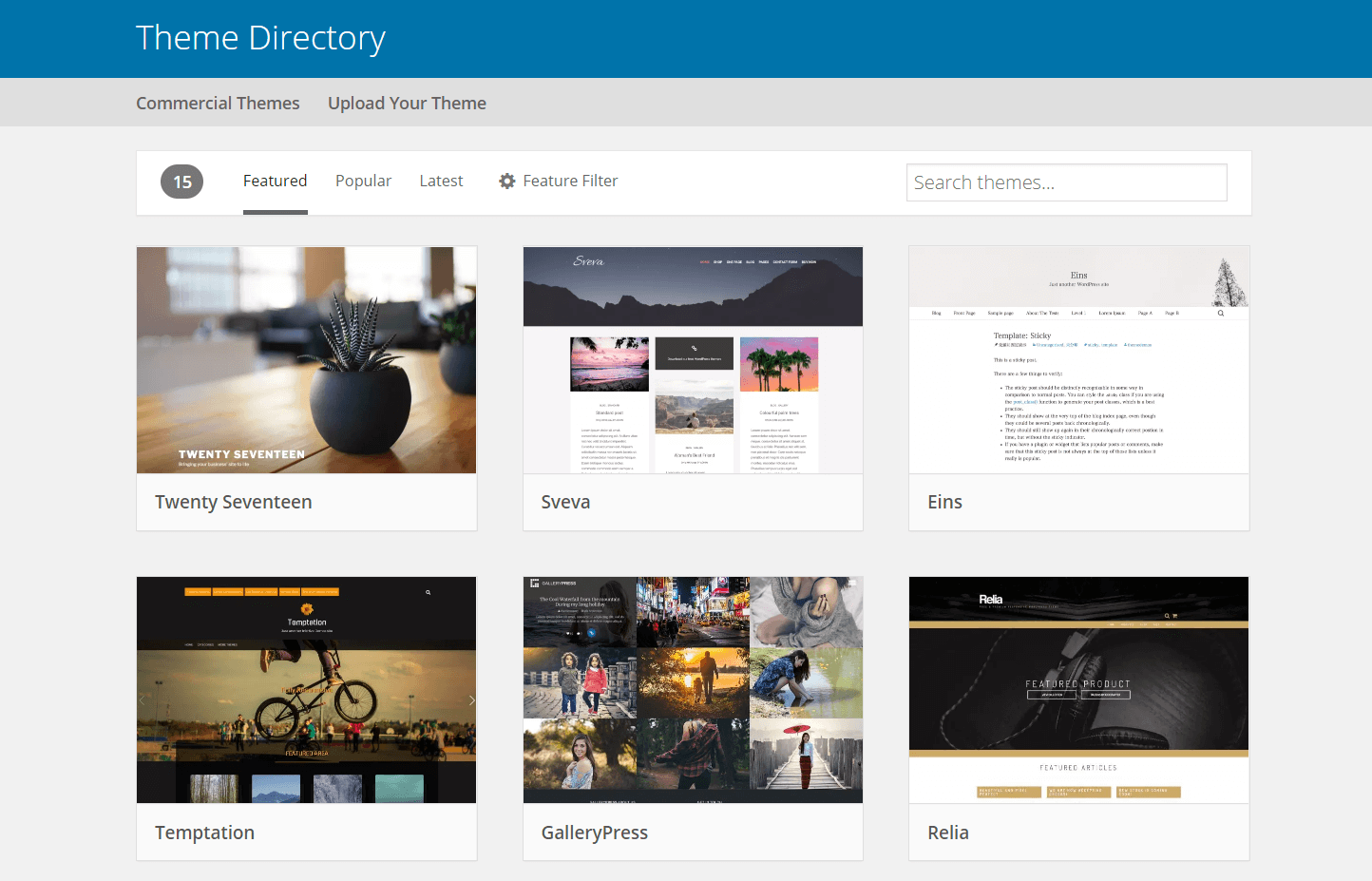
The WordPress Theme Directory is the best place to find themes. It offers thousands of free themes. You can also explore premium themes from marketplaces like ThemeForest and Elegant Themes for more features and customization options.
How Do I Change My WordPress Theme?
To change your WordPress theme, go to “Appearance” > “Themes” in your dashboard. Browse or search for a new theme, install it, and then click “Activate. ” Your website will now use the new theme.
Conclusion
Installing a WordPress theme is straightforward. Begin by logging into your dashboard. Navigate to ‘Appearance’ and select ‘Themes. ‘ Choose ‘Add New’ for more options. Browse or search for themes that suit your site. Preview themes to ensure a good fit.
Once satisfied, click ‘Install’ and then ‘Activate. ‘ Your new theme is now live. Customize it to match your brand. Adjust colors, fonts, and layouts as needed. Regularly check for updates to keep your theme secure. With these steps, your website gets a fresh look.
Enjoy your new WordPress theme!



