
Are you eager to give your WordPress site a fresh look but feeling overwhelmed by the process? Installing demo pages can be a game-changer, allowing you to preview exactly how a theme will transform your website.
Imagine effortlessly setting up a stunning homepage, interactive blog layouts, and eye-catching galleries—all in a matter of minutes. In this guide, you’ll discover the step-by-step process of installing WordPress theme demo pages, eliminating guesswork and empowering you to create a site that captivates your audience.
Get ready to unlock the potential of your website and turn your vision into reality. Dive in to explore how simple and rewarding it can be!
Choosing The Right Theme
Functionality is key when picking a theme. Does it support e-commerce? Can it handle large images? Check if the theme has updates often. This ensures it works well. Look at the features it offers. Are they easy to use?
Design should be clean. Colors should match your site’s style. Fonts should be readable. Layouts must be simple. Avoid themes with busy designs. They confuse visitors. Good aesthetics make sites inviting.
Plugins add power to websites. Ensure theme works with popular plugins. Check for issues with plugin compatibility. Themes should support SEO plugins. This helps in search engine ranking. Look for themes that integrate well.
Credit: www.greengeeks.com
Preparing For Installation
Always make a backup of your current site. Use a plugin to save your data. This ensures your work stays safe. If something breaks, you can restore it. Be smart and prepare.
Each theme has its own needs. Check the requirements before installation. See if your site meets them. This avoids issues later. Some themes need specific plugins. Make sure to install them too.
Create a staging environment for testing. It is like a copy of your real site. Use it to try out new themes. This keeps your main site safe. Visitors won’t see changes until you are ready. This method is safe and smart.
Installing The Theme
First, log into your WordPress Dashboard. Go to the Appearance section. Click on Themes. Press the Add New button. Then, select Upload Theme. Choose the theme file from your computer. Click Install Now. Wait for a few seconds. Your theme is now uploaded.
Open your FTP client. Connect to your website’s server. Go to the wp-content/themes folder. Upload your theme’s folder here. Ensure all files are transferred. Check if the folder is visible. The theme is now uploaded via FTP.
Return to your WordPress Dashboard. Go back to Appearance, then Themes. Find your uploaded theme. Click the Activate button. Your new theme is now live. Refresh your site to see changes.
Importing Demo Content
Easily set up a WordPress site by importing demo content. This process involves installing theme demo pages with a few clicks. Follow simple instructions to quickly get your site looking like the demo.
Locating Demo Files
First, find the demo files in your theme folder. These files are usually in a folder named “demo” or “sample-data.” Check your theme documentation for exact location. Some themes provide demo files as a separate download. Make sure you have them ready.
Using The Theme Importer
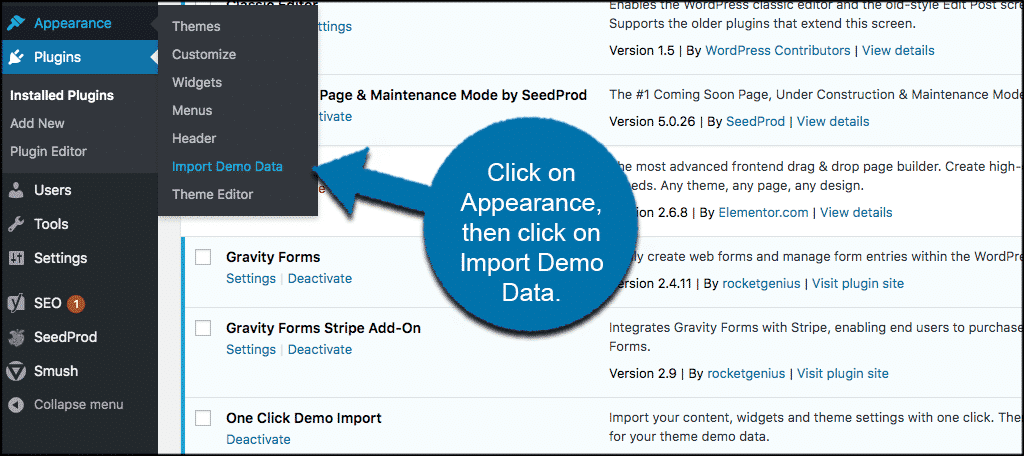
Open your WordPress dashboard. Go to Appearance and click on Import Demo Data. Choose the correct demo file and start the import. Wait for the process to complete. This might take a few minutes. Do not close the browser while importing.
Troubleshooting Import Issues
If the import fails, check your server settings. Increase the memory limit and execution time. Ensure all required plugins are installed and activated. Try importing again. If problems persist, contact theme support.
Customizing Demo Pages
Page layouts make a big impact. Move sections to new spots. Change sizes of boxes and images. This helps the page look better. Make sure everything fits well. Spacing is key. Keep it neat and tidy.
Placeholder content is just a sample. Swap it for real text. Add your own words. Change sample images to your photos. Use clear titles. Make sure the text makes sense. This helps people understand.
Design elements are like colors and fonts. Pick colors that match your brand. Adjust fonts for easy reading. Buttons should stand out. The design needs to be simple. Make it nice but not too busy.
Credit: support.undsgn.com
Optimizing Performance
Installing WordPress theme demo pages boosts site performance. Navigate to your WordPress dashboard and select ‘Themes’. Import demo content using the ‘One Click Demo Import’ feature. This process enhances design efficiency and user experience.
Speed Testing The Site
Test your site speed with simple tools. Tools like Google PageSpeed help. They show you how fast your site loads. Slow sites lose visitors. Fast sites keep them. Check your speed often. Make sure it’s quick and smooth.
Implementing Caching Solutions
Caching helps your site load faster. It saves data for later use. This means less work for your site. Tools like W3 Total Cache make this easy. They store data and use it again. This speeds up your site. Visitors will love the fast speed.
Optimizing Images And Media
Large images slow your site. Make them smaller. Use tools to compress images. This keeps quality good but size small. Videos can also slow down loading. Use the right format for media. Fast media helps your site run smooth.
Ensuring Mobile Responsiveness
Always check your website on many devices. Use a smartphone, a tablet, and a computer. This helps see how the site looks on different screens. Make sure everything is easy to read and use. If something seems off, adjust it right away.
Most themes have settings for mobile. Go to your theme’s customizer. Look for options related to responsive design. Adjust these settings to make the site look good on all devices. Try changing font size or image size if needed. Small tweaks can make a big difference.
Plugins can help with mobile views. Responsive sliders and menus are good choices. Some plugins make images load faster. This helps the site run smoothly on phones. Always pick plugins that are compatible with your theme. Check reviews to find the best ones.
Finalizing And Launching
Check every page carefully. Ensure all links work. Images should load quickly. Text must be clear and readable. Look for any errors. Fix them before launch.
Adjust colors and fonts for harmony. Ensure buttons are easy to find. Add a catchy tagline. Make the site inviting. Check mobile view. It should be user-friendly.
Double-check everything once more. Set the site to public. Share it with friends. Get feedback from them. Make final tweaks. Celebrate your work. Your site is now live for all!

Credit: www.youtube.com
Frequently Asked Questions
How Do I Install A WordPress Theme Demo?
To install a WordPress theme demo, first, choose a theme with demo content. Import the demo via the theme’s settings or use a plugin like “One Click Demo Import. ” Ensure your WordPress version is compatible, and always back up your site before importing to prevent data loss.
What Are Demo Pages In WordPress?
Demo pages are pre-designed layouts provided by theme developers to showcase a theme’s capabilities. They offer a starting point for users, saving time in design and setup. By importing demo pages, you can quickly replicate a professional look and structure, then customize it to suit your needs.
Why Use WordPress Theme Demo Content?
Using demo content helps visualize how your site can look with a particular theme. It offers a quick setup, showcasing the theme’s features and layout. This approach saves time and effort, providing a foundation that you can easily modify and personalize to match your brand.
Can Demo Content Affect Website Performance?
Demo content may temporarily affect performance, especially if it includes heavy media files. Ensure you optimize images and remove unnecessary elements post-import. Regularly update and maintain your site to enhance speed and efficiency. Use caching plugins and a reliable hosting service to improve overall performance.
Conclusion
Installing WordPress theme demo pages is straightforward. Follow the steps carefully. Start by selecting a theme that fits your needs. Download and install it through your WordPress dashboard. Import demo content using the theme’s import tool. Customize the layout to match your vision.
Ensure everything works seamlessly by checking page responsiveness. These steps simplify setting up your site. They make your online presence more professional. Practice will make the process even faster. Now, your WordPress site is ready for the world. Enjoy your new, stylish website!



