
Have you ever found yourself staring at your WordPress dashboard, eager to install a new theme, only to realize that you don’t have a zip file? It’s a common scenario that many WordPress users face.
You might wonder if it’s possible to install a theme without the standard zip file format. The answer is yes, and you’re about to discover how. Imagine transforming your website with a fresh, new look, effortlessly. The process is simpler than you think, and this guide will walk you through it step by step.
By the end of this article, you’ll feel empowered to install themes without any hassle, opening up a world of customization possibilities for your site. Ready to dive in and give your WordPress site the makeover it deserves? Let’s get started!
Preparing Your WordPress Environment
Always confirm your WordPress version before installing a theme. The theme might not work if your version is old. Go to the admin panel and click on “Dashboard”. Look at the bottom right corner to see your version. Update your WordPress if needed. Updating helps keep your site safe.
Backing up your website is very important. Use a plugin like UpdraftPlus or BackupBuddy. These plugins make it easy to save your website data. If something goes wrong, you can restore your site quickly. Always keep a copy of your backup in a safe place. Regular backups protect your hard work.

Credit: www.youtube.com
Selecting A Theme Without A Zip File
WordPress has many themes. These themes are in the WordPress Directory. Most are free and easy to use. You can find themes for blogs, shops, and more. Look for themes that fit your style and needs. Each theme has a preview. This helps you see how your site will look. Make sure the theme has good reviews. This shows that others like it too.
Use the search bar in the WordPress dashboard. Type the theme name or a keyword. This will show many options. Look for themes with high ratings. These are popular and trusted. Click on a theme to read more. Check if it is updated often. Frequent updates mean the theme is secure and reliable. After finding a theme, click install and then activate. Your new theme is now ready!
Installing Theme Via WordPress Dashboard
Easily install a WordPress theme without using a zip file by navigating to the WordPress Dashboard. Select “Appearance” and then “Themes” to find your desired theme. Click “Install” and activate it right away.
Navigate To Themes Section
First, log into your WordPress account. Once logged in, find the Appearance option on the left menu. Click on it to open the themes section. Here, you can see all installed themes. To add a new theme, click on Add New at the top.
Search And Install Theme
In the search bar, type the theme name you want. You will see a list of themes. Choose the theme that suits your site. Click on the Install button next to your chosen theme. Wait for the installation to complete. Once done, hit Activate to apply the theme to your site.

Credit: wpfactory.com
Activating Your New Theme
Go to your WordPress dashboard. Find the Appearance tab. Click on it. Then, click on Themes. You will see your installed themes here. Locate your new theme. Click on the Activate button. Now, your new theme is active. Check your site to see the changes.
Visit your dashboard again. Click on Appearance. Then, select Customize. You will see many options. Change colors, fonts, and layouts. Adjust them to fit your needs. Preview changes before saving. When happy, click Publish. Your site will now show the new look. Enjoy your updated website!
Troubleshooting Common Issues
Installing a theme without a zip file in WordPress can be tricky. First, upload the theme folder via FTP to the “wp-content/themes” directory. Then, activate the theme from the WordPress dashboard under ‘Appearance’. This method bypasses zip file limitations, ensuring a smooth installation process.
Resolving Compatibility Problems
Themes sometimes don’t work well with plugins. Try to check for plugin updates. New versions fix many bugs. If problems persist, deactivate all plugins. Activate them one by one. This will help find the conflicting plugin. Themes also need the latest WordPress version. Always update WordPress for best results. Check theme documentation for any specific requirements. This ensures your theme runs smoothly.
Handling Theme Errors
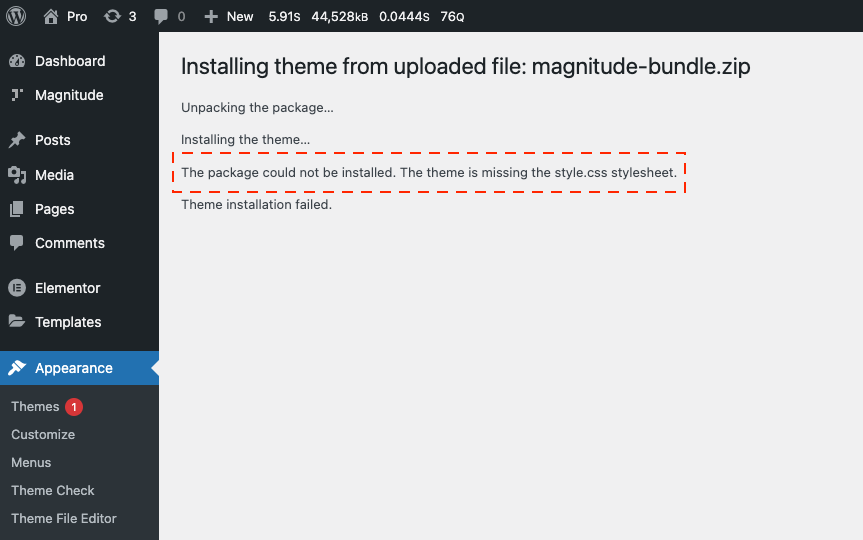
Errors can occur during theme installation. Missing files often cause issues. Check if your theme is complete. Some themes need extra PHP settings. If errors persist, contact theme support. They can guide you better. Clear your browser cache regularly. Cached data may show old errors. Ensure your server meets theme requirements. A proper setup fixes many errors.
Maintaining Your WordPress Theme
Updating your theme is very important. It keeps your site safe. New updates fix bugs and add new features. Check for updates often. Use the WordPress dashboard to check. Click “update” when a new version is out. This keeps your site running smoothly.
Always make a backup after you change your theme. Backups save your work. They help if something goes wrong. Use a plugin to make backups easy. Store backups in a safe place. You can restore your site from a backup. This protects your hard work.
Credit: support.jegtheme.com
Frequently Asked Questions
How To Install WordPress Theme Without A Zip File?
To install a theme without a zip file, access your WordPress dashboard. Navigate to Appearance > Themes and click ‘Add New’. Search for your desired theme in the search bar. Once found, click ‘Install’ and then ‘Activate’ to apply it to your site.
Can I Change Themes Without Losing Content?
Yes, changing themes won’t delete your content. Your posts, pages, and media remain intact. However, some theme-specific settings might be lost. Always back up your site before making changes. Consider using a child theme to preserve customizations.
What Are The Benefits Of Using The Theme Directory?
The WordPress theme directory offers free, vetted themes. They are secure, regularly updated, and compatible with WordPress standards. Using these themes ensures reliable support and reduces security risks. It’s a trustworthy source for finding high-quality themes for your site.
How Do I Preview A Theme Before Activating?
To preview a theme, go to Appearance > Themes in your dashboard. Hover over the theme you wish to preview and click ‘Live Preview’. This lets you see how your site will look with the new theme without activating it.
Conclusion
Installing a WordPress theme without a zip file is simple. Follow the steps carefully to ensure a smooth setup. First, access your WordPress dashboard. Navigate to “Themes” and select “Add New. ” Use the search bar to find your desired theme.
Click “Install” and then “Activate. ” Your new theme is now live. No zip file needed. Remember, choosing the right theme enhances your website’s look and feel. Keep experimenting to find the perfect fit. Enjoy your refreshed WordPress site with ease!



