
Are you tired of the same old look on your WordPress site? Imagine giving your website a fresh and captivating appearance with just a few clicks.
Whether you’re a seasoned blogger or managing a business site, the design plays a crucial role in attracting and keeping your audience’s attention. But how do you install a new theme in WordPress without getting lost in technical jargon? In this guide, you’ll discover a simple step-by-step process to transform your site’s aesthetic effortlessly.
You don’t need to be a tech wizard to follow these steps. We’ll walk you through each part, ensuring you have the confidence to give your website the makeover it deserves. Ready to dive in and make your site stand out? Let’s get started!
Choosing The Right Theme
Choosing the right theme can improve your site’s look. Think about your site’s purpose. Make sure the theme matches your brand. Check if it has the features you need. Look for good reviews and ratings. Check how often it is updated. An updated theme is more secure.
- Theme should be fast and responsive.
- Check for easy customization options.
- Compatibility with plugins is important.
Free themes are often simple. They might lack advanced features. Premium themes offer more options. They may have better support. Consider your budget. Choose what fits your needs.
| Marketplace | Description |
|---|---|
| ThemeForest | Many premium themes available. |
| WordPress.org | Offers free themes from developers. |
| Elegant Themes | Known for Divi theme. |
Preparing Your WordPress Site
Always create a backup of your site. This keeps your data safe. Use plugins like UpdraftPlus or BackWPup. They make backup tasks easy. Store your backup in a safe place. This could be on the cloud or an external drive.
Ensure the theme is compatible with your version of WordPress. Check the theme’s documentation for details. Look for reviews and ratings too. They tell you how the theme works for others. Good themes often get high ratings.
Always use the latest WordPress version. This keeps your site secure and fast. Check the dashboard for updates. If an update is available, click update now. This process is quick and keeps your site healthy.
Installing A Theme Via WordPress Dashboard
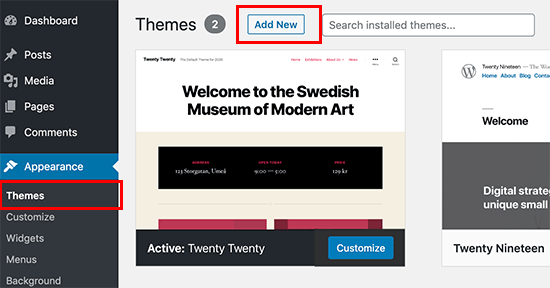
Start by logging into your WordPress dashboard. On the left menu, click on Appearance and then Themes. This opens the theme directory. Here, you will find many themes available to use. Take your time to browse through the options.
Use the search bar at the top to find specific themes. Filters help you narrow down choices based on colors, layout, or features. This makes finding the right theme easier. Try out different filters to see what suits your needs.
Before installing, it’s wise to preview the themes. Click on a theme and then select Preview. This allows you to see how the theme looks on your site. Check if the layout fits your content. If satisfied, proceed to installation.
Once you choose a theme, click on Install. After installation, a button will appear to Activate the theme. Click it to make the theme live on your site. Your site’s appearance will change immediately. You can always change back to another theme later.
Credit: thimpress.com
Uploading A Theme From A File
Start by finding a theme you like. Many websites offer free themes. Visit a theme website and download the theme file. This file is usually in a .zip format. Save this file to your computer.
Log into your WordPress dashboard. Find and click on “Appearance”. Then, click on “Themes”. You will see an option called “Add New”. Click on it. Then select “Upload Theme”. Choose the theme file from your computer. Click on “Install Now” to upload.
After uploading, find your theme under “Appearance”. Click on “Themes”. You will see your uploaded theme there. Click on “Activate” to use your new theme. Your site will now show the new theme. Enjoy your new look!
Installing A Theme Via Ftp
First, download an FTP client. FileZilla is a good choice. Open the client and enter your server details. Use your username and password. Click connect to access your files.
Find your theme folder on your computer. Drag and drop it into the wp-content/themes folder. Wait until all files are uploaded. Check if the upload is complete.
Go to the WordPress dashboard. Click on Appearance then Themes. Find your uploaded theme. Click Activate to make it live. Refresh your site to see the changes.

Credit: www.elegantthemes.com
Customizing The New Theme
Using the WordPress Customizer helps you make changes. You can change colors and fonts. It’s easy to preview changes. You see them before they go live. This tool is user-friendly. It helps your site look unique.
Adjusting Theme Settings allows you to tweak options. You can set different layouts. There are many settings to explore. Each theme has its own options. Take your time to find what fits best. Make your site suit your style.
Adding Widgets and Menus is a fun task. Widgets add extra features. Menus help users find pages. Drag and drop widgets to the sidebar. Add menus from the Appearance menu. This makes navigation simple. Keep it tidy for easy browsing.
Troubleshooting Common Issues
Installing a new theme in WordPress can face common issues like compatibility problems or upload errors. Make sure to check theme requirements and update WordPress regularly. If errors persist, try reinstalling the theme or seek help from the WordPress support forum.
Resolving Theme Conflicts
Theme conflicts can cause headaches. Switch to default theme. Check if problem persists. Use plugin conflict detector. Disable plugins one by one. Identify the conflicting plugin. Update or replace the problem plugin. Some themes clash with specific plugins. Consult theme documentation for known issues. Contact theme support if needed.
Fixing Broken Layouts
Broken layouts frustrate users. Clear browser cache. Often solves layout problems. Check CSS styles. Ensure no overrides exist. Inspect element using browser tools. Adjust settings in theme options. Sometimes settings cause issues. Update theme to latest version. Developers fix bugs regularly.
Handling Missing Elements
Missing elements confuse users. Check widget settings. Widgets might be disabled. Verify menu settings. Menus sometimes hide elements. Reinstall theme if needed. Some files may be missing. Consult theme support for guidance. Missing elements often have easy fixes.

Credit: www.greengeeks.com
Frequently Asked Questions
How Do I Change My WordPress Theme?
To change your WordPress theme, go to your dashboard. Navigate to “Appearance” and then “Themes. ” Click “Add New” to browse themes. Once you find a theme you like, click “Install,” then “Activate” to apply it. Always preview a theme before activating to ensure it suits your needs.
Can I Install A Theme From A Zip File?
Yes, you can install a theme from a zip file. Go to “Appearance” > “Themes. ” Click “Add New,” then “Upload Theme. ” Choose your zip file and click “Install Now. ” After installation, click “Activate” to use the theme.
Ensure the file is compatible with WordPress.
What Should I Do Before Changing Themes?
Before changing themes, back up your site. Use a backup plugin or your hosting provider’s service. Check theme compatibility with your plugins. Preview the new theme to ensure it meets your design needs. Ensure the theme is responsive and SEO-friendly.
This preparation avoids potential issues.
Will Changing Themes Affect My Seo?
Changing themes can affect your SEO if not done carefully. Ensure the new theme is SEO-friendly and responsive. Check for proper use of headings and meta tags. Test your site’s speed after activation. Use tools like Google Search Console to monitor any changes in traffic or rankings.
Conclusion
Installing a new theme in WordPress is simple and rewarding. Follow each step carefully. Choose a theme that suits your needs. Always back up your site before changes. Check the theme’s compatibility. Activate your new theme and customize it to your liking.
Enjoy the fresh look and enhanced functionality. A new theme can boost your website’s appeal. Regular updates ensure your site stays secure. Explore different themes to find the perfect fit. Experimenting with themes can be fun. Keep your site engaging and user-friendly.
Happy theming!



