
Are you ready to transform your WordPress site without needing any coding skills? Installing Elementor is the first step to creating stunning, professional-looking pages quickly and easily.
In this guide, you’ll learn exactly how to install Elementor, so you can start building beautiful websites that grab attention and keep visitors engaged. Stick with me, and by the end, you’ll have the power to design your site just the way you want—no hassle, no confusion.
Let’s dive in!
Credit: elementor.com
Why Choose Elementor
Choosing the right page builder is important for your WordPress site. Elementor stands out for many reasons. It helps create beautiful websites without coding. Its tools are easy to use and powerful.
Elementor works well for beginners and experts alike. It saves time and gives great results. Here is why many people choose Elementor.
Easy Drag-and-drop Interface
Elementor lets you build pages by dragging elements. No need to write code or learn complex tools. Just move blocks where you want them. This makes designing quick and fun.
Wide Range Of Design Options
Customize colors, fonts, and layouts with simple controls. Choose from many ready-made templates. Change anything to fit your style. Your website will look unique and professional.
Mobile-friendly Designs
Elementor ensures your site works well on phones and tablets. It adjusts layouts automatically. Visitors get a smooth experience on any device. This helps keep people on your site longer.
Fast And Lightweight
Websites built with Elementor load quickly. It uses clean code that does not slow your site. Faster sites rank better in search engines. This helps attract more visitors.
Strong Community And Support
Many users share tips and tutorials online. Official support helps solve problems fast. You can find answers and ideas easily. This support makes learning Elementor easier.
Preparing WordPress
Preparing WordPress before installing Elementor is important for a smooth setup. This step helps avoid errors and ensures compatibility. Take time to prepare your site properly. It saves effort later and keeps your website safe.
Check WordPress Version
First, check the WordPress version on your site. Elementor works best with the latest version. Go to your WordPress dashboard. Find the “At a Glance” section on the homepage. Here, you see the current WordPress version.
Update WordPress if needed. A simple click on “Update” keeps your site secure. It also ensures Elementor runs without issues.
Backup Your Site
Backing up your site is a must. It protects your data from loss during installation. Use a plugin or your hosting service to create a backup. Save a copy on your computer or cloud storage.
Backup includes your database and files. This way, you can restore your site if something goes wrong. Never skip this step before adding new plugins like Elementor.
Installing Elementor Plugin
Installing the Elementor plugin in WordPress is simple and fast. This plugin helps you build pages with drag-and-drop tools. You can add many design features without coding skills. Follow the steps below to install Elementor easily.
Install Via WordPress Dashboard
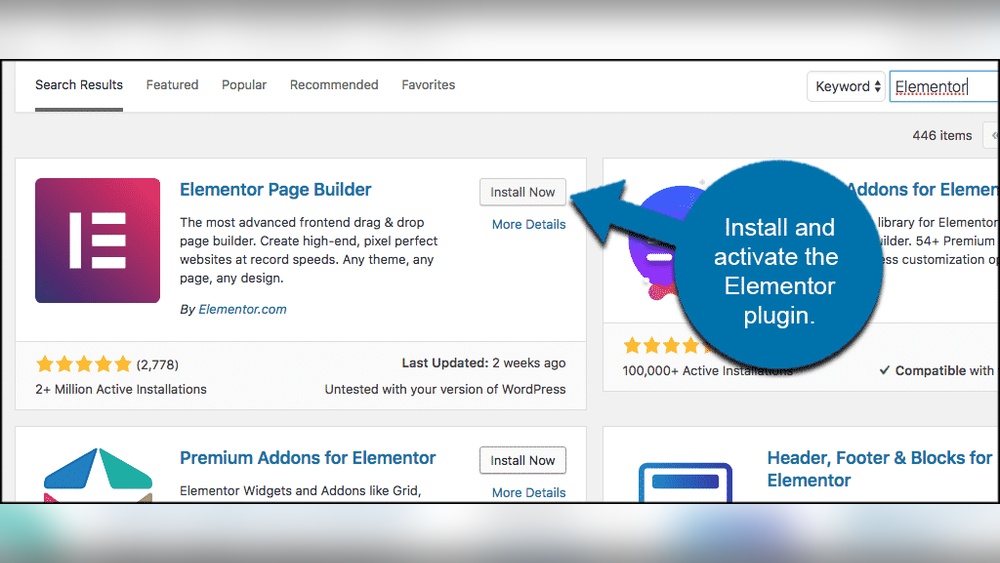
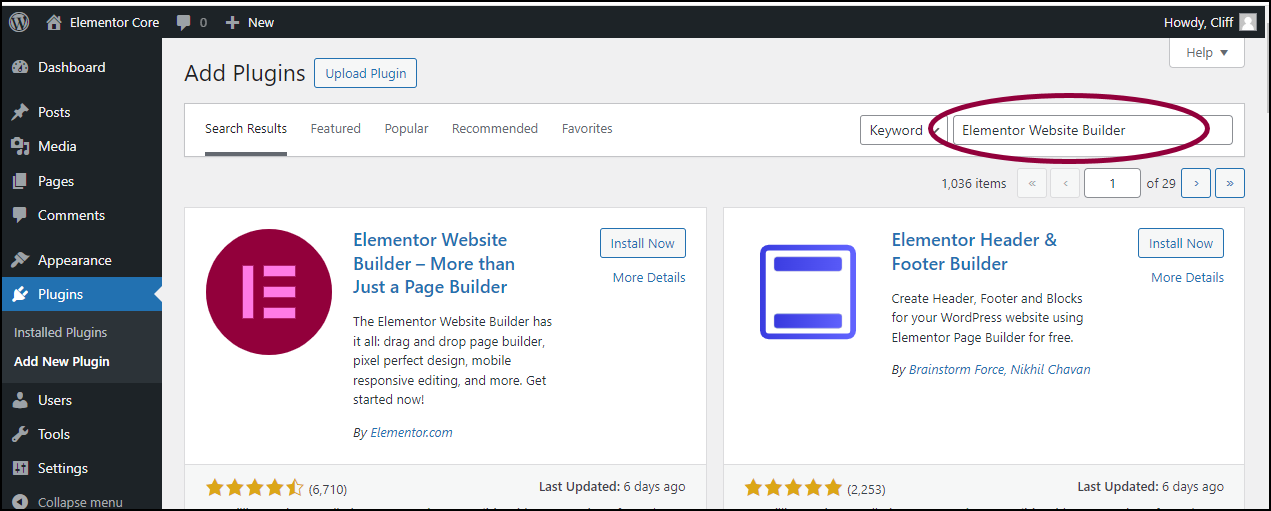
Log in to your WordPress dashboard first. Go to the “Plugins” section on the left menu. Click on “Add New” to open the plugin search page.
Type “Elementor” in the search box. Find the Elementor Page Builder plugin in the results. Click “Install Now” next to it. After the installation, click “Activate.”
The plugin is ready to use. You can start building pages with Elementor’s tools right away.
Upload Plugin Manually
Download the Elementor plugin file from the official website. It will be a .zip file. Save it to your computer.
In your WordPress dashboard, go to “Plugins” and click “Add New.” Then, click the “Upload Plugin” button at the top.
Choose the .zip file you saved and click “Install Now.” After installing, click “Activate Plugin.”
The manual upload method works well if you cannot access the plugin directory or want a specific version.
Activating Elementor
Setting up Elementor after installation is simple and quick. This basic setup helps you start building pages smoothly. Follow these easy steps to configure the plugin and pick a design template.
Configure Settings
Access the Elementor settings in your WordPress dashboard. Adjust the general settings to fit your website needs. Enable or disable features like the default fonts and colors. Set the page layout to full width for better design space. Check the advanced tab for custom CSS options. Save changes before moving to the next step.
Choose A Template
Elementor offers many free and premium templates. Open the Elementor editor and click the folder icon. Browse templates by category or use the search bar. Select a template that matches your website style. Click “Insert” to load the template onto your page. Customize the content and images to make it your own.
Basic Elementor Setup
Installing Elementor on WordPress is usually simple. Sometimes, problems can appear. These issues can slow down your work or stop the plugin from working. Knowing how to fix common problems helps you save time and keep your site running smoothly.
Plugin Conflicts
Sometimes, other plugins can clash with Elementor. This happens because two plugins try to do the same thing. The result is errors or broken layouts.
To find the problem, deactivate all plugins except Elementor. Check if Elementor works. If it does, activate each plugin one by one. This way, you find the conflicting plugin.
Once you find the conflicting plugin, decide to replace it or contact its support. Keeping plugins updated also reduces conflicts.
Memory Limit Errors
Memory limit errors happen when WordPress uses more memory than allowed. This stops Elementor from loading or saving changes.
Increase the memory limit by editing the wp-config.php file. Add this line: define('WP_MEMORY_LIMIT', '256M'); This gives WordPress more memory to work with.
If you cannot edit files, ask your hosting provider to increase the limit. More memory helps Elementor work without errors.
Credit: www.greengeeks.com

Credit: www.youtube.com
Frequently Asked Questions
What Are The Steps To Install Elementor In WordPress?
To install Elementor, log in to your WordPress dashboard. Go to Plugins > Add New, search for “Elementor,” and click “Install Now. ” After installation, activate the plugin to start building with Elementor’s drag-and-drop editor.
Is Elementor Free To Use On WordPress?
Yes, Elementor offers a free version with essential features. You can upgrade to Elementor Pro for advanced widgets, templates, and support to enhance your site design.
Can I Use Elementor With Any WordPress Theme?
Elementor works with most WordPress themes. For best results, use themes optimized for Elementor like Hello Elementor to ensure full compatibility and smoother performance.
Do I Need Coding Skills To Use Elementor?
No coding skills are needed. Elementor provides a visual drag-and-drop interface, allowing you to design pages easily without writing any code.
Conclusion
Installing Elementor in WordPress is simple and quick. Just follow the steps carefully. You can create beautiful pages without coding. This tool helps you design your site easily. Start building your website and see the changes live. Keep practicing to improve your skills.
Enjoy the freedom to customize your site your way. Elementor makes website design more fun and less stressful. Now, your WordPress site looks professional and unique. Ready to create your perfect page?



