
Have you ever accidentally removed a WordPress theme and felt a wave of panic wash over you? You’re not alone.
Many WordPress users have found themselves in this tricky situation, wondering how to restore their website without losing valuable content or functionality. The good news is that there are simple steps you can take to fix this issue and get your site back to its former glory.
Imagine the relief of seeing your website up and running smoothly again, just like it was before. In this guide, we’ll walk you through the exact process to recover from this mishap. Stick around, and you’ll soon discover how easy it can be to fix WordPress after removing a theme.

Credit: colibriwp.com
Assessing The Situation
Accidentally removed a WordPress theme? First, stay calm. Log into your WordPress dashboard and navigate to “Themes”. Reinstall the missing theme from your backups or WordPress repository. Check your site’s functionality to ensure everything works as expected.
Impact Of Theme Removal
Removing a WordPress theme can cause problems. The website might look broken. Some design elements may disappear. Other features might not work right. This impacts user experience. Visitors may find it hard to navigate. Some parts of the site might be missing. This can confuse users. Check if the layout is still intact. Look for any missing images or text. Ensure the site does not show any error messages. It’s important to fix these issues quickly. A broken site can lead to lost visitors. This may impact your site’s traffic and performance.
Identifying Missing Elements
Identifying missing elements is crucial. Check all pages of your site. Look for missing menus or buttons. Ensure that all images load correctly. Test the site’s functionality. Make sure forms work as they should. Check for missing plugins or widgets. They might have been linked to the theme. If anything is missing, take note. You will need to fix these issues. This will help restore your site’s functionality.
Restoring The Default Theme
Access the WordPress Admin Dashboard to fix the theme issue. Go to the Appearance section. Click on Themes. Find the list of available themes. Choose a default theme like Twenty Twenty-One. Click Activate to apply it. This will restore the site’s look. The process is simple and fast.
First, log in to your WordPress Dashboard. Use your username and password. Click the Appearance tab. You will see the Themes option. Check for any default themes. If none are visible, download one from WordPress.org. Upload it and activate. This ensures your website functions normally again. Easy steps for a quick solution.
Using Ftp For Theme Restoration
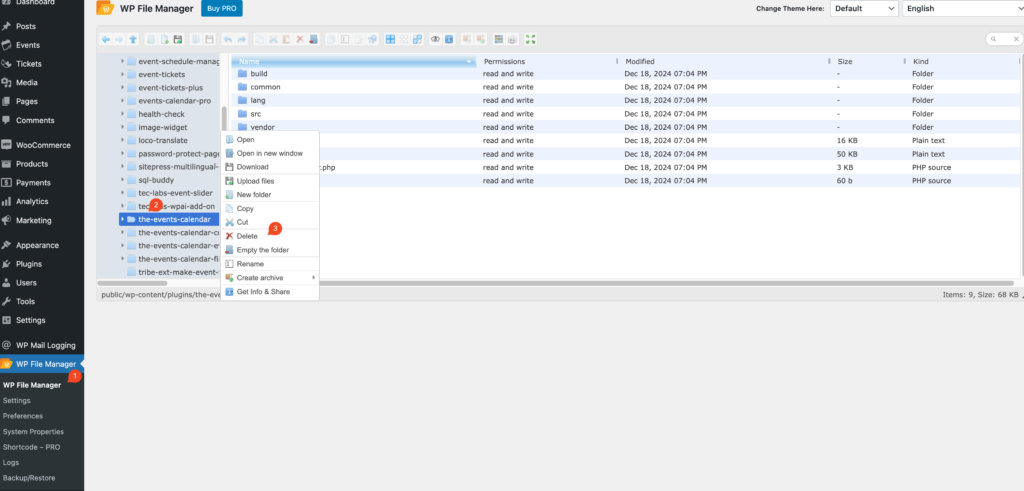
First, open your FTP client. This helps connect to your server. Enter your username and password. These details are important. Find the option to connect. Hit the connect button. You can see your server files now. Look for the WordPress folder. It’s usually named “public_html”.
Download your theme files first. Save them on your computer. Go back to the FTP client. Find the folder named “wp-content”. Inside, there’s a folder called “themes”. Open it. Drag your theme files here. Wait for the upload to complete. Check if all files are uploaded. This process restores your WordPress theme.

Credit: www.youtube.com
Utilizing Database Access
Accessing the database can help fix theme issues. Use phpMyAdmin to find theme settings. Log in to phpMyAdmin. Locate the WordPress database. Click on the options table. Find the template and stylesheet rows. Change these rows to the name of a working theme. Save changes. This method resets the theme settings. It can make the website work again.
Open phpMyAdmin from your hosting account. Select the database linked to your site. Search for the options table. Look for rows named template and stylesheet. Change their values to a default theme. Save your changes. This process is simple and effective. It can restore your website to a normal state.
Reinstalling The Removed Theme
First, visit the WordPress theme directory. Find your theme by name. Click on the download button. Save the file to your computer. Make sure to remember where you save it.
Sometimes, themes are not on the WordPress directory. In such cases, visit the theme’s official site. Look for a download link. Save the theme file. Always download from a trusted source.
Go to your WordPress dashboard. Click on “Appearance” and then “Themes”. Next, click on “Add New”. Now, choose “Upload Theme”. Select the downloaded file from your computer. Click “Install Now”.
After installation, click “Activate”. Your theme is now back. Ensure all theme settings are correct. Adjust as needed. Enjoy your site with the theme restored.
Troubleshooting Common Issues
Facing WordPress issues after removing a theme can be frustrating. Restore the theme from your backup files or reinstall it through the WordPress dashboard. Alternatively, contact your hosting provider for additional support.
Handling Error Messages
Error messages can be scary. They often appear after removing a theme. First, remain calm. Check if you have a backup. Restore the backup if you have one. This can solve many problems. Next, access your WordPress files. You can do this via FTP or your hosting account. Look for the “wp-content” folder. Inside, find “themes”. Rename the folder of your removed theme. This might help WordPress load a default theme. If problems persist, consider contacting your hosting provider. They can offer support and solutions.
Fixing Broken Links
Broken links can hurt your site. They confuse visitors. First, identify broken links using a plugin. Plugins like Broken Link Checker are useful. Once identified, fix or remove these links. Update the URL if it has changed. Redirect old links to new ones. Use a 301 redirect for this purpose. This tells search engines that the link has moved. Always test links after changes. Ensure they work as expected. Keeping links healthy is key for a smooth website.
Preventing Future Theme Issues
Accidentally removing a WordPress theme can disrupt your website’s design. Restore your site by accessing your WordPress dashboard. Navigate to “Appearance” and select “Themes” to reinstall or choose a new theme.
Regular Backups
Making regular backups is very important. Backups save your work. Use plugins like UpdraftPlus or BackupBuddy. These plugins help save your site. Store backups in safe places. Use cloud storage or external drives. Check backups often. Make sure they are working. Backups protect against theme problems.
Safe Theme Management Practices
Choose themes carefully. Only use trusted sources. WordPress theme directory is good. Avoid themes from unknown sites. They can be risky. Update themes regularly. Updates fix bugs and improve security. Test new themes on a demo site first. Make sure they work well. Activate themes one at a time. Check the site after activation. This prevents problems. Keep a list of themes you use. It’s helpful if problems occur.
Credit: www.theeventscalendar.com
Frequently Asked Questions
What Happens If I Remove A WordPress Theme?
Removing a WordPress theme can break your site if it’s active. Your website’s appearance and functionality may be affected. Ensure you have a backup before removing any theme. You can switch to a default theme like Twenty Twenty-Three to minimize issues.
Can I Recover A Deleted WordPress Theme?
Yes, you can recover a deleted WordPress theme if you have a backup. Restore your website from the backup to retrieve the theme. Alternatively, re-download the theme from the WordPress repository or your theme provider.
How Do I Reinstall A WordPress Theme?
To reinstall, go to your WordPress dashboard. Navigate to Appearance > Themes > Add New. Search for your theme and click “Install. ” Once installed, activate the theme to apply it to your site.
Why Is My Site Broken After Theme Removal?
Your site may break due to missing files or settings after theme removal. WordPress relies on themes for design and functionality. Ensure you have a backup and switch to a default theme to fix issues.
Conclusion
Fixing WordPress after removing a theme can seem daunting. But don’t worry. Follow the steps to restore your site. Start by reinstalling the theme or choosing a new one. Check your plugins for compatibility. Ensure all settings are correct. Seek help from online forums if needed.
Backup regularly to prevent future issues. Stay calm and patient during the process. This way, your WordPress site will run smoothly again. Keep learning to handle WordPress challenges with ease. Your site’s health is crucial for your online presence. Stay proactive and enjoy a seamless WordPress experience.



