
Are you curious about the inner workings of your WordPress site? Perhaps you’ve stumbled upon an impressive feature on another site and wondered if it’s powered by a plugin.
Knowing which plugins are installed on your WordPress site is crucial for both optimization and security. But finding this information isn’t always straightforward, especially if you’re not a tech wizard. Don’t worry, though. In this guide, you’ll uncover simple steps to discover every plugin installed on your WordPress site.
Imagine the peace of mind you’ll gain by understanding what’s under the hood of your website. Keep reading, and you’ll soon be equipped with the knowledge to enhance your site’s performance and security.
Credit: accessibility-helper.co.il
Accessing The WordPress Dashboard
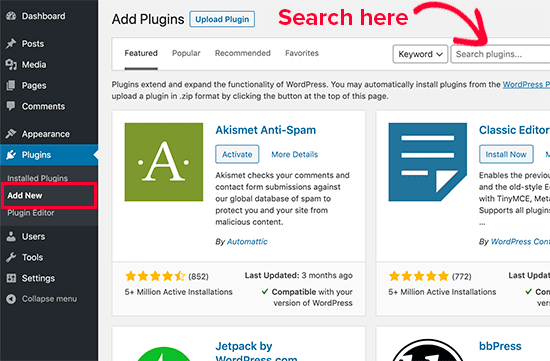
The WordPress dashboard is the heart of your website. To find the plugins, log into your dashboard first. Use your username and password. You will see the main menu on the left. Click on the “Plugins” tab. This opens a list of all plugins installed on your site. Each plugin has its own row. You can see its name, version, and author. This helps to know what’s running on your site. You can also manage them from here. Activate or deactivate with just a click. It’s that simple and easy.
Credit: wordpress.org
Navigating To The Plugins Section
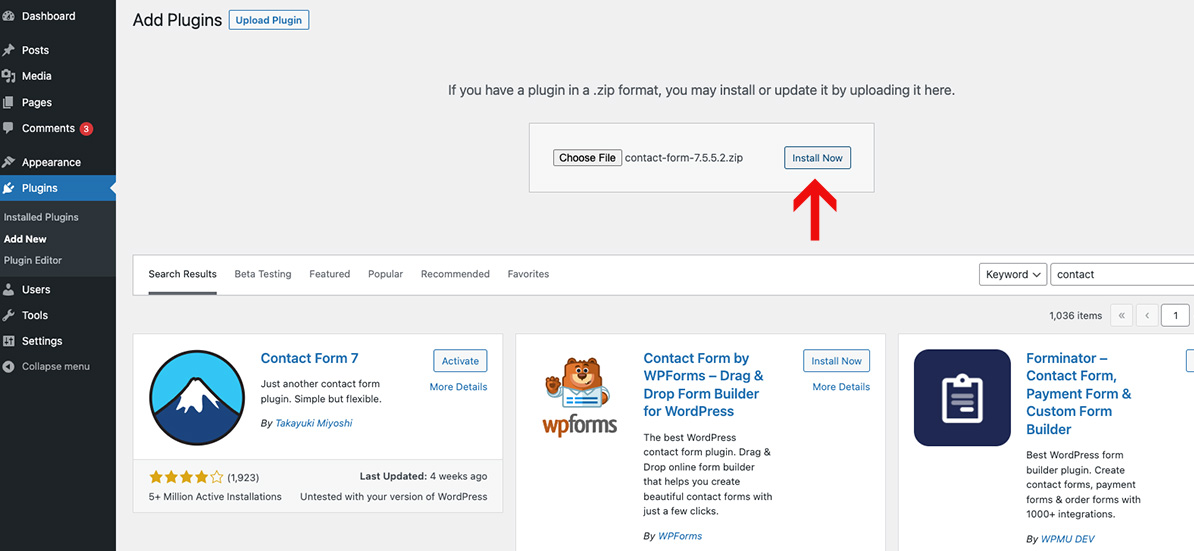
Access the WordPress dashboard to explore installed plugins. Click on “Plugins” in the sidebar menu. A complete list of active and inactive plugins appears, allowing easy management and updates.
Locating The Plugins Menu
Open your WordPress dashboard. Look on the left side. Find the menu with options. Click on “Plugins”. This menu shows all plugin choices. It helps users manage plugins easily. The menu is easy to find. It is near the top of the list. It is a key part of WordPress management.
Viewing The Installed Plugins List
Click on “Installed Plugins”. A list will appear. This list shows all installed plugins. Each plugin has a name. You can see if they are active or not. Some plugins have extra info. This info can help users understand their functions. Managing plugins is easy with this list. Users can activate or deactivate plugins. They can delete plugins too. Always check this list for updates.
Using The Installed Plugins Page
Go to the Installed Plugins page in WordPress. You can see all your plugins here. Use the sort options to arrange them. Sort by Name, Date, or Author. Filters help you find specific plugins. Use the search box to find a plugin quickly. This makes managing plugins easy.
Plugins can be active or inactive. Active plugins are in use. Inactive plugins are not. Check the Installed Plugins page. Active plugins have a light blue background. Inactive plugins have a white background. Toggle the activate or deactivate button to change their status. Keeping track of plugin status is important. It helps manage your website better.

Credit: wordpress.org
Utilizing Plugin Management Tools
Plugin Manager plugins help you see installed plugins. They show all plugins in one place. You can view active and inactive plugins easily. These plugins help you manage updates too. No need to visit each plugin page. One dashboard for all your needs. Easy and quick management.
These tools save time. No need to search each plugin. All in one place. They help you avoid outdated plugins. You can update them with one click. This keeps your site safe. Unused plugins can be deactivated easily. This makes your site faster. Your site becomes smooth and efficient.
Checking Plugins Via Ftp
Discover installed WordPress plugins by accessing your files through FTP. Navigate to the ‘wp-content/plugins’ folder. There, you’ll find all the plugin directories, which reveal what’s currently installed on your site.
Accessing WordPress Files Via Ftp
Use an FTP client to access your WordPress files. FileZilla is a popular choice. Enter your website’s FTP details. This includes host, username, and password. Connect to your site.
Locating The Plugins Directory
Find the wp-content folder. Click to open it. Inside, look for the plugins directory. This folder contains all installed plugins. You can see each plugin’s folder. The names usually match the plugin name.
Take note of each folder. This helps you know which plugins are active. Understanding your plugins can help fix website issues. It’s a simple process to see what’s installed.
Using Command Line Tools
WP-CLI helps with WordPress tasks. First, you need WP-CLI on your computer. Check if PHP is installed. Download WP-CLI from its website. Save it in a folder. Open the terminal and go to that folder. Type the command to install it. Wait for the process. Now WP-CLI is ready.
Type a command to list plugins. Open the terminal. Go to the WordPress folder. Use the command: wp plugin list. This shows all plugins. You will see the plugin name. Also, check the version and status. Active plugins are marked. Inactive ones are listed too. You can easily see what’s installed.
Analyzing The WordPress Database
Discovering which WordPress plugins are installed involves exploring the database. Access the database via phpMyAdmin and navigate to the ‘wp_options’ table. Look for the ‘active_plugins’ option to view a serialized list of installed plugins. This method offers insight without accessing the WordPress dashboard.
Understanding The Role Of The Database
The WordPress database stores all your site data. Posts, comments, and users live here. Plugins also store data in this database. This makes the database important. It helps WordPress work well. Without it, your site may not function.
Finding Plugin Information In The Database
Plugin data is stored in tables. Each plugin may have its own table. The table names often start with wp_. Some plugins add rows to existing tables. You can find plugin info by checking these tables. Search for tables or rows related to plugins. Use tools like phpMyAdmin to view database tables. This tool helps you see what plugins are installed.
Exploring Third-party Tools
Discovering which WordPress plugins are installed can be simple with third-party tools. These tools scan your website and identify active plugins, helping you manage them effectively. Stay informed about your site’s functionality without digging through complex settings.
Popular WordPress Plugin Analysis Tools
Some tools help find installed plugins. WPScan is a useful tool. It checks for security issues too. BuiltWith is another choice. It lists plugins and technologies used. WhatRuns offers similar features. It is a browser extension. These tools show plugin details fast.
Benefits Of Using Third-party Tools
Using these tools saves time. They make plugin management easy. You get quick insights into plugin details. No need to check each plugin manually. This reduces workload. Tools help keep your site safe too. They find outdated plugins. They alert you about security risks.
Ensuring Plugin Security
Plugins need regular updates. These updates fix bugs and add new features. Old plugins can be a security risk. They can make your site unsafe. Updating plugins helps keep your site safe. It also improves performance. Always check for updates on the plugin page. Developers update plugins often. This helps your site stay secure.
Some tools help watch your plugins. They alert you of risks. Wordfence is one tool. It checks for malware. Another tool is Sucuri. It scans for threats. These tools help keep your site safe. They are easy to use. Just install them and follow steps. They show reports on risks. Keeping plugins secure is important.
Frequently Asked Questions
How To Check Installed Plugins In WordPress?
To check installed plugins in WordPress, log into your dashboard and navigate to the “Plugins” section. Here, you’ll find a list of all the plugins currently installed on your site. You can view details, activate, deactivate, or delete plugins directly from this page.
Can I Find Inactive Plugins In WordPress?
Yes, inactive plugins can be found in the “Plugins” section of your WordPress dashboard. These plugins will appear under the “Inactive” tab. You can easily activate or delete these plugins from this section, helping you manage your website’s functionality effectively.
How Do I Identify Unused Plugins?
To identify unused plugins, visit the “Plugins” section in your dashboard. Plugins not activated are generally unused. Regularly review and deactivate or delete plugins you no longer need. This helps improve site performance and security by reducing clutter and potential vulnerabilities.
Are Installed Plugins Affecting Site Speed?
Yes, installed plugins can affect site speed. Each plugin adds code that can slow down your website. Regularly review and remove unnecessary plugins to optimize performance. Use performance monitoring tools to identify plugins causing speed issues and consider alternatives if needed.
Conclusion
Finding installed WordPress plugins is essential. It ensures your site runs smoothly. Use the dashboard for quick checks. The File Manager method helps you dig deeper. For advanced users, WP-CLI offers power and precision. Regular checks prevent plugin conflicts. Maintain site performance and security.
Keep your plugins updated. It reduces risks and boosts efficiency. Familiarize yourself with plugin tools. They simplify management and monitoring. Always prioritize site health. An organized plugin strategy saves time. It enhances user experience and site reliability. Stay informed and proactive.
Your WordPress site will thank you.



