
Are you tired of having to recreate your WordPress theme settings every time you switch to a new website or backup your current one? Imagine the relief of being able to transfer your entire theme, with all its customizations intact, effortlessly.
In this guide, you’ll discover the secrets to exporting your WordPress theme along with its settings, saving you time and frustration. You’ll learn step-by-step instructions that even a beginner can follow. By the end of this article, you’ll have the confidence to move your theme effortlessly, ensuring your website always looks exactly how you want it.
Dive in and unlock the ease of seamless theme migration now!
Credit: www.greengeeks.com
Preparing Your Theme For Export
First, always make a backup of your theme. This keeps your work safe. Use tools like FileZilla or cPanel. These tools help download theme files easily. Store the backup on your computer. It is important to have a copy in case something goes wrong. Regularly check that your backup is up-to-date. Keeping backups will give you peace of mind.
Some themes might not work with every WordPress version. Always check if your theme is compatible with the current WordPress. This ensures everything runs smoothly. Visit the theme’s official website. Check their updates and notes. Ensure plugins and widgets work well with your theme. This helps in avoiding errors later.
Exporting Theme Files
Access the theme files using your website’s File Manager. This tool is found in the hosting account. Navigate to the public_html folder. Look for the wp-content folder. Inside, you will find the themes folder. This is where your theme files are stored. Make sure you know the correct theme name.
Using the File Manager is easy. Find the folder with your theme name. Right-click on it. Then choose the download option. This will allow you to save the theme files to your computer. Always keep a backup before making changes.
Downloading theme files is simple. Click on the theme folder. Select all the files in it. Right-click and choose download. Save the files safely on your computer. Now, your theme files are ready to use elsewhere.
Exporting Theme Settings
Many themes come with an options panel. This panel lets you change theme settings. First, find the options panel in your WordPress dashboard. Look for the export button. Click it to save the settings. Now, the settings are stored in a file. Keep this file safe. It helps to move your theme settings.
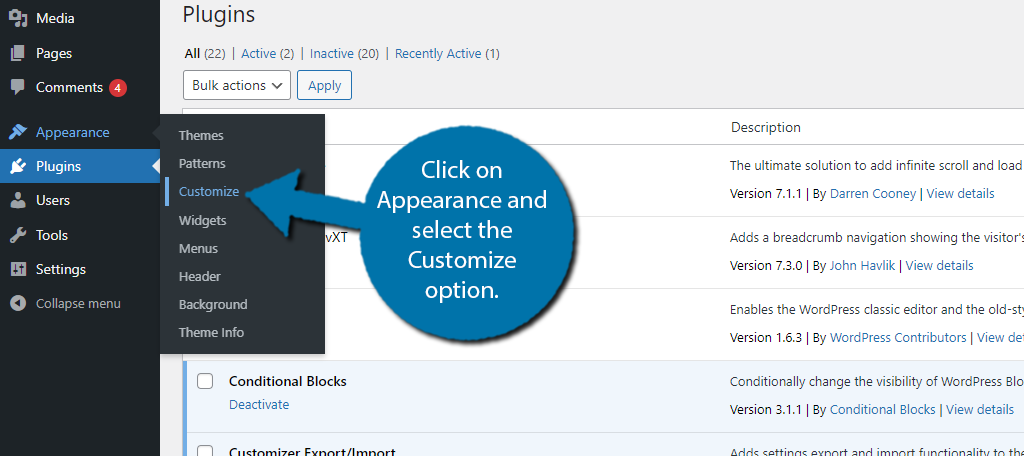
The WordPress Customizer is a tool. You can use it to change your theme. To export settings, open the customizer. Look for the export option. Click to save the settings. The settings file is now on your computer. This makes moving settings easy.
WordPress stores theme settings in the database. Use a plugin to export them. Install a backup plugin. Then, choose to export the database. Save the file to your computer. This file holds your theme settings. It is useful for backups or moving sites.

Credit: www.greengeeks.com
Utilizing Plugins For Export
Export plugins help save your WordPress theme settings. They make the process easy and quick. Popular plugins include All-in-One WP Migration and Duplicator. These plugins are user-friendly. Check for good reviews. Look for regular updates too. This ensures reliability. Always choose plugins with high ratings.
First, go to your WordPress dashboard. Click on the Plugins menu. Then, select Add New. Use the search bar to find your chosen plugin. Click Install Now. After installation, press Activate. Follow the setup guide provided by the plugin.
After setup, locate the plugin in your dashboard. Click to open it. Choose the Export option. Select the parts of the theme you need. Click Start or Export. The plugin will create a file. Save this file to your computer. You can use it to import settings later.
Importing The Theme To A New Site
First, go to your WordPress dashboard. Click on Appearance, then Themes. Click on Add New. Now, click Upload Theme. Choose your theme file. It should be a .zip file. Click Install Now.
After installing, activate your theme. Go to Tools and select Import. Choose your settings file. It should match your theme. Click Upload and wait. The settings will load.
Check your website now. Ensure everything looks right. Visit different pages. Make sure images and text show up. Check menus and links. Fix any errors you find. Everything should work smoothly.

Credit: woostify.com
Troubleshooting Common Issues
Exporting a WordPress theme with settings often involves checking plugin compatibility and using export tools. Ensure all plugins are up-to-date. Utilize the built-in export function for a seamless transfer.
Resolving File Upload Errors
WordPress sometimes shows file upload errors. First, check the file size. If it’s too large, reduce it. Next, ensure your internet connection is stable. Sometimes, slow connections cause issues. Also, check your server settings. Increase the maximum file size limit in the php.ini file. Finally, clear your browser cache. This can fix many upload problems.
Fixing Settings Import Issues
Settings import can fail sometimes. Start by checking the file format. It must be compatible with WordPress. Next, verify the import tool is updated. Old tools may not work well. Another tip is to check your database permissions. These must allow changes. Lastly, ensure the file is complete. Incomplete files cause errors.
Addressing Compatibility Concerns
Compatibility issues can arise. Check if your theme is up-to-date. Old themes often have problems. Also, verify your plugins. Outdated plugins may not work. It helps to read theme documentation for compatibility details. Finally, test the theme on different browsers. Some themes work better on certain browsers.
Frequently Asked Questions
How Do I Export A WordPress Theme?
To export a WordPress theme, access your dashboard and navigate to “Appearance” then “Themes. ” Choose your active theme and use a backup plugin to export both files and settings. This ensures you retain all customizations. Always verify compatibility before importing to a new WordPress installation.
Can I Export Theme Settings In WordPress?
Yes, exporting theme settings is possible. Use a plugin like Customizer Export/Import to export settings. It creates a file with your custom settings. This file can be imported into another WordPress site, ensuring the same appearance and functionality without manual configuration.
Why Export A WordPress Theme With Settings?
Exporting a WordPress theme with settings saves time during site migration. It ensures consistent design and functionality across installations. By exporting settings, you avoid reconfiguring theme options manually. This process is crucial for developers and users managing multiple sites.
What Tools Help Export WordPress Themes?
Several tools facilitate exporting WordPress themes. Plugins like Duplicator, All-in-One WP Migration, and Customizer Export/Import are popular. They streamline the process, ensuring both theme files and settings are exported efficiently. Choose one based on your specific needs and compatibility with your WordPress version.
Conclusion
Exporting your WordPress theme with settings is simple. Follow the steps outlined. Ensure you back up everything. This prevents any loss of data. Keep your theme files organized. Use tools that simplify the process. Double-check settings before exporting. It saves time and effort later.
Practice makes perfect. So try it out. Share your experience with others. It builds community support. Troubleshooting becomes easier with shared tips. Stay updated with WordPress changes. This ensures compatibility. Now, you’re ready to manage themes confidently. Happy exporting!



