
Have you ever felt the urge to give your WordPress site a fresh look but didn’t know where to start? You’re not alone.
Many WordPress users like you want to tweak their themes to better reflect their brand or personal style. But the thought of diving into PHP code can be intimidating. Imagine the satisfaction of transforming your website into something truly unique and tailored just for you.
Editing WordPress theme PHP files might seem daunting at first, but with a little guidance, it can become a rewarding task. By the time you finish reading this article, you’ll have the confidence and knowledge to make those changes yourself. Let’s uncover the secrets of customizing your WordPress theme together, and take your website to the next level.
Getting Started With WordPress Theme Files
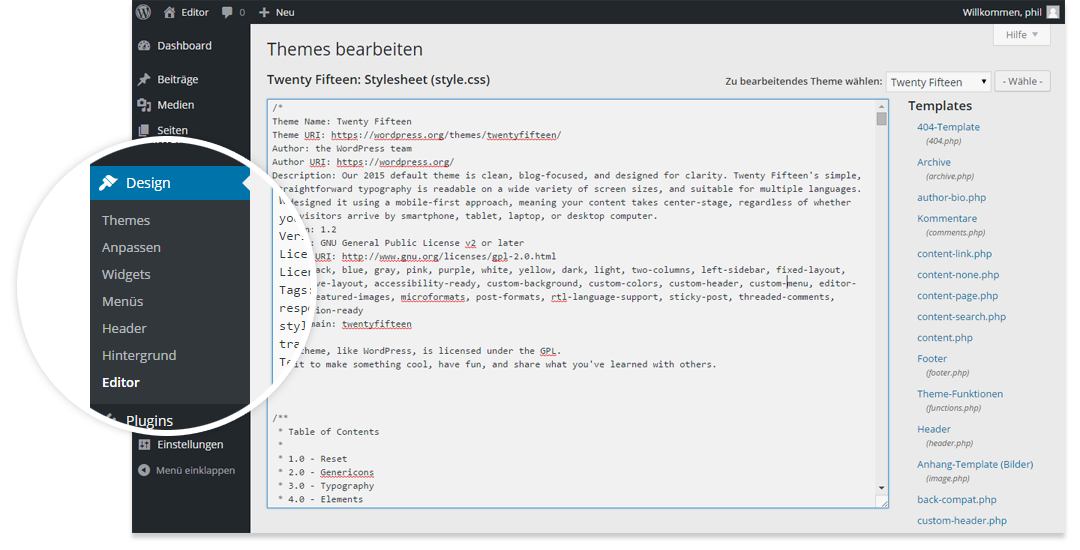
WordPress themes are stored in the wp-content/themes folder. Each theme has its own folder. Inside, you’ll find files like style.css and functions.php. These files control how your site looks and works. Access them using an FTP client or cPanel. Always make a backup before editing. This helps if something breaks. Remember, changes can affect your site’s appearance. Be careful when editing.
PHP is a programming language. WordPress uses PHP for its themes. It’s important to know some basics. PHP code is written between <?php and ?> tags. This code tells the server what to do. Simple tasks include displaying dates or names. Variables store information. Functions perform actions. PHP can be tricky. Start small, then try bigger changes. Always test your edits on a local site first.
Credit: www.ionos.com
Essential Tools For Editing Php
Code editors help you write and edit code easily. Popular editors include Visual Studio Code and Sublime Text. These tools highlight errors in your code. They make coding faster and more fun. Syntax highlighting shows different code parts in colors. This helps you spot mistakes quickly. Code editors can also help with auto-completion. This saves time and reduces errors. Beginners and experts use code editors. Choose one that fits your needs.
A local development environment lets you test changes safely. Tools like XAMPP and WAMP are common choices. They simulate a web server on your computer. This way, you can see how changes look before going live. You avoid breaking the live site by testing locally. Local environments support PHP and MySQL. They are easy to set up. You need them for safe theme editing. Practice makes perfect with local environments.
Common Php Modifications
Customizing Theme Functions is crucial for unique site features. Edit the functions.php file in your theme. This file controls many aspects of your WordPress site. Add custom code snippets to enhance functionality. But be careful! Errors in this file can break your site. Always back up before making changes. Use a child theme for safe modifications. This way, updates won’t erase your changes.
Changing Template Layouts can give your site a fresh look. Templates are PHP files that control your site’s design. Edit files like header.php or footer.php for layout changes. Want a new sidebar? Modify the sidebar.php file. Make sure to test changes on a local server first. This helps avoid live site issues. Using a code editor can simplify this process. Always save your edits after testing.
Best Practices For Php Editing
Creating a child theme is smart. It keeps your changes safe. If the main theme updates, your edits stay. Start by making a new folder. Put it in the themes directory. Name it wisely. Then create a style.css file. Add a template line pointing to the parent theme. Make a functions.php file next. This is where you add custom code. Always test your child theme. Use a local server first. If it works, upload it to your site.
Back up files before editing. This step is crucial. It protects against mistakes. Copy the original theme files. Store them safely. Use cloud storage or external drives. This way, nothing is lost. Use plugins for automatic backups. Some are free. They save time. Backing up makes editing stress-free. Always check your backups. Ensure they’re complete and accessible. This keeps your site safe.
Troubleshooting Php Errors
PHP errors can be confusing. They usually show as error messages. These messages help you find mistakes in the code. Look for words like “syntax error” or “unexpected token.” These words tell you where the problem is. Sometimes, errors show line numbers. This helps you know where to check. Pay attention to these details. They are important.
Debugging means fixing errors in the code. Start with simple checks. Make sure every bracket and semicolon is in place. Use tools like “var_dump()” to see variable values. This helps you know what data is stored. Check error logs on your server. They often have clues. Another way is to disable plugins one by one. Sometimes, plugins cause errors too. Remember, small steps can fix big problems.

Credit: jetpack.com
Testing Changes Before Deployment
Editing WordPress themes can be tricky. Mistakes happen. Use staging sites to test your changes. A staging site is a safe place. It is like a playground for your website. You can make changes without fear. Your live site stays safe. Staging sites help you catch errors early. This saves time and trouble later. Always test new code here first.
Using Staging Sites
Staging sites mirror your real site. They show how changes will look. Check for bugs here. Fix problems before going live. No surprises for visitors. You can experiment freely. Test different designs and features. Once happy, move changes to the live site. This way, your site stays professional.
Cross-browser Testing
Every browser displays websites differently. Test your site on many browsers. Check how it looks on Chrome, Firefox, and Safari. Don’t forget mobile browsers too. This ensures everyone has a good experience. Cross-browser testing shows design flaws. Fix them before they affect users. A consistent look is important. Happy users mean a successful site.
Credit: kinsta.com
Frequently Asked Questions
How Do I Access WordPress Theme Files?
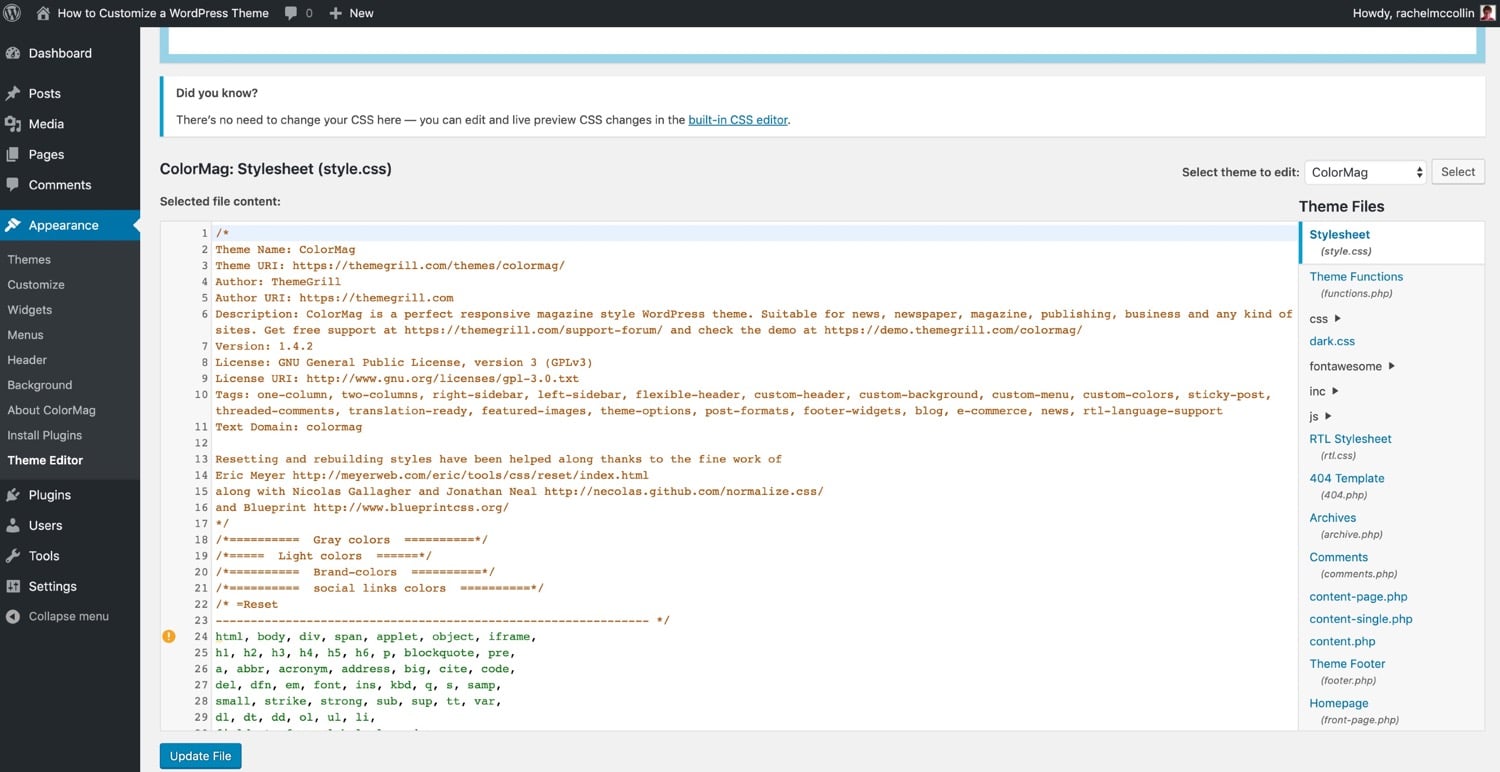
To access WordPress theme files, navigate to your WordPress dashboard. Go to Appearance, then click on Theme Editor. Here, you’ll find all the theme files like header. php, footer. php, and style. css. Always back up your files before making changes.
Can I Edit Theme Php Files Safely?
Yes, but proceed with caution. Always create a child theme before editing. This prevents losing changes during updates. Use a code editor for precision and always back up your files. If unsure, consult documentation or seek expert help to avoid errors.
What Tools Are Best For Editing Php Files?
Popular tools include Notepad++, Sublime Text, and Visual Studio Code. These editors highlight PHP syntax, making code easier to read. They also offer extensions for added functionality. Always use an editor that supports FTP for seamless WordPress integration.
Is It Necessary To Backup Before Editing?
Absolutely, always back up your WordPress site before editing. Backup ensures you can restore your site if errors occur. Use plugins like UpdraftPlus or manual methods through cPanel. Regular backups protect your data and provide peace of mind when editing.
Conclusion
Editing WordPress themes in PHP is not as daunting as it seems. Start small. Tweak one thing at a time. Back up your files before changes. Experiment with colors and layouts. Use simple code snippets. Make your website look unique and engaging.
Remember, practice makes perfect. Keep learning and exploring new possibilities. Stay updated with the latest WordPress trends. Your site deserves the best version. Happy coding!



