
Have you ever wanted to give your WordPress site a fresh new look by changing its images, but didn’t know where to start? Editing WordPress theme images can seem daunting, especially if you’re not tech-savvy.
But what if I told you it’s easier than you think? Imagine transforming your website’s appearance with just a few clicks, making it not only visually appealing but also more engaging for your visitors. In this guide, you’ll discover simple, step-by-step methods to edit and customize images within your WordPress theme.
By the end of this article, you’ll have the confidence and know-how to update your site’s visuals, ensuring it stands out and leaves a lasting impression on your audience. So, are you ready to unleash your creativity and take control of your website’s design? Let’s dive in!
Choosing The Right Tools
Pick software that suits your needs. Adobe Photoshop is a popular choice. It offers many tools for editing. GIMP is another good option. It is free and powerful. Both are great for beginners and experts. They help you make images look better. You can also try Canva. It is easy to use and online. Many people like it for quick edits.
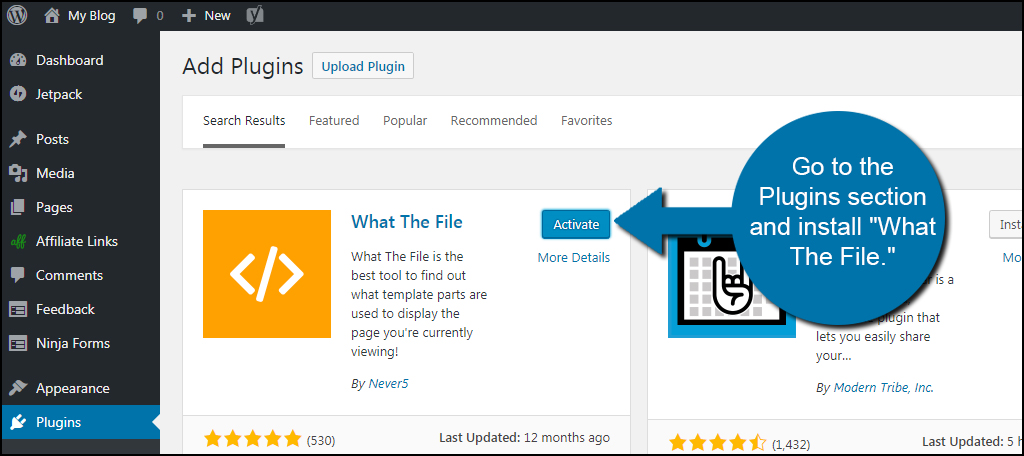
Use plugins to change images on your site. Smush is a top choice. It makes images smaller without losing quality. This helps your site load faster. Envira Gallery is another helpful plugin. It makes your images look neat and organized. NextGEN Gallery offers many features too. It is popular among photographers. These plugins help you edit and manage images easily.
Locating Theme Images
Every WordPress theme has a unique file structure. You can find theme images in the assets or images folder. Themes may use different names for this folder. It’s important to check the style.css file. This file shows the paths to images used in the theme. You might find image links here. Explore other theme folders to locate images.
The WordPress Customizer lets users change images easily. Open the Customizer from the WordPress dashboard. Look for options like Header Image or Background. Users can upload new images or select from the media library. The Customizer displays changes in real-time. It’s a user-friendly way to edit theme images without coding.
Editing Images
Resizing images makes them fit better on your website. Cropping helps you focus on the important parts. Tools like WordPress let you change image sizes easily. Smaller images load faster. This is good for your site. Find the crop tool in your editor. Select the area you want. Click save. Now your image is ready.
Making colors brighter can improve images. Contrast makes pictures stand out. In your WordPress editor, find the color tools. Move the sliders to adjust. Make sure your image looks clear. Avoid colors that hurt the eyes. A simple change can make images look great.
Text on images can tell a story. Overlays add style. Use tools to place text on images. Choose a font that is easy to read. Keep the text short. Use overlays to add color layers. This can highlight parts of the image. Always check if the text is clear. This makes your image more engaging.
Credit: www.greengeeks.com
Uploading Edited Images
To upload edited images, start by accessing the WordPress dashboard. Click on the Media option from the side menu. Then, select Add New. Drag and drop your images into the upload area. Make sure the images are in the correct format. Once uploaded, the images are stored in the media library.
Media Library Management
Organizing images is easy. Use the media library to view all images. You can sort by date or type. To find a specific image, use the search bar. For better management, add tags or categories. Ensure images have descriptive names. It helps in quick identification.
Replacing Existing Images
To replace an image, locate the original image in the media library. Click on it to open. Select Edit or Replace. Upload the new image. Ensure it matches the theme’s size and style. Save changes after replacing. The new image will appear on your site.
Ensuring Responsive Design
Images should load fast and look good. Use the right image size. This will save space and speed up your site. Choose formats like JPEG or PNG. These formats are common and work well. Compress images to make them smaller. There are many tools online for this task. Always check the image quality after compression. Keep your images clear and sharp.
It’s important to test images on many devices. Screens come in different sizes. Your images should look good on all of them. Check how images appear on mobile phones. Also, test on tablets and computers. Use tools or apps to see your site in different views. Make sure images do not break or stretch. This keeps your site looking professional and neat.
Troubleshooting Common Issues
Editing WordPress theme images can solve display issues. Navigate to the theme editor, locate the image files, and adjust dimensions. Refresh the page to see changes instantly.
Broken Image Links
Broken image links can be very frustrating. They make your site look bad. First, check if the image file is uploaded. Sometimes images do not upload correctly. This causes broken links. Next, ensure the file path is correct. A small typo can break the link. Try checking the WordPress Media Library. Make sure the image is there. If not, upload it again. Another common issue is incorrect URL paths. Always use the right URL for your images. Also, check for missing files on the server. Ensure the files are not deleted or moved. It’s important to verify your theme settings. Some themes have special image settings. Adjust them if needed.
Compatibility Problems
Different browsers display images differently. Always test your site on various browsers. Ensure your images are in a compatible format. Use JPG or PNG for best results. Some themes may not support certain image formats. Check your theme documentation for supported formats. Plugins can also cause issues. Disable plugins one by one to find the problem. Sometimes, plugins conflict with each other. This can cause images not to show. Theme updates may fix some bugs. Always update your theme for new features and fixes.
Best Practices For Image Editing
Always use the best resolution for images. High-quality images look clear. They make your website look professional. Use tools to resize images. This keeps quality high. Do not stretch images. This can make them look blurry. Keep original files safe. You might need them later. Use the right format. JPEG is good for photos. PNG is better for graphics.
Smaller images load faster. Use tools to compress images. This makes them smaller. It helps your site load quickly. Avoid very large images. They slow down your site. Use a content delivery network (CDN). It helps in fast loading. Lazy loading is useful. It loads images as users scroll. This saves time and bandwidth.

Credit: wordpress.com

Credit: www.wpzoom.com
Frequently Asked Questions
How Do I Change Images In WordPress Theme?
To change images in a WordPress theme, navigate to the WordPress dashboard. Go to Appearance > Customize. Select the section where the image is located, like ‘Header’ or ‘Background. ‘ Click ‘Change Image’ and upload a new one. Save your changes to update the theme.
Can I Edit WordPress Images Without Coding?
Yes, you can edit WordPress images without coding. Use the built-in WordPress Customizer for easy modifications. Navigate to Appearance > Customize, then choose the section you want to edit. Upload or select new images as needed. Save changes, and your updates will be applied immediately.
What Tools Are Best For WordPress Image Editing?
Several tools are excellent for WordPress image editing. Use the WordPress Media Library for basic edits like cropping and resizing. For advanced editing, consider plugins like WP Paint or Adobe Photoshop Express. These tools offer more features and improve the quality of your images.
How Do I Optimize Images For WordPress?
Optimizing images for WordPress involves reducing file size without losing quality. Use plugins like Smush or ShortPixel for automatic optimization. Compress images before uploading using tools like TinyPNG. Ensure your images are in the correct format, like JPEG for photos and PNG for graphics.
Conclusion
Editing WordPress theme images is simple with practice. Follow the steps outlined. Start with backup. Protect your original files. Choose the right tools for easy editing. Make changes to enhance your site’s look. Test your edits. Ensure they fit well with your content.
Keep your images optimized for fast loading. This improves user experience. Regular updates can keep your site fresh. Experiment with different styles to find what works best. Over time, you’ll get more comfortable. A well-edited theme can make your site more attractive.
Happy editing!



