
Are you feeling stuck with your WordPress theme’s home page? Do you wish it could better reflect your vision or brand but aren’t sure where to start?
You’re not alone. Many WordPress users feel overwhelmed when it comes to editing their theme’s home page, but here’s the good news: it’s easier than you think. Imagine transforming your home page into a captivating and user-friendly space that keeps your visitors engaged and coming back for more.
We’ll guide you step-by-step on how to edit your WordPress theme’s home page with ease and confidence. Get ready to unlock the potential of your website and make it shine!
Choosing The Right Theme
Think about what you need for your website. Do you want a simple layout or something more dynamic? Make a list of features you must have. Check if you need a blog, an online store, or a portfolio. Your list will help you choose the right theme. This will save you time and help you make a better choice.
Look at different themes in the WordPress library. Many are free, but some cost money. See if the theme has good reviews. Make sure it is updated often. Check if it works well on phones and tablets. A theme should match your style and needs. Try a few to see which one you like best.

Credit: www.wpexplorer.com
Accessing Theme Editor
Begin by logging into your WordPress dashboard. Look for the menu on the left. Find the Appearance tab. Click on it. This will open more options. Choose the Theme Editor from the list. This is where you can make changes.
Once in the editor, find the style.css file. It holds the design details. Look for the index.php file too. This controls how the home page looks. Always be careful when editing. Changes can affect your site.
Customizing With WordPress Customizer
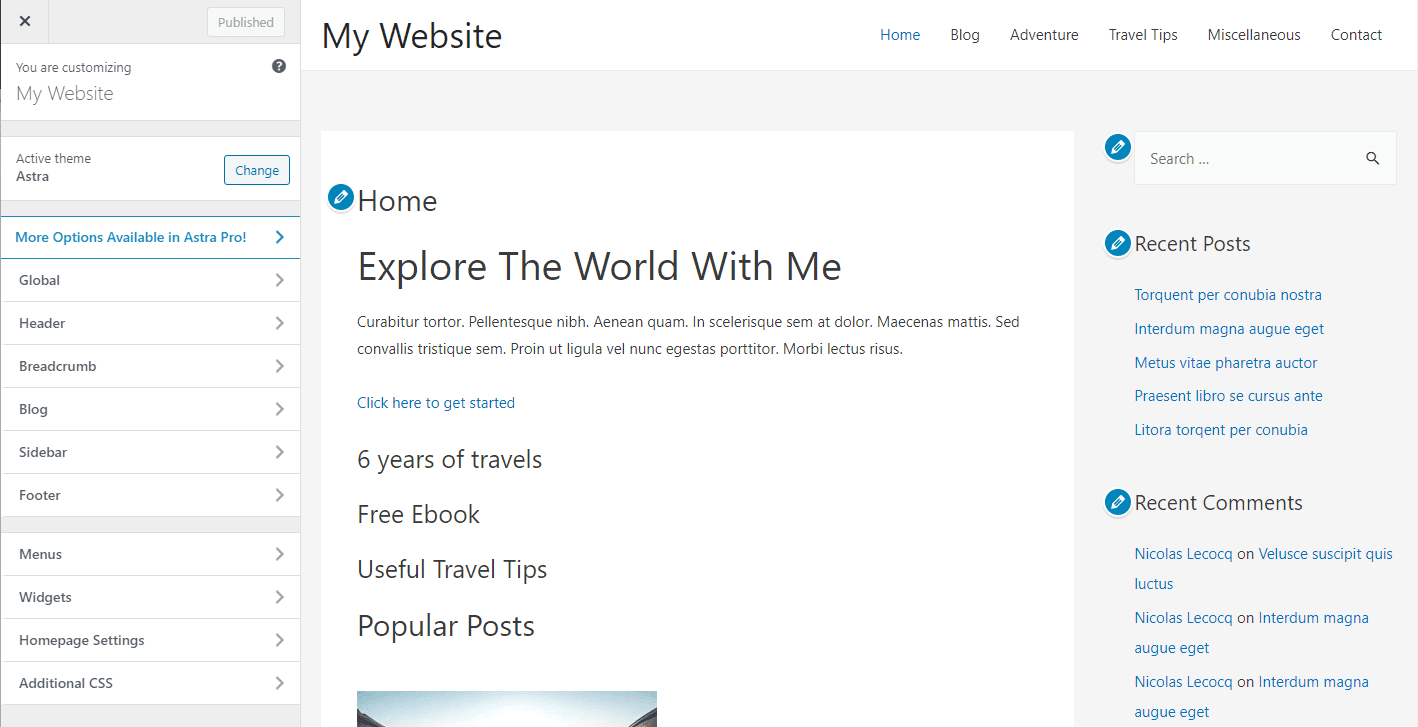
Using Live Preview lets you see changes instantly. It’s like magic. You can change colors and fonts. See them as you make edits. This helps you know what looks best. Make sure to save changes often. This way, you won’t lose your work.
Adjusting Layout Settings is also simple. Choose different layouts to see what fits. Try full-width or sidebar styles. It’s fun to play with options. You can also change header and footer layouts. This makes your page unique. Always remember to preview before saving. It ensures everything looks right.
Credit: kinsta.com
Editing Code Directly
HTML is the language for websites. It tells the browser what to show. CSS makes the pages look nice. It changes colors and shapes. Learning these is important. They help you change your website.
HTML is like the bones. CSS is like the skin. Together, they make a website. You can learn them online. Many websites teach these. Practice makes perfect.
Always make a backup first. Save your old code. This is very important. If things go wrong, you can fix them. Changes should be small at first. Test everything you change. Use a child theme for big changes. It keeps your original theme safe.
Testing is key. Check your website after changes. Does it look good? Does it work? If yes, you’re doing great. If no, fix the mistakes. Everyone makes mistakes. It’s part of learning.
Incorporating Widgets And Plugins
Widgets and plugins make your WordPress site more interesting. They add new features. First, choose useful add-ons for your site. Popular ones include contact forms and social media buttons. These help visitors connect with you. Look for add-ons with good reviews. Check their ratings and feedback. Choose ones that match your site’s style and needs.
Selecting Useful Add-ons
Browse the WordPress plugin library. There are many options. Think about what your site needs. Some add-ons help with SEO. Others improve site speed. Choose wisely. Don’t add too many. It can slow your site down. Test each one before using it.
Configuring Widgets
Go to your WordPress dashboard. Find the Widgets section. Drag and drop widgets to your home page. Customize their settings. Make sure they look right. Check their position and size. Adjust them to fit your theme. Widgets can show recent posts or popular articles. They can also display categories or tags. Make your site easy to use and fun to explore.
Optimizing For Seo
Slow websites can frustrate users. A fast site is important. Check your theme’s speed. Use tools like Google PageSpeed Insights. Make images smaller. Compress them to save space. This helps load pages faster.
Clean up your code. Remove any extra scripts. These can slow your page. Also, use a good hosting service. It makes a big difference.
SEO plugins help a lot. They improve your site’s visibility. Yoast SEO is a popular choice. It gives tips on better content. Also, it helps you with meta tags.
Another good plugin is All in One SEO Pack. It offers many tools. These help you rank higher. Install these plugins and follow their guidance. Your site will benefit.
Ensuring Mobile Responsiveness
Check your website on phones and tablets. Make sure it looks good. Use different brands and sizes. This helps find any problems. Sometimes, images might be too big. Text might be hard to read. Fix these issues quickly. A smooth experience is important.
Open your WordPress dashboard. Go to the theme settings. Look for mobile options. Change the font size if needed. Make buttons easy to tap. You can also hide certain things on small screens. This makes the site faster. Always save your changes. Then, check again on your phone.

Credit: www.youtube.com
Backing Up Changes
Backup plugins save theme changes. Popular plugins include UpdraftPlus and BackupBuddy. They create copies of your website. These copies are called backups. Backing up is important. It protects your work. You can restore your site if needed. Plugins make backup easy. They do most of the work. Installing a backup plugin is simple. Follow the steps given. Set a schedule. Check backups regularly. Ensure they are working. Trust these tools. They are reliable. Use them for safety.
Set a regular schedule for backups. Do them weekly or monthly. Regular backups keep your site safe. They save recent changes. Choose a convenient time. When the website is not busy. This ensures smooth backup. Schedule backups automatically. Let plugins handle it. Check backups occasionally. Make sure they are complete. Test restoring backups. Ensure they work. Keeping a backup schedule is smart. Protects your website from loss.
Frequently Asked Questions
How Do I Access The WordPress Theme Editor?
To access the WordPress theme editor, log into your WordPress dashboard. Navigate to “Appearance” and click on “Theme Editor. ” Here, you can view and edit your theme files. Ensure you back up your website before making changes to avoid data loss.
Can I Edit WordPress Home Page Without Coding?
Yes, you can edit your WordPress home page without coding. Use the built-in WordPress Customizer or a page builder plugin like Elementor. These tools allow you to modify the layout, colors, fonts, and content without needing coding skills.
What Tools Help In Editing WordPress Themes?
Several tools can help in editing WordPress themes. Popular ones include Elementor, Beaver Builder, and WPBakery Page Builder. These tools offer drag-and-drop features, making theme customization easy. They also provide various design elements to enhance your site’s appearance.
How To Change WordPress Home Page Layout?
To change your WordPress home page layout, use the WordPress Customizer. Access it from your dashboard under “Appearance. ” Here, you can modify layout settings, add widgets, and adjust design elements. Consider using a page builder for advanced layout control.
Conclusion
Editing your WordPress theme home page can be simple. Start by exploring theme settings. Use the customization options wisely. Each change should reflect your brand. Keep your design clean and easy to navigate. Test different layouts and styles. Always preview before saving changes.
Remember, your home page is your digital front door. Make it welcoming. Engage your visitors with clear content. Use images to enhance visual appeal. Ensure mobile compatibility too. Lastly, regularly update your theme. Stay fresh and relevant. With patience and practice, you’ll master theme editing.
Your WordPress site will shine!



