
Are you looking to give your WordPress site a personal touch? Editing the HTML of your WordPress theme is a powerful way to customize your website exactly how you envision it.
Imagine the freedom to tweak elements, enhance features, and truly stand out from the crowd. But where do you start, and how can you ensure you’re doing it right? This guide is here to help you navigate the world of WordPress theme HTML editing with confidence and ease.
By the end of this article, you’ll have the knowledge to make your website not just another online space, but a true reflection of your style and goals. Let’s dive in and unlock the full potential of your WordPress site together!
Credit: kinsta.com
Introduction To WordPress Themes
WordPress themes make websites look nice. They change the style and layout. Themes help make sites unique. They are like clothes for websites. Each theme has its own design and features. Some themes are simple. Others are fancy with many options. Themes can be free or paid. People choose themes based on their needs.
Themes are like templates. They decide how a site looks. They include colors, fonts, and layouts. These things make a site special. Users can change themes anytime. This is very easy. Themes can be changed for different seasons or events. Themes are important for branding. They help attract visitors. Themes can be changed without coding.
Customizing themes makes a website unique. It helps match a site with a brand. Custom changes can include colors, fonts, and images. These changes make a site special. Users can make a site look new. Custom themes can improve user experience. They help keep visitors interested. This is important for websites. A good theme keeps people coming back.
Credit: www.youtube.com
Preparation Before Editing
Before editing WordPress themes, ensure all files are backed up. Familiarize yourself with the theme structure. Use a child theme to avoid losing changes during updates.
Backing Up Your Website
Start by making a backup. It keeps your work safe. Use plugins like UpdraftPlus. They are easy to use. They create a copy of your site. Store the backup offline or on a cloud. This protects against mistakes. You can restore your site if needed.
Creating A Child Theme
A child theme helps keep changes safe. It lets you edit without breaking the main theme. First, create a new folder. Name it anything you like. Add a style.css file inside. This file should have basic info. Add a template name. This links it to the main theme. Use a functions.php file to enqueue styles. Your changes are safe now. They won’t vanish after updates.
Accessing Theme Files
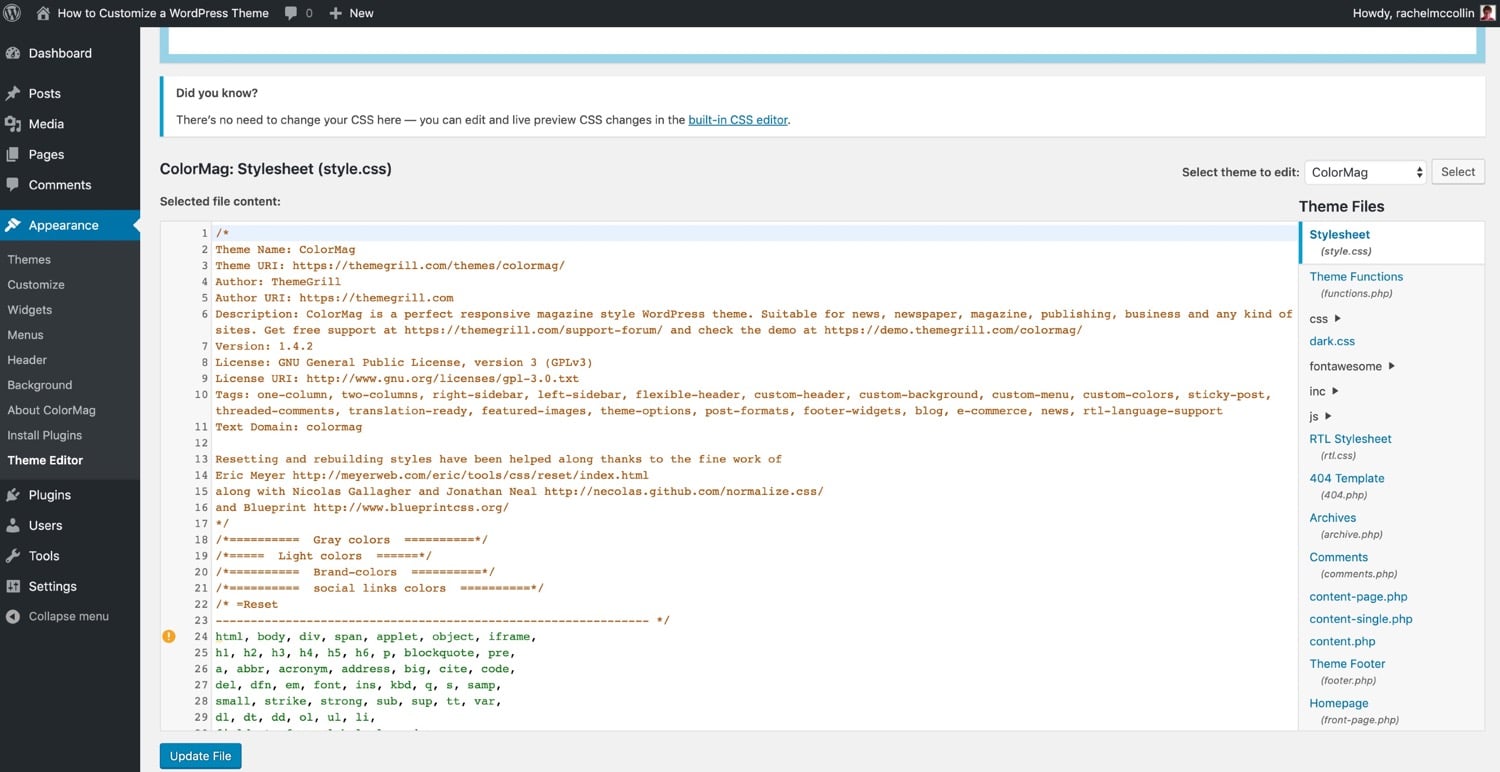
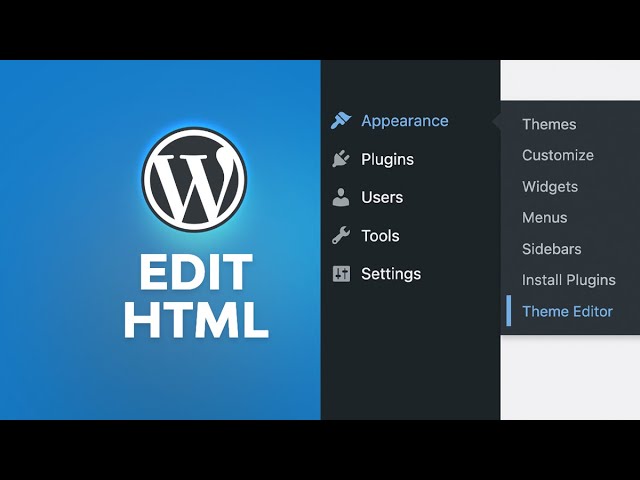
The WordPress Dashboard is easy for theme editing. Log in to your dashboard. Go to Appearance and click on Theme Editor. Here, you can see your theme files. Edit them directly in the browser. Be careful with changes, as mistakes can break your site. Always keep a backup before you start editing. This will save you from errors. Changes will apply once you save them.
FTP clients help in direct file access. Use software like FileZilla to connect. Enter your FTP credentials to login. Navigate to wp-content/themes. Here, find your theme folder. Download files to your computer for editing. Use a text editor to make changes. Upload the edited files back to the server. Always keep a backup for safety. FTP allows more control over your files.
Credit: thethemefoundry.com
Editing Html In WordPress
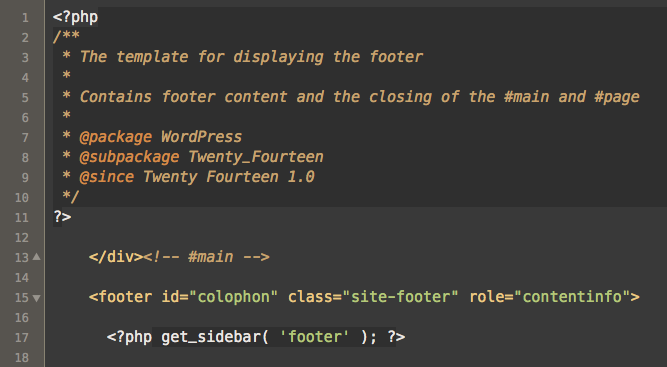
HTML files live in the WordPress theme folder. You find them in wp-content/themes. Each theme has its own folder. Open the folder to see HTML files. Look for files named header.php, footer.php, and index.php. These files control layout. They hold the structure of your pages. Be careful when opening these files. Mistakes can break the site. Always back up before changes.
Edit HTML to change text or images. Update header.php for logo changes. Adjust footer.php for contact details. Use index.php for front page edits. Add new HTML tags for custom designs. Remove tags to simplify the look. Always check changes on a test site. This ensures it works well before going live.
Using Code Editors
Many people use popular code editors to edit WordPress themes. These editors are simple. They help you see and change HTML easily. Visual Studio Code is a favorite choice. It is free and has many features. Another good editor is Atom. Atom is easy to use and very flexible.
Code editors make editing faster. They show errors right away. This helps you fix problems quickly. Code editors also offer color coding. Color coding helps you see different parts of code easily. Many editors have built-in tools. These tools can help you work better and faster.
Testing Your Edits
After editing, check your changes. Use the preview feature in WordPress. This helps you see how your site looks. No need to publish yet. Look for any errors or misalignments. Check if images and text look fine. Make sure buttons work as expected. This step helps you find mistakes early.
Different devices need different checks. Test your site on phones, tablets, and computers. See if the layout changes. Fonts and colors should remain the same. Use different web browsers like Chrome and Firefox. Ensure all links and features work. Compatibility is key for a good user experience.
Troubleshooting Common Issues
Editing WordPress theme HTML can solve many design issues. Start by accessing the theme editor in your dashboard. Make sure to back up your files before making changes.
Fixing Broken Layouts
Editing WordPress themes can break your site layout. This is a common issue. Start by checking the CSS changes you made. Sometimes, a small mistake in CSS can disrupt the layout. It might be a missing semicolon or incorrect selector. Also, ensure HTML tags are properly closed. Unclosed tags can cause layout problems. Use browser developer tools for quick checks. They help spot errors fast. Consider using a child theme for safer edits. This keeps your original theme intact. Backup your site before making changes. A backup saves your work if something goes wrong.
Resolving Error Messages
Editing themes may cause error messages. These can be frustrating. Check your PHP edits first. PHP errors are common in WordPress. Look for missing semicolons or brackets. These errors often cause error messages. Ensure all functions are properly defined. An undefined function can lead to errors. Debug mode can help identify the issue. Enable it in your WordPress settings. It shows detailed error information. This makes fixing easier. Always backup your files before edits. A backup protects you from accidental errors. If the error persists, consult the WordPress forums. They are helpful for finding solutions.
Advanced Customization Techniques
Adding scripts to your WordPress theme allows better control. It helps you to add unique features. Use the functions.php file. It is inside your theme folder. Always keep a backup before editing. You might need to add scripts for tracking. Or maybe for a special effect. Always check the script’s compatibility. Make sure it won’t slow down your site.
Plugins add extra features to your site. They help improve your theme. Popular plugins include WooCommerce and Yoast SEO. They offer amazing tools. Always ensure the plugin is updated. Older plugins may break your site. Check user reviews before installing. Make sure they are well-rated. Some plugins need special settings. Read instructions carefully. Integration can be simple. But sometimes it requires coding skills.
Frequently Asked Questions
How Can I Access WordPress Theme Files?
To access WordPress theme files, navigate to Appearance > Theme Editor in your WordPress dashboard. Here, you can view and edit theme files. Always back up your site before making changes to avoid potential issues. This ensures you have a restore point if errors occur.
Is It Safe To Edit WordPress Theme Html?
Editing theme HTML is safe if done correctly. Always back up your website before making changes. Use a child theme to prevent losing customizations during updates. Test changes on a staging site before implementing them on your live site to ensure everything works smoothly.
Can I Edit WordPress Theme Without Coding?
Yes, you can use page builders like Elementor or WPBakery to edit themes without coding. These tools offer drag-and-drop functionality, allowing you to customize layouts and design elements easily. They provide a user-friendly interface for non-developers to create and modify website designs effortlessly.
What Tools Help Edit WordPress Html?
Tools like FTP clients (FileZilla), cPanel, and code editors (Sublime Text) help edit WordPress HTML. They allow you to access and modify files directly on your server. Always keep a backup before making changes to prevent data loss or site errors.
Conclusion
Editing WordPress themes can seem tricky at first. But with practice, it becomes easier. Start by exploring the HTML structure. Gain confidence as you go. Always back up your theme files. This way, you avoid losing any changes. Use child themes for safer edits.
They protect your original theme. Try different changes to see what you like. Customize your site to fit your vision. Remember, patience is key. Practice often. With time, your skills will improve. Your WordPress site will truly reflect your unique style.
Happy editing!



