
Are you struggling to update the social media icons on your WordPress 2017 theme? You’re not alone.
Many users find this task a bit challenging, especially if they’re new to WordPress or unfamiliar with coding. But here’s the good news: editing these icons is easier than you think. In this guide, we’ll walk you through the steps to customize your social icons, helping you make your website more engaging and connected with your audience.
By the end, you’ll have a clearer understanding of how to make your site truly yours, enhancing its functionality and aesthetic appeal. So, let’s dive in and unlock the full potential of your WordPress site with just a few simple tweaks.
Credit: github.com
Accessing Theme Customizer
First, go to your WordPress dashboard. On the left side, find the Appearance option. Click it. A menu will appear. This menu has many options. You need to find Customize.
Look carefully for the Customize option in the menu. It might be near the top. Click on it. This will take you to the Theme Customizer. Here, you can edit many things. Like colors and fonts. But today, we focus on social icons. They are important for your site. Make sure you save your changes.

Credit: wordpress.org
Locating Social Media Menu
Social media icons are found in the menu. First, visit the dashboard. Then, select Appearance from the left menu. Choose Menus to see all menus. Look for the one named Social. This is your social media menu. It shows icons on your site. Check if it is assigned to the correct location. If not, assign it to the Social Links Menu location. This makes your icons show up correctly.
Menu locations help display the menu. The 2017 theme has several spots. Important spots are the Top Menu and Social Links Menu. Each spot can hold a different menu. Assign your social menu to the right location. This ensures the icons show on your site. Always check the menu assignment. This helps keep your site looking good.
The default setup has a simple menu. It usually includes Home and Contact pages. Social icons might not be there yet. You need to add them manually. Go to the social menu. Add links to your social profiles. Save changes to update the menu. This way, icons will appear on your site.
Editing Social Icon Links
Locate the WordPress dashboard. Click on Appearance. Choose Customize. Find Menus. This is where you will edit. Select the Social Links menu. You will see all the current links. To remove a link, click on it. Then, choose Remove. This will delete the link. Make sure to save changes. The link is now gone. It is important to check your site. Ensure the icon is removed.
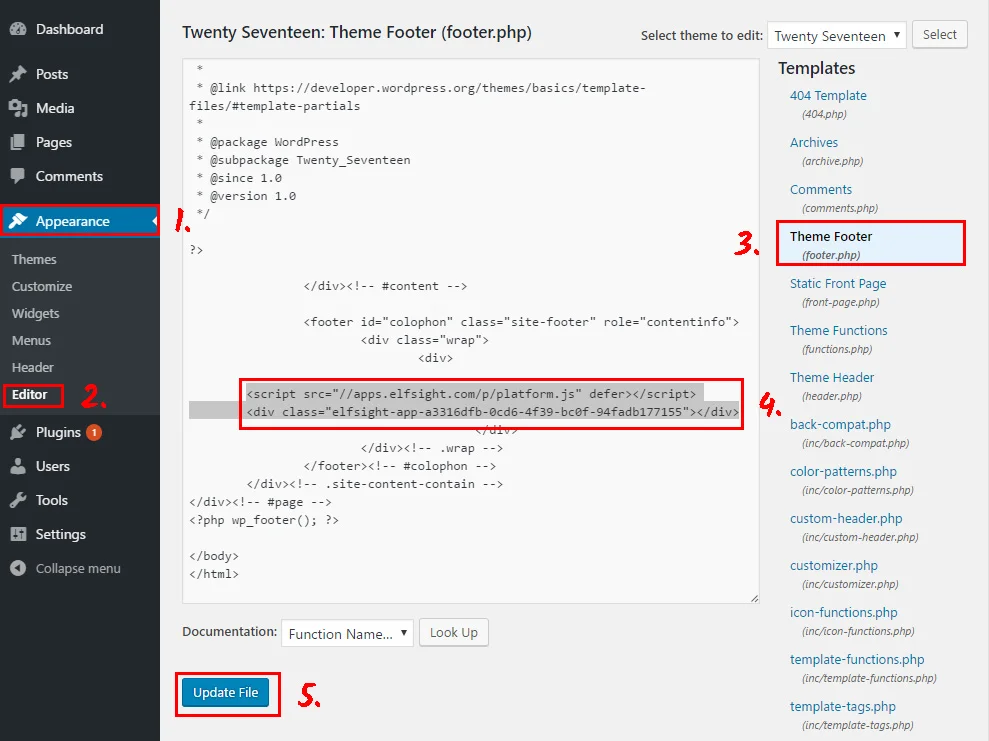
Go back to the Social Links menu. Click Add Items. You will see a list of social sites. Choose a site you want. Enter the URL of your profile. Click Add to include it. The icon will appear on your site. Make sure to save your work. Check to see the new icon. It should now be live. This helps others find you online.
Credit: elfsight.com
Customizing Icon Appearance
Social icons can be changed easily. First, go to the Dashboard. Click on Appearance. Find the Customize option. Choose Social Links. Now, pick the icon style you like. You can choose between square and rounded shapes. Change icon colors too. Make them match your site theme. This makes your site look better.
Icon sizes make a big difference. Small icons may be hard to see. Large icons can be too much. Adjust size in Customize settings. Find the size slider. Move it to change size. Test different sizes. Choose the one that fits best. Make sure icons are visible. This helps visitors find them easily.
Saving And Publishing Changes
Before saving, always check your changes. Use the preview button to see edits. This shows how the page looks. If something is wrong, you can fix it. Mistakes happen. Fix them before publishing.
Happy with your edits? Click the publish button. This makes your changes live. Remember, you can always update later. It’s easy. Keep your site fresh and updated. Your visitors will love it. Always double-check everything. It helps avoid errors.
Troubleshooting Common Issues
Social icons might not show up sometimes. Check if they are hidden. Go to the theme settings. Ensure the icons are not turned off. Sometimes, a plugin may block them. Disable recent plugins one by one. See if the icons appear. Clear your browser cache. Then, refresh the page. This might fix the issue.
Links might not work correctly. Verify each link’s URL. Open the customizer tool. Check each icon’s link there. Make sure URLs are correct. Update if needed. Also, check if your site is HTTPS. An HTTP link might not work. Update it to HTTPS. Save your changes. Test all links again. This should solve link issues.
Frequently Asked Questions
How To Find Social Icons In WordPress 2017?
To find social icons in the WordPress 2017 theme, navigate to Appearance, then Customize. Click on Widgets and choose the Social Links Menu. Here, you can view and edit the social icons. This section allows you to add, remove, or rearrange your social media links.
Can I Customize Social Icons’ Appearance?
Yes, you can customize the appearance of social icons. Use the WordPress Customizer under Appearance. Navigate to Additional CSS to change styles like color, size, or shape. You can also use plugins to add more customization options for your social media icons on the WordPress 2017 theme.
How To Add New Social Media Icons?
To add new social media icons, go to Appearance, then Customize. Select the Social Links Menu under Widgets. Click Add Items, then select or enter your desired social media URL. This will automatically add the corresponding icon to your WordPress 2017 theme’s social media section.
Why Are My Social Icons Not Displaying?
If your social icons are not displaying, check if the Social Links Menu is enabled. Ensure the URLs entered are correct and complete. Sometimes, a theme or plugin conflict might cause issues. Try deactivating plugins or switching themes temporarily to identify the problem.
Conclusion
Editing social icons on WordPress 2017 theme is simple and effective. You enhance your site’s appearance and functionality. Your visitors find your social links easily. Following the steps, your social media presence shines. The updated icons reflect your brand and connect with your audience.
Regularly review and update these icons. Keep them fresh and relevant. This small change makes a big difference. Engage your audience with ease. Boost your website’s interactivity today. Enjoy the creative control and improved user experience. Your site becomes more engaging and professional.
Start editing now and watch your site transform.



