
Are you tired of your WordPress site looking just like everyone else’s? Do you want to stand out and make your website truly yours?
Editing the layout of your WordPress theme can transform your site from ordinary to extraordinary. Whether you’re aiming for a sleek, professional look or a vibrant, creative vibe, customizing your theme’s layout is the key to capturing your visitors’ attention and keeping them engaged.
You don’t need to be a tech wizard to do it—just a bit of guidance and the right steps. In this guide, you’ll discover simple yet effective ways to tweak your theme’s layout, making your site not just a reflection of your brand but a magnet for your audience. Get ready to dive in and unleash your site’s full potential!
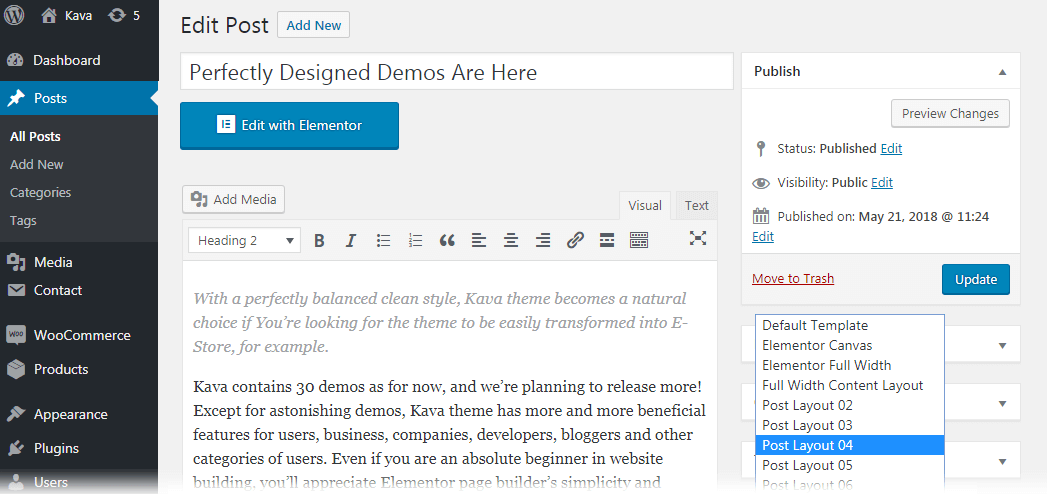
Credit: crocoblock.com
Choosing The Right Theme
Start by listing what you need. Do you want a blog, a store, or a portfolio? Different themes suit different needs. Think about colors and fonts you like. Look at how many pages you will have. This will help you find the perfect theme.
Some themes are very popular. Astra is fast and clean. OceanWP has many features. GeneratePress is simple and light. All have free versions. Try them out. See which one fits best with your needs.

Credit: learn.wordpress.org
Accessing The Theme Editor
First, log into your WordPress account. You will see the dashboard. It has many options on the left side. Find the one that says “Appearance“. Click on it. It will open a new page. This page shows your theme options.
Below Appearance, find “Theme Editor“. Click on it. A warning might pop up. This warns about editing code. Click “Proceed” if you are sure. Now you can see your theme files. They are on the right side. Choose the file you want to edit. Each file controls a part of your theme. Be careful with changes.
Customizing Header And Footer
Change your header to fit your style. Go to the WordPress dashboard. Click on Appearance and then Customize. Select the Header section. You can add a logo or change the title. Want a new menu? Add it here. Don’t forget to save your changes. You can preview them first. Make sure everything looks good.
The footer is at the bottom. You can edit it too. Go to Appearance in the dashboard. Choose Customize again. Find the Footer section. You can add text or links. Change the color if you like. Add widgets for more features. Save your changes after editing.
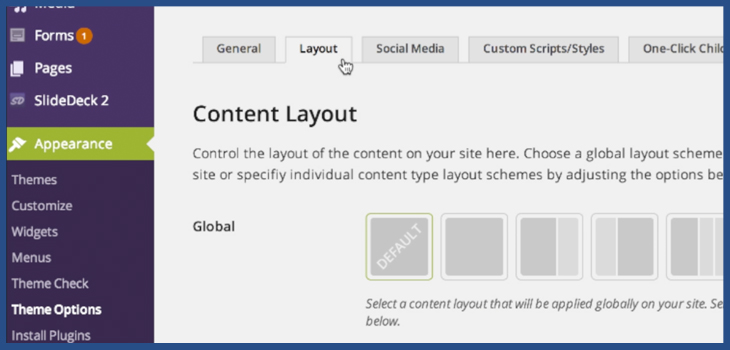
Credit: slocumthemes.com
Modifying Sidebar And Widgets
Editing your WordPress theme layout involves modifying sidebars and widgets. Begin by accessing the WordPress dashboard and selecting “Appearance”. Customize widgets in the sidebar to suit your website’s design and functionality needs.
Adding And Removing Widgets
Widgets make your site more fun. To add a widget, go to the Appearance menu. Click on Widgets. Find the widget you want. Drag it to the sidebar. That’s it! Easy, right? To remove a widget, go back to Widgets. Click the little arrow on the widget. Then, click Delete. This will make it disappear.
Styling The Sidebar
The sidebar is the narrow area on your site. To change its look, open the Customizer. Find Sidebar settings. You can choose colors. You can change fonts. Make sure it looks nice. It should match your site’s theme. Don’t forget to save changes. This helps keep your site looking good.
Changing Font And Color Scheme
Fonts change the look of your site. Choose a font that fits your style. Some fonts look fun. Others look serious. You can find fonts in the WordPress Customizer. Try different fonts. See how they look. Make sure your text is easy to read. Test it on a phone and a computer. Big fonts are easier for some people. Small fonts can be hard to read. Use a font size that fits your needs.
Colors make your site look good. Pick colors that match your brand. Too many colors can look messy. Use a few colors only. Find colors in the Customizer. Try different shades. Dark colors can be serious. Light colors feel happy. Use colors to guide the eyes. Important parts need bright colors. Less important parts need soft colors. Test your colors to see what works best.
Responsive Design Considerations
Making a website mobile-friendly is very important. Many people use phones to browse the web. Responsive design helps your site look good on all devices. Use flexible grids and layouts. Images should fit the screen size. Avoid tiny text. Make buttons big enough to tap easily.
Check your website on different devices. Use a phone, tablet, and computer. Ensure it looks good everywhere. Testing helps find problems. Sometimes, things look different on a phone. Fix these issues quickly. Use tools like browser simulators. They show how your site looks on various devices.
Using Custom Css
CSS stands for Cascading Style Sheets. It changes how things look on your site. Think of it like painting or decorating. You can make text big or small. You can change colors. You can make things bold or italic. CSS is very powerful. It can do a lot.
Each change in CSS is called a style. Styles go inside curly brackets. Like this: { }. You write styles for different parts of your site. Each part has a name. This name is called a selector. You write CSS like this: selector { style }.
You can add your own styles. This means custom styles. These styles make your site look unique. First, find the Custom CSS section in your theme. It is often in the theme settings. Type your styles there. Click save to see changes.
Test your styles. See how they look. You can change them anytime. Remember, simple changes can make a big difference. Try different styles. Have fun making your site look great!
Integrating Plugins For Layout
WordPress themes can change with plugins. Some plugins add great features. Elementor is popular for layout design. Beaver Builder helps make pages look good. Divi Builder offers many design options. These plugins are easy to use. They have drag-and-drop features. This means you can move things where you want. No coding needed. SiteOrigin Page Builder is another tool. It helps arrange page elements easily. These plugins make your site look nice and work well.
Advanced tools give more options. WPBakery Page Builder is one of them. It offers many design choices. Thrive Architect helps with advanced layouts. It is user-friendly. Visual Composer has a lot of templates. You can choose from different styles. These tools offer flexibility. They make it easy to create unique layouts. Oxygen Builder is also useful. It allows detailed customization. You can control every aspect of the design. These tools help make your website stand out.
Backing Up And Publishing Changes
Before making changes, save your work. Backups keep your site safe. Use plugins like UpdraftPlus. It helps save your site’s data easily. Store these backups in a safe place. Cloud storage is a good option. This way, if something goes wrong, you can restore your site.
Check all changes before publishing them. Look for mistakes. Make sure everything looks good. Preview your site. Preview shows how your site will look. Happy with the changes? Press the Publish button. Now, your changes are live. Remember, publishing is final. So, check everything twice.
Frequently Asked Questions
How Do I Customize My WordPress Theme Layout?
To customize your WordPress theme layout, navigate to the WordPress dashboard. Click on “Appearance” and then “Customize. ” Here, you can modify the layout, change colors, and adjust fonts. Use widgets and plugins for additional customization options. Always preview changes before saving to ensure a seamless design.
Can I Edit WordPress Theme Without Coding?
Yes, you can edit WordPress themes without coding. Use the WordPress Customizer for basic modifications. For more advanced changes, install a page builder plugin like Elementor or Beaver Builder. These tools offer drag-and-drop interfaces, making it simple to edit layouts without writing any code.
What Are WordPress Theme Layout Options?
WordPress themes offer various layout options. Common choices include full-width, sidebar, and grid layouts. Some themes also provide header, footer, and menu customization. Check your theme’s documentation for specific layout options. Use the WordPress Customizer to easily switch between available layouts and see changes in real-time.
How To Change WordPress Theme Without Losing Content?
Changing WordPress themes won’t delete your content. Navigate to the dashboard, click “Appearance,” then “Themes. ” Activate the new theme. Your posts, pages, and media remain intact. However, some theme-specific settings might not transfer. Always back up your site before switching themes to avoid data loss.
Conclusion
Editing your WordPress theme layout is a straightforward task. It enhances your site’s look and feel. Begin by exploring the theme options. Experiment with colors, fonts, and widgets. Utilize the customizer tool effectively. Always preview changes before saving. This ensures a polished appearance.
Don’t forget to backup your site regularly. This protects your work from accidental changes. Reach out to WordPress support if needed. They offer valuable assistance. With practice, you’ll gain confidence. Your website will look professional and inviting. Enjoy the process.
Your creativity shapes your online presence.



