
Struggling to make your one-page WordPress theme look just right? You’re not alone.
Many people find themselves overwhelmed when it comes to editing their WordPress site, especially with the unique layout of a one-page theme. But don’t worry; we’ve got you covered. Imagine having a stunning, professional-looking website that not only captures your visitors’ attention but also keeps them engaged.
It’s easier than you think! By the end of this article, you’ll know exactly how to tweak and tailor your one-page WordPress theme to fit your vision perfectly. Whether you’re aiming for a simple, elegant design or something more dynamic and interactive, this guide will walk you through each step. Ready to transform your website into something amazing? Let’s dive in!
Choosing The Right Theme
Choosing a theme is important. A good theme fits your website’s style. It should be easy to customize. Look for themes that are mobile-friendly. This means they work well on phones and tablets. Check if the theme is fast. A fast theme helps your site load quickly. This is good for visitors. Ensure the theme has customer support. Support is helpful if you need help. Finally, check if the theme is updated regularly. This keeps your site secure.
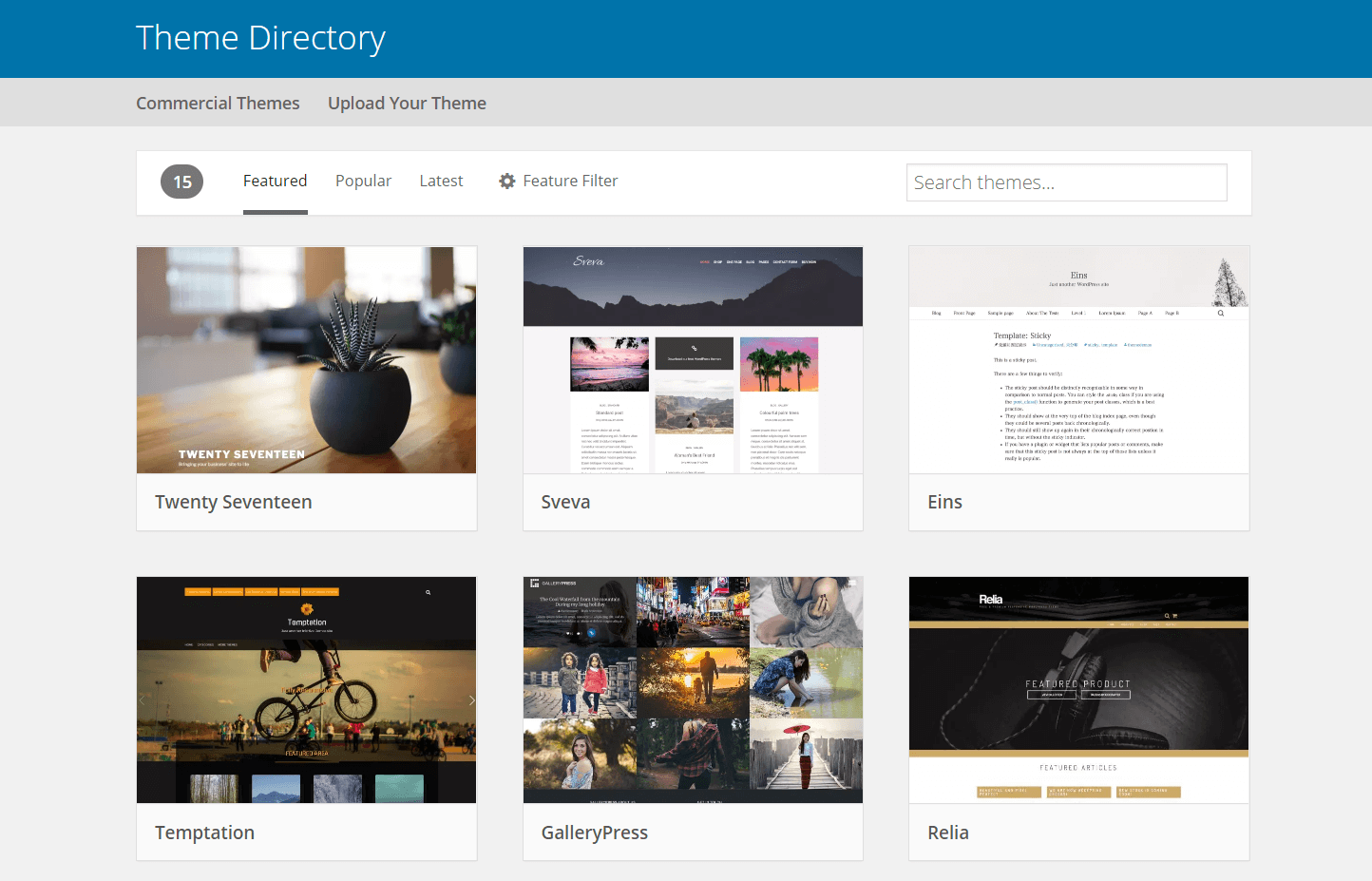
There are many themes you can choose. Hestia is a popular theme. It is simple and works well. Sydney is another good choice. It offers many options. Neve is also liked by many users. It is fast and flexible. OceanWP is known for its features. It is suitable for many types of websites. Astra is lightweight and customizable. These themes help create a great website.

Credit: docs.themeisle.com
Installing Your Theme
Start by going to your WordPress dashboard. Click on “Appearance” and then “Themes”. Find the button that says “Add New”. Click on it. Now, you will see an option to “Upload Theme”. Choose your theme file. Make sure it is a .zip format. Click the button that says “Install Now”. Wait for the upload to finish. It’s simple!
After uploading, look for the “Activate” button. Click it. Your theme is now ready. Visit your site to see the changes. If needed, customize it. Use the customize option in the dashboard. Adjust colors and layout. Make it look just right. Easy steps for a new look!
Customizing The Layout
Theme options help you change the look of your page. These options let you modify fonts, colors, and more. It’s easy to use. Just click on each option and make changes. Save your work after you finish. It will update your page with new styles. This makes your site look unique and fun.
You can move sections up or down. This changes the order on your page. Drag and drop sections to the place you want. It’s simple and quick. This tool helps make your page flow better. It can show the most important parts first.
Changing Colors And Fonts
Picking the right colors is important. It makes your site look nice. Find the color settings in the theme options. Click to open the color panel. Choose colors that fit your style. Use primary and secondary colors for contrast. Save changes when done. Colors change the mood of your site.
Fonts change how text looks. Select font options in the theme settings. You can change font type and size. Pick fonts that are easy to read. Bold fonts for titles. Smaller fonts for paragraphs. Save your settings to apply changes. Good typography makes reading easy.
Adding And Editing Content
Editing a one-page WordPress theme involves accessing the theme’s settings and customizing sections like headers and footers. Utilize the WordPress dashboard to make changes in real-time. Save adjustments to ensure your page reflects desired updates.
Text And Image Blocks
To change text, click on the text block. A box will pop up. Type your new words there. For images, click the image block. Choose your image from your files. Make sure the picture fits well. Use the alignment tools to adjust it. Save changes often. This keeps your work safe. Use the toolbar for special features. You can make words bold or italic. These can make your text look nice. Check everything before you finish. Errors can look bad to readers.
Incorporating Videos
Adding videos is easy. Click the video block. Paste your video link there. You can use YouTube links. Make sure the video is right for your site. Videos should not be too long. They can slow down your page. Check the video plays well. This helps your page look better. Use controls for volume and play. Test them to make sure they work.
Credit: wpengine.com
Integrating Plugins
Editing a one-page WordPress theme becomes easier with plugin integration. Plugins offer tools to customize layouts and enhance features. Choose plugins carefully to suit your theme’s needs, ensuring compatibility and ease of use for smooth functionality.
Essential Plugins
Plugins add extra features to your theme. Some plugins are essential. They help with SEO, security, and speed. Yoast SEO makes your site easier to find. Wordfence keeps your site safe. WP Super Cache makes your site faster. These plugins are free. They are easy to install. They make your site better without much work.
Custom Plugin Features
Custom plugins add special features to your theme. They can create unique functions. These plugins do what other plugins can’t. You can hire someone to make them. You can also learn to code them. This makes your site different from others. Custom plugins need updates. Keep them updated for safety and performance. They help make your theme special.
Enhancing Seo
Good SEO helps people find your site. Use simple words and phrases. Short sentences are easier to read. Use keywords in your text. These words help search engines understand your topic. Place keywords in titles and headings. This shows the main ideas. Make sure your site loads fast. People don’t like slow pages. Use alt text for images. This helps search engines see your pictures. Update your content often. Fresh content is good for SEO.
SEO plugins make tasks easy. They help improve your site’s ranking. Popular plugins are Yoast and All-in-One SEO. These tools guide you step by step. They tell you what to do. They check your content for keywords. They help with meta descriptions. Meta descriptions are short text in search results. Plugins also help with XML sitemaps. Sitemaps help search engines find your pages. Use plugins to fix broken links. Broken links can hurt your SEO.
Testing And Previewing
Mobile responsiveness is vital for modern websites. Many users browse on phones. Ensure your site looks good on small screens. Use tools to check. Adjust settings to fit mobile view. Avoid large images; they slow load times. Fonts should be readable. Buttons must be easy to tap. Test each section of your page. Fix any issues that arise. A responsive site improves user experience. It also boosts search rankings.
Websites should work on all browsers. Firefox, Chrome, and Safari are popular choices. Each browser may show your site differently. Test your theme on each one. Fix any display errors you find. Use compatibility tools to check. Ensure all features work smoothly. No broken links or missing images. Your site’s look should be consistent everywhere. This builds trust with users. A well-tested site attracts more visitors.
Publishing Your Page
Check all the links on the page. Make sure they work. Look for any spelling mistakes. Fix them before going live. Check that all images are clear. They must be the right size. Test your page on phones and tablets. It should look good everywhere.
Click the publish button. Your page will be live. Tell your friends about your page. Share the link with others. Check your page often. Make sure it works well. Update it if you need to. Keep your page fresh and new. This keeps people coming back.

Credit: wordpress.com
Frequently Asked Questions
How Can I Customize A WordPress Theme?
To customize a WordPress theme, access the WordPress dashboard. Navigate to Appearance > Customize. Here, you can modify colors, fonts, and layouts. Use the built-in WordPress Customizer for real-time previews. For more extensive changes, consider using a child theme or a page builder plugin.
Is It Easy To Edit A One-page Theme?
Yes, editing a one-page WordPress theme is relatively easy. Most themes offer intuitive customization options. Use the WordPress Customizer or theme options panel. Drag-and-drop page builders can simplify the process further. Always ensure your changes are mobile-responsive and test them across different devices.
What Plugins Help In Editing Themes?
Several plugins assist in editing WordPress themes. Elementor and Beaver Builder are popular page builders. They offer drag-and-drop functionality. Custom CSS plugins like Simple Custom CSS help with design tweaks. For advanced customization, use the Advanced Custom Fields plugin. Each plugin enhances theme editing capabilities.
Can I Edit A Theme Without Coding?
Yes, you can edit a WordPress theme without coding. Use drag-and-drop page builders like Elementor. They provide easy-to-use interfaces. The WordPress Customizer also offers many options. Explore theme settings for further customization. Most modern themes are designed for non-coders, ensuring a user-friendly experience.
Conclusion
Editing a one-page WordPress theme is easier than it seems. Start small. Change colors and fonts to match your style. Use the WordPress Customizer for real-time changes. Experiment with different widgets to add functionality. Keep your design clean and user-friendly.
A simple theme can attract more visitors. Regular updates keep your site fresh and secure. Explore online tutorials for extra help. Practice makes perfect. Follow these steps, and your site will stand out. Remember, creativity and patience lead to success.



