
Are you looking to transform a WordPress theme into a static HTML site but unsure where to start? You’re in the right place!
This guide will walk you through the process of downloading a WordPress theme and converting it to HTML, step by step. Imagine the flexibility and speed of HTML combined with the stunning design of your favorite WordPress theme. It sounds perfect, right?
By the end of this article, you’ll have the skills to do just that, empowering you to take control of your website’s design and performance. Let’s dive in and unlock the potential of your digital presence together!

Credit: themeforest.net
Choosing The Right WordPress Theme
Pick a theme that fits your website’s purpose. Consider the design and style. Does it match your vision? Check its responsiveness. Will it look good on phones? Speed matters too. Choose themes that load fast. Look at reviews from other users. Happy users mean a good theme. Think about customization. Can you easily change colors and fonts? Check if it’s SEO friendly. You want search engines to find you. Security is key. Pick themes with good security features.
Visit the WordPress Theme Directory. It’s a popular spot. Many themes are free there. Browse sites like ThemeForest for premium themes. These often have extra features. Elegant Themes is another option. They offer unique designs. MOJO Marketplace has a big collection too. Don’t forget TemplateMonster. Lots of choices there. Look at Envato Elements for creative themes.
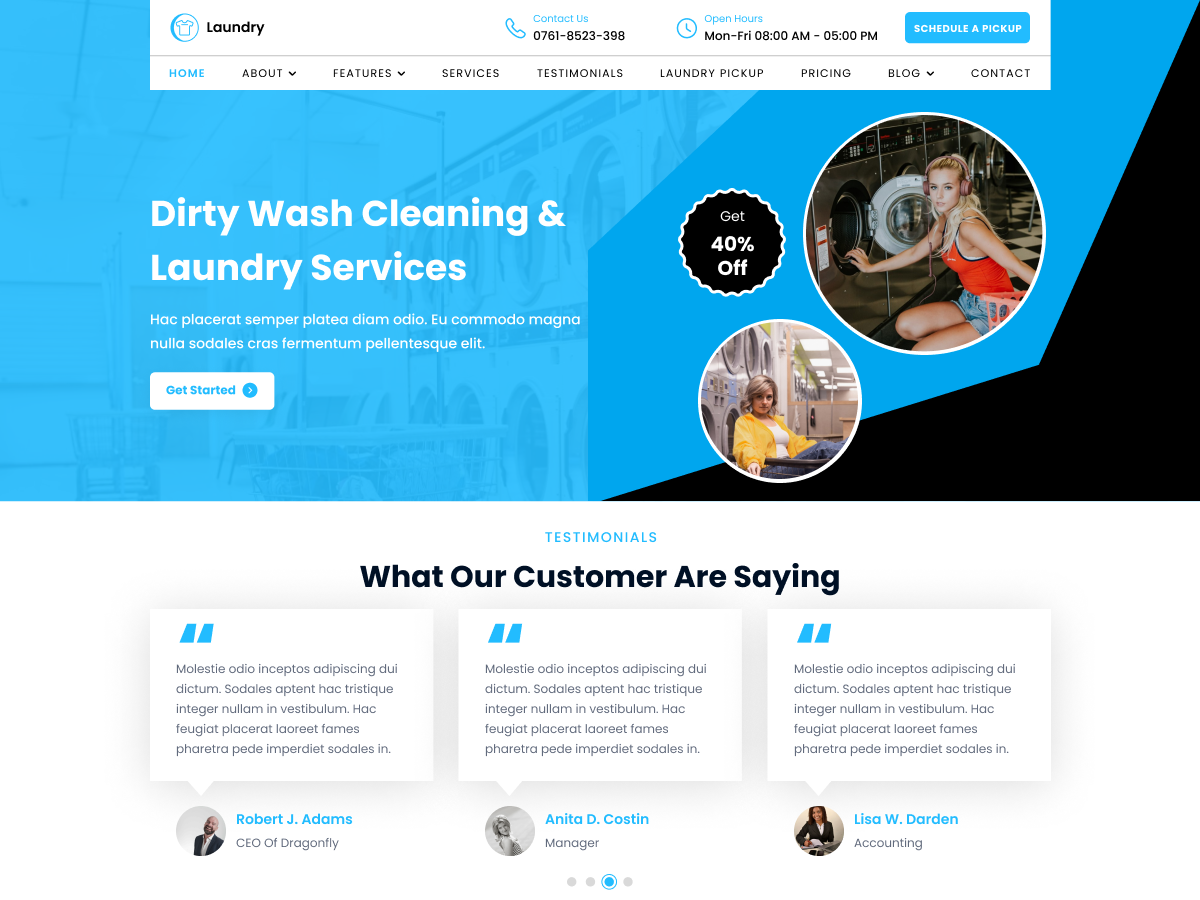
Credit: www.misbahwp.com
Setting Up Your Environment
Start by installing the right tools. You need a code editor. A popular choice is Visual Studio Code. It’s free and easy to use. Next, install Node.js. This helps run JavaScript on your computer. Download it from the official website. You also need NPM, which comes with Node.js. NPM helps manage packages. Install the Live Server extension in your code editor. This helps you see changes quickly.
Create a new folder on your desktop. This will be your workspace. Name it something simple like “WordPress-Theme”. Open this folder in your code editor. This is where you will save your files. Keep your files organized. Create separate folders for HTML, CSS, and JavaScript. This makes it easy to find your files later.
Extracting Theme Files
First, find the theme you like on the WordPress theme page. Click on the download button. Save the theme file to your computer. It may be in a .zip format. Keep it in a place you can find easily.
Next, locate the downloaded theme file on your computer. Right-click on the file and select “Extract Here”. This will unpack the theme files. You will see a folder with many files inside. These files contain the theme’s HTML, CSS, and JavaScript. Each file serves a purpose. You will use these files later to convert the theme to HTML.
Converting WordPress Theme To Html
HTML is like a skeleton. It holds up the web page. Every page has a head and a body. The head has meta tags and links. The body has the content. This includes text, images, and videos. HTML uses tags to show these parts. Each tag has an opening and a closing. For example,
is for a paragraph.
WordPress uses themes. These themes have files with PHP code. To change a theme to HTML, identify the elements. Look for headers, footers, and sidebars. These parts become HTML divs or sections. Use HTML tags to make it look the same. Keep the design simple. Use CSS for colors and styles.
Customizing Html Code
Change the look of your website with ease. Edit the CSS files to change colors and fonts. Use a text editor to open the file. Search for style rules to modify. Adjust the font size to make text bigger. Change background colors to match your brand. Save changes and refresh your browser to see updates. Test on different devices for consistency.
Enhance your site with custom scripts. Use JavaScript to add special features. Locate the HTML file where you want the script. Insert script tags in the head or body section. Write your JavaScript code between these tags. Check for errors and test the script. Make sure it works correctly on your website.

Credit: themeforest.net
Testing Your Html Site
Make sure your site works on all devices. Check if it looks good on a phone, tablet, and computer. Use different browsers. These include Chrome, Firefox, and Safari. Each browser might show things differently. Test your site on Windows, Mac, and Linux. Different systems can change how a site looks.
Test all the links. Make sure they go to the right pages. Check the forms. Ensure they send the right information. Try every button. They should do what they say. Look at all the images. They must load correctly. Make sure the text is easy to read. Fix any errors you find.
Deploying Your Html Site
Selecting the right hosting is important for your site. Shared hosting is a good choice for small websites. VPS hosting offers more control and resources. Dedicated hosting is best for large sites. Cloud hosting scales easily with your needs. Compare prices and features before deciding.
Upload your site files using FTP or file manager. Your hosting provider will give you details. Organize files correctly in the public_html folder. Check links and images after upload. Ensure everything works as expected. Make changes if needed.
Frequently Asked Questions
How Do I Convert WordPress Theme To Html?
To convert a WordPress theme to HTML, first, choose a theme. Then, use tools like HTTrack or WP Static HTML Output. These tools help to download and convert the theme files into a static HTML website. Ensure you check all links and functionalities after conversion.
Why Convert WordPress Theme To Html?
Converting a WordPress theme to HTML can enhance website speed and security. HTML sites load faster because they don’t require server-side processing. They are less vulnerable to attacks and are simpler to host. This conversion is ideal for small, static websites needing high performance.
Can You Use WordPress Themes On Html?
Directly using WordPress themes on HTML isn’t feasible. WordPress themes are dynamic, whereas HTML is static. However, you can convert the theme files into HTML using specific tools. This process involves extracting HTML, CSS, and JavaScript from the WordPress theme.
What Are The Benefits Of Html Over WordPress?
HTML offers faster load times and better security than WordPress. It’s ideal for static sites with fewer changes. HTML sites require less maintenance and hosting costs. They are less prone to vulnerabilities and don’t rely on plugins, reducing potential security risks.
Conclusion
Downloading a WordPress theme to HTML is simple and useful. Follow the steps outlined above for success. Convert your design smoothly. Enjoy the flexibility of HTML. No need for advanced skills. Just practice and patience. HTML offers more control over your site.
Customize it to fit your needs. Experiment with different themes. Find what works best for you. Keep learning and improving. Soon, you’ll be a pro at this process. Save time and effort while enhancing your website’s design. Happy converting!



