

Are you ready to build your own website but don’t know where to start? Creating a WordPress site might be easier than you think.
Whether you want a blog, a business page, or an online store, WordPress gives you the tools to make it happen—without needing to be a tech expert. In this guide, you’ll discover simple, clear steps to create your WordPress site quickly and confidently.
By the end, you’ll have a website that looks great and works perfectly. Let’s dive in and bring your online vision to life!
Credit: www.elegantthemes.com
Choosing The Right Hosting
Choosing the right hosting is an important step in creating a WordPress site. Hosting affects your site’s speed, security, and uptime. Picking the best type of hosting helps your site run smoothly. It also keeps visitors happy and coming back.
Shared Vs Dedicated Hosting
Shared hosting means your site shares a server with others. It costs less and is easy to use. But shared hosting can be slower if other sites use too many resources.
Dedicated hosting gives you a whole server for your site. It is faster and more secure. This option costs more but works well for big sites with many visitors.
Managed WordPress Hosting
Managed WordPress hosting is built just for WordPress sites. It includes updates, backups, and security. This hosting saves time and effort. It is good for beginners or busy site owners.
With managed hosting, technical tasks are handled by the provider. You can focus on creating content and growing your site.
Domain Name Selection
Choose a domain name that is short, clear, and easy to remember. It should match your site’s topic or brand. Avoid using numbers or special characters.
A good domain name helps visitors find your site easily. It also improves your site’s search engine ranking.
Installing WordPress
Installing WordPress is the first step to building your website. It sets up the foundation for your content and design. The process is simple and fast. You can choose between one-click installation or manual setup. Both methods are easy to follow, even for beginners.
One-click Installation
Many web hosts offer one-click WordPress installation. It saves time and effort. You just need to log into your hosting account. Find the WordPress installer in the control panel. Click the install button and fill in basic details like site name and admin info. The system does the rest automatically. It creates the database, uploads files, and configures settings. Your website is ready in minutes.
Manual Installation Steps
Manual installation gives you full control over the setup. Start by downloading the latest WordPress package from wordpress.org. Upload it to your web server using FTP. Create a MySQL database and user through your hosting control panel. Open your site URL to start the installation wizard. Enter database details and choose your site title. Set up your admin username and password. After this, WordPress installs itself and you can log in to your dashboard.
Selecting A Theme
Selecting a theme is one of the first steps in creating a WordPress website. The theme controls how your site looks and feels. A good theme makes your content stand out. It also helps visitors navigate your site easily.
Choosing the right theme can affect your site’s success. It influences user experience, speed, and SEO. Spend time finding a theme that fits your goals and style.
Free Vs Premium Themes
Free themes are easy to find and cost nothing. They offer basic features and simple designs. Good for beginners or small projects.
Premium themes have more options and better support. They often include extra tools and regular updates. Ideal for businesses or serious bloggers.
Both types can work well. Choose based on your budget and needs.
Responsive Design Importance
Responsive design means your site looks good on all devices. Phones, tablets, and computers all show your site properly.
Google favors sites with responsive design. It helps improve your search rankings.
A responsive theme improves user experience and keeps visitors longer.
Customizing Your Theme
Most themes allow you to change colors, fonts, and layout. Customizing makes your site unique and fits your brand.
Use the WordPress Customizer to see changes live. Adjust settings until you like the look.
Simple tweaks can make a big difference in how visitors see your site.
Essential Plugins To Use
Choosing the right plugins is key to building a strong WordPress site. Plugins add important features without complex coding. They improve your site’s SEO, security, and speed. Here are some essential plugins to consider for your WordPress setup.
Seo Plugins
SEO plugins help your site rank better on search engines. They guide you to optimize content and keywords. Popular SEO tools offer sitemap creation and meta tag management. This makes your site easier for Google and others to find. Using an SEO plugin boosts your chances of gaining visitors.
Security Plugins
Security plugins protect your site from hackers and malware. They monitor suspicious activity and block threats. Many include firewalls and login protection features. Keeping your site safe builds trust with your visitors. Regular updates keep these security tools effective.
Performance Plugins
Performance plugins make your site load faster. They optimize images and reduce file sizes. Some plugins enable caching to speed up page delivery. Faster websites keep visitors happy and lower bounce rates. Good performance improves user experience and search ranking.
Creating Pages And Posts
Creating pages and posts is the heart of building a WordPress site. Pages hold static content like About or Contact. Posts share timely information like news or articles. Both work together to make your site useful and interesting.
WordPress offers simple tools for creating and editing content. Understanding these tools helps you publish quickly and clearly. Focus on writing, then use the editor to shape your content.
Using The Gutenberg Editor
The Gutenberg editor is the default editor in WordPress. It uses blocks to add text, images, or other content. Each block can be moved or customized easily. This makes creating pages and posts flexible and visual.
Start by adding a paragraph block for your text. Use heading blocks to organize sections. You can insert lists, quotes, and buttons too. The editor shows a live preview of your work.
Adding Media And Galleries
Images and videos bring your content to life. Use the Add Media button to upload files. Drag and drop images into the editor or select from your library. Galleries group multiple images in one place.
Create a gallery block to show photos side by side. This helps keep your pages neat and visually appealing. Always add alt text to images for better SEO and accessibility.
Organizing Content With Categories And Tags
Categories and tags keep your posts organized. Categories are broad topics, like “Travel” or “Food.” Tags are more specific details, such as “Italy” or “Pasta.”
Assigning categories helps visitors find related posts easily. Tags add extra keywords to improve search results. Use clear and relevant terms to keep your site tidy.
Credit: duplicator.com
Setting Up Menus And Navigation
Setting up menus and navigation is essential for a user-friendly website. Clear menus help visitors find information fast. They guide users through your content smoothly. A well-organized menu improves the overall site experience. It also helps search engines understand your site structure. This section explains how to create custom menus and add widgets for better navigation.
Creating Custom Menus
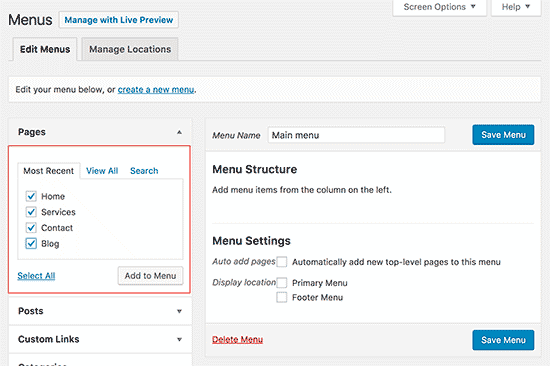
Start by going to the WordPress dashboard. Navigate to Appearance > Menus. Click on “Create a new menu” and give it a name. Add pages, posts, or custom links to your menu. Arrange items by dragging them into order. Use sub-menu items for dropdown effects. Assign the menu to a location like header or footer. Save your menu to make it live on your site.
Adding Widgets For Better Navigation
Widgets add extra navigation options in sidebars or footers. Go to Appearance > Widgets in the dashboard. Drag navigation widgets like “Custom Menu” to your desired widget area. Choose the menu you want the widget to display. You can also add search bars or category lists. These widgets help visitors explore your site with ease. Widgets improve navigation beyond the main menu.
Optimizing For Speed And Performance
Speed and performance are key to a great WordPress site. Visitors want pages to load fast. A slow site leads to lost visitors and lower search rankings. Optimizing your site improves user experience and helps keep visitors engaged.
Focus on techniques that reduce load time. Use tools and plugins to make your site efficient. Small changes can make a big difference in speed and performance.
Caching Solutions
Caching stores copies of your pages for quick delivery. It reduces the time needed to load content. Use caching plugins like WP Super Cache or W3 Total Cache. These plugins create static versions of pages. Visitors get faster access without waiting for server processing.
Browser caching saves files on a user’s device. This way, repeated visits load faster. Enable this feature in your caching plugin settings. Clear cache regularly to avoid showing outdated content.
Image Optimization
Large images slow down your site. Compress images to reduce file size. Use tools like TinyPNG or plugins like Smush. Choose the right image format, such as JPEG for photos and PNG for graphics.
Resize images to the exact size needed on your site. Avoid uploading very large images and shrinking them with code. Use lazy loading to delay image loading until needed. This speeds up the initial page load.
Minifying Css And Js
CSS and JavaScript files control design and interactivity. These files can be large and slow down your site. Minifying removes spaces, comments, and unnecessary characters. This reduces file size without changing function.
Use plugins like Autoptimize or Fast Velocity Minify. They combine and minify CSS and JS files automatically. Smaller files load faster, improving site performance. Minify only after testing to avoid breaking site features.
Credit: www.elegantthemes.com
Enhancing Security
Enhancing security is essential for every WordPress site. Protecting your site keeps your content safe and your visitors’ data secure. Small steps can block many common threats. Follow simple practices to strengthen your site’s defense.
Installing Security Plugins
Security plugins add strong protection to WordPress. They monitor your site for attacks and block suspicious activities. Many plugins scan files and alert you about threats. Choose a plugin that is updated often and has good reviews. Popular options include Wordfence and Sucuri.
Regular Backups
Backups save your site’s data in case of trouble. If your site is hacked or crashes, you can restore it quickly. Schedule backups regularly to keep the latest data safe. Use plugins like UpdraftPlus or BackupBuddy for easy backup management. Store backups outside your hosting server for extra security.
Strong Passwords And User Roles
Use strong, unique passwords for all accounts. Avoid simple words or common phrases. Combine letters, numbers, and symbols. Change passwords often to reduce risks. Assign user roles carefully. Limit access based on tasks. Only give admin rights to trusted people. This lowers the chance of accidental or harmful changes.
Seo Best Practices
SEO best practices help your WordPress site rank higher on search engines. This brings more visitors and grows your audience. Simple steps can make your site easier to find and use. Follow these tips to improve your site’s SEO effectively.
Optimizing Titles And Meta Descriptions
Titles and meta descriptions are the first things users see in search results. Use clear, short titles that include your main keywords. Keep titles under 60 characters to avoid cutting off.
Write meta descriptions that explain the page content in 150-160 characters. Use active voice and include keywords naturally. Good meta descriptions increase clicks from search engines.
Creating Xml Sitemaps
XML sitemaps help search engines find and index your pages quickly. WordPress plugins can create sitemaps automatically. Submit your sitemap to Google Search Console for better indexing.
Keep your sitemap updated as you add or remove pages. This ensures search engines see the latest structure of your site.
Using Schema Markup
Schema markup adds extra information to your website code. It helps search engines understand your content better. Use schema to highlight reviews, events, products, and more.
Adding schema can improve how your page appears in search results. Rich snippets attract more clicks by showing useful details.
Launching Your Website
Launching your WordPress website is an exciting step. It means your site is ready for visitors. Before making it live, you need to check a few important things. This helps ensure your site works well and looks good on all devices. After testing, promoting your site helps people find it online. Let’s explore what you need to do before and after launching.
Final Testing Checklist
Test all links to make sure they work. Check if pages load quickly on desktop and mobile. Confirm your website looks good on different screen sizes. Test contact forms to see if messages reach your email. Check if images display correctly without errors. Make sure your site is easy to navigate. Verify there are no spelling or grammar mistakes. Use tools to check your site’s SEO basics. Backup your website before launching. This keeps your data safe in case of errors.
Promoting Your Site
Share your website on social media platforms. Tell friends, family, and colleagues about it. Submit your site to search engines like Google. Use simple keywords so people find your site easily. Write blog posts to attract visitors. Join online groups related to your site’s topic. Add your website link to your email signature. Consider local listings if you serve a specific area. Keep updating your content to keep visitors interested.
Frequently Asked Questions
What Are The Basic Steps To Create A WordPress Website?
To create a WordPress website, first choose a domain and hosting. Then, install WordPress, select a theme, and customize it. Finally, add essential plugins and create content for your site.
How Do I Install WordPress On My Hosting Server?
Most hosting providers offer one-click WordPress installation through their control panel. Alternatively, download WordPress from the official site and upload it via FTP. Follow on-screen instructions to complete setup.
Which Theme Is Best For A New WordPress Site?
Choose a lightweight, responsive theme with good reviews and regular updates. Popular options include Astra, OceanWP, and GeneratePress for beginners. These themes offer flexibility and speed.
How Can I Customize My WordPress Site Appearance?
Use the WordPress Customizer to modify colors, fonts, and layouts. Install page builder plugins like Elementor for advanced design options. Customize widgets and menus to improve navigation.
Conclusion
Creating a WordPress site is easier than it seems. Follow the steps carefully and take your time. Choose a good theme and add useful plugins. Keep your content clear and update your site often. This will help attract visitors and keep them interested.
With practice, managing WordPress becomes simple and fun. Start today and build your own website confidently.


