
You’ve got a stunning WordPress website, but something feels off. It’s your menu, awkwardly hugging the left or right side of the screen.
You know it belongs at the center, perfectly aligned, drawing your visitors’ eyes naturally and effortlessly. Centering your WordPress theme menu isn’t just a design tweak—it’s a game-changer for user experience. Imagine your site looking balanced, professional, and easy to navigate.
Sounds perfect, right? We’ll show you how to achieve this with simple steps. Ready to transform your site and keep your visitors engaged? Let’s dive in!
Benefits Of Centering A Menu
A centered menu looks neat and balanced. It catches the visitor’s eye quickly. This makes navigation easier. Users find what they need without confusion. A centered menu gives a website a professional appearance. This can help in building trust with the audience. Visual appeal is important for a website. It makes visitors want to stay longer.
Centering a menu can improve user experience. It organizes the content well. This makes the site look clean and tidy. Websites with centered menus often have more user engagement. It helps in guiding visitors smoothly through the site. A centered menu can also be a part of responsive design. It adapts well on different devices.

Credit: www.youtube.com
Checking Theme Compatibility
Verifying Theme Support is crucial. Not all themes allow menu customization. Check theme documentation first. Look for menu options. Some themes offer built-in menu settings. Others need custom CSS.
Visit the WordPress admin panel. Navigate to “Appearance” then “Themes.” Select your active theme. Click “Customize.” Search for menu settings. If available, explore the options. Ensure the theme supports center alignment. If not, consider a plugin.
Open theme customization. Find the menu settings section. Check for alignment options. Some themes have simple toggles. Others require more steps. Locate the menu alignment feature. Adjust settings to center the menu. Save changes when done.
If no settings are found, custom CSS might be needed. Add CSS in “Additional CSS” under “Customize.” Use text-align: center; for menu items. Preview changes before publishing. Always backup your theme files.
Using Custom Css
Custom CSS helps align a WordPress theme menu effortlessly. By adjusting CSS properties, menus can be centered. This enhances the site’s appearance and provides a balanced layout.
Accessing The Customizer
Begin by logging into your WordPress dashboard. Look for the Appearance option on the left. Click on it to see more choices. Then, select Customize. This will open the WordPress Customizer. Here, you can change many things on your site. It is important to be careful with changes. Always preview before saving.
Adding Custom Css Code
In the Customizer, find Additional CSS. This is where you add your custom code. To center the menu, use this CSS code:
.nav-menu {
  text-align: center;
}
Type or paste it in the box. You will see changes on the right preview. If the menu moves to the center, you did it right. Remember to click Publish to save.
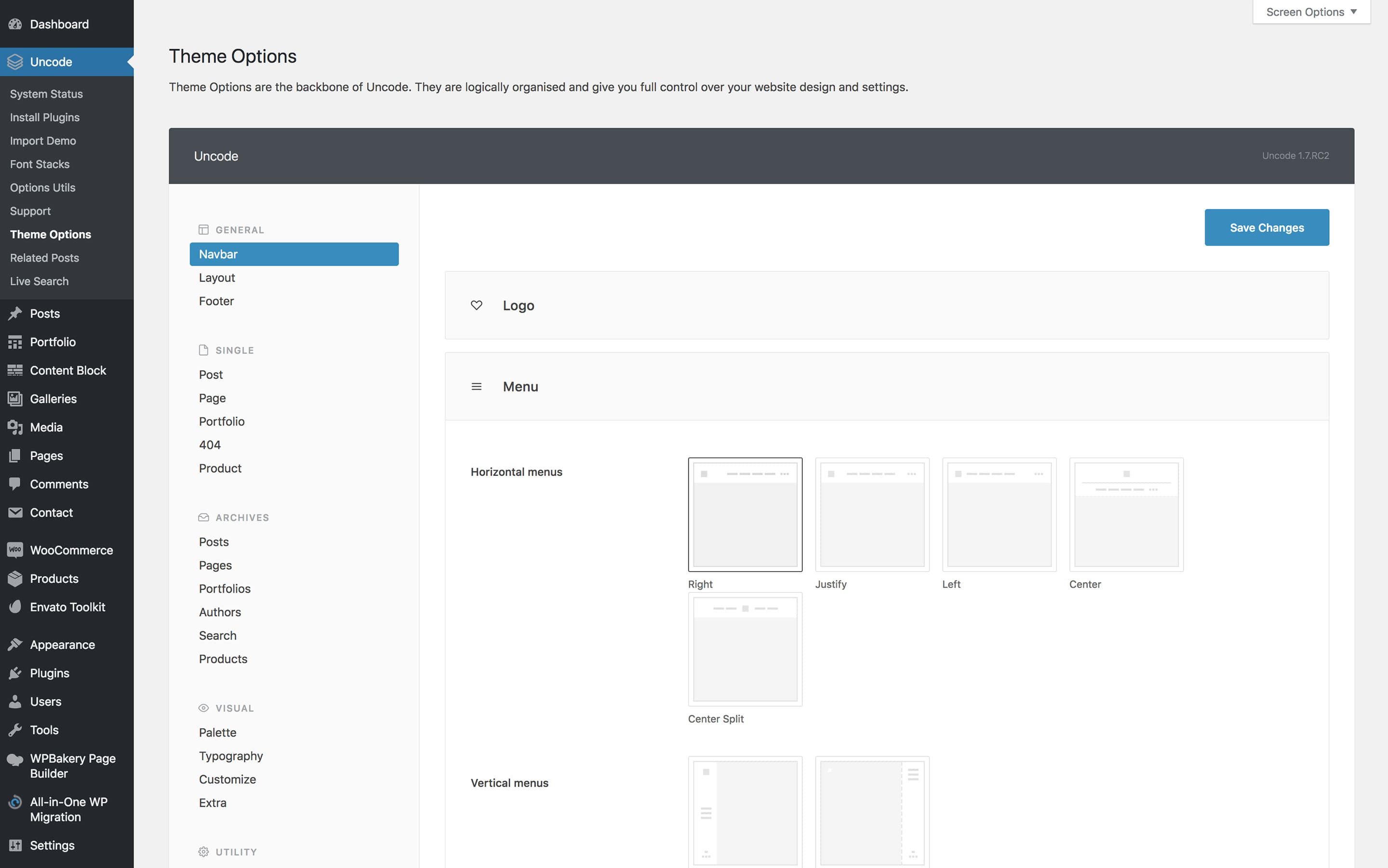
Credit: support.undsgn.com
Editing Theme Files
Find the header file in your WordPress theme folder. This file often contains the menu code. Use an FTP client or the WordPress dashboard to access files. In the dashboard, go to Appearance > Theme Editor. Find the file named header.php. This file holds the HTML structure for your website’s header. Always create a backup before making changes.
Locate the menu code in the header file. Look for or class="center-menu". Then, edit your style.css file to center the menu with CSS code. Use text-align: center; within the new class. Save your changes and check your website.
Leveraging Plugins
Plugins help to center the menu easily. Many plugins can do this task. Choose a plugin that is trusted and popular. Make sure it has many good reviews. Read reviews to understand its features. Some plugins come with extra settings. These settings help to customize the menu more. Choose a plugin that matches your theme style. Test it on a demo site first. Ensure it does not break your site.
Install the plugin through your WordPress dashboard. Click on ‘Plugins’ then ‘Add New’. Search for the plugin by name. Click on ‘Install Now’ then ‘Activate’. Once activated, go to the plugin settings. Look for menu options. Adjust settings to center the menu. Save changes. Check the menu on your site. If needed, make small changes to fit your design.
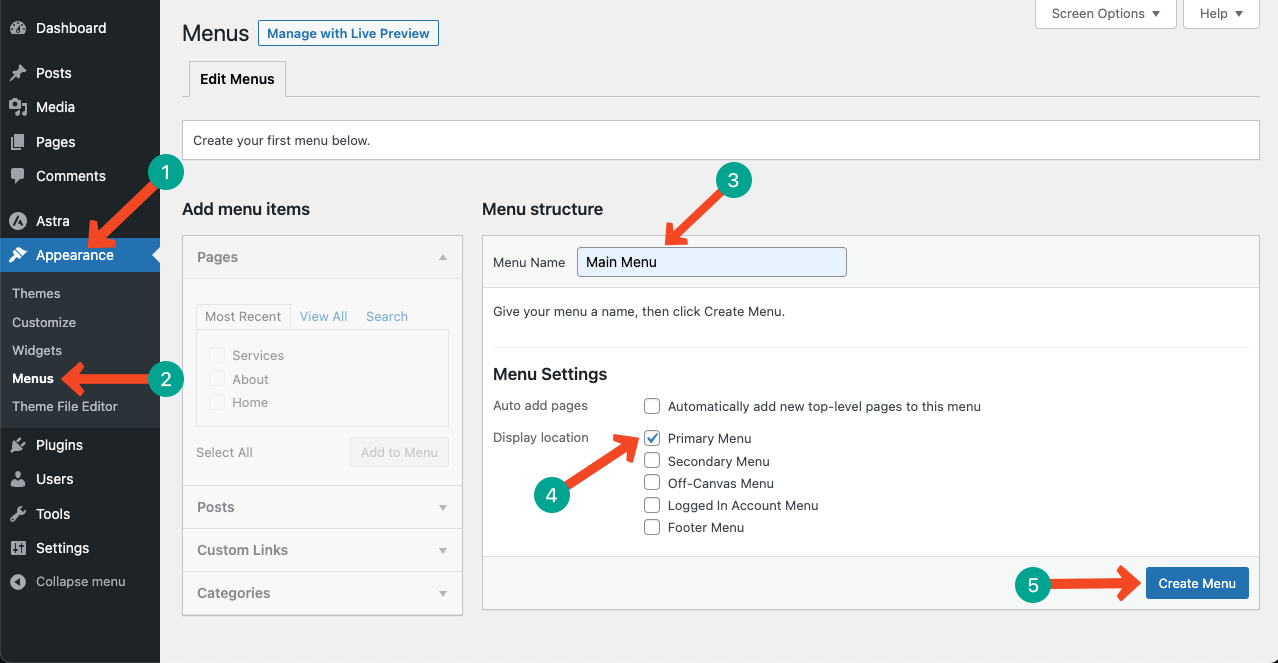
Credit: ultimateblocks.com
Troubleshooting Common Issues
Centering a WordPress theme menu can be tricky. Adjust menu settings in the WordPress dashboard. Use CSS to align the menu perfectly. Explore theme customizer options for quick solutions.
Dealing With Responsive Design
Menus might not look right on different devices. Check if your theme has responsive settings. Some themes adjust automatically. Others need manual changes. You can use CSS media queries to control menu styles. This helps to adjust the menu for different screens. Always test on tablets and phones.
Resolving Display Errors
Menus sometimes don’t show correctly. Clear your browser cache first. This might solve the problem. If not, check if you have conflicting plugins. Deactivate them one by one. Identify if a plugin is causing issues. Use the WordPress Customizer to preview changes. This can help see what’s wrong. Ensure all theme and plugin updates are recent. Outdated software can cause errors.
Testing Menu Appearance
Check if the menu looks good on all devices. Phones, tablets, and computers might show it differently. Use a responsive design tool. This tool helps in seeing how the menu appears on different screens. It is important. Everyone uses different gadgets. Menu should fit well everywhere.
Browsers can be tricky. Chrome, Firefox, and Safari might show the menu differently. Test your menu on these browsers. It helps to find any problems. If the menu breaks, fix it fast. You don’t want users to have a bad time. A good menu works on all browsers.
Frequently Asked Questions
How To Center A Menu In WordPress?
To center a menu in WordPress, use CSS. Navigate to Appearance > Customize > Additional CSS. Add the code: `#menu-id { text-align: center; }`. Replace `#menu-id` with your specific menu ID. Save changes and refresh your site to see the centered menu.
Why Is My WordPress Menu Not Centering?
Your WordPress menu might not center due to conflicting CSS rules. Check for existing styling that overrides centering. Inspect your theme’s CSS and remove or adjust any conflicting styles. Use the Additional CSS section in the WordPress Customizer to apply your changes.
Can I Use A Plugin To Center The Menu?
Yes, plugins can center menus easily. Search for a menu customization plugin in the WordPress Plugin Directory. Install and activate it, then follow the plugin’s instructions. Plugins like Max Mega Menu or WP Mega Menu offer user-friendly interfaces for menu styling, including centering options.
What Css Properties Help Center A Menu?
CSS properties like `text-align`, `margin`, and `flexbox` help center menus. Use `text-align: center;` for block-level elements. Flexbox can also center menus using `display: flex; justify-content: center;`. Adjust `margin` properties to achieve the desired centering effect.
Conclusion
Centering your WordPress theme menu is easier than it seems. Follow the steps above to achieve a neat, balanced look. A centered menu enhances user experience. It makes your site look more organized. Visitors find information quickly. This small adjustment can improve navigation.
So, take time to adjust your theme settings. Make your site visually appealing. Increase engagement through simple design tweaks. Experiment with different styles. Find what suits your brand best. Enjoy a professional-looking website that impresses your audience. Keep exploring WordPress features to optimize your site further.
Happy designing!


