
Losing your website data can be a nightmare you don’t want to face. If your WordPress site suddenly crashes or gets hacked, how quickly can you recover?
Backing up your site is the safety net that protects all your hard work. But if you’re not sure where to start or think it’s too complicated, this guide is for you. You’ll learn simple, step-by-step ways to back up your WordPress site, so you can relax knowing your content is safe.
Keep reading to discover easy backup methods that anyone can do—even if you’re not a tech expert.
Credit: agethemes.com
Why Backup Your WordPress Site
Backing up your WordPress site is essential for every website owner. It protects your hard work and data from unexpected problems. A backup is a copy of your entire website saved safely. This copy can restore your site if anything goes wrong. Regular backups give peace of mind and security. They help keep your site running smoothly no matter what happens.
Risks Of Not Backing Up
Not backing up your WordPress site is risky. Your site can break due to hacking or malware attacks. Sometimes updates or plugin errors cause data loss. Hosting servers may crash or fail without warning. Without a backup, recovering your site becomes difficult or impossible. You may lose important files, posts, and user data. This can harm your business and reputation quickly.
Benefits Of Regular Backups
Regular backups keep your site safe and secure. They allow quick restoration after any problem. You can test new features without fear of losing data. Backups help fix errors caused by updates or changes. They save time and reduce stress during technical issues. Having a backup means your website stays online and reliable for visitors. This builds trust and supports growth over time.
Types Of WordPress Backups
Backing up your WordPress site protects your content and data. Different types of backups serve various purposes. Choosing the right type helps keep your site safe and easy to restore. Understanding each backup type is important for maintaining your website.
Full Backups
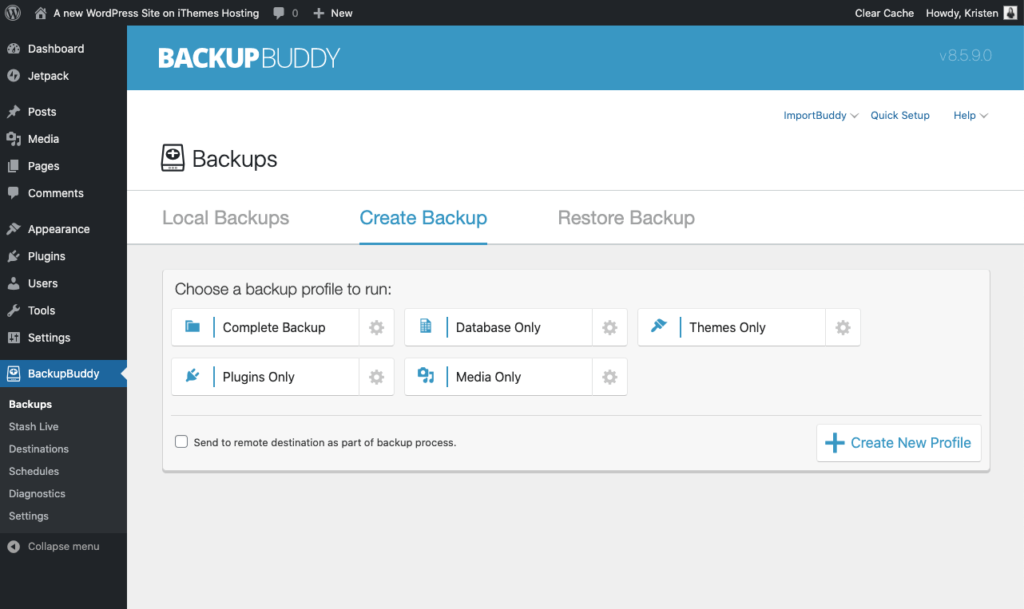
A full backup saves everything on your site. It includes all files, plugins, themes, and your database. This backup captures your entire website in one package. It is the safest option for complete recovery. Restoring from a full backup brings your site back exactly as it was.
Database Only Backups
The database stores all your posts, pages, comments, and settings. A database backup saves only this data. It does not include files like images or themes. This type is smaller and faster to create. Use it when you want to protect your content and settings only.
File Only Backups
File backups save your WordPress core files, themes, and plugins. They do not include the database content. This backup type is useful when changing design or code. It helps restore your site’s structure without affecting content. Files can be recovered separately from the database.
Manual Backup Methods
Manual backup methods let you save your WordPress site without extra tools. These methods give full control over your files and database. You can keep a copy safe on your computer or another device. It helps prevent data loss from updates, hacks, or errors.
Manual backups take time but are reliable. Knowing how to do it is useful for all site owners. Below are two main manual ways to backup your WordPress site properly.
Backing Up Files Via Ftp
First, connect to your website using an FTP client like FileZilla. Use your hosting FTP details to log in. You will see all your website files in the root folder.
Download the entire WordPress folder to your computer. This folder contains core files, themes, plugins, and uploads. Keep this copy safe. It holds everything needed to restore your site.
FTP backups save your site’s content but not the database. Remember to update your backup regularly for best results.
Exporting The Database With Phpmyadmin
Next, export your WordPress database using phpMyAdmin. Log in to your web hosting control panel. Find and open phpMyAdmin from the tools section.
Select your WordPress database from the list on the left side. Click on the “Export” tab at the top. Choose the “Quick” export method and format as SQL.
Press “Go” to download the database file. This file contains all your posts, pages, and settings. Store it safely with your FTP backup files.
Combining FTP file backup and database export ensures a full manual backup of your WordPress site.
Using Backup Plugins
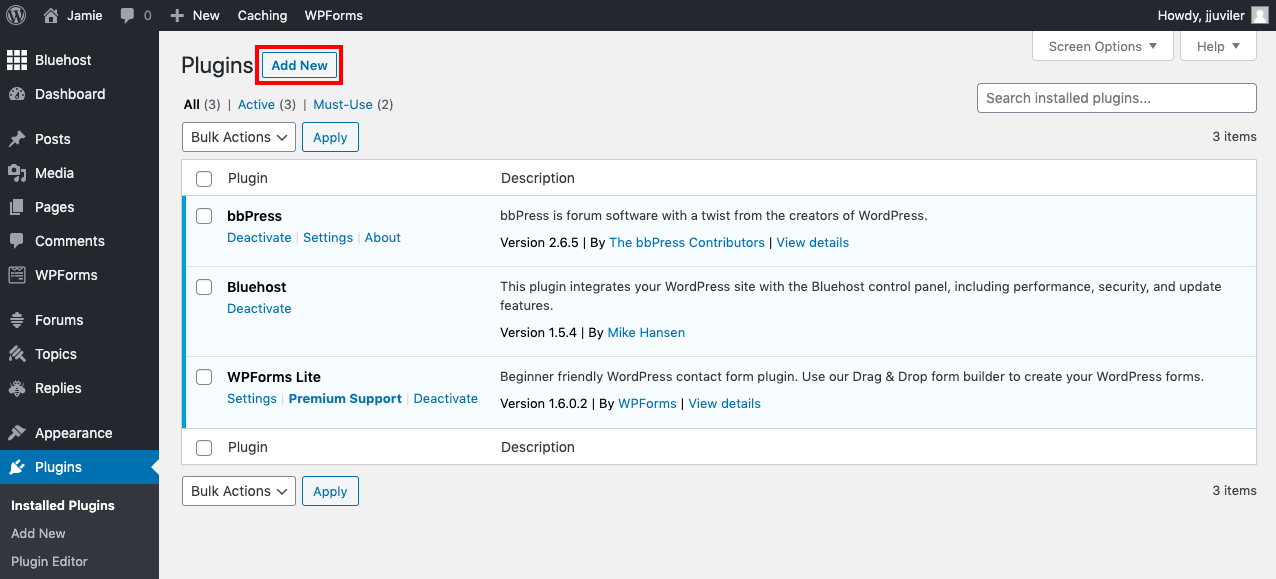
Backing up your WordPress site is simple with plugins. These tools help save your site’s data safely. They let you create copies of your site without technical skills. Plugins also automate backups, so you don’t forget. Using backup plugins protects your site from data loss or hacks. Choose the right plugin for easy and secure backups.
Popular Backup Plugins
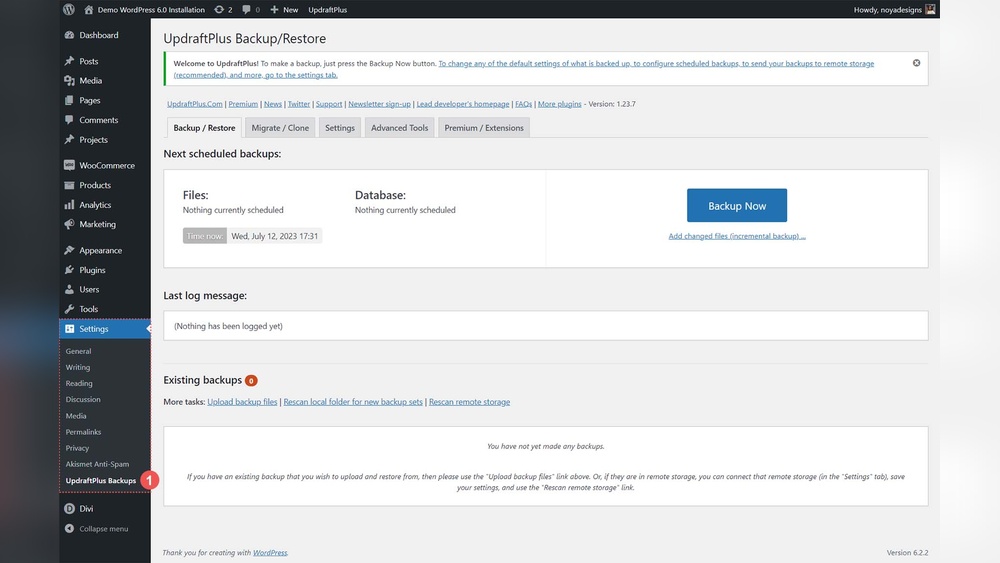
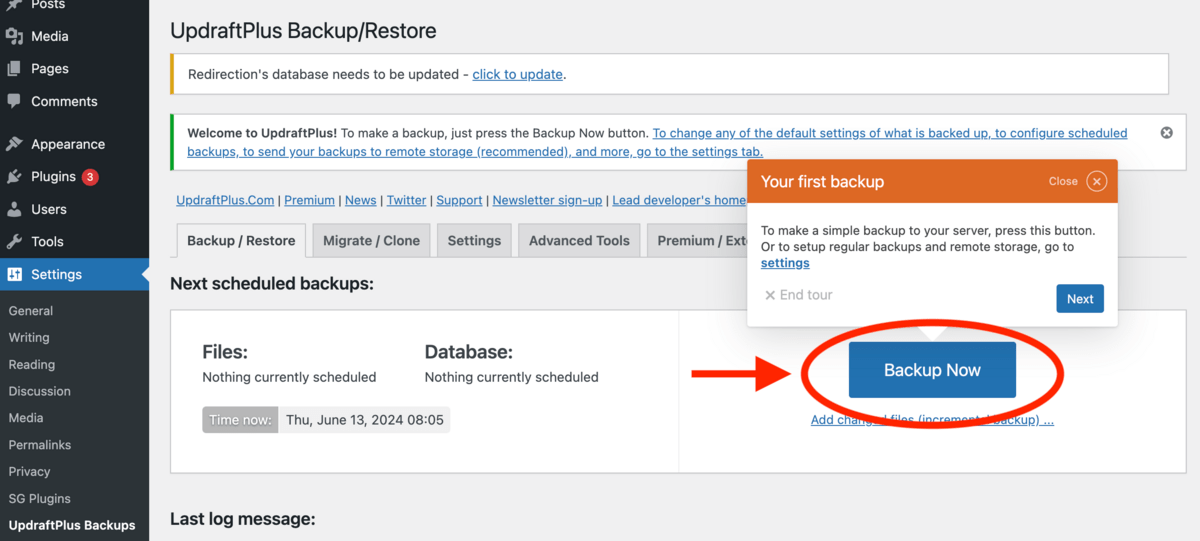
Many backup plugins work well with WordPress. UpdraftPlus is one of the most used. It offers free and paid versions. BackWPup lets you schedule backups and store them in cloud services. VaultPress focuses on real-time backups and security. All these plugins have easy setup and restore options. Pick one that fits your needs and budget.
Setting Up Automated Backups
Automated backups save time and avoid mistakes. Most plugins let you choose backup frequency. You can set daily, weekly, or monthly backups. Select which parts of your site to back up. Some plugins allow backups to remote storage like Google Drive. Activate notifications to get alerts on backup status. Automated backups keep your data safe without manual work.
Restoring From A Plugin Backup
Restoring your site is simple with a backup plugin. Access the plugin’s backup section in your dashboard. Choose the backup file you want to restore. Follow the plugin instructions to complete the restore process. It usually takes a few clicks and minutes. Restoring quickly fixes site issues or recovers lost data. Always test the restore after backup to ensure it works.
Backup Storage Options
Choosing the right place to store your WordPress backup is important. It keeps your website safe and easy to restore. Different storage options suit different needs. Consider how often you update your site and how much space you need. Here are some common backup storage options for your WordPress site.
Local Storage
Local storage means saving backups on your own computer or server. It is quick to access and simple to use. Backups are saved directly on your device or hosting server. Local storage is good for small sites with limited data. The risk: if your device crashes, backups may be lost too. Keep local backups safe by using antivirus and regular checks.
Cloud Storage Solutions
Cloud storage uses online services like Google Drive or Dropbox. It stores backups on remote servers accessible from anywhere. This option protects your data from local device failures. Cloud storage often offers automatic backup scheduling. It is scalable and good for growing websites. Security features like encryption help keep your data private.
Using External Drives
External drives are physical devices like USB sticks or external hard drives. They offer a portable way to keep backups separate from your computer. External drives add an extra layer of security. Store them in a safe place away from your main computer. This method is simple but requires manual backup updates. Ideal for users who prefer offline storage.
Credit: solidwp.com
Scheduling And Automating Backups
Scheduling and automating backups save time and protect your WordPress site. Regular backups keep your data safe without manual effort. Setting up automatic backups prevents data loss from unexpected errors or hacks. This process runs in the background, so you do not worry about forgetting to back up your site. It keeps your website updated with the latest saved copy, ready for quick recovery.
Choosing Backup Frequency
Select the right backup frequency based on your site’s update rate. For busy sites with daily posts, daily backups work best. Smaller or less active sites may only need weekly backups. Consider how often you add content, make changes, or receive comments. Choose a schedule that balances safety and storage space. Too many backups can fill your storage quickly. Too few may risk losing important data.
Configuring Automatic Backup Tasks
Use a WordPress backup plugin to set up automatic backup tasks. Most plugins allow you to pick backup frequency and storage location. Choose to save backups on cloud services or external servers for extra security. Configure notifications to alert you after each backup completes. Test your backup setup to ensure it runs smoothly. Confirm backups include all files and databases. Automation keeps your backup routine consistent and reliable.
Testing And Verifying Backups
Testing and verifying backups is a key step in WordPress site management. Backups must work correctly when needed. Without testing, you risk losing data or wasting time on broken files. Regular checks keep your site safe and running smoothly.
Restoration Testing
Restoration testing means restoring your backup to a test site. This shows if the backup file works properly. Use a staging environment or local server. Check if all pages, posts, and settings appear correctly. Confirm plugins and themes function well. Fix issues before relying on the backup.
Backup Integrity Checks
Backup integrity checks ensure the files are complete and uncorrupted. Use tools or plugins to scan backup files. Look for errors or missing data. Verify file sizes match expectations. Regular integrity checks prevent surprises during restoration. Keep backup copies safe and organized for quick access.
Credit: www.bitcatcha.com
Best Practices For WordPress Backups
Backing up your WordPress site is important for safety. Following best practices keeps your data safe and easy to restore. This section explains simple steps to protect your website backups.
Keeping Multiple Backup Copies
Store several backup copies in different places. Use cloud storage, external drives, or your computer. Multiple copies reduce risk of losing data. One backup might fail, but others stay safe.
Securing Backup Files
Keep backup files private and protected from hackers. Use strong passwords and encryption. Avoid saving backups in public folders. Secure backups help prevent data theft or loss.
Updating Backup Procedures Regularly
Review your backup process often. Update your methods as your site changes. Regular updates ensure backups include the latest data. Test backups to confirm they work well.
Frequently Asked Questions
What Is The Easiest Way To Backup A WordPress Site?
The easiest way to backup a WordPress site is using plugins like UpdraftPlus or BackupBuddy. These tools automate backups and store files safely. They allow scheduling backups and restoring with a few clicks, making the process simple for beginners and experts alike.
How Often Should I Backup My WordPress Website?
You should backup your WordPress site at least once a week. For sites with frequent updates, daily backups are recommended. Regular backups ensure you can recover quickly from data loss or hacks without significant downtime or content loss.
Can I Backup WordPress Manually Without A Plugin?
Yes, you can manually backup WordPress by exporting your database via phpMyAdmin and copying files via FTP. This method requires technical knowledge but offers full control. Remember to backup both the database and the wp-content folder for a complete backup.
Where Are WordPress Backups Stored By Default?
By default, WordPress does not store backups. Backup plugins save files either in cloud storage like Dropbox, Google Drive, or on your server. Always verify the backup location to ensure your data is safe and easily accessible when needed.
Conclusion
Backing up your WordPress site keeps your data safe. Regular backups prevent loss from errors or attacks. Choose a method that fits your skills and needs. Store backups in multiple places for extra security. Test your backups to ensure they work well.
Stay consistent with your backup routine to avoid surprises. Protecting your site is simple with these steps. Keep your website secure and your mind at ease.



