
Losing your website data can be a nightmare, especially if you don’t have a backup ready. Imagine spending hours creating content, only to have it vanish in an instant.
That’s why knowing how to backup on WordPress is a must for every site owner like you. In this guide, you’ll discover simple, clear steps to protect your website effortlessly. Keep reading to learn how to secure your hard work and avoid costly mistakes that could set you back.
Your peace of mind starts here.
Why Backup Your WordPress Site
Backing up your WordPress site is essential. It protects your hard work and your visitors’ trust. A backup copies your website data and files. This copy helps you restore your site quickly after problems.
Many site owners ignore backups. They think nothing will go wrong. But websites face risks every day. Losing data or site access can cause big problems. Having a backup saves time and stress.
Risks Of Not Backing Up
Without backups, you risk losing all your site data. Hacking attacks can delete or steal your information. Server crashes can erase your website files. Software updates may cause errors that break your site. Mistakes during edits can remove important pages or posts. Recovering without a backup takes more time and money. Your site may stay offline for days. Visitors will leave, and you can lose revenue.
Benefits Of Regular Backups
Regular backups give peace of mind. You can fix problems fast by restoring the latest backup. Backups let you test updates safely. If something breaks, just restore your site. Backups help move your site to a new host easily. You keep your content safe from accidents. Regular backups protect your site’s reputation and your business. They make recovery simple and quick.
Types Of WordPress Backups
Backing up your WordPress site protects your work and data. Different types of backups serve different needs. Knowing these types helps you choose the right backup method. This section explains the main types of WordPress backups.
Full Backups
Full backups save everything on your WordPress site. This includes files, themes, plugins, and the database. A full backup gives a complete copy of your site. It helps restore your site exactly as it was. Full backups take more time and space but offer the safest option.
Partial Backups
Partial backups save only parts of your site. You can back up just the database or just the files. This saves time and storage. Partial backups are good for quick fixes or small changes. Use partial backups when you only need certain data saved.
Manual Vs Automated Backups
Manual backups require you to start the backup process. You download files or export the database yourself. This method gives control but needs regular attention. Automated backups run on their own schedule. They reduce your effort and risk of forgetting. Choose based on your comfort and time.
Backup Methods For WordPress
Backing up your WordPress website protects your data from loss. Different methods exist to keep copies safe. Choose one that fits your skills and needs. Here are common ways to back up WordPress.
Using Plugins
Plugins simplify the backup process. They create copies of your files and database automatically. Popular plugins include UpdraftPlus, BackWPup, and Duplicator. You can schedule backups daily or weekly. Most plugins allow storing backups on cloud services like Google Drive or Dropbox. This method is great for beginners and saves time.
Hosting Provider Solutions
Many hosting providers offer backup services. These backups run on their servers regularly. Some hosts let you restore your site with one click. Check your hosting dashboard for backup options. This method is convenient and requires no extra setup. It adds an extra layer of safety for your website.
Manual Backup Via Cpanel
You can back up your site manually using cPanel. Log in to cPanel and go to the File Manager. Download your WordPress files to your computer. Then, open phpMyAdmin to export your database. Save the database as a .sql file. Manual backups take more time but give full control over your data.
Credit: solidwp.com
Step-by-step Plugin Backup
Backing up your WordPress site using a plugin is simple and safe. Plugins help save your files and database quickly. They keep your website secure from data loss. This guide shows how to do a plugin backup step-by-step. Follow the instructions to protect your site with ease.
Choosing The Right Plugin
Pick a plugin that fits your needs. Look for good ratings and recent updates. Popular options include UpdraftPlus, BackWPup, and Duplicator. Check if the plugin supports scheduled backups. Make sure it can save files to cloud storage or email.
Installing And Configuring
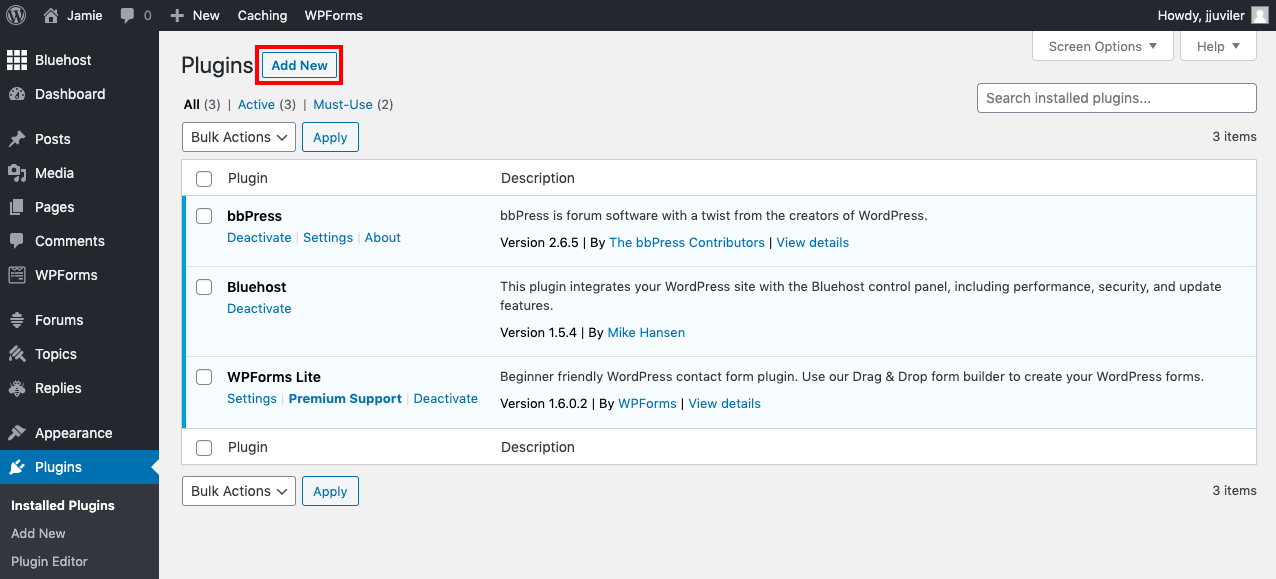
Go to your WordPress dashboard and click “Plugins.” Click “Add New” and type the plugin name. Click “Install Now” and then “Activate.” Open the plugin settings page. Set backup frequency and storage location. Enter your cloud or email details if needed.
Running Your First Backup
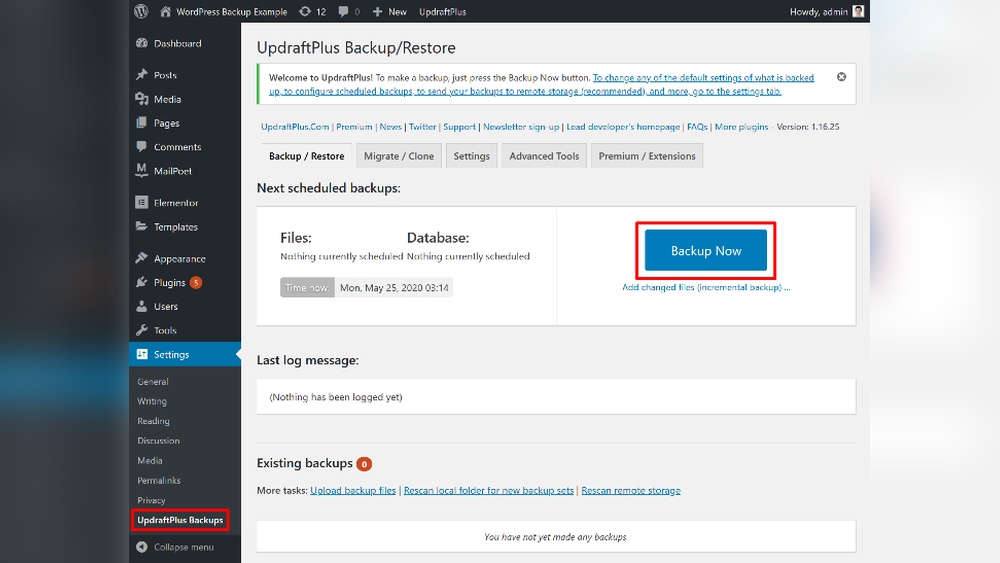
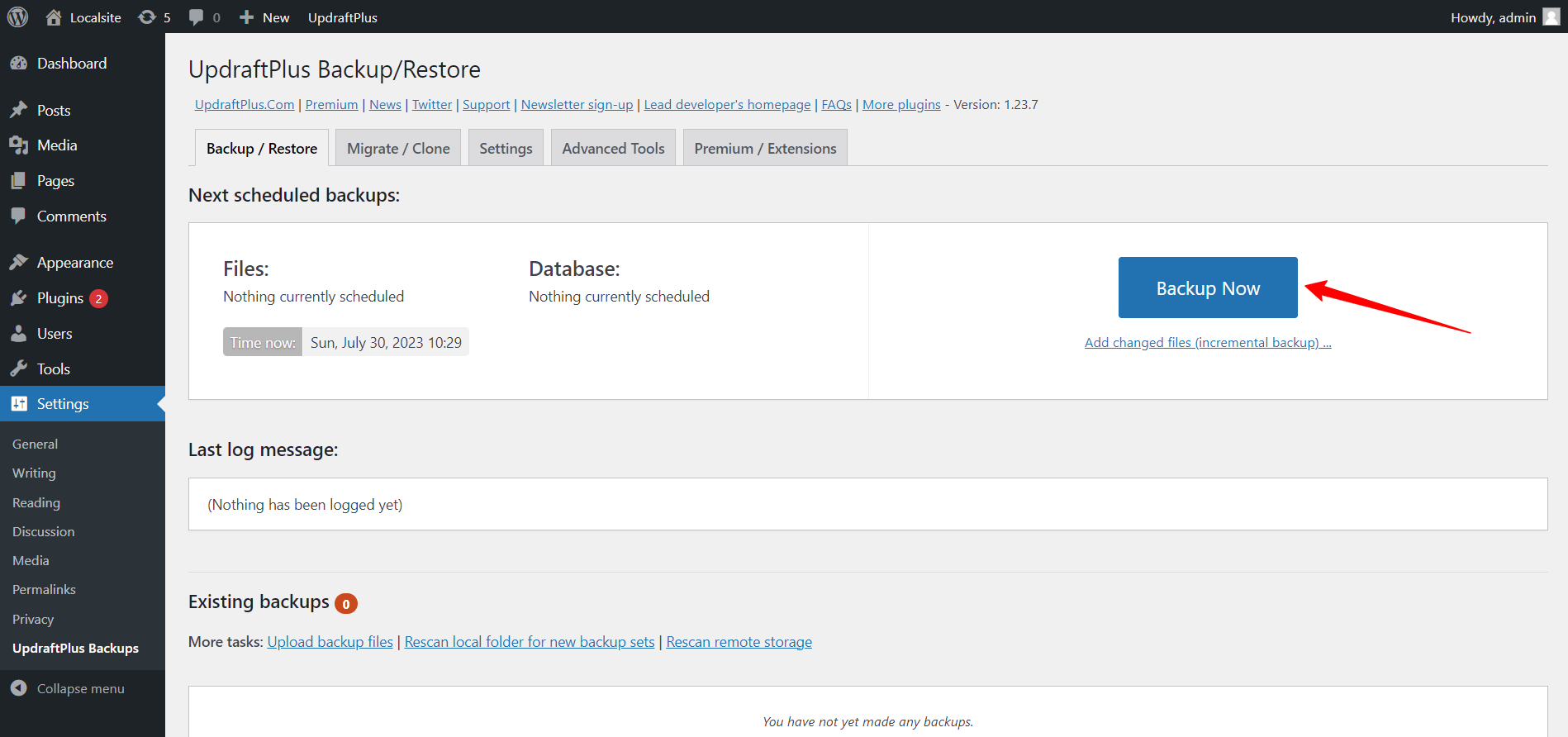
Start your first backup manually. Find the backup button in the plugin menu. Click “Backup Now” or similar. Wait for the process to finish. Download a copy of the backup to your computer. Verify the backup files are complete and safe.
Storing And Managing Backups
Backing up your WordPress site is just the first step. Storing and managing these backups safely ensures you can restore your site quickly. Good storage methods protect your data from loss or corruption. Managing backups also helps keep your files organized and easy to find.
Cloud Storage Options
Cloud storage services keep your backups online and safe. Popular choices include Google Drive, Dropbox, and Amazon S3. These services offer easy access from anywhere. They also protect files from local computer failures. Many WordPress backup plugins connect directly to these cloud services.
Local Storage Tips
Storing backups on your computer or external hard drive is another option. Keep multiple copies in different locations. This adds extra safety if one device fails. Use folders with clear names and dates for easy tracking. Avoid saving backups on the same server as your website.
Backup Retention Strategies
Decide how long to keep each backup. Keep recent backups for quick recovery. Older backups help restore data from further in the past. Remove very old backups to save storage space. Set a schedule to delete outdated backups automatically. This keeps your backup system clean and efficient.
Credit: wpmet.com
Restoring Your WordPress Site
Restoring your WordPress site means bringing it back to a previous working state. This step is important after problems like hacks, errors, or broken updates. Having backups ready makes restoration quick and less stressful. This section explains when to restore and how to do it using plugins or manual steps.
When To Restore
Restore your site if it is not working properly. Common signs include missing pages, error messages, or slow loading. Also, restore after a failed update or attack. Restoring fixes these issues by returning your site to a safe version.
Restoration Process Using Plugins
Many WordPress backup plugins offer easy restore options. Open your plugin dashboard and find the restore section. Select the backup file you want to use. Click the restore button and wait for the process to finish. The site will go back to the saved state. This method is fast and simple for most users.
Manual Restoration Steps
Manual restoration requires more steps but works without plugins. First, access your hosting control panel or FTP. Upload the backup files to the WordPress root folder. Replace the existing files carefully. Next, restore the database using phpMyAdmin or a similar tool. Import the backup database file and overwrite the old one. Check your site to confirm the restoration. Manual restore is useful if plugins fail or are unavailable.
Backup Best Practices
Backing up your WordPress site protects your data and keeps your site safe. Following best practices helps avoid losing important files and content. Backups should be done regularly, stored securely, and tested to ensure they work. This section covers key backup best practices for a safe WordPress site.
Backup Frequency Recommendations
Back up your site often to keep data fresh. For active sites, daily backups work best. Less active sites can use weekly backups. Always back up before making big changes. Regular backups reduce the risk of data loss.
Security Measures For Backups
Store backups in a safe place away from your website server. Use encrypted storage or secure cloud services. Protect backup files with strong passwords. Avoid keeping backups in public or shared folders. Secure backups prevent unauthorized access and data theft.
Testing Your Backups
Check your backups by restoring them to a test site. Make sure all files and databases load correctly. Test backups often to confirm they work. Testing ensures you can recover your site quickly after issues.
Credit: agethemes.com
Frequently Asked Questions
How Often Should I Backup My WordPress Site?
You should backup your WordPress site at least once a week. For active sites, consider daily backups. Regular backups prevent data loss and ensure quick recovery from errors or hacks. Automating backups saves time and reduces risks.
What Are The Best Plugins For WordPress Backups?
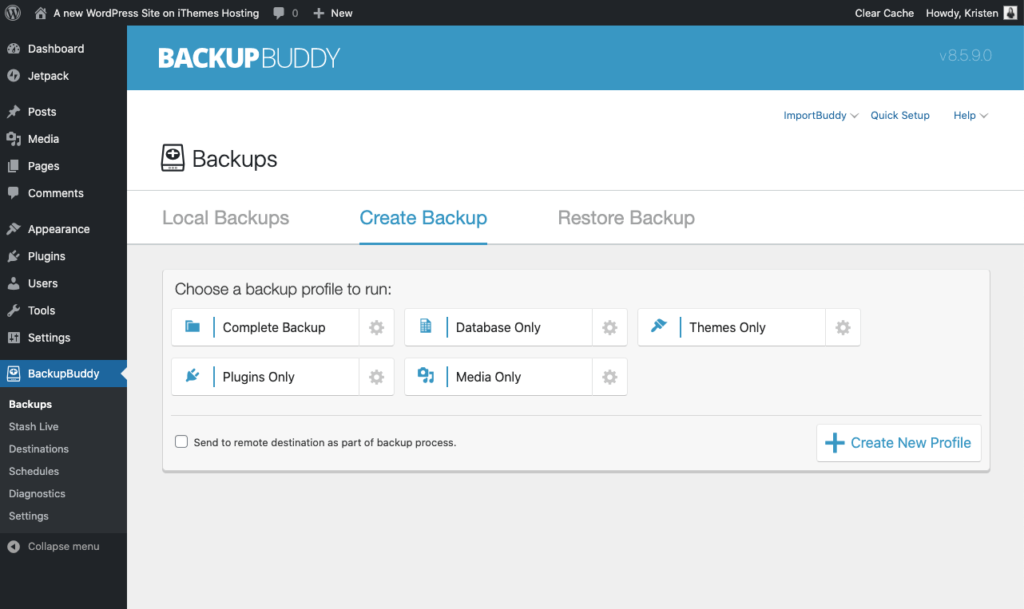
Popular WordPress backup plugins include UpdraftPlus, BackupBuddy, and BackWPup. These plugins offer automatic backups, cloud storage options, and easy restore features. Choose one based on your budget, features, and storage preferences.
Can I Backup WordPress Manually Without Plugins?
Yes, you can backup WordPress manually by exporting your database and downloading files via FTP. This method requires technical knowledge and is time-consuming. Plugins simplify the process and reduce errors.
Where Should I Store My WordPress Backups Safely?
Store backups in multiple locations like cloud storage (Google Drive, Dropbox) and external hard drives. Avoid keeping backups only on the same server to prevent loss during crashes or hacks.
Conclusion
Backing up your WordPress site protects your work from loss. Regular backups save time and stress later. Choose a method that fits your skills and needs. Store backups safely, both online and offline. Check backups often to ensure they work well.
A good backup plan keeps your site safe and running. Don’t wait until it’s too late—start backing up today. Simple steps can save you big problems in the future.



