
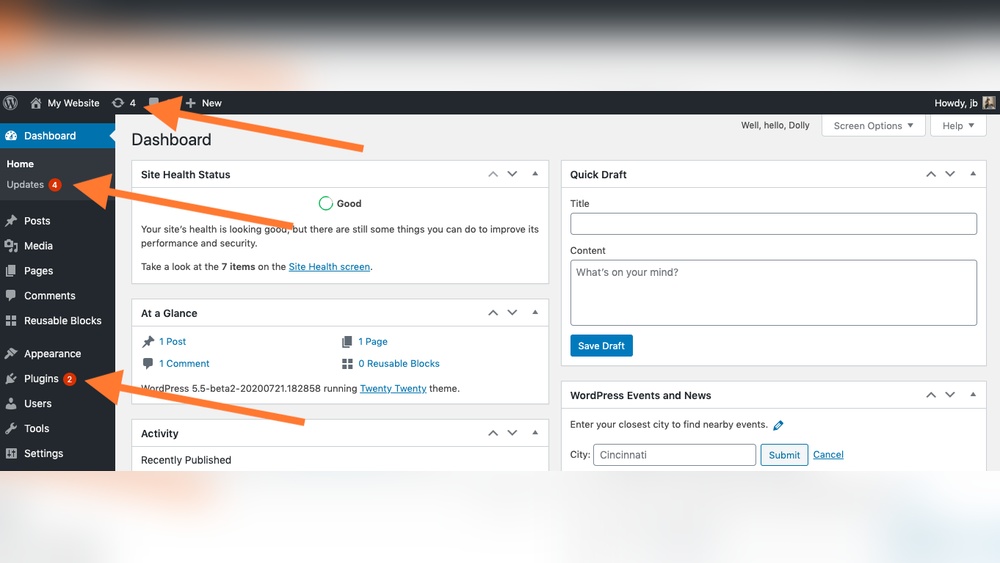
Keeping your WordPress plugins up to date is crucial for your website’s security and performance. But manually checking and updating them can take up a lot of your valuable time.
What if you could set it once and let your site handle updates on its own? You’ll discover simple steps to automatically update your WordPress plugins. This means more peace of mind for you and a smoother experience for your visitors.
Keep reading, and learn how to make your website smarter and safer without lifting a finger.
Credit: www.wpbeginner.com
Benefits Of Automatic Plugin Updates
Automatic plugin updates offer many benefits for WordPress site owners. They help keep your website secure and running smoothly. Updates happen without your manual effort. This saves time and reduces risks. Let’s explore the key benefits of automatic plugin updates.
Improved Security
Plugins often have security fixes in their updates. Automatic updates close gaps quickly. This lowers the risk of hacks and attacks. Your site stays safe without you checking for updates daily. It protects your data and visitors.
Enhanced Performance
Updates can improve plugin speed and reliability. Automatic updates ensure you get the latest improvements fast. Your website runs better and loads pages quicker. Visitors enjoy a smoother experience. This can boost your site’s ranking in search engines.
Time-saving Convenience
Managing updates manually takes time and effort. Automatic updates free you from this task. You can focus on creating content and growing your site. Updates happen quietly in the background. No need to worry about missing important fixes.
Credit: make.wordpress.org
Preparing Your Site For Automatic Updates
Preparing your website for automatic updates is an important step. It helps avoid problems that may arise during the update process. Proper preparation keeps your site safe and running smoothly. Taking a few simple steps can make updates easier and less risky.
Backing Up Your Website
Always create a full backup before enabling automatic updates. A backup saves your entire site, including files and database. It allows you to restore your site if something goes wrong. Use a reliable backup plugin or your hosting provider’s backup tool. Schedule backups regularly to keep them up to date. Store backups in a safe, separate location.
Checking Plugin Compatibility
Check if your plugins work well with the latest WordPress version. Read plugin changelogs and update notes carefully. Test plugins on a test site before updating your live site. Remove plugins that are outdated or no longer supported. Keeping compatible plugins reduces the risk of errors after updates.
Setting Up A Staging Environment
Create a staging site that copies your live website. Use it to test automatic updates safely. This setup helps you spot any issues before updating your real site. Many hosts offer easy staging site creation tools. Fix problems on the staging site first to protect your live site from downtime.
Methods To Enable Automatic Plugin Updates
Keeping your WordPress plugins updated is key to site security and performance. Automatic updates save time and reduce risks. Different methods exist to enable this feature. Choose one that fits your comfort level and site needs.
Using WordPress Built-in Features
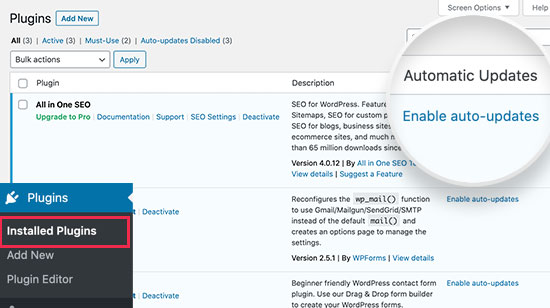
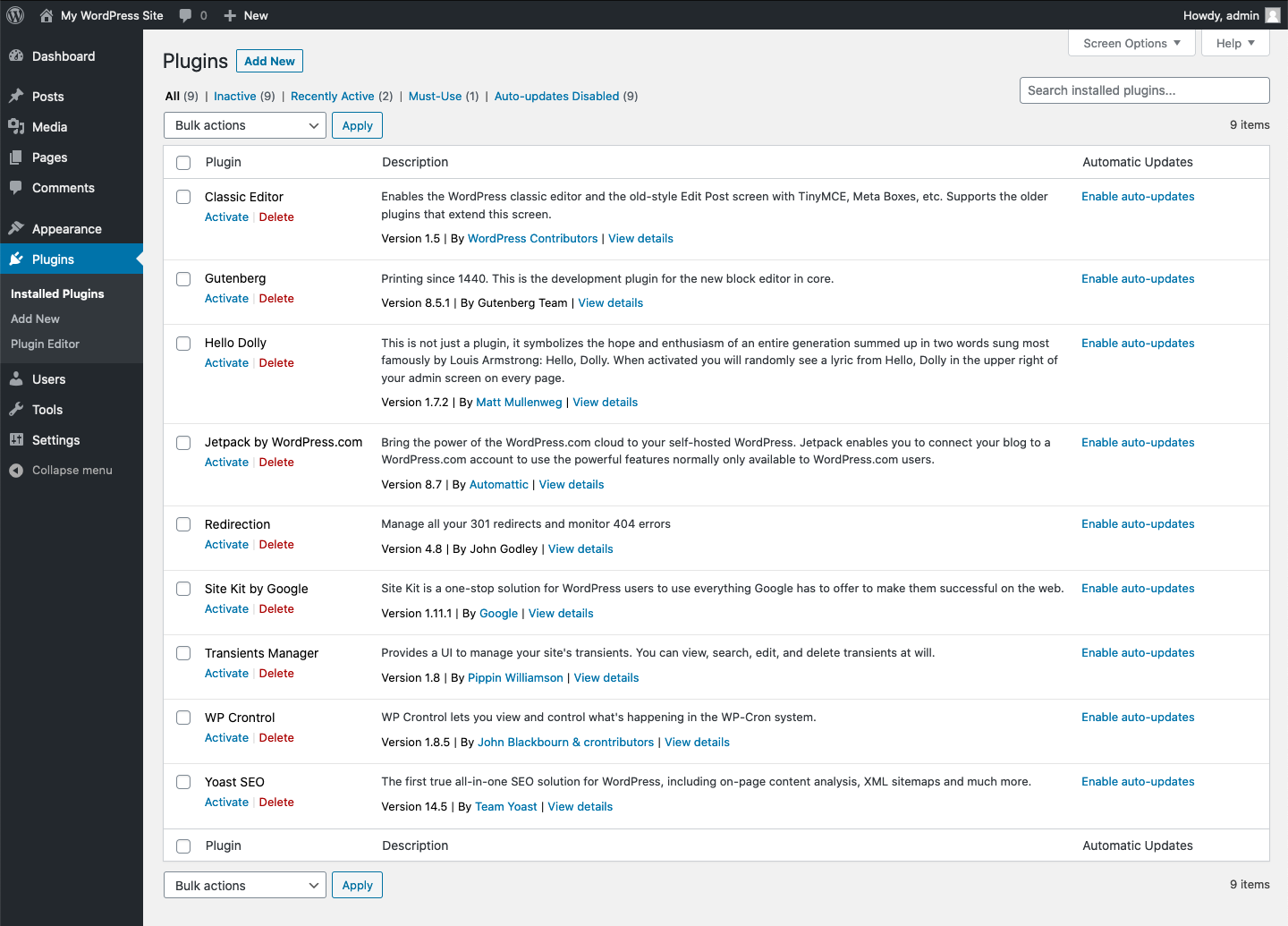
WordPress offers a simple way to enable auto-updates. Go to the Plugins page in your dashboard. Each plugin has an option labeled “Enable auto-updates.” Click it, and updates install automatically. This method requires no coding or extra tools. It is safe and works well for most users.
Applying Code Snippets
Adding code snippets can enable automatic updates for all plugins. Use the add_filter function in your theme’s functions.php file. For example, add add_filter('auto_update_plugin', '__return_true'); to turn on updates. This method suits users comfortable with editing code. Always back up your site before making changes.
Utilizing Reliable Plugins
Several plugins help manage automatic updates easily. Plugins like “Easy Updates Manager” provide control over updates. They let you choose which plugins update automatically. This method offers flexibility and user-friendly settings. It is ideal for users wanting more control without coding.
Configuring Automatic Updates Safely
Configuring automatic updates safely is essential for any WordPress site owner. It helps keep plugins current without risking site stability. Proper setup reduces errors and downtime. It also protects your website from security threats.
Careful selection and management of updates ensure smooth operation. Follow these steps to maintain control and security while using automatic updates.
Selecting Plugins For Auto-update
Not all plugins should update automatically. Choose only trusted and frequently updated plugins. Avoid auto-updating complex or rarely updated plugins. Test new plugins before enabling auto-updates. This helps prevent conflicts and errors on your site.
Scheduling Updates
Set updates to run during low-traffic hours. This limits the chance of visitors facing issues. Use tools or hosting features to schedule updates at night or early morning. Stagger updates if you have many plugins. This approach reduces server load and improves site stability.
Monitoring Update Logs
Always check update logs after automatic updates. Logs show what changed and if errors occurred. Use plugins or hosting dashboards to access logs easily. Regular monitoring helps catch problems quickly. This keeps your website running smoothly and safely.
Troubleshooting Common Issues
Troubleshooting common issues is important when updating WordPress plugins automatically. Updates can sometimes fail or cause problems. Knowing how to fix these issues saves time and keeps your site safe.
Handling Update Failures
Updates may fail due to server timeouts or poor internet connection. Check your hosting limits and try again later. You can also update plugins manually from the WordPress dashboard. Keep backups before updating to avoid data loss.
Resolving Plugin Conflicts
Some plugins may not work well together after updates. Disable all plugins, then enable one by one to find the conflict. Replace or remove the conflicting plugin. Always test your site after updates to catch issues early.
Restoring From Backups
Backups are your safety net when updates go wrong. Use your backup to restore the site to its previous state. Regularly create backups before updating plugins. This practice prevents long downtime and data loss.

Credit: wordpress.org
Best Practices For Long-term Maintenance
Maintaining WordPress plugins over time requires a clear plan. This plan keeps your site secure and running smoothly. Automatic updates save time but need smart management. Following best practices helps avoid problems and keeps your site healthy.
Regular Backup Routine
Always back up your site before updates. Backups protect your data from mistakes or crashes. Schedule backups daily or weekly based on site activity. Store backups in a safe, separate location. Test backups to ensure you can restore your site quickly.
Keeping WordPress Core Updated
Update the WordPress core as soon as updates appear. Core updates improve security and fix bugs. They also ensure plugin compatibility. Do not ignore these updates, or your site may become vulnerable. Use automatic updates for the core if possible.
Reviewing Plugin Reviews And Ratings
Check plugin reviews before enabling automatic updates. Reviews reveal common issues and user experiences. Ratings show plugin reliability and developer support. Avoid plugins with many negative reviews. Choose plugins that update regularly and have good feedback.
Frequently Asked Questions
How Do I Enable Automatic Updates For WordPress Plugins?
Go to your WordPress dashboard, navigate to Plugins, and click “Enable auto-updates” next to each plugin. This activates automatic updates, ensuring plugins stay current without manual intervention.
Are Automatic Plugin Updates Safe For My WordPress Site?
Yes, automatic updates are generally safe. They help fix security issues and bugs promptly. Always back up your site regularly to avoid data loss during updates.
Can I Schedule Automatic Updates For WordPress Plugins?
By default, WordPress updates plugins automatically when enabled. For scheduling specific times, use third-party plugins or custom code to control update timing precisely.
What Happens If A Plugin Update Breaks My Website?
If an update causes issues, restore your site from a recent backup. You can also deactivate the problematic plugin via FTP or your hosting control panel.
Conclusion
Keeping WordPress plugins updated saves time and improves site security. Automatic updates reduce risks and keep your site running smoothly. Set up updates carefully to avoid conflicts or errors. Regular checks ensure everything works well after updates. Stay proactive with updates to protect your website from threats.
This simple step helps maintain a safe and fast website. Your site will thank you with better performance and fewer problems.



