

Keeping your WordPress plugins up to date is crucial for your website’s security and performance. But manually checking and updating each plugin can be time-consuming and easy to forget.
What if you could set it once and let your site handle updates automatically? You’ll discover simple steps to enable auto-updates for your WordPress plugins. By the end, you’ll save time, reduce risks, and keep your site running smoothly without extra effort.
Ready to take control and make your life easier? Let’s dive in.
Credit: make.wordpress.org
Benefits Of Auto Updating Plugins
Auto updating plugins offers many benefits for your WordPress site. It helps keep your site safe, saves time, and ensures smooth performance. You do not have to check for updates yourself. The process happens quietly in the background. This lets you focus on other tasks.
Enhancing Website Security
Plugins often have security fixes in their updates. Auto updating installs these fixes fast. This reduces the risk of hackers exploiting old issues. Your website stays protected without delays. It helps keep your visitors’ data safe.
Saving Time And Effort
Manual updates take time and effort. Auto updates run automatically, saving you work. You do not need to log in to check or install updates. It frees your time for content and design work. This makes managing your site easier.
Improving Performance And Compatibility
Plugin updates often improve speed and fix bugs. Auto updating ensures your site uses the latest features. It keeps plugins compatible with your WordPress version. This prevents errors and crashes. Your site runs smoothly and reliably.
Preparing For Auto Updates
Preparing your WordPress site for auto updates is a key step. It helps keep your site safe and running smoothly. Auto updates save time but need careful preparation. Taking a few steps before you enable them avoids problems later.
Backing Up Your Website
Always back up your site before turning on auto updates. A backup saves all your files and data. It protects your site if something goes wrong during updates. Use a trusted backup plugin or your hosting backup tool. Store backups in a safe place outside your website server.
Checking Plugin Compatibility
Check if your plugins work well with the latest WordPress version. Some plugins may cause errors after updates. Visit the plugin’s page to see recent reviews and update notes. Test updates on a staging site if possible. This helps spot conflicts before they affect your live site.
Choosing A Reliable Hosting Environment
Pick a hosting provider that supports automatic updates. Good hosts offer fast servers and strong security. They reduce the risk of downtime during updates. Check if your host provides daily backups and one-click restore options. These features add extra safety to your website.
Configuring Auto Updates In WordPress
Configuring auto updates in WordPress helps keep your site safe and running smoothly. It saves time by updating plugins without manual effort. This reduces the risk of outdated software causing errors or security issues. WordPress offers simple ways to set up these updates, suitable for all skill levels.
Using The Built-in Auto Update Feature
WordPress includes a built-in feature to auto update plugins. You can activate this with just a few clicks in the admin dashboard. This feature checks for new plugin versions and installs them automatically. It works quietly in the background, keeping your site current without interrupting your work.
Enabling Auto Updates For Individual Plugins
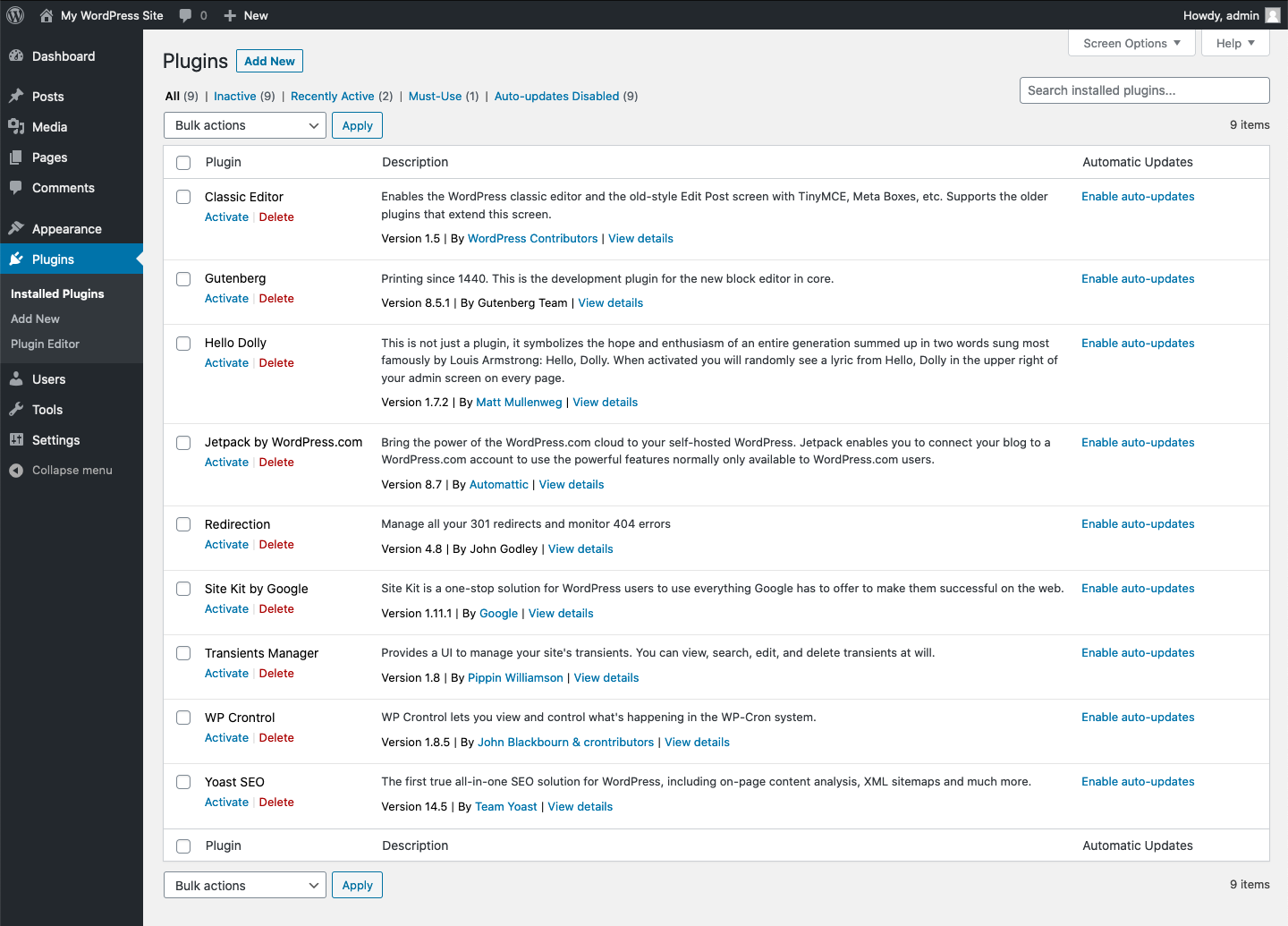
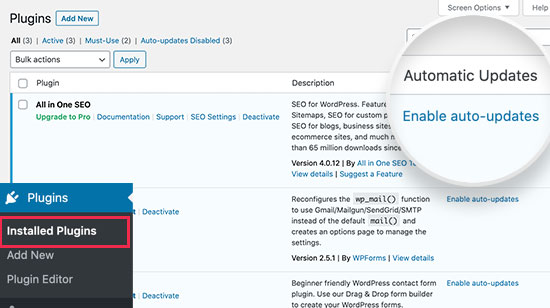
Not every plugin needs automatic updates. WordPress lets you enable auto updates for specific plugins only. Go to the Plugins page in your dashboard and find the plugin you want. Click the “Enable auto-updates” link next to it. This control helps you manage which plugins update themselves.
Managing Auto Updates Via Wp-config.php
The wp-config.php file allows more control over auto updates. You can add code snippets here to enable or disable updates site-wide or for specific plugins. This method requires editing core files, so back up your site first. It offers a powerful way to customize update behavior beyond the dashboard options.
Credit: www.wpbeginner.com
Using Plugins To Manage Auto Updates
Managing WordPress plugins manually takes time. Plugins that auto update save effort and keep your site secure. These tools help control which plugins update automatically. They provide options to customize updates easily. Using plugins for auto updates reduces risks of outdated software. It also ensures your site runs smoothly without interruptions.
Top Plugins For Auto Updating
Several plugins help manage automatic updates. Easy Updates Manager offers control over updates for plugins, themes, and WordPress core. Companion Auto Update allows selective plugin updates and email alerts. WP Auto Update focuses on automatic updates with simple settings. Choose a plugin that fits your needs and skill level. Each has unique features for managing updates safely.
Setting Up And Customizing Auto Updates
After installing an update plugin, configure it carefully. Select which plugins should update automatically. Avoid enabling auto updates for complex or critical plugins. Set the frequency of update checks to balance site performance. Customize notifications to stay informed about changes. Proper setup prevents unexpected issues and keeps control in your hands.
Monitoring Update Logs And Notifications
Regularly check update logs to verify plugin activity. Logs show successful updates and any errors. Notifications provide real-time alerts about updates or failures. Keeping an eye on logs helps spot problems early. This practice ensures your site remains stable and secure. Monitoring builds confidence in your automated update system.
Handling Auto Update Failures
Auto updating WordPress plugins saves time and improves site security. Sometimes, updates fail or cause issues. Handling these failures quickly keeps your website running smoothly. Knowing how to spot problems and fix them helps avoid downtime.
Identifying Common Issues
Failed updates often happen due to server errors or network problems. Plugin updates might not complete if your hosting limits resources. Incomplete downloads or permission errors also stop updates. Check error messages in your WordPress dashboard to find clues. Monitor your site’s health for update problems regularly.
Rolling Back Problematic Updates
Some updates cause plugin conflicts or site crashes. Rolling back to an earlier version can fix these issues fast. Use a backup or plugin like WP Rollback to restore previous plugin versions. Test the site after rollback to confirm it works well again. Keep backups before any update to avoid data loss.
Troubleshooting Plugin Conflicts
Conflicts happen when plugins don’t work well together after updates. Disable all plugins except the updated one to isolate the problem. Reactivate plugins one by one to find the conflict source. Check plugin settings and update compatibility notes. Contact plugin developers if conflicts continue.
Best Practices For Auto Updates
Auto updating WordPress plugins saves time and keeps your site secure. Following best practices ensures updates run smoothly. Careful planning avoids issues and downtime. Regular checks keep your site healthy and fast.
Scheduling Updates During Low Traffic
Set plugin updates for times with fewer visitors. Night hours or early mornings work well. This reduces the risk of site slowdowns. Visitors see your site working well all the time. Automated updates during low traffic keep your site stable.
Regularly Reviewing Plugin Health
Check plugin status often to spot problems early. Look for errors or conflicts after updates. Remove plugins that no longer work well. Keep only trusted and well-maintained plugins. Healthy plugins improve site speed and security.
Combining Auto Updates With Manual Checks
Auto updates save time but need manual checks too. Review plugin changes after updates to avoid errors. Test key site features regularly to confirm all works. Manual checks catch issues auto updates may miss. Balance automation with hands-on care for best results.

Credit: wordpress.org
Frequently Asked Questions
What Are The Benefits Of Auto Updating WordPress Plugins?
Auto updating plugins ensures your site stays secure, improves performance, and saves time. It prevents vulnerabilities by applying the latest fixes automatically. This reduces manual effort and keeps your WordPress site running smoothly with minimal intervention.
How Do I Enable Auto Updates For WordPress Plugins?
To enable auto updates, go to your WordPress dashboard, then Plugins. Click “Enable auto-updates” next to each plugin. Alternatively, add code snippets to your theme’s functions. php file for bulk activation. This automates the update process safely.
Can Auto Updates Cause Plugin Compatibility Issues?
Yes, auto updates can occasionally cause conflicts if plugins aren’t compatible with your WordPress version. Always back up your site before enabling auto updates. Test updates in a staging environment to avoid disruptions on your live site.
Are There Plugins To Manage WordPress Auto Updates?
Yes, plugins like Easy Updates Manager help control auto updates for WordPress core, plugins, and themes. They offer granular settings for selective updates, notifications, and backup options, making automatic maintenance easier and safer for your website.
Conclusion
Auto updating WordPress plugins saves time and keeps your site safe. You avoid missing important fixes and new features. Set updates carefully to prevent conflicts with your theme or other plugins. Check your site regularly to ensure everything works well.
This simple step helps maintain your website’s health and performance. Stay consistent, and your site will stay strong and secure.



