
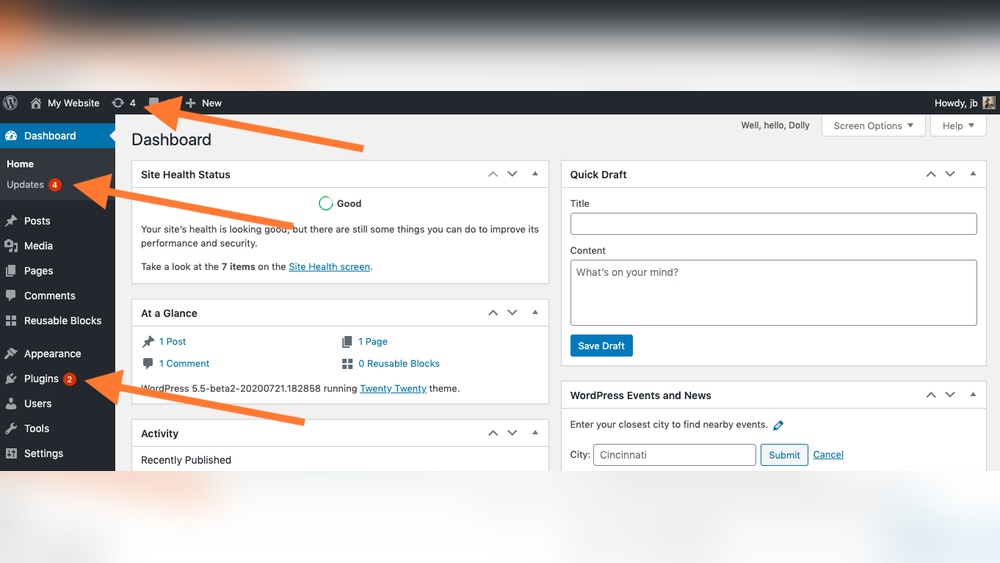
Keeping your WordPress plugins up to date is crucial for your website’s security and performance. But manually updating them can be time-consuming and easy to forget.
What if you could set it once and let your site handle updates automatically? You’ll discover simple, effective ways to auto update plugins in WordPress. By the end, you’ll save time, protect your site, and never worry about outdated plugins again.
Ready to make your website smarter and safer? Let’s dive in!
Benefits Of Auto Updating Plugins
Auto updating plugins in WordPress offers many benefits for website owners. It helps keep your site safe, fast, and reduces your workload. By enabling automatic updates, you ensure your plugins stay current without extra effort.
Improved Security
Outdated plugins can create security risks. Hackers often target old versions with known flaws. Auto updates fix these issues quickly. This keeps your site protected from attacks. Your data and visitors stay safer with updated plugins.
Enhanced Performance
Developers improve plugins regularly. Updates fix bugs and add features. Auto updating ensures your plugins run smoothly. Faster loading times improve user experience. Your website stays reliable and efficient.
Time Savings
Manually updating plugins takes time. It can be easy to forget important updates. Auto updates handle this task automatically. You save hours on maintenance. This frees you to focus on growing your site.
Preparing Your Site For Auto Updates
Preparing your WordPress site for auto updates is important. It helps avoid problems and keeps your site safe. Taking a few steps before enabling auto updates can save time and effort later.
These steps make sure your site works well with new plugin versions. They also protect your content and settings. Follow these simple guidelines to get ready for automatic plugin updates.
Backup Your Website
Always create a full backup before starting auto updates. This backup saves your files and database. It lets you restore your site if anything goes wrong. Use reliable backup tools or plugins to do this regularly.
Check Plugin Compatibility
Review each plugin to ensure it works with your WordPress version. Check the plugin’s update notes and user reviews. Avoid auto updates for plugins that often cause issues. Keeping compatible plugins reduces site errors.
Set Up A Staging Environment
A staging site is a copy of your live site for testing. Use it to try updates before applying them on your main site. This helps catch bugs and problems early. Many hosts offer easy staging setup tools.
Enabling Auto Updates Via WordPress Dashboard
Enabling auto updates for plugins via the WordPress dashboard is a simple way to keep your site secure and running smoothly. This feature saves time by handling updates automatically. It reduces the risk of using outdated software. You can control which plugins update themselves. The process takes only a few clicks.
Accessing Plugin Settings
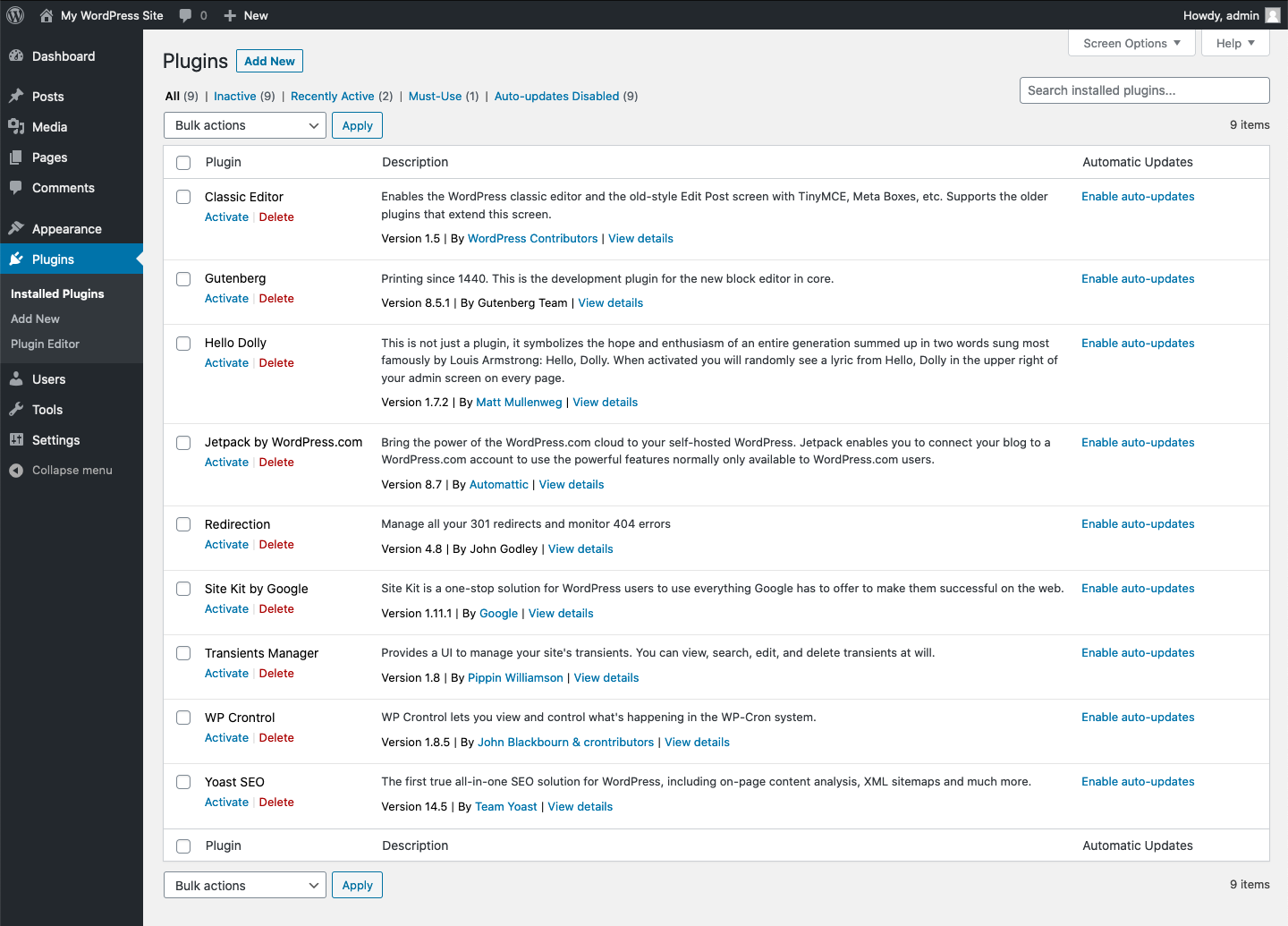
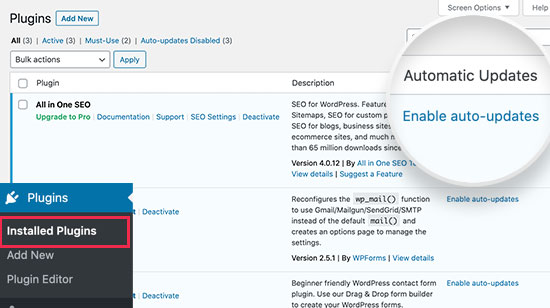
Start by logging into your WordPress dashboard. Look for the “Plugins” option in the left menu. Click on “Installed Plugins” to see all your plugins. Each plugin will have details like name and version. Here, you can check which plugins need updating.
Activating Auto Update Feature
Next, find the plugin you want to auto update. On the right side of its name, you will see an “Enable auto-updates” link or button. Click this to turn on automatic updates for that plugin. A confirmation message will appear. Repeat for any other plugins you want to update automatically. This feature keeps your plugins fresh without extra effort.

Credit: wordpress.org
Using Code To Auto Update Plugins
Using code to auto update plugins in WordPress gives you more control. It helps keep your site secure and up to date without manual work. You can add small snippets of code to your theme or a custom plugin. This code tells WordPress to update plugins automatically.
Auto updating plugins by code saves time and reduces risks. You avoid outdated plugins that can cause errors or security problems. Let’s explore how to add and manage these code snippets.
Adding Auto Update Code Snippet
To enable auto updates, add this code to your theme’s functions.php file or a site-specific plugin:
add_filter( 'auto_update_plugin', '__return_true' );This filter activates automatic updates for all plugins. WordPress will check and update plugins without your input. Be sure to back up your site before making changes.
Managing Auto Update Filters
You can customize which plugins auto update by using filters. For example, use this code to update only specific plugins:
add_filter( 'auto_update_plugin', 'custom_plugin_auto_update', 10, 2 ); function custom_plugin_auto_update( $update, $item ) { $plugins_to_update = array( 'plugin-folder/plugin-file.php', 'another-plugin/another-file.php', ); if ( in_array( $item->plugin, $plugins_to_update ) ) { return true; } return false; } This method gives you control over updates. You decide which plugins update automatically. It helps avoid conflicts with certain plugins.
Auto Updating Plugins With Third-party Tools
Auto updating plugins in WordPress can save time and keep your site secure. Third-party tools make this process easier and more reliable. These tools manage multiple plugins and handle updates automatically.
Using third-party tools helps avoid errors from manual updates. They also offer extra features like backup and monitoring. This keeps your WordPress site running smoothly and safely.
Popular Plugin Management Tools
Several third-party tools help manage WordPress plugins efficiently. ManageWP is a popular choice for updating plugins across many sites. It offers scheduled updates and site backups.
Another tool, InfiniteWP, supports bulk updates and monitoring. It works well for users managing many WordPress installations. MainWP is also favored for its free core and flexible extensions.
These tools focus on ease of use and automation. They reduce the risk of plugin conflicts or outdated versions.
Configuring Auto Updates
Setting up auto updates with these tools is simple. First, connect your WordPress site to the management dashboard. Then, choose which plugins to update automatically.
Most tools allow scheduling updates during low-traffic hours. This avoids disruptions for visitors. You can also enable email alerts to get update reports.
Regularly check your update settings to keep them current. This ensures your plugins stay updated without extra work. Auto updating reduces maintenance time and improves site security.
Credit: make.wordpress.org
Monitoring And Troubleshooting Updates
Monitoring and troubleshooting updates is crucial for WordPress plugin management. It helps maintain site security and performance. Regular checks ensure updates run smoothly and prevent potential issues. Quick action can fix problems before they affect your site.
Checking Update Logs
Update logs show details about plugin updates. They record what was updated and when. Reviewing logs helps spot errors or conflicts early. You can access logs in the WordPress dashboard or via plugins. Keeping track of logs helps track plugin behavior over time.
Handling Update Failures
Sometimes, plugin updates fail. This can cause errors or site malfunctions. Identify the problem by checking error messages and logs. Disable the plugin causing issues to restore site function. Try updating manually or contact plugin support for help.
Restoring From Backups
Backups are vital before updating plugins. They allow you to revert to a working version if needed. Use your hosting provider’s backup tools or WordPress plugins. Restore the backup if an update breaks your site. This protects your content and reduces downtime.
Best Practices For Secure Auto Updates
Auto updating plugins in WordPress saves time and improves site security. Still, it must be done carefully. Secure auto updates reduce the risk of broken sites or vulnerabilities. Follow these best practices to keep your site safe and running smoothly.
Regularly Review Plugin Sources
Only use plugins from trusted sources. Check the developer’s reputation and user reviews. Avoid plugins from unknown or unreliable websites. Regularly revisit your plugin list to remove unused or outdated ones. This practice helps prevent security risks from bad code.
Limit Auto Updates To Trusted Plugins
Enable auto updates only for popular, well-maintained plugins. New or less-known plugins may cause conflicts or issues if updated automatically. Test updates in a staging environment first if possible. This approach lowers the chance of site errors or downtime.
Keep WordPress Core Updated
Always keep your WordPress core updated to the latest version. Core updates fix security holes and improve compatibility. Auto updates for plugins work best with the latest WordPress version. This ensures your site runs smoothly and stays protected.
Credit: www.wpbeginner.com
Frequently Asked Questions
How Do I Enable Auto Updates For WordPress Plugins?
To enable auto updates, go to your WordPress dashboard. Navigate to Plugins, find the desired plugin, and click “Enable Auto-Updates. ” This keeps plugins updated automatically, improving security and performance.
Are Auto-updated Plugins Safe For My Website?
Yes, auto-updated plugins are generally safe. WordPress tests updates before release. However, always back up your site before enabling auto updates to avoid issues from incompatible updates.
Can I Disable Auto Updates For Certain Plugins?
Yes, you can disable auto updates for specific plugins. In the Plugins section, simply click “Disable Auto-Updates” next to the plugin. This gives you control over which plugins update automatically.
What Happens If A Plugin Update Breaks My Website?
If a plugin update causes issues, restore your website from a backup immediately. You can also deactivate the problematic plugin via FTP or the WordPress dashboard to fix errors.
Conclusion
Auto updating WordPress plugins keeps your site safe and fast. It saves time by handling updates without your help. You avoid bugs and security risks this way. Always check plugin compatibility before enabling auto updates. Regular backups add extra protection for your site.
With these steps, managing plugins becomes easier and stress-free. Stay updated, stay secure, and focus on growing your site. Simple steps lead to better website performance.



