
Are you ready to give your WordPress website a fresh new look? Applying a downloaded theme can be the perfect way to transform your site’s appearance and make it stand out.
Whether you’re a blogger, business owner, or just someone who loves to tinker with web design, changing your theme can feel like a big step. But don’t worry—it’s easier than you might think! In this guide, you’ll discover the simple steps to seamlessly apply a downloaded theme to your WordPress site.
By the end of this article, you’ll not only know how to do it but also feel confident in giving your online presence the visual upgrade it deserves. Let’s dive in and unlock the potential of your WordPress site together!
Choosing The Right Theme
Picking a theme is fun. It makes your site look nice. Themes can be colorful or simple. Choose one that matches your style. Check if the theme is easy to use. Make sure it works well on phones. Read reviews to know if others like it. Check if the theme is fast. A slow theme can make visitors leave. Look for themes with good support. You might need help later. Check if the theme has updates. Updates keep your site safe.
Credit: www.greengeeks.com
Downloading A Theme
Finding a theme is easy. Start with the WordPress Theme Directory. It’s a safe choice. Or visit third-party sites for more options. These include ThemeForest and Elegant Themes. Remember to check for reviews and ratings. This ensures the theme is good. Look for themes with many downloads. This shows they are popular and reliable.
First, click on the theme you like. Then, locate the download button. Click it to start the download. The theme will download as a .zip file. Save this file to your computer. Keep it in a place you can find easily. Now, the theme is ready to upload to WordPress.
Accessing The WordPress Dashboard
First, open your web browser. Type your website’s URL. Add /wp-admin at the end. Press enter. The login page appears. Enter your username and password. Click the “Log In” button. Now, you’re inside the dashboard. It’s like your website’s control room.
The dashboard looks complex. But it’s not. On the left, you see a menu. This menu has many options. Click on each to explore. The most used options are Posts, Pages, and Appearance. Appearance is where you change themes. To apply a new theme, click on “Appearance”.
Uploading The Theme
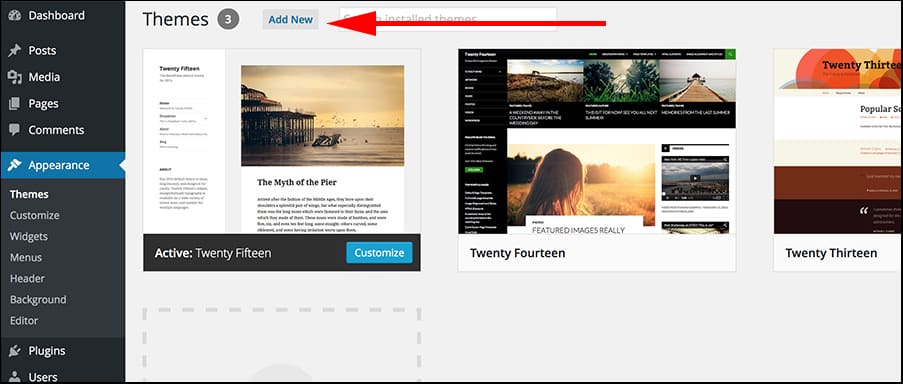
Begin by logging into your WordPress dashboard. Look for the Appearance menu on the left side. Click on it. A drop-down menu will appear. Choose Themes from this list. This takes you to the Themes page. You will see all the themes you have installed.
At the top of the Themes page, find the Add New button. Click it. You will see an Upload Theme button. Click on it to open a file upload option. Choose the theme file you downloaded. Make sure it is a .zip file. Click on Install Now to upload the theme.
After uploading, a new page will load. Click Activate to start using your new theme. Your theme is now live on your site. Enjoy your new look!
Activating The Theme
Begin by accessing your WordPress dashboard. Click on Appearance, then Themes. Locate the theme you downloaded. Select the Activate button. This will set your new theme live. It’s now the look of your site.
Before activating, you might want to see how the theme looks. Click on Live Preview. This shows the theme on your site without making it live. You can check design and layout. Make sure it matches what you like. Once satisfied, activate it.
Customizing The Theme
The Customizer helps you change your theme. Open your WordPress dashboard. Next, click on Appearance. Then select Customize. A new screen opens. Here, you see many options. Each option is for different changes. You can change colors. You can change fonts too. Want a new header image? Do it here. Make sure to save your changes. This will keep your work.
Theme settings give more control. Go to the Dashboard again. Click on Appearance. Then, find Theme Settings. This section has many settings. Some themes have layout choices. Others have slider options. Choose what you need. Always remember to save. This keeps your settings safe.
Troubleshooting Common Issues
Installation errors can be frustrating. Check your theme file type. It should be a .zip file. Make sure you upload it properly. Go to the Appearance menu. Click on Themes. Then click Add New and Upload Theme. If errors persist, your theme might be corrupted. Download it again. Ensure you have a stable internet connection. This helps avoid incomplete downloads. A backup can also be useful. Keep a copy of your theme before making changes.
Compatibility problems arise often. Some themes require specific plugins. Check your theme documentation. Ensure your plugins are up-to-date. Themes might not work with old plugins. Update your WordPress version too. New updates fix bugs. Some themes need higher PHP versions. Check your hosting provider. Increase your PHP version if needed. Ensure your theme supports your WordPress version. If not, look for theme updates or alternatives.

Credit: themeforest.net
Maintaining Your Theme
Applying a downloaded theme in WordPress is simple. First, navigate to the Appearance section. Then, select Themes and upload your theme file. Finally, activate the theme to give your site a fresh look.
Updating The Theme
Regular updates keep your theme safe and smooth. Check for updates often. Developers fix bugs and add features. These updates keep your site fresh. Always update plugins too. They work well with the theme updates. Updating ensures your site runs smoothly. It also keeps hackers away.
Backup Considerations
Backing up your theme is very important. Save your theme before making changes. This keeps your site safe from data loss. Backups let you restore your site quickly. Use tools or plugins for easy backups. These tools can automate the process. Always keep a copy of your site files. It’s a safety net for your website.
Credit: www.joomunited.com
Frequently Asked Questions
How To Use A Downloaded WordPress Theme?
Download your theme and save it to your computer. Go to WordPress dashboard, select “Appearance”, then “Themes”. Click “Add New”, then “Upload Theme”. Choose your theme file and click “Install Now”. Once installed, click “Activate” to use the theme. Ensure compatibility with your WordPress version.
How Do I Apply A Downloaded Theme?
To apply a downloaded theme, locate it on your device, open your platform’s theme settings, and upload the file. Once uploaded, activate the theme to implement changes. Ensure compatibility with your platform version for optimal performance. Backup your site to prevent data loss during theme installation.
How Do I Apply A Theme To A Page In WordPress?
Navigate to “Appearance” in your WordPress dashboard. Click “Themes” and choose your desired theme. Press “Activate” to apply it.
How To Install A Theme In WordPress Manually?
Download the theme’s ZIP file to your computer. Go to WordPress dashboard, click “Appearance,” then “Themes. ” Select “Add New,” then “Upload Theme. ” Choose the ZIP file and click “Install Now. ” After installation, activate the theme to apply it.
Conclusion
Applying a downloaded theme in WordPress is easy. Start by accessing your dashboard. Navigate to the ‘Themes’ section. Click ‘Add New’ and then ‘Upload Theme. ‘ Choose your file and hit ‘Install Now. ‘ Activate your new theme once installed.
Customize it to suit your style. Adjust colors, fonts, and layout. Explore different features and widgets. Enhance your website’s appeal. Regularly update your theme for security. Keep your site fresh and engaging. Practice makes perfect. Enjoy your new WordPress look.
Happy blogging!



