
Are you looking to make your WordPress site stand out with eye-catching animations? Adding motion to your website can grab your visitors’ attention and keep them engaged longer.
But if you’ve never tried animating before, it might feel overwhelming. Don’t worry — this guide will walk you through simple, step-by-step ways to bring your WordPress pages to life. By the end, you’ll know exactly how to add smooth, professional animations that make your site more dynamic and memorable.
Ready to transform your site with animation? Let’s dive in!
Credit: www.wpbeginner.com
Choosing The Right Animation Tools
Choosing the right animation tools is key to making your WordPress site lively and fun. Different tools offer different effects and ease of use. Picking the best one depends on your needs and skills. This section covers built-in features, popular plugins, and third-party libraries.
Built-in WordPress Animation Features
WordPress includes simple animation options without extra plugins. Block editor offers basic animations like fade, slide, and zoom. These effects help highlight content. They are easy to apply and require no coding. Good for beginners who want quick results.
Popular Animation Plugins
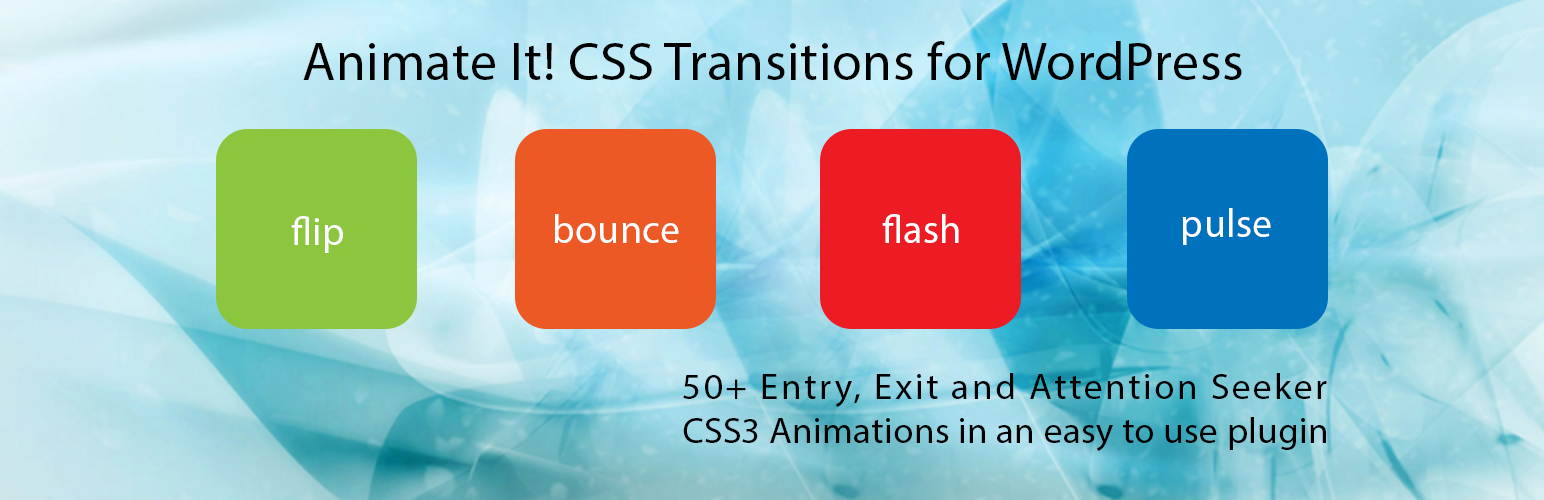
Plugins add more animation styles and control. Plugins like Animate It! and WP Animate offer many effects. They let you customize speed, delay, and triggers. Plugins work well for users who want more than basics. Easy to install and use with no coding needed.
Third-party Animation Libraries
Third-party libraries give advanced animations and flexibility. Libraries like Animate.css and GreenSock provide many options. They require some coding knowledge. Great for developers or users who want custom animations. These libraries can create smooth and professional effects.
Preparing Your Content For Animation
Preparing your content for animation is an important first step. It helps your website look smooth and professional. Clear planning makes the animation process easier. It also improves the user experience. This section covers how to get your content ready for animation in WordPress.
Selecting Elements To Animate
Choose which parts of your page will move. Focus on key elements like buttons, images, or text blocks. Avoid animating everything. Too many animations can distract visitors. Pick elements that add value or guide attention. Simple animations work best for clear messages.
Optimizing Images And Media
Use small file sizes for images and videos. Large files slow down your site and animations. Compress images without losing quality. Convert images to web-friendly formats like JPEG or WebP. For videos, use short clips or GIFs. Optimized media loads faster and runs smoother.
Structuring Content For Smooth Effects
Organize your content in a clean layout. Use headings, paragraphs, and lists properly. Avoid clutter and overlapping elements. Proper structure helps animations run without glitches. Group related items to animate them together. This creates a natural and pleasing flow on your page.
Adding Animations With Plugins
Adding animations to your WordPress site makes it more lively and engaging. Plugins simplify this task. They provide ready-to-use animation effects without coding. You can enhance your pages, posts, and elements with smooth motions. This section explains how to install, configure, and apply animation plugins easily.
Installing And Activating Plugins
First, log in to your WordPress dashboard. Go to the “Plugins” menu and click “Add New.” Use the search bar to find animation plugins. Popular options include Animate It!, WP Animate, and CSS Hero. Choose one with good ratings and recent updates. Click “Install Now,” then “Activate” to enable the plugin on your site.
Configuring Animation Settings
After activation, find the plugin’s settings in the dashboard. Adjust animation speed, delay, and style to fit your site’s look. Some plugins offer presets for quick setup. Test different effects on sample content. Save your changes to apply the configuration. Keep settings simple for better site performance.
Applying Animations To Pages And Posts
Open the page or post editor in WordPress. The animation plugin usually adds new options or blocks. Select the content element you want to animate. Choose the animation effect from the plugin’s list. Preview your page to see the animation in action. Update or publish your content to show animations live.
Credit: wordpress.org
Using Css Animations In WordPress
Using CSS animations in WordPress brings life to your website. Animations catch visitors’ eyes and make your content more interesting. They work smoothly and load fast. CSS animations do not need extra plugins or scripts. This keeps your site light and quick. You can control colors, sizes, movement, and more.
Writing Custom Css Animations
Start with simple animation code. Define keyframes to set start and end styles. Use properties like transform, opacity, and color. Write CSS inside your theme’s style.css file or use the Customizer’s Additional CSS box. Name animations clearly to avoid confusion. Test each animation on different browsers for best results.
Integrating Css With WordPress Themes
Insert your CSS code into the theme’s stylesheet or a child theme. Avoid editing the main theme directly to keep changes safe during updates. Some themes offer custom CSS sections in their settings. Use these for easy and safe code addition. Make sure your animation classes match the HTML elements you want to animate.
Triggering Animations On Scroll Or Hover
Use CSS pseudo-classes like :hover to start animations on mouse over. For scroll-triggered animations, add simple JavaScript or use lightweight plugins. These detect when elements enter the viewport and add animation classes. This method keeps animations smooth and only runs when needed. It improves user experience and site speed.
Incorporating Javascript Animations
Incorporating JavaScript animations in WordPress adds life to your website. Animations can grab attention and make your site more interactive. JavaScript offers many ways to create smooth, custom animations. This section explains how to add JavaScript animations step-by-step.
Adding Animation Scripts To WordPress
Start by adding animation scripts to your WordPress site. Use the functions.php file or a plugin that allows custom scripts. Enqueue your JavaScript files properly to avoid conflicts. For example, use wp_enqueue_script to load your animation script. Place scripts in the footer for better page speed. Keep your code clean and organized for easy updates.
Using Animation Libraries Like Animate.js
Animation libraries simplify creating effects. Animate.js is popular for easy-to-use animations. It provides ready-made classes for fades, slides, and more. Add the Animate.js library to your WordPress theme or plugin. Apply animation classes to HTML elements in your content. This saves time and effort compared to writing animations from scratch.
Controlling Animation Timing And Sequence
Control when and how animations play. Use JavaScript to set delays and durations for each effect. Chain animations in a sequence for smooth transitions. Functions like setTimeout or animation callbacks help manage timing. Proper timing keeps users engaged without overwhelming them. Test animations on different devices for best results.

Credit: www.youtube.com
Best Practices For Smooth Animations
Creating smooth animations on WordPress improves user experience and keeps visitors engaged. Animations should feel natural and not slow down your site. Following best practices helps your animations work well across devices and for all users.
Focus on keeping animations light and efficient. Pay attention to how they affect your website’s speed and usability. Also, consider mobile users and accessibility needs to reach a wider audience.
Maintaining Website Performance
Use simple animations with fewer elements to reduce load times. Avoid heavy scripts that slow down your pages. Use CSS animations instead of JavaScript where possible. Test your site speed regularly to spot any issues. Compress images and files related to animations.
Ensuring Mobile Responsiveness
Check animations on different screen sizes. Use flexible units like percentages or em for animation sizes. Avoid animations that require large processing power on mobile devices. Disable or simplify animations on small screens if needed. Make sure animations do not block important content.
Accessibility Considerations
Design animations that do not cause discomfort or seizures. Provide options to reduce or turn off animations for sensitive users. Use clear focus indicators alongside animated elements. Ensure animations do not interfere with keyboard navigation. Test with screen readers to confirm content remains clear.
Troubleshooting Common Animation Issues
Animating in WordPress can bring your site to life. Sometimes, animations do not work as expected. Troubleshooting common issues helps keep your animations smooth and effective. This section covers simple fixes for frequent problems.
Fixing Animation Conflicts
Animations may clash with other site elements. Conflicts can stop animations from running properly. Check your theme and custom code for animation settings. Remove any duplicate or overlapping animation rules. Test your animations after each change. Clear your browser cache to see updates clearly.
Resolving Plugin Compatibility Problems
Plugins sometimes interfere with animation scripts. Disable all plugins except the animation plugin. See if the animation works correctly then. Enable plugins one by one to find the culprit. Update all plugins to their latest versions. Choose plugins known for smooth compatibility with animations.
Debugging Animation Errors
Errors in animation code cause failures. Use browser developer tools to inspect errors. Look for missing files or wrong paths in scripts. Validate your animation code with online tools. Fix any syntax errors or typos found. Keep your animation scripts clean and organized for best results.
Frequently Asked Questions
What Are The Best Plugins To Animate In WordPress?
Popular animation plugins include Elementor, Animate It!, and WP Animate. They offer easy drag-and-drop features and customizable effects. These plugins help add engaging visual animations without coding, improving user interaction and site aesthetics.
How Can I Add Css Animations To WordPress?
You can add CSS animations by editing your theme’s stylesheet or using custom CSS plugins. Write keyframes and animation properties, then apply them to specific elements. This method is lightweight and allows precise control over animation styles and timing.
Is It Possible To Animate Images In WordPress?
Yes, you can animate images using plugins or CSS. Plugins provide pre-built effects, while CSS allows custom animations like fades, slides, or rotations. Animating images enhances visual appeal and user engagement on your WordPress site.
Can I Animate WordPress Menus And Buttons?
Yes, animations can be applied to menus and buttons using CSS or plugins. Effects like hover transitions, color changes, or slides improve navigation experience. These subtle animations make your site more interactive and user-friendly.
Conclusion
Animating in WordPress adds life to your website. Simple steps make the process easy and fun. Use plugins or custom code for effects. Test animations on different devices for best results. Keep animations smooth and not too fast. This helps visitors enjoy your site without distraction.
Practice regularly to improve your skills. Soon, your website will feel more dynamic and engaging. Try adding animations today and see the difference.



