
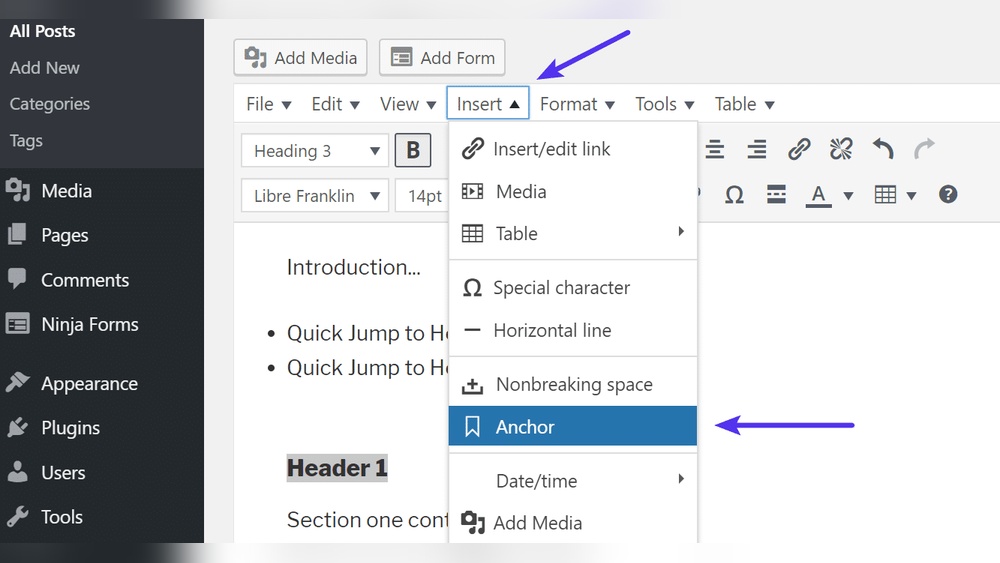
Are you looking to make your WordPress posts easier to navigate and more user-friendly? Adding anchors can help your readers jump straight to the sections they want, saving them time and keeping them engaged.
Whether you’re writing a long article, a how-to guide, or a detailed list, knowing how to anchor in WordPress will give your content a professional edge. You’ll discover simple, step-by-step methods to create anchors that work perfectly every time. Let’s dive in and make your WordPress site more clickable and reader-friendly!

Credit: wpmarmite.com
Why Use Anchors In WordPress
Anchors in WordPress help link different parts of a page. They guide visitors to specific sections fast. Using anchors improves the way people interact with your content. This makes your site more user-friendly and organized.
Enhancing User Experience
Anchors let users jump to important sections quickly. This saves time and reduces scrolling. Visitors find the content they want without hassle. It keeps readers engaged and happy on your site.
Improving Site Navigation
Anchors create easy navigation paths within pages. They help visitors move smoothly through long posts. Clear navigation stops users from feeling lost. This makes your website look professional and well-structured.
Boosting Seo Benefits
Search engines like well-organized pages. Anchors show clear content structure to bots. This helps your site rank better in search results. Good SEO means more visitors find your website easily.
Types Of Anchors In WordPress
Anchors in WordPress help users navigate easily. They link to specific parts of content or to other pages. Using anchors improves user experience and site navigation. There are two main types of anchors in WordPress. Each serves a different purpose in guiding your visitors.
Anchor Links Within A Page
These anchors link to sections inside the same page. They help users jump directly to important parts. Use them in long posts or FAQs for quick access. To create, add an ID to a heading or element. Then link to that ID using a hash () symbol. For example, section1 moves users to the section with ID “section1.” This keeps visitors engaged and reduces scrolling.
Anchors Linking To Other Pages
These anchors connect users to different pages or posts. They use URLs combined with a hash and an ID. For example, yourwebsite.com/pagesection links to a section on another page. This method is great for detailed guides or related content. It guides users smoothly across your site. Clear anchors boost site structure and SEO value.
Creating Anchor Links Manually
Creating anchor links manually in WordPress lets you guide readers through your content. You can link to specific sections on the same page or another page. This method is simple and gives you control over where users jump in your text.
Manual anchors improve user experience and help with SEO. They make long posts easier to navigate. Visitors find what they need quickly without scrolling too much.
Adding Html Anchor Tags
Start by adding an anchor tag to the section you want to link to. Use the id attribute inside a heading or any HTML element.
Example:
Section Title
Here, section1 is the anchor name. It must be unique on the page. Use simple words or numbers without spaces.
Linking To Anchor Ids
Next, create a link that points to the anchor ID. Use the hash symbol followed by the ID in the href attribute.
Example:
Go to Section 1Clicking this link scrolls the page to the element with id="section1". This works on the same page or different pages.
Credit: www.greengeeks.com
Using WordPress Block Editor For Anchors
The WordPress Block Editor offers a simple way to create anchors. Anchors help users jump to specific parts of a page. This makes your content easier to read and navigate.
You can add anchor IDs directly to blocks. Then, link to these anchors from other parts of your page. It takes just a few clicks and no coding knowledge.
Assigning Anchor Ids To Blocks
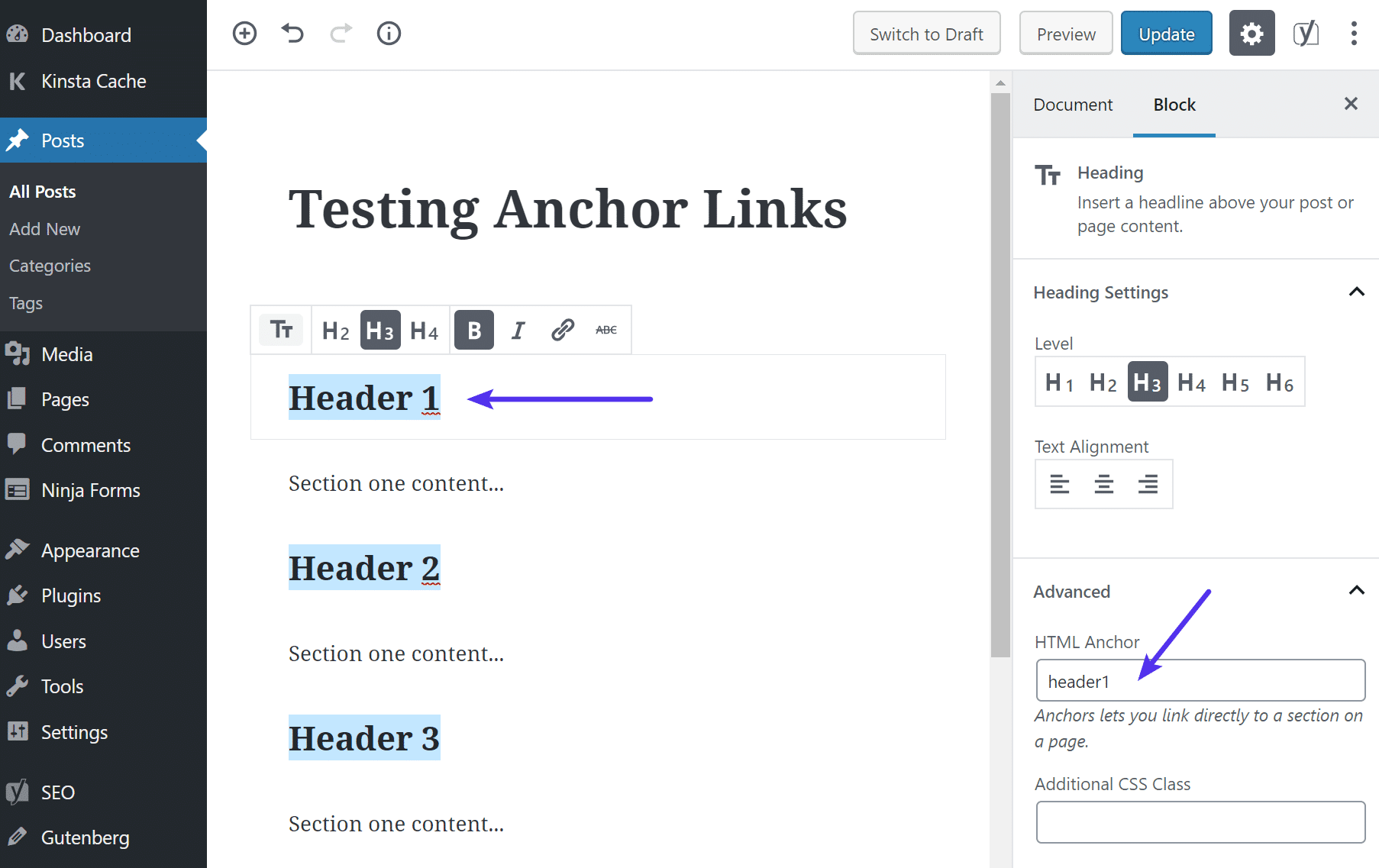
Select the block where you want the anchor. On the right sidebar, find the “Advanced” section. Enter a unique ID in the “HTML Anchor” field. Use simple words without spaces or special characters.
This ID acts as the anchor name. It allows you to link to this block from anywhere on the page.
Linking Blocks With Anchor Links
Highlight the text or button you want to link. Click the link icon in the editor toolbar. Type “” followed by the anchor ID you set earlier. For example, “section1”.
Save the link and test it. Clicking the link scrolls the page to the anchored block.
Plugins To Simplify Anchor Creation
Creating anchors in WordPress can be tricky for many users. Plugins help simplify this process. They allow easy creation and management of anchor links without coding. Using plugins saves time and reduces errors. These tools make navigation smoother for your visitors.
Popular Anchor Link Plugins
Several plugins help add anchors quickly. “Easy Table of Contents” creates automatic anchors for headings. “Page scroll to id” offers smooth scrolling and anchor linking. “Table of Contents Plus” builds a clickable list from your content headers. These plugins work well with most themes. They improve user experience by organizing long posts.
Setting Up And Using Plugins
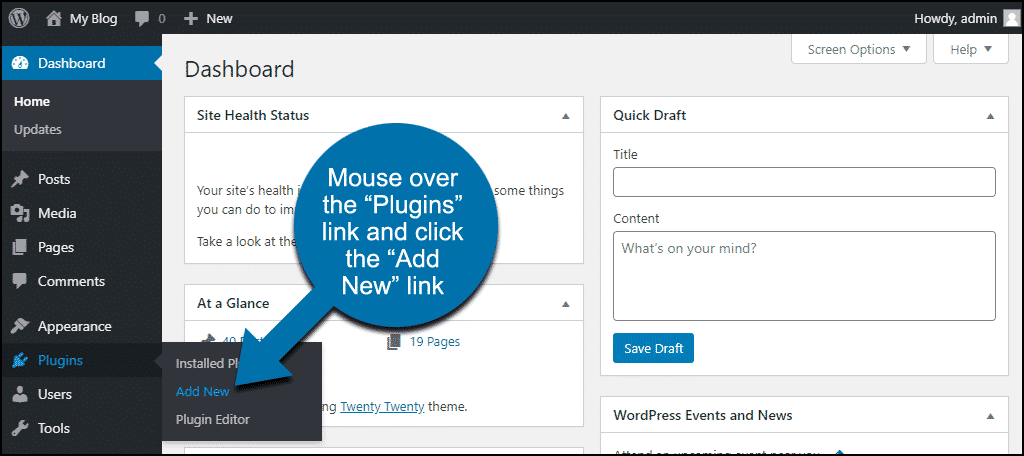
Install the chosen plugin from the WordPress plugin directory. Activate it in your dashboard. Go to the plugin settings to customize anchor behavior. Most plugins allow automatic anchor generation for headings. You can also add anchors manually using the plugin’s interface. Test anchor links on your page to ensure they work. Adjust settings as needed for smooth navigation.
Tips For Effective Anchor Navigation
Effective anchor navigation helps visitors find information quickly. Good anchors improve user experience and keep readers engaged. Focus on clear names and reliable links for the best results.
Choosing Clear Anchor Names
Select anchor names that describe the content well. Use simple words that everyone understands. Avoid long or complicated phrases. Clear names help visitors know what to expect. This makes navigation easier and faster.
Testing Anchor Links Across Devices
Check your anchor links on phones, tablets, and desktops. Different devices may show pages differently. Make sure links work and lead to the right section. Testing avoids broken links and confusion. Smooth navigation increases user satisfaction.
Troubleshooting Common Anchor Issues
Anchors help visitors jump to specific parts of a page quickly. Sometimes, anchors do not work as expected. Common issues include broken links and smooth scroll problems. Troubleshooting these issues improves user experience and keeps visitors engaged.
Fixing Broken Anchor Links
Broken anchor links happen when the link points to a missing or incorrect ID. Check the target ID in your HTML. It must match exactly with the anchor link, including capitalization. Use only letters, numbers, hyphens, and underscores in IDs. Avoid spaces or special characters.
Make sure the anchor link starts with a hashtag () followed by the ID. Test each anchor link to confirm it jumps to the right section. Update or fix any typos in the link or ID. Clear your browser cache after changes to see updates.
Handling Smooth Scroll Problems
Smooth scrolling adds a nice effect when clicking anchors. Sometimes, it does not work or jumps abruptly. Check if your theme or plugins support smooth scroll. Some themes have built-in smooth scroll options to enable or disable.
JavaScript conflicts can break smooth scroll. Disable other plugins temporarily to find the conflict. If using custom code, ensure it targets the correct anchors and runs at the right time. Try simple scripts or plugins designed for smooth scrolling.
Test smooth scroll on different devices and browsers. Adjust settings to get the best result for your audience. Proper smooth scroll improves navigation and keeps readers on your page longer.
Credit: kinsta.com
Frequently Asked Questions
What Is An Anchor Link In WordPress?
An anchor link in WordPress directs users to a specific section on a page. It helps improve navigation and user experience by allowing quick access to content without scrolling.
How Do I Create An Anchor Link In WordPress?
To create an anchor link, add an HTML anchor ID to your target heading. Then, link to it using a URL with a hashtag followed by the ID, like section-name.
Can I Use Anchor Links In WordPress Gutenberg Editor?
Yes, the Gutenberg editor supports anchor links. You can add an anchor ID in the block’s Advanced settings and link to it within your site.
Why Use Anchor Links In WordPress Blogs?
Anchor links improve user navigation, reduce bounce rates, and enhance SEO by making content easier to find and engage with on long pages.
Conclusion
Anchors help visitors find information fast on your WordPress site. Adding anchors improves navigation and user experience. You can create anchors with simple steps in WordPress. Use clear names for your anchor links to avoid confusion. Test links to make sure they work well on all devices.
Practice these tips to build easy-to-use websites. Small changes like anchors make a big difference. Keep your site friendly and helpful for every visitor.



