

Are you struggling to make your WordPress posts look clean and easy to read? One simple change can make a huge difference: adjusting the line spacing.
When your text is too cramped or too spaced out, it can turn readers away before they even finish the first paragraph. But don’t worry—you don’t need to be a tech expert to fix this. In this guide, you’ll learn exactly how to adjust line spacing in WordPress step-by-step.
By the end, your content will look polished, inviting, and much easier for your visitors to enjoy. Ready to transform your posts and keep your readers hooked? Let’s dive in!
Why Line Spacing Matters
Line spacing is a small detail that makes a big difference in how your content looks and feels. It controls the space between lines of text, affecting how easy it is to read. Proper line spacing helps readers stay focused and enjoy the content longer. It also shapes the overall look of your website.
Impact On Readability
Good line spacing improves text clarity. It prevents lines from crowding each other. Readers can follow the text smoothly without losing their place. Text with tight line spacing feels cramped and tiring. Proper spacing reduces eye strain and helps readers absorb information better.
Aesthetic Appeal
Line spacing influences your site’s style. Well-spaced text looks clean and neat. It creates a balanced page layout. This makes your content more attractive to visitors. Poor spacing can make your site look cluttered or sloppy. Adjusting line spacing gives your site a polished, professional feel.
User Experience
Line spacing affects how users interact with your site. Comfortable spacing encourages visitors to read more. It makes your content inviting and easy to follow. Good spacing also helps mobile users who read on small screens. This small change can keep visitors on your site longer.
Default Line Spacing In WordPress
WordPress sets line spacing by default to create clean and readable content. This spacing controls the vertical space between lines of text. It affects how your paragraphs look and how easy they are to read. The default settings work well for most blogs and websites. They keep text neat without too much or too little space.
Understanding the default line spacing helps you decide if you need to change it. Sometimes, small tweaks improve the look and feel of your site’s content. Other times, the default spacing fits perfectly with your design.
Typical Settings
WordPress usually sets line height to about 1.5 times the font size. This means lines have 50% extra space between them. This spacing is common in online writing. It balances text density and white space well. The theme you use may adjust this number slightly. Most themes keep line spacing close to this value for readability.
Limitations To Note
Default line spacing cannot be changed easily from the WordPress editor. The block editor does not have a direct option for line height. This limits quick adjustments on the fly. Customizing line spacing requires CSS changes or theme support. Some themes do not allow line spacing changes at all. Without CSS knowledge, adjusting line height might be tricky. This limitation makes it important to choose a theme with flexible typography options.
Adjusting Line Spacing Via Block Editor
Adjusting line spacing in WordPress can improve your content’s readability and look. The Block Editor lets you change line spacing easily. This helps your text feel less crowded or too spaced out. You can tweak the space between lines right inside the editor. This section explains how to do it using the Block Editor’s features.
Using Paragraph Block Settings
The Paragraph block in WordPress lets you edit line spacing without coding. Select the paragraph you want to change. On the right side, find the block settings panel. Look for the “Line Height” option. This controls the space between lines in the paragraph. Adjust the number to increase or decrease spacing. Smaller numbers make lines closer. Larger numbers add more space. Changes appear immediately in the editor. This method is quick and user-friendly for beginners.
Customizing With Additional Css
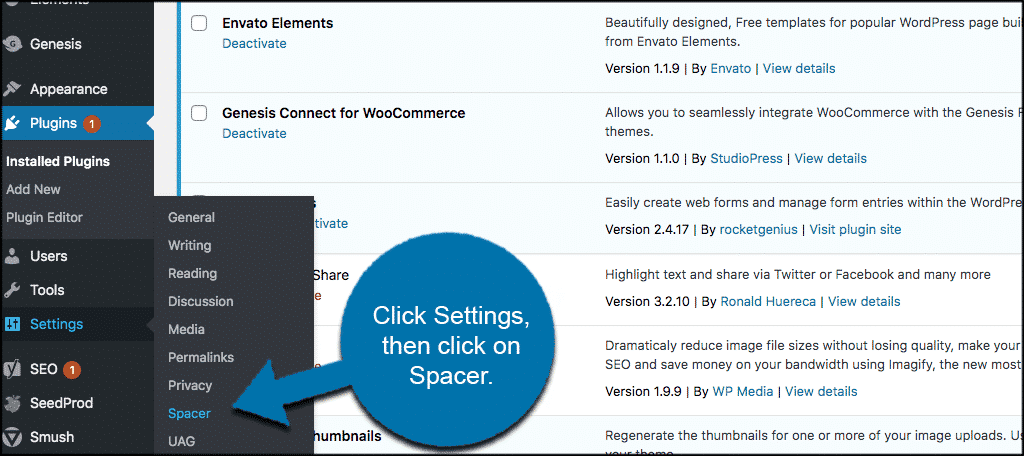
For more control, use Additional CSS to set line spacing. Go to Appearance > Customize > Additional CSS. Add code like line-height: 1.5; inside the CSS rules for your paragraph blocks. This sets the line spacing to 1.5 times the font size. You can change the number to match your style. Using CSS works well for site-wide changes. It applies the spacing to all paragraphs or specific blocks. This method needs basic CSS knowledge but gives great flexibility.
Credit: www.greengeeks.com
Changing Line Spacing With Classic Editor
The Classic Editor in WordPress offers a simple way to write and edit posts. Adjusting line spacing here improves readability. This section explains how to change line spacing in the Classic Editor. It covers two easy methods to help control text appearance.
Applying Inline Styles
Inline styles let you change line spacing directly in the editor. Switch to the Text tab in Classic Editor. Add CSS code inside your paragraph tag. Use the style attribute like this: style="line-height: 1.5;". This sets the line spacing to 1.5 times the normal height.
You can adjust the number to increase or decrease spacing. For example, use 1.2 for tighter lines or 2 for more space. This method works well for small changes in specific paragraphs. It does not affect the entire post.
Using Plugins For More Control
Plugins offer a user-friendly way to adjust line spacing. They add options to the Classic Editor toolbar. These tools let you change spacing without coding. Some plugins provide presets for quick adjustments.
Install a spacing or typography plugin from the WordPress repository. Activate it and check the post editor. Look for new buttons or settings related to line height. Use these controls to set spacing for paragraphs and headings.
Plugins also let you apply consistent spacing across your site. They save time and ensure better design. This method is ideal for users who want more control but less manual work.
Modifying Line Spacing Through Theme Customizer
Modifying line spacing through the Theme Customizer lets you change text spacing site-wide. This method affects all content areas. It keeps your site consistent and clean.
The Theme Customizer is easy to access and use. You can adjust typography settings without coding. For more detailed control, editing CSS is possible too. Both ways improve readability and user experience.
Accessing Typography Settings
Open your WordPress dashboard and go to Appearance. Click on Customize to enter the Theme Customizer. Find the Typography or Fonts section. This section controls text styles, including line spacing.
Look for line height or line spacing options. Adjust the value to increase or decrease space between lines. Preview changes in real-time to see how it looks. Save and publish once you are satisfied.
Editing Css For Global Changes
For complete control, edit the CSS directly in the Customizer. Scroll down and find Additional CSS. Here, you can write CSS rules that affect all text.
Use the line-height property to set line spacing. For example, body { line-height: 1.6; } increases spacing globally. Change the number to fit your design and readability needs.
Save changes and check your site to ensure proper spacing. This method suits users comfortable with CSS and offers more precision.
Popular Plugins For Line Spacing
Plugins simplify adjusting line spacing in WordPress. They offer easy controls without coding. Many plugins also improve text appearance and readability. Choosing the right one helps keep your site neat and user-friendly. Below are key features and some recommended plugins for line spacing.
Features To Look For
Easy-to-use interface is important. You want quick changes without confusion. Compatibility with your WordPress theme matters. The plugin should not break your site design. Customization options let you set exact spacing values. Live preview helps see changes immediately. Lightweight plugins improve site speed. Regular updates keep the plugin secure and functional.
Recommended Plugins
“TinyMCE Advanced” adds extra formatting controls including line spacing. It works well with the default editor. “Advanced Editor Tools” also improves text editing and spacing options. “WP Edit” offers simple line height settings and other formatting tools. “YellowPencil” is a visual editor letting you change spacing live. These plugins help adjust line spacing easily and make text readable.
Tips For Perfect Text Layout
Creating a perfect text layout in WordPress helps readers enjoy your content. Proper line spacing improves readability and keeps your site neat. Small adjustments make a big difference in how text looks and feels.
Balancing Line Height And Font Size
Find the right balance between line height and font size. Too little space makes text hard to read. Too much space breaks the flow and wastes space. A good rule is to set line height about 1.4 to 1.6 times the font size. This keeps text clean and easy on the eyes. Test different sizes until the text feels natural.
Testing Across Devices
Check how your text looks on phones, tablets, and desktops. Each screen size shows text differently. Line spacing might look tight on a phone but fine on a desktop. Use WordPress preview and real devices to test. Adjust spacing to keep text clear on all screens. This ensures a smooth reading experience for every visitor.

Credit: themesharbor.com

Credit: seahawkmedia.com
Frequently Asked Questions
How Do I Change Line Spacing In WordPress Editor?
To change line spacing in WordPress, use the block editor’s spacing settings. Adjust padding or use custom CSS for precise control. Plugins like TinyMCE Advanced also offer easy spacing options without coding.
Can I Adjust Line Spacing Without Coding In WordPress?
Yes, you can adjust line spacing without coding by using WordPress block editor settings or plugins. Many themes include typography controls that let you modify spacing visually.
Which Plugins Help With Line Spacing In WordPress?
Plugins like TinyMCE Advanced, Advanced Editor Tools, and WP Editor offer line spacing customization. They provide user-friendly interfaces to modify spacing without needing CSS knowledge.
Why Is Line Spacing Important For WordPress Content?
Proper line spacing improves readability and user experience on your website. It makes content visually appealing and easier to scan, reducing visitor bounce rates and boosting SEO.
Conclusion
Adjusting line spacing in WordPress is simple and quick. You can improve your content’s readability with just a few clicks. Small changes make your posts look cleaner and easier to read. Try different spacing options to find what fits your style best.
Keep your readers comfortable and engaged by using proper line spacing. Practice these steps often to create better blog posts. Your website will look more professional and appealing. Don’t forget to preview your changes before publishing. Consistent spacing helps your content stand out and feel organized.



