

Are you struggling to make your WordPress website text easy to read? Changing the font size can make a huge difference in how visitors experience your content.
If your words look too small or too big, you might be losing readers without even knowing it. You’ll discover simple, step-by-step ways to adjust the font size in WordPress — no tech skills needed. By the end, you’ll have full control over your site’s text, making it clearer, more attractive, and perfectly tailored to your audience.
Ready to make your words stand out? Let’s dive in!
Choosing The Right Font Size
Choosing the right font size for your WordPress site is important. It affects how easy your text is to read and how your site looks. The font size should make your content clear without overwhelming the page. Small text can strain the eyes. Large text can look unprofessional or take up too much space.
Finding the right size creates a balance that helps visitors enjoy your site. This section explains how font size impacts readability and how to balance style with function.
Impact On Readability
Readability depends heavily on font size. Text that is too small forces visitors to squint. This can cause them to leave your site quickly. Larger fonts improve clarity and reduce eye strain. But very large fonts can break the flow of reading.
Choosing a comfortable size helps keep readers engaged. Generally, body text between 14px and 18px works well. Headings should be bigger to guide readers through content. Clear, readable text keeps visitors on your site longer.
Balancing Aesthetics And Functionality
Good font size balances beauty with usability. The right size fits your website style and content type. For example, a blog may use different sizes than an online store. Consistent font sizes create a polished look.
Test different sizes on various devices to ensure your text looks good everywhere. Avoid extremes that hurt the user experience. Simple, clean fonts combined with proper sizing improve your site’s appeal.
Using The WordPress Editor
Using the WordPress editor is the easiest way to change font size on your website. The editor lets you write and style text directly on your pages or posts. You do not need extra tools or coding knowledge. WordPress offers two main editors: Gutenberg and Classic Editor. Each has its own way to adjust font size.
Adjusting Font Size In Gutenberg
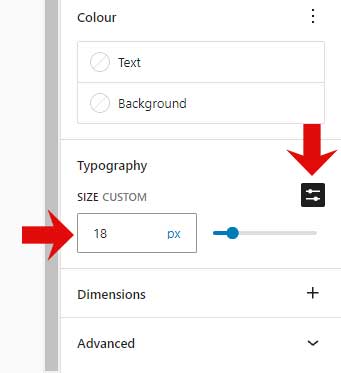
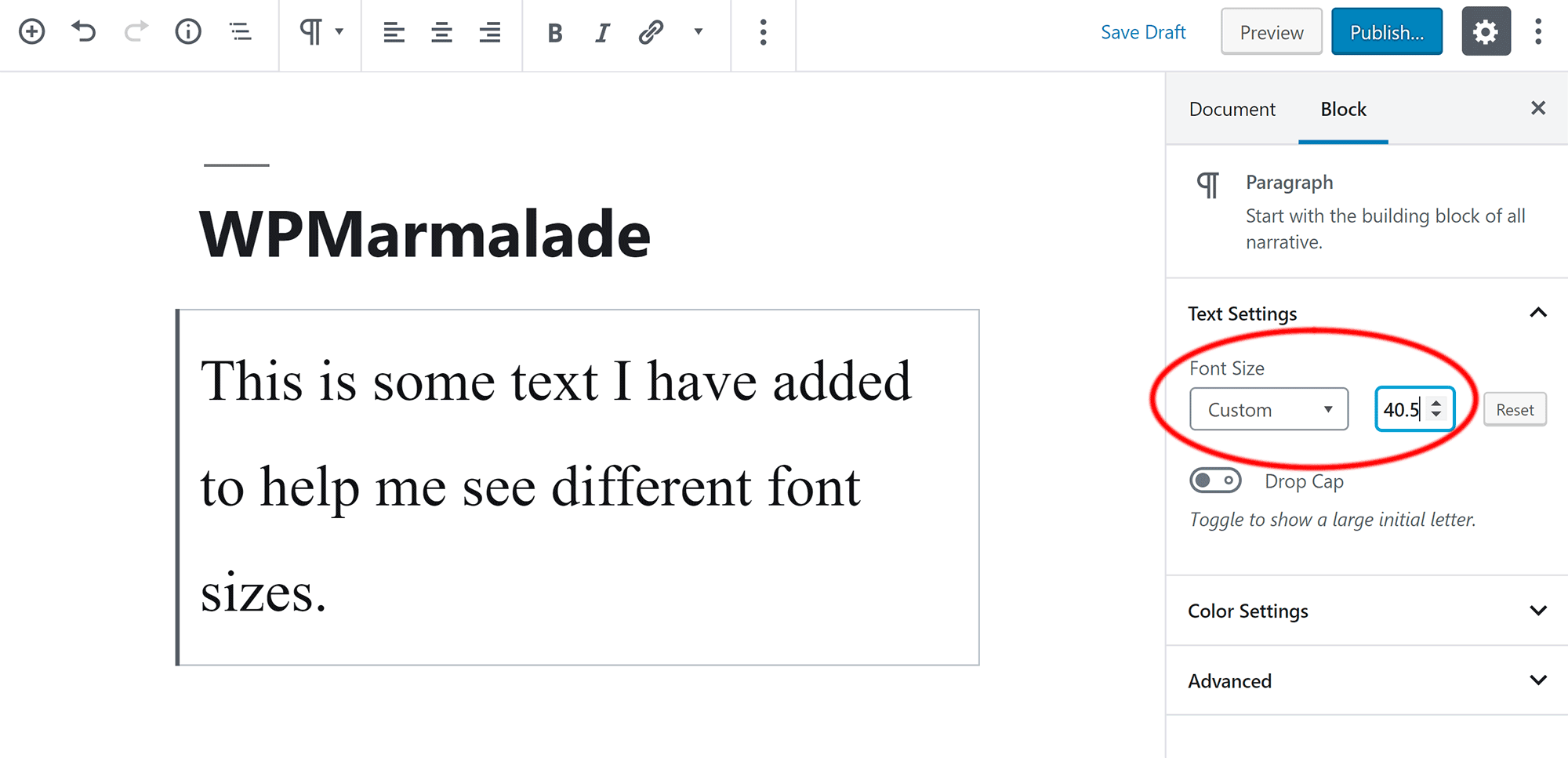
Gutenberg is the default block editor in WordPress. It divides your content into blocks like paragraphs, headings, and images. To change font size, select the text block you want to edit. On the right side, find the “Text Settings” panel. Here, you can choose from preset font sizes or enter a custom size.
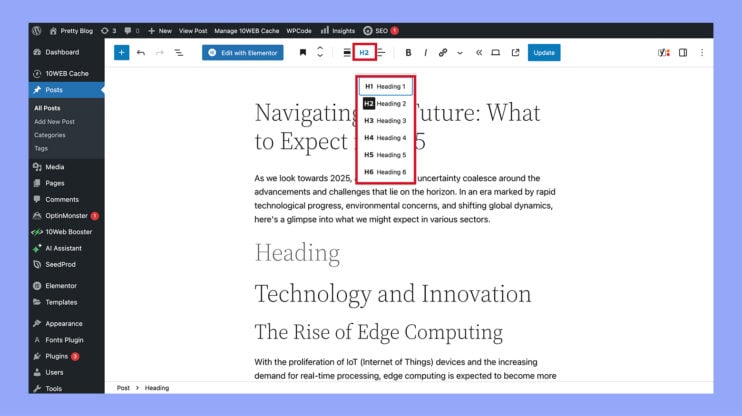
You can also change font size for headings by selecting the heading block. This allows control over the size and style of your titles. Gutenberg offers a live preview, so you see changes immediately. This makes editing simple and quick.
Changing Font Size With Classic Editor
The Classic Editor is similar to a simple word processor. It has a toolbar with options like bold, italic, and font size. To change font size, highlight the text you want to resize. Then, use the “Paragraph” dropdown or font size button if available.
Sometimes, the font size option is not visible. You can enable it by clicking the “Toolbar Toggle” button. This reveals more formatting tools. Classic Editor also allows you to switch to the Text tab. Here, you can add HTML tags to change font size manually.
Customizing Fonts With Themes
Customizing fonts with themes in WordPress lets you change your site’s look easily. Themes often include built-in options for font size, style, and color. This lets you create a unique and readable website without coding. Adjusting fonts through themes helps keep your site consistent and professional.
Theme Settings For Typography
Many WordPress themes have a typography section in their settings. You can change font size, font family, and line spacing here. These settings affect headings, body text, and menus. Some themes offer preset font combinations for a polished look. Check your theme’s documentation to find these options. Small changes in font size improve readability and user experience.
When To Use Theme Customizer
The Theme Customizer is a tool in WordPress that lets you see changes live. Use it to adjust font size and style before saving. It is ideal for quick tweaks without opening code editors. You can preview your fonts on different devices right inside the customizer. This helps ensure your fonts look good on phones and tablets. The customizer is user-friendly and perfect for beginners.
Credit: www.markhendriksen.com
Applying Custom Css For Fonts
Applying custom CSS for fonts lets you change font sizes easily. It gives control beyond the default WordPress options. You can target specific text areas with CSS rules. This method fits well if you want unique styles for your site.
Custom CSS is simple to write and apply. It helps keep your site design consistent and clear. You do not need extra plugins to use it. Small CSS codes can make big visual changes.
Writing Simple Css For Font Size
Start by choosing the text area to change. Use the browser’s inspect tool to find the CSS class or ID. Then write a CSS rule that sets a new font size.
selector { font-size: 18px; } Replace selector with the class or ID name. Change 18px to the size you want. You can use px, em, or rem units.
Using Additional Css In Customizer
Go to WordPress dashboard. Open Appearance > Customize. Find the Additional CSS section. Paste your CSS code in the box.
Click Publish to save changes. The new font size applies immediately. Refresh your site to see the effect.
This method is safe and easy. It does not alter theme files. Your custom font sizes stay after updates.
Plugins For Font Size Control
Plugins for font size control make changing text size easy in WordPress. They let you adjust fonts without coding skills. These tools help improve your site’s readability and user experience. Many plugins offer simple interfaces to increase or decrease font size quickly. Some also provide extra features like custom fonts and style settings.
Popular Font Size Plugins
Several plugins stand out for font size control. “Easy Google Fonts” lets you choose fonts and sizes from Google Fonts. “TinyMCE Advanced” adds more options to the default WordPress editor, including font size changes. “WP Accessibility” helps adjust font size for better accessibility. Each plugin offers unique tools to fit different needs.
How To Install And Use Plugins
Go to your WordPress dashboard. Click “Plugins” and then “Add New.” Search for the font size plugin by name. Click “Install Now” and then “Activate.” After activation, find the plugin settings in your dashboard menu. Use the options to adjust font sizes on your site. Save changes and preview the new look.
Credit: wpmarmalade.com
Mobile And Responsive Font Sizes
Mobile and responsive font sizes play a big role in website design. They help your text look good on all devices. Small screens need bigger fonts for easy reading. Large screens can use smaller fonts to save space. Adjusting font sizes ensures your content stays clear and readable everywhere.
Ensuring Mobile Readability
Mobile readability means your text is easy to see on phones and tablets. Use fonts that are simple and clear. Avoid very small font sizes. A size between 14px and 18px works well on mobile devices. Check your website on different screen sizes to confirm the text is readable. Good spacing between lines also improves reading comfort.
Using Media Queries For Fonts
Media queries let you change font sizes based on screen width. They adjust fonts automatically for mobiles, tablets, and desktops. For example, set a base font size for desktops. Then increase it for screens smaller than 600px. This method keeps your text flexible and user-friendly. You add media queries in your theme’s CSS file or customizer. This way, your font size adapts smoothly to any device.
Tips For Consistent Typography
Consistent typography improves your website’s look and makes it easier to read. It helps visitors focus on your content. Using the same font size across your site creates a clean and professional appearance.
Small changes in font size can confuse readers or make your site look messy. Keeping font sizes uniform builds trust and improves user experience. Follow simple tips to maintain consistent typography throughout your WordPress site.
Maintaining Uniformity Across Pages
Set a base font size for your entire site. Use WordPress theme settings or custom CSS to apply it. Avoid changing font sizes on individual pages without reason. Consistent font sizes help visitors navigate smoothly.
Use style guides or templates. They keep headings and body text the same size everywhere. Check your website on different devices. Make sure the font size looks good on phones and tablets too.
Avoiding Common Font Size Mistakes
Do not use too many font sizes on one page. It creates clutter and distracts readers. Avoid very small fonts that are hard to read. Also, do not use overly large text that looks unprofessional.
Do not mix fonts with very different sizes. Keep headings larger but close in size to subheadings. Test your font sizes for readability. Adjust if visitors might struggle to read your content.
Credit: 10web.io
Frequently Asked Questions
How Do I Change Font Size In WordPress Editor?
To change font size in WordPress editor, select your text first. Then click the “Paragraph” dropdown and choose a heading or font size option. You can also use the block settings on the right panel for custom sizes.
Can I Adjust Font Size Using WordPress Themes?
Yes, many WordPress themes allow font size adjustments. Check your theme customizer under Typography or Styles. Here, you can set global font sizes for headings and body text easily.
Is There A Plugin To Change Font Size In WordPress?
Yes, plugins like “Easy Google Fonts” let you adjust font sizes without coding. They integrate with the customizer and provide control over all text elements.
How To Change Font Size For Mobile Devices In WordPress?
To change mobile font size, use responsive settings in your theme or a plugin. This ensures text looks good and remains readable on smaller screens.
Conclusion
Adjusting font size in WordPress is simple and quick. You can make your text easier to read for all visitors. Small changes can improve your site’s look and user experience. Try different sizes to find what fits best. Keep your site clear and friendly for everyone.
Now, you have the tools to make your content stand out. Give it a try and see the difference yourself.



