
Are you looking to make your WordPress posts more engaging? Adding a YouTube video can instantly grab your readers’ attention and keep them on your page longer.
But if you’re not sure how to do it, don’t worry—you’re in the right place. This guide will show you simple, step-by-step ways to add YouTube videos to your WordPress posts quickly and easily. By the end, you’ll know exactly how to boost your content with videos that connect and convert.
Ready to get started? Let’s dive in!
Prepare Your Youtube Video
Preparing your YouTube video is a key step before adding it to your WordPress post. It ensures the video fits your content and looks good on your site. Proper preparation saves time and avoids errors during embedding.
Start with selecting the right video. Then, copy its URL or get the embed code. These steps make embedding quick and easy.
Choose The Right Video
Pick a video that matches your post’s topic. It should add value and interest to your readers. Check the video’s length; shorter videos often work better online. Also, ensure the video has clear visuals and sound.
Copy The Video Url
Open the video on YouTube. Below the video, find the Share button and click it. A box with the video link appears. Highlight and copy this URL. This link lets you add the video directly to your post.
Get The Embed Code
Click the Share button under the video. Choose the Embed option. A box with HTML code shows up. Copy this code exactly as it is. You can paste this code into your post’s HTML to display the video.
Credit: www.theblogstarter.com
Add Video Using Block Editor
Adding a YouTube video to your WordPress post is simple with the Block Editor. This tool helps you embed videos quickly without extra plugins or code. Follow these easy steps to include videos that engage your readers and enrich your content.
Open Your WordPress Post
First, log in to your WordPress dashboard. Then, go to the “Posts” section and select the post you want to edit. You can also create a new post by clicking “Add New.” The Block Editor will open automatically.
Insert Youtube Block
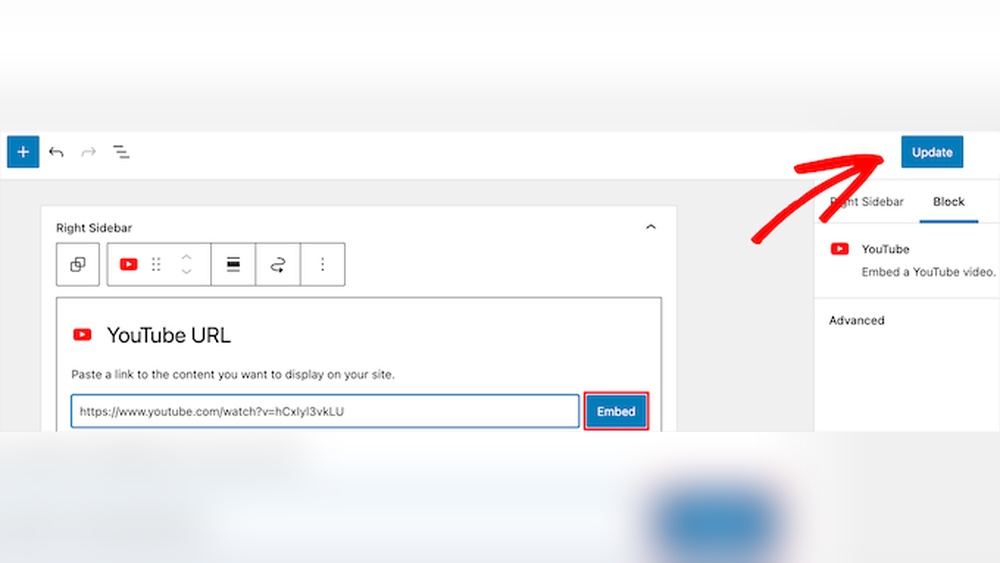
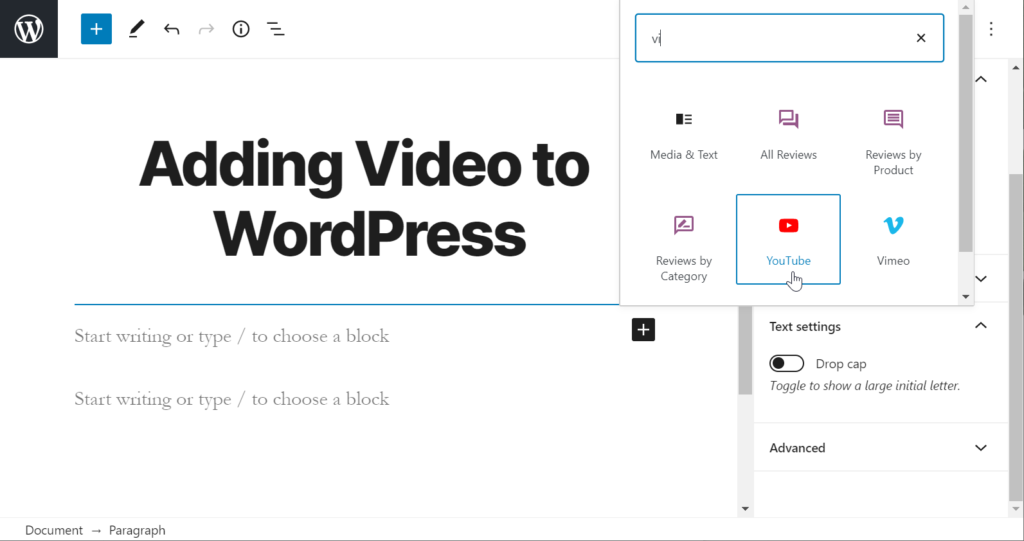
Inside the editor, click the plus (+) icon to add a new block. Search for “YouTube” in the block list. Select the YouTube block to insert it into your post. This block is designed specifically for embedding YouTube videos.
Paste The Video Url
Copy the URL of the YouTube video you want to add. Paste the link directly into the YouTube block. The editor will load the video preview instantly. You can move or resize the block if needed.
Embed Video With Classic Editor
Embedding a YouTube video in a WordPress post using the Classic Editor is simple and quick. This method lets you place videos directly into your content. It helps keep your readers engaged and improves your post’s appeal.
Follow these steps to embed videos smoothly with the Classic Editor. You can control the video’s placement and size easily.
Switch To Text Editor
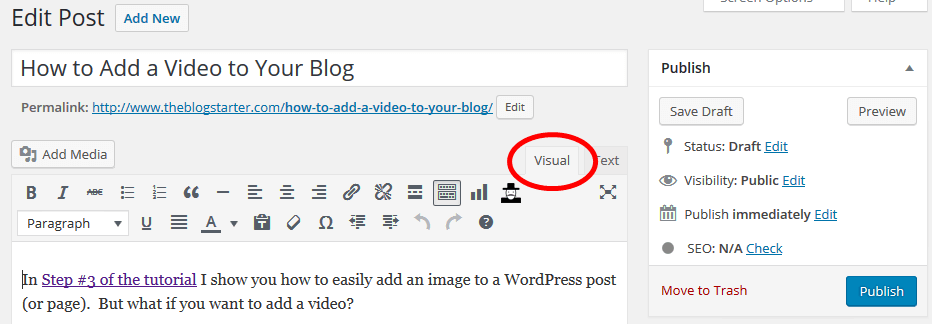
Open your WordPress post in the Classic Editor. Locate the tabs at the top right corner of the editor. Click on the “Text” tab to switch from Visual to Text mode. This mode lets you add HTML code directly into your post. It is necessary for embedding YouTube videos manually.
Paste Embed Code
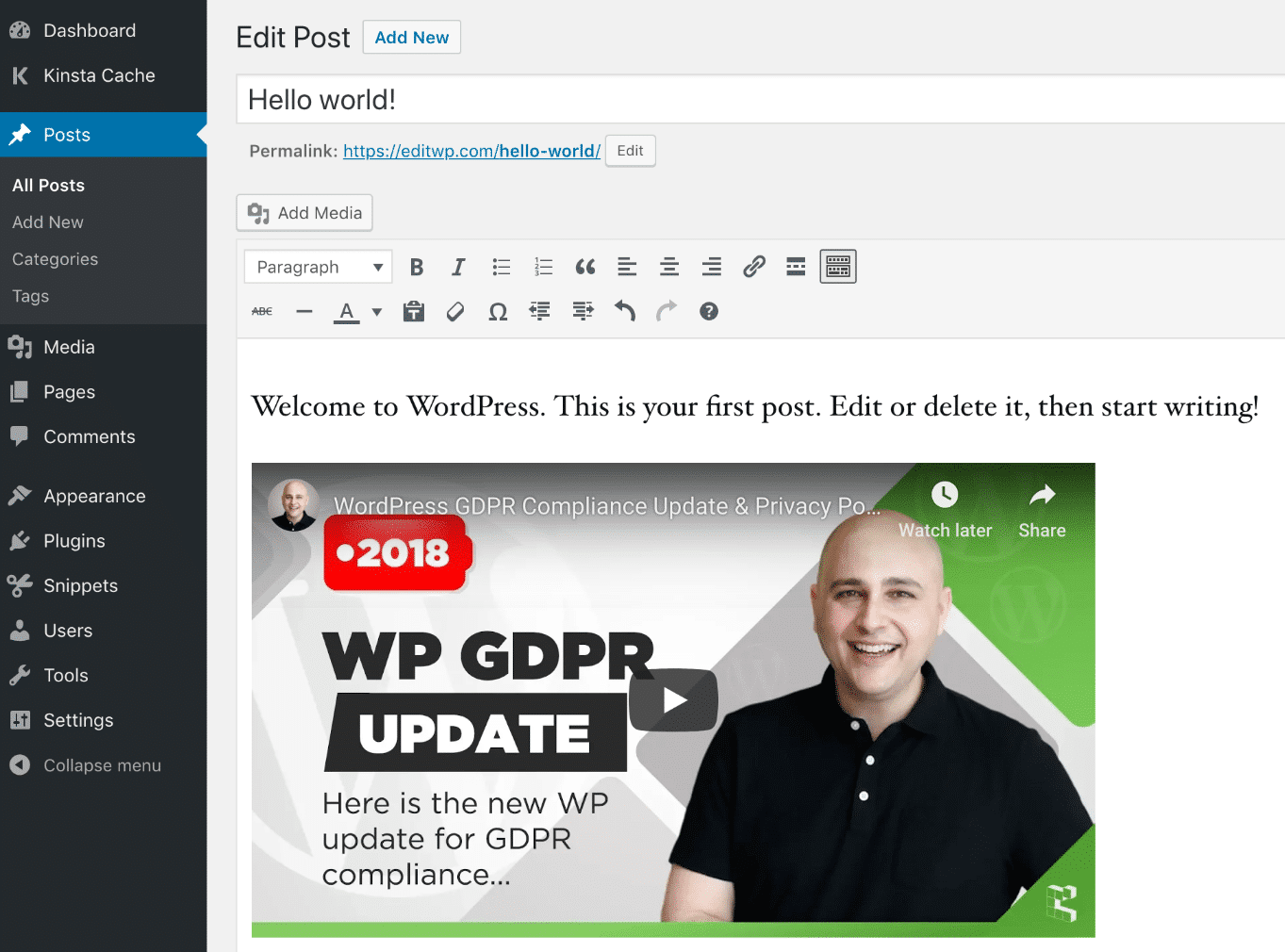
Go to the YouTube video you want to embed. Click the “Share” button below the video. Select “Embed” and copy the provided HTML code. Return to your WordPress Text Editor. Paste the embed code exactly where you want the video to appear. Avoid changing any part of the code for best results.
Adjust Video Settings
You can customize the video size by changing the width and height values in the embed code. Keep the aspect ratio correct to avoid distortion. Remove the frameborder attribute for a cleaner look. Optionally, add parameters like autoplay or controls to fit your needs. Save the post and preview to check the video’s appearance.
Credit: kinsta.com
Customize Video Appearance
Customizing the appearance of your YouTube video helps it fit better in your WordPress post. A well-set video looks neat and improves user experience. Small changes can make a big difference in how your visitors interact with your content.
Set Video Size
Set the width and height to match your post layout. You can use standard sizes like 560×315 pixels or choose custom dimensions. Adjusting size prevents the video from looking too big or too small. Use the embed code or WordPress block settings to change these values easily.
Enable Or Disable Controls
Controls let viewers pause, play, or skip the video. You can decide to show or hide these buttons. Hiding controls creates a cleaner look but limits interaction. Showing controls gives visitors more control over playback. Use the YouTube embed options to turn controls on or off.
Add Captions Or Descriptions
Captions help viewers understand the video better, especially in noisy places. You can add captions directly on YouTube before embedding. Descriptions give extra information about the video content. Adding a clear description below the video helps with SEO and user clarity.
Optimize Video For Performance
Adding a YouTube video to a WordPress post can improve user experience. But videos can slow down your site if not optimized. Optimizing videos helps your page load faster and keeps visitors engaged. Focus on performance to avoid losing readers due to slow loading times.
Use Lazy Loading
Lazy loading delays video loading until the user scrolls near it. This reduces the initial load time of your page. WordPress supports lazy loading for iframes, including YouTube embeds. Enable lazy loading to improve speed and save bandwidth.
Optimize Loading Speed
Use the YouTube embed code instead of uploading videos directly. This reduces server load and speeds up your site. Keep the video size reasonable by setting a proper width and height. Avoid autoplay as it can increase load time and distract users.
Check Mobile Responsiveness
Make sure your video looks good on phones and tablets. Use responsive embed codes or plugins that adjust video size automatically. Test the video on different screen sizes to ensure it fits well. A mobile-friendly video keeps visitors on your site longer.
Credit: www.inmotionhosting.com
Troubleshoot Common Issues
Adding a YouTube video to a WordPress post should be simple. Sometimes, issues appear that stop videos from showing or playing correctly. Troubleshooting these problems helps keep your content engaging and professional.
Follow these tips to fix common video issues fast. Understanding the problem is the first step to solving it.
Video Not Displaying
Check if the video URL is correct. A wrong link stops the video from appearing. Make sure the video is public and not private or deleted. Clear your browser cache and refresh the page. Sometimes, browser extensions block videos. Try disabling them or use a different browser.
Playback Problems
Slow internet can cause videos to load slowly or stop. Ask readers to check their connection. Make sure your WordPress theme supports video playback. Outdated browsers may not play videos well. Updating the browser often fixes this issue.
Embed Code Errors
Copy the embed code directly from YouTube’s share option. Avoid editing the code to prevent errors. Paste the code into the WordPress editor using the HTML block. Using the visual editor might break the code. Check for missing tags or broken links in the code.
Frequently Asked Questions
How Do I Embed A Youtube Video In WordPress?
To embed a YouTube video, copy the video URL, then paste it directly into your WordPress post editor. WordPress automatically converts the link into an embedded video. This method is quick and requires no plugins or coding knowledge.
Can I Customize Youtube Video Size In WordPress Posts?
Yes, you can customize the video size by using the block editor’s settings or embedding custom iframe code. Adjust width and height values to fit your post layout perfectly. This keeps your content visually balanced and user-friendly.
Is It Possible To Add Youtube Videos Without Plugins?
Absolutely! WordPress supports native embedding by simply pasting the YouTube URL into your post editor. This plugin-free method is efficient and reduces website load time, improving overall performance and SEO.
How Can I Improve Seo With Youtube Videos On WordPress?
Add descriptive titles, captions, and transcripts alongside your videos. Use relevant keywords in your post and video description to boost search rankings. Optimizing videos enhances user engagement and improves your site’s SEO performance.
Conclusion
Adding a YouTube video to your WordPress post is simple and quick. Just copy the video link and paste it directly into your post editor. This method helps keep your content lively and interesting. Videos can explain ideas better than text alone.
They also keep visitors on your page longer. Try adding videos to make your posts more helpful and fun to read. Keep practicing, and you will get better at it. Your readers will appreciate the extra effort you put in.



