
Want to make your WordPress page more engaging and keep visitors hooked? Adding a YouTube video is one of the easiest and most effective ways to do it.
But if you’re not sure how to get started, don’t worry—you’re in the right place. This guide will show you step-by-step how to add a YouTube video to your WordPress page quickly and without any technical hassle. By the end, you’ll have a powerful tool to boost your content and connect better with your audience.
Ready to transform your page? Let’s dive in!
Choose The Right Youtube Video
Choosing the right YouTube video makes a big difference on your WordPress page. A good video grabs attention and keeps visitors interested. It also helps explain your topic clearly and quickly.
Pick a video that fits your page’s purpose. Think about what your visitors want to see. The right video adds value and makes your page stronger.
Match the Video to Your ContentChoose videos that relate closely to your topic. Videos should support your text, not distract from it. This keeps visitors focused and improves their experience.
Pick High-Quality VideosSelect videos with clear images and sound. Poor quality videos can look unprofessional. Clear videos make your page look trustworthy and neat.
Consider Video LengthShort videos usually work best on web pages. Long videos may cause visitors to leave early. Keep videos under five minutes for better engagement.
Choose Videos from Trusted SourcesUse videos from reputable channels or creators. Reliable sources add credibility to your page. Avoid videos that may contain wrong or outdated info.
Copy The Video Url Or Embed Code
To add a YouTube video to your WordPress page, start by copying the video URL or embed code. This step is simple but important. It lets you insert the video exactly where you want it on your site.
Choosing between the URL and embed code depends on your needs. The URL is quick and easy for basic video display. The embed code gives more control over the video’s size and features.
How To Copy The Youtube Video Url
Open the YouTube video you want to use. Below the video, click the “Share” button. A small box will appear with the video URL. Highlight the URL and press Ctrl+C (Cmd+C on Mac) to copy it.
How To Copy The Youtube Embed Code
Click the “Share” button under the video. Then select the “Embed” option. A box will show the HTML code. Highlight this code and copy it using Ctrl+C (Cmd+C on Mac). This code can be pasted directly into your WordPress page.
Add Video Using WordPress Block Editor
Adding a YouTube video to a WordPress page is simple with the Block Editor. This editor helps you place videos quickly without coding. It lets you control how the video looks and works on your page. Follow these steps to add a video using the WordPress Block Editor.
Insert Youtube Block
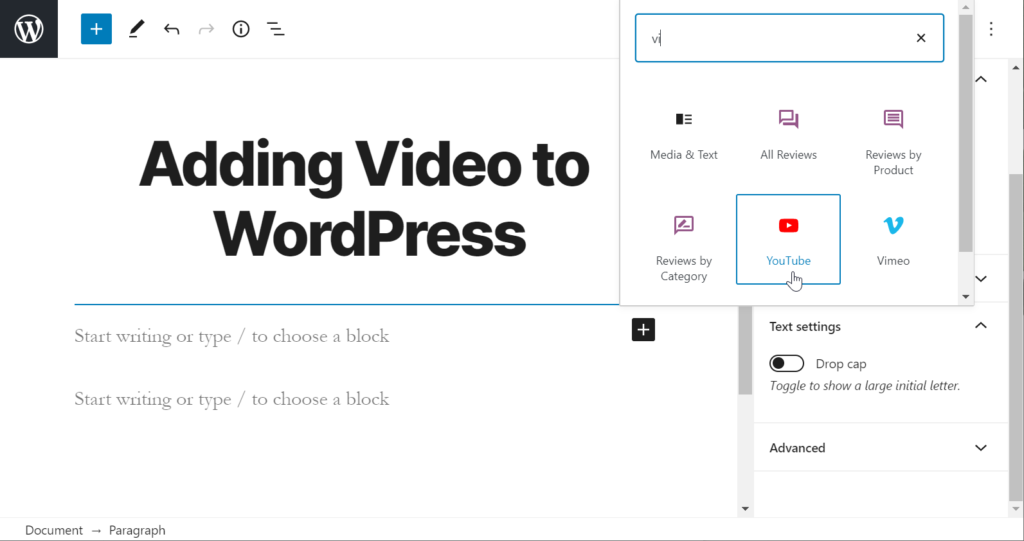
Open your WordPress page in the Block Editor. Click the plus (+) button to add a new block. Search for the “YouTube” block in the block list. Click on it to add the block to your page. The block will appear where your cursor is.
Paste The Video Url
Copy the YouTube video URL from your browser. Paste the URL directly into the YouTube block. The video will load automatically inside the editor. You can see a preview of the video right on your page.
Adjust Block Settings
Select the YouTube block to see its settings on the right side. Adjust the video alignment to left, center, or right. Change the width of the video if needed. Enable or disable video captions if available. Save your page after making these changes.

Credit: smashballoon.com
Embed Video Via Classic Editor
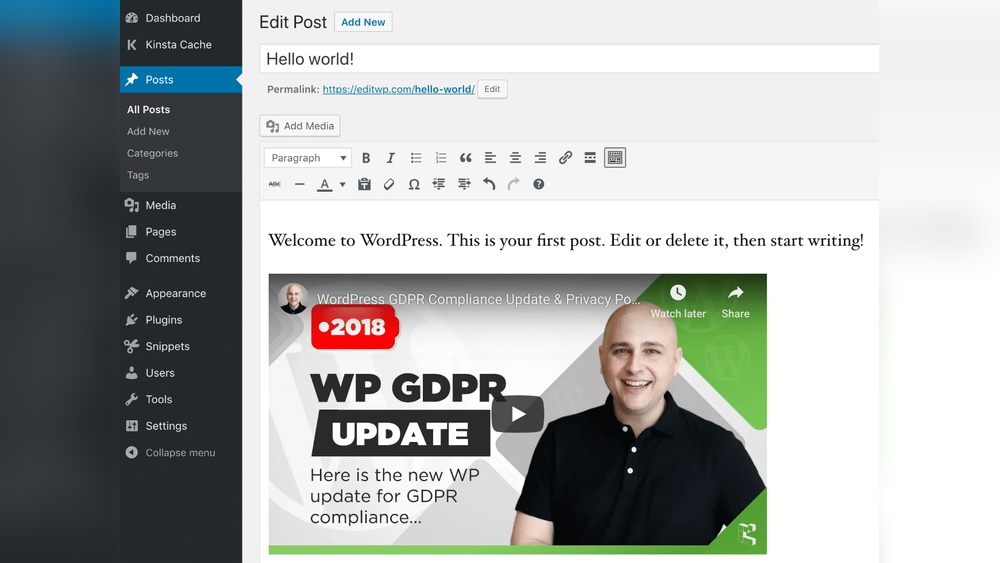
Embedding a YouTube video using the Classic Editor in WordPress is simple. The Classic Editor allows you to add videos directly into your posts or pages with just a few steps. This method uses the embed code from YouTube, which ensures your video looks clean and works well on your site.
Follow these steps to embed a video via the Classic Editor and make your content more engaging.
Switch To Text Editor
Open your WordPress page or post in the Classic Editor. By default, you see the Visual Editor, which shows formatted content. Switch to the Text Editor by clicking the “Text” tab at the top right of the editor. This view lets you add HTML code directly. It’s necessary to paste the embed code here.
Paste Embed Code
Go to YouTube and find the video you want to add. Click “Share” under the video, then select “Embed.” Copy the iframe code provided. Return to your WordPress Text Editor and paste the embed code where you want the video to appear. This code will display the video player on your page.
Preview The Video
After pasting the embed code, switch back to the Visual Editor or save your draft. Click “Preview” to see how the video looks on your page. The video should appear correctly and be ready for visitors to watch. Adjust placement if needed by moving the embed code in the Text Editor.
Customize Video Appearance
Customizing your YouTube video on a WordPress page improves user experience. You control how the video looks and behaves. This helps your site appear polished and professional.
Adjusting the video size, playback options, and adding text can make your content clearer. Visitors will find your page easier to use and more attractive.
Set Video Size
Choosing the right video size fits your page layout. Use the width and height settings in the embed code. For example, set width=”640″ and height=”360″ for a standard size.
Responsive design is key. You can also use CSS to make the video adapt to different screen sizes. This keeps the video clear on phones and desktops.
Enable Autoplay And Loop
Autoplay starts the video as soon as the page loads. Add ?autoplay=1 to the video URL to enable it. Use autoplay wisely, as it might annoy some users.
Loop makes the video play again after it ends. Add &loop=1&playlist=VIDEO_ID to the URL. Replace VIDEO_ID with the actual video ID.
Combining autoplay and loop is great for background videos or tutorials. Always check how these settings affect your site’s load time.
Add Captions And Titles
Captions improve accessibility and help visitors understand the video. YouTube allows adding captions directly on the video platform. Enable them in the embed settings.
Titles give context to your video. You can add a title above or below the video using a simple heading tag in WordPress. Clear titles attract more viewers.
Well-captioned and titled videos boost engagement and keep visitors longer on your page.

Credit: thewebsitearchitect.com
Use Plugins For Advanced Features
Using plugins to add YouTube videos brings extra power and control. Plugins offer features beyond basic embedding. They help customize video display and improve user experience.
Plugins can handle playlists, lazy loading, and video thumbnails. They also help with SEO and page speed. This makes your site look professional and work faster.
Top Youtube Plugins
Several plugins work well with WordPress for YouTube videos. “Smash Balloon YouTube Feed” shows videos in a customizable feed. “WP YouTube Lyte” helps load videos faster. “YouTube Embed Plus” adds advanced controls and gallery options.
Installation And Setup
Go to your WordPress dashboard and open Plugins > Add New. Search for the plugin by name and click Install Now. After installation, click Activate. Follow the plugin’s setup guide to connect your YouTube channel or add API keys if needed.
Adjust settings like video size, autoplay, and layout. Test your page to see how videos appear. Change options until it fits your style.
Benefits Of Using Plugins
Plugins save time by automating video management. They improve page load speed with lazy loading. Plugins let you show multiple videos in galleries or feeds. They also support SEO by adding metadata to videos.
Using plugins makes your site look clean and professional. They offer mobile-friendly designs so videos work on all devices. Plugins help keep visitors engaged with interactive features.
Troubleshoot Common Issues
Adding a YouTube video to a WordPress page is simple but can sometimes cause problems. This section helps solve common issues quickly. Clear, working videos keep visitors interested and improve your site’s quality.
Video Not Displaying
Check the video URL. Make sure it is correct and complete. Use the YouTube share link, not the browser address bar link. Clear your browser cache and reload the page. Sometimes, plugins or themes block videos. Try disabling them temporarily to see if the video shows. Also, ensure your WordPress and plugins are updated.
Slow Loading Times
Large videos can slow your page. Use the default YouTube embed code for faster loading. Avoid custom players or extra scripts. Check your internet speed and hosting server. Compress images and reduce other page elements to improve speed. Lazy loading plugins help videos load only when visible on screen.
Mobile Responsiveness
Videos may not fit well on small screens. Use responsive embed codes or plugins that adjust video size automatically. Set video width to 100% and height to auto in the embed code. Test your page on different devices to ensure the video looks good. Mobile-friendly videos keep visitors engaged on phones and tablets.
Credit: www.inmotionhosting.com
Frequently Asked Questions
How Do I Embed A Youtube Video On WordPress?
To embed a YouTube video, copy the video URL. Paste it directly into the WordPress editor. The video will auto-embed and display on your page.
Can I Customize The Youtube Video Size In WordPress?
Yes, WordPress allows you to adjust the video size. Use the block editor’s settings or modify embed code to set width and height.
Is It Possible To Add Youtube Videos Without Plugins?
Absolutely. WordPress supports native embedding by pasting the YouTube link. No plugins are needed for basic video embedding.
How Do I Ensure Youtube Videos Load Faster On WordPress?
Use lazy loading plugins or enable WordPress’s built-in lazy load feature. This improves page speed by loading videos only when visible.
Conclusion
Adding a YouTube video to your WordPress page is quick and simple. Just copy the video link and paste it into your content editor. This helps make your page more engaging and keeps visitors interested. Videos can explain things better than text alone.
Keep your site fresh by adding new videos often. This small step can improve your website’s look and user experience. Try it today and see how easy it is to share videos with your audience.



