
Are you ready to take your WordPress website to the next level? Adding plugins is one of the easiest ways to boost your site’s features and functionality without any coding skills.
Whether you want to improve security, speed up your site, or add new tools, plugins can help you do it all. In this guide, you’ll learn exactly how to add WordPress plugins step-by-step—quickly and safely. By the end, you’ll have the confidence to customize your website exactly how you want.
Let’s get started!
Choosing The Right Plugin
Choosing the right plugin is key to improving your WordPress site. The right plugin adds needed features without causing problems. You want to pick plugins that fit your site’s goals and work well with your setup. A poor choice can slow your site or create conflicts. Focus on what your site really needs and choose wisely.
Identifying Your Site Needs
Start by listing the features your site requires. Think about what will help your visitors the most. Avoid plugins that add unnecessary or complex functions. Simple plugins that solve clear problems work best. Keep your site fast and easy to use by choosing only needed tools.
Checking Plugin Ratings And Reviews
Look at the plugin’s ratings before installing. Higher ratings usually mean better quality and support. Read user reviews to see common issues or benefits. Pay attention to recent reviews for current experiences. Avoid plugins with many complaints or unresolved problems.
Considering Compatibility And Updates
Check if the plugin works with your WordPress version. Look for plugins updated regularly to stay secure and functional. Avoid plugins that have not been updated for a long time. Also, confirm compatibility with other plugins and your theme to prevent errors.
Credit: www.omnisend.com
Installing Plugins Via Dashboard
Installing plugins via the WordPress dashboard is a quick way to add new features to your website. This method does not require any technical skills. You can search, install, and activate plugins all from one place. It makes managing your site easier and faster.
Accessing The Plugin Menu
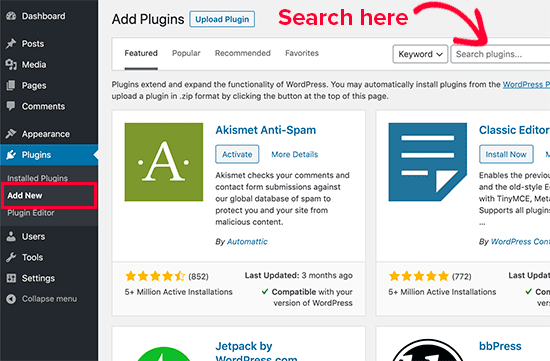
First, log in to your WordPress dashboard. Look for the “Plugins” option in the left-hand menu. Click on “Plugins” to open the plugin management page. Here, you can see all installed plugins. This menu is your starting point for adding new plugins.
Searching For Plugins
At the top of the plugin page, find the “Add New” button and click it. You will see a search bar on the right side. Type the name or function of the plugin you want. WordPress will show a list of matching plugins. You can read short descriptions and check ratings.
Installing And Activating Plugins
After finding the plugin you want, click the “Install Now” button. Wait a few seconds while WordPress installs the plugin. Once installed, the button will change to “Activate.” Click “Activate” to start using the plugin on your site. The plugin is now ready to use.
Uploading Plugins Manually
Uploading plugins manually is a useful skill for WordPress users. It helps when plugins are not available in the WordPress repository. You can also use this method to install custom or premium plugins. The process is simple and fast once you know the steps.
Downloading Plugin Files
First, get the plugin files from a trusted source. Usually, plugins come in a .zip file format. Save this file on your computer. Keep track of the folder where you download it. This makes it easy to find later.
Uploading Via WordPress Admin
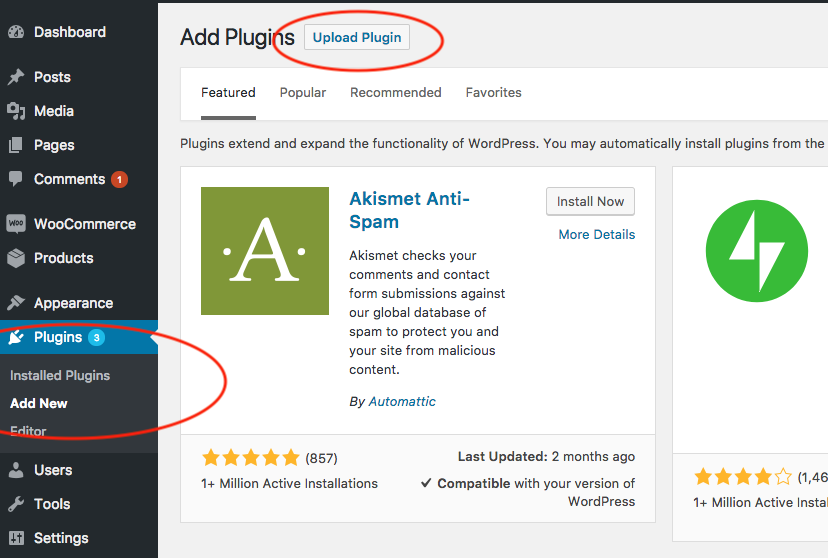
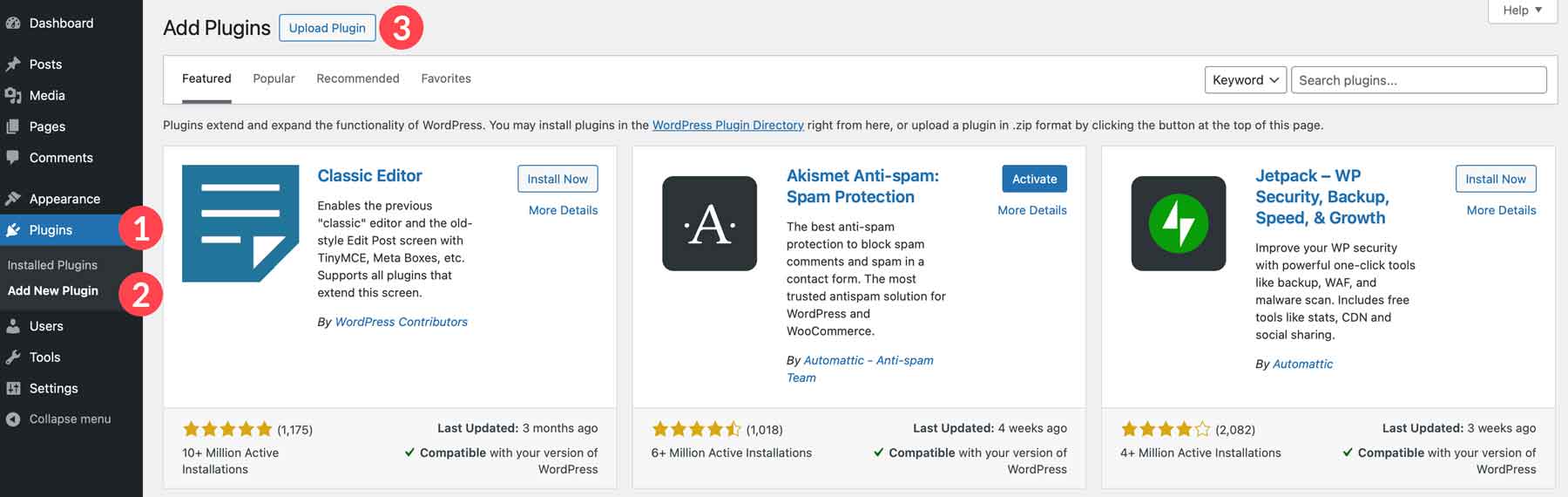
Next, log in to your WordPress dashboard. Go to the “Plugins” menu and select “Add New.” Click the “Upload Plugin” button at the top of the page. Choose the .zip file you downloaded earlier. Press “Install Now” to start the upload. WordPress will upload and unpack the plugin files for you.
Activating The Uploaded Plugin
Once the upload finishes, WordPress shows an activation link. Click “Activate Plugin” to enable it on your site. The plugin is now ready to use. Check the plugin’s settings to configure it if needed. Your site can now benefit from the new plugin features.
Managing Installed Plugins
Managing installed plugins is key to keeping your WordPress site running smoothly. Plugins add features but need regular care. This helps avoid slowdowns and security risks. Checking plugins often keeps your site safe and fast.
Updating Plugins Safely
Regular updates fix bugs and improve security. Always back up your site before updates. Update one plugin at a time. Check your site after each update. Use trusted plugins from reliable sources only.
Deactivating And Deleting Plugins
Deactivate plugins you don’t use to save resources. Deactivated plugins do not affect your site but stay installed. Delete plugins you won’t need again. This frees space and reduces risk. Always deactivate before deleting.
Troubleshooting Common Issues
Problems can happen after plugin updates. Disable all plugins to find the cause. Reactivate them one by one. Check error messages for clues. Use support forums for help if needed. Keep plugins compatible with your WordPress version.
Best Practices For Plugin Use
Using WordPress plugins can improve your website’s features and functions. But using too many or the wrong ones can slow your site or cause problems. Follow best practices for plugin use to keep your site fast and secure. These tips help you manage plugins wisely and avoid common issues.
Limiting Plugin Quantity
Too many plugins can slow your website. Each plugin adds code that runs in the background. Too much code can make your site load slower. Use only the plugins you really need. Delete plugins that you do not use anymore. Choose plugins that serve multiple purposes to reduce the total number.
Regular Backups Before Changes
Always back up your website before adding or updating plugins. Backups save your data and settings. If something breaks after a plugin change, you can restore your site quickly. Use a reliable backup tool and store backups in a safe place. Schedule backups regularly to protect your site from unexpected issues.
Monitoring Site Performance
Check your website speed after installing new plugins. Slow loading pages can drive visitors away. Use tools like Google PageSpeed Insights to track performance. If a plugin causes delays, consider replacing or removing it. Keep your site fast by reviewing plugin impact often.
Credit: www.wonderplugin.com
Credit: www.elegantthemes.com
Frequently Asked Questions
What Is The Easiest Way To Add WordPress Plugins?
The easiest way to add WordPress plugins is through the dashboard. Go to Plugins > Add New, search for the plugin, and click “Install Now. ” Then activate it. This method is quick, safe, and requires no technical skills.
Can I Install WordPress Plugins Without Ftp?
Yes, you can install WordPress plugins without FTP. Use the dashboard’s plugin installer by navigating to Plugins > Add New. Upload a plugin ZIP file or search and install directly. FTP is optional and mainly for manual or advanced installations.
Are All WordPress Plugins Free To Use?
No, not all WordPress plugins are free. Many offer free versions with basic features. Premium plugins provide advanced functions and support. Choose based on your needs and budget, ensuring compatibility with your WordPress version.
How Do I Update WordPress Plugins Safely?
To update WordPress plugins safely, always back up your site first. Then go to Plugins > Installed Plugins, check for updates, and click “Update Now. ” Regular updates improve security and functionality without risking your website’s stability.
Conclusion
Adding WordPress plugins is simple and improves your site’s features. Choose plugins carefully to keep your site fast and secure. Always update plugins to avoid problems and enjoy new functions. Test each plugin before using it live to ensure it works well.
With practice, managing plugins becomes quick and easy. Start adding plugins today to make your website better.



