
Are you looking to add a WordPress admin but don’t know where to start? You’re in the right place.
Managing your website’s admin users is crucial for security and smooth operation. Whether you want to give someone full control or just need to set up your own admin account, this guide will walk you through every step clearly and simply.
By the end, you’ll feel confident handling WordPress admin roles like a pro. Keep reading to unlock the easy way to manage your site’s most important users.
Why Add A WordPress Admin
Adding a WordPress admin is important for managing your website efficiently. It lets you share control with trusted people. This helps keep your site updated and secure. Multiple admins can handle tasks faster. It also spreads responsibility, reducing risks.
Benefits Of Multiple Admins
Having more than one admin speeds up website work. Different people can handle updates, posts, and settings. It helps avoid delays if one person is busy. Collaboration becomes easier with shared access. It also allows experts to manage specific tasks. This way, your site stays fresh and well-maintained.
Security Considerations
More admins mean more access points, which can be risky. Choose admins carefully and only trust reliable people. Use strong passwords and change them regularly. Limit admin rights if possible to reduce threats. Monitor admin activity to spot unusual actions fast. These steps protect your site from hackers and mistakes.
Preparing To Add A New Admin
Preparing to add a new admin to your WordPress site is important for security and smooth management. You need to be careful about who gets full access. Taking a few steps before adding someone can save you trouble later.
This preparation helps protect your website from mistakes or unauthorized changes. It also makes sure the new admin understands their role. Let’s look at what you should do before adding a new admin.
Choosing The Right User Role
WordPress has several user roles with different permissions. The Admin role has full control over the site. Be sure the person you add really needs this level of access. If not, choose a different role like Editor or Author. This limits what they can change and keeps your site safer. Only give admin access to trusted users who understand site management.
Gathering User Information
Collect accurate details about the new admin before adding them. You need their username, email, and full name. Make sure the email is valid and checked often. This helps with password resets and notifications. Confirm the person knows your site’s policies and security rules. Clear communication helps avoid issues after you add them.
Step-by-step Guide To Adding An Admin
Adding a new admin in WordPress is simple and important. This guide breaks down the process into clear steps. Follow along to give someone full access to your WordPress site safely and quickly.
Accessing The WordPress Dashboard
First, log in to your WordPress account. Use your username and password on the login page. After logging in, you will see the WordPress Dashboard. This is the main area where you control your website.
Navigating To User Settings
Look for the menu on the left side of the dashboard. Find and click on “Users.” This section manages all users on your site. Next, select “Add New” to create a new user.
Filling Out New User Details
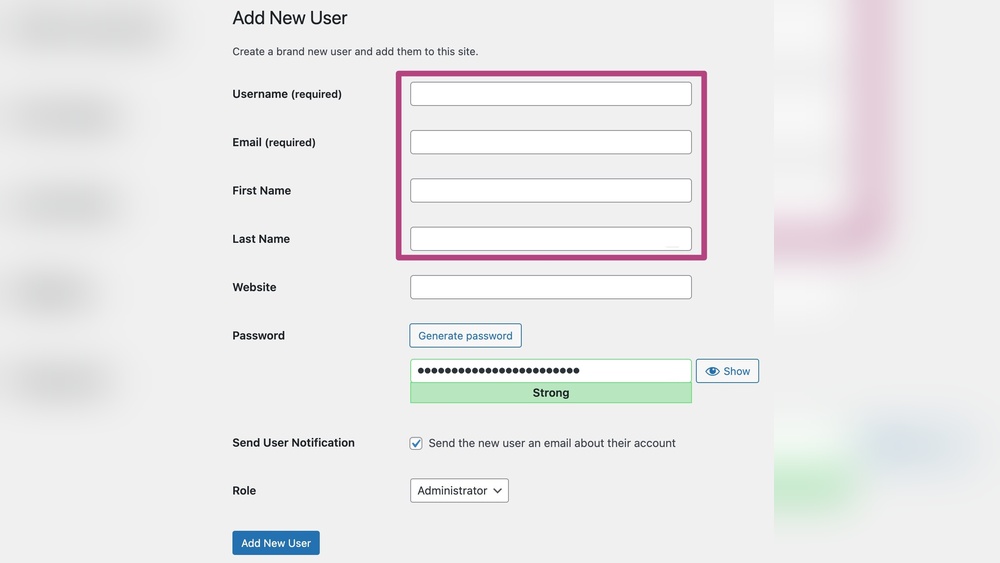
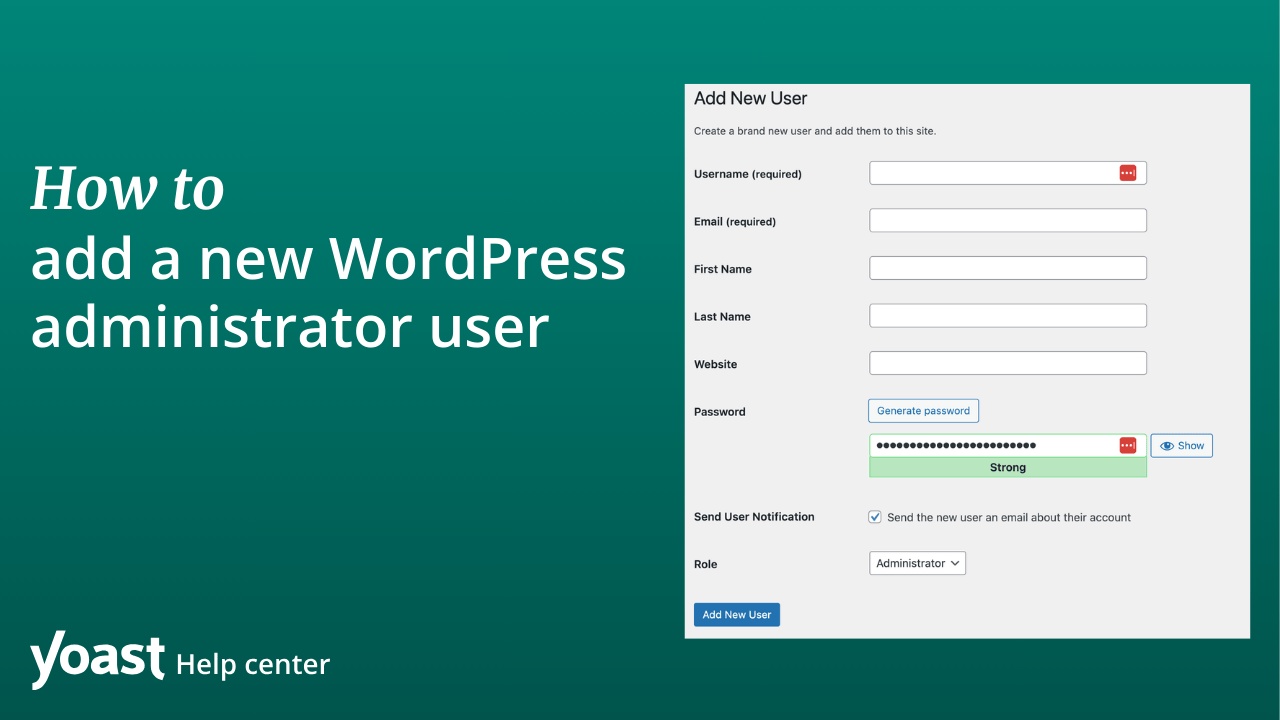
Fill in the required fields: username, email, first name, and last name. Create a strong password or let WordPress generate one. Enter the password twice to confirm. You can also add a website link if needed.
Assigning The Admin Role
Look for the “Role” dropdown menu below the user details. Click it and choose “Administrator” from the list. This grants full control of the site to the new user. Be careful only to assign this role to trusted users.
Saving And Confirming
After filling all details and choosing the role, click the “Add New User” button. WordPress will save the new admin. You will see a confirmation message on the screen. The new admin can now log in and manage the site.

Credit: www.youtube.com
Managing Admin Permissions
Managing admin permissions is important for website security and smooth operation. It controls what each admin user can do on your WordPress site. Proper management helps prevent accidental changes or unauthorized access.
Assigning the right permissions ensures that users only access areas they need. This keeps your site safe and organized. Understanding how to adjust these settings is key for every site owner.
Adjusting User Capabilities
WordPress allows you to change what users can do by adjusting their capabilities. Each role has a set of permissions, like editing posts or managing plugins. You can customize these to fit your needs.
Go to the Users section and select the user you want to edit. Change their role or use plugins to fine-tune capabilities. This keeps control clear and simple.
Using Plugins For Custom Roles
Plugins help create custom roles with specific permissions. They make managing admin rights easier, especially for complex sites. You can add or remove capabilities without coding.
Popular plugins let you build roles for editors, authors, or other staff. This way, each user gets only the access they need. It improves security and workflow on your site.
Best Practices For Admin Management
Managing WordPress admin accounts carefully keeps your website safe. Admin users have full control, so managing them well is very important. Following best practices helps prevent security risks and keeps your site running smoothly.
Regularly Reviewing Admin Accounts
Check your admin accounts often. Remove users who no longer need access. Limit the number of admins to reduce risk. Watch for any unusual activity in accounts. Keep only trusted users with admin rights.
Implementing Two-factor Authentication
Use two-factor authentication for all admin users. It adds an extra step to login security. This makes it harder for attackers to access your site. Choose a simple app for easy use. Keep your site safer with this extra layer.
Credit: yoast.com
Troubleshooting Common Issues
Troubleshooting common issues with WordPress admin access can save time and stress. Many users face errors that block their entry or restrict actions. Knowing simple fixes helps keep your site running smoothly.
Errors often occur due to incorrect file permissions or lost login details. These problems stop you from managing your website effectively. The following sections explain how to fix these issues quickly and clearly.
Fixing Permission Errors
Permission errors happen when WordPress files have wrong settings. These settings control who can read or write files. Incorrect permissions stop the admin from accessing important parts.
To fix this, use an FTP client or hosting file manager. Locate your WordPress folder and check file permissions. Set folders to 755 and files to 644. These values allow proper access without risks.
Also, check the wp-config.php file. It should have 644 permissions for security and access. Changing these settings often restores admin control instantly.
Recovering Lost Admin Access
Losing admin access can happen due to forgotten passwords or corrupted user accounts. Use the password reset option on the login page first. Enter your email or username to get a reset link.
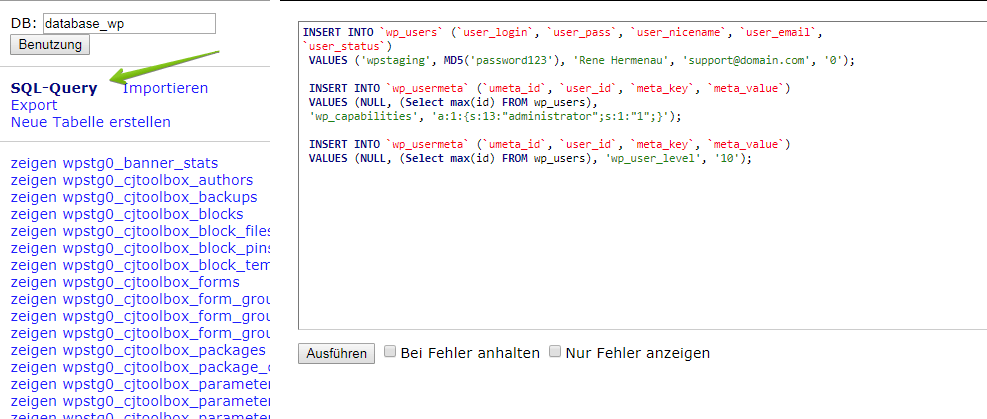
If that fails, access your hosting database with phpMyAdmin. Find the wp_users table and locate your admin account. You can change the password by editing the user_pass field. Use the MD5 function to encrypt your new password.
Another method is adding a new admin user via functions.php. Insert a code snippet that creates a new admin account. After logging in, remove the code for safety.
Credit: wp-staging.com
Frequently Asked Questions
How Do I Add A New WordPress Admin User?
Go to your WordPress dashboard, click “Users,” then “Add New. ” Fill in the details and set the role to “Administrator. ” Click “Add New User” to save. This grants full admin access to the new user.
Can I Assign Admin Rights To An Existing User?
Yes, go to “Users,” select the user, click “Edit,” and change their role to “Administrator. ” Save changes to update their permissions immediately.
Is It Safe To Add Multiple WordPress Admins?
Adding multiple admins is safe if you trust them. Each admin has full site control, so limit admins to trusted individuals only to maintain security.
What Permissions Does A WordPress Admin Have?
Admins can manage all site settings, install plugins, add users, and edit content. They have full control over the website and its functionality.
Conclusion
Adding a WordPress admin is simple and quick. It helps you manage your website better. Always choose a strong password to keep your site safe. Give admin access only to people you trust. Regularly check your users to avoid unwanted changes.
Now, you can easily add and control admins. This keeps your WordPress site secure and organized. Try these steps today and see the difference.



