
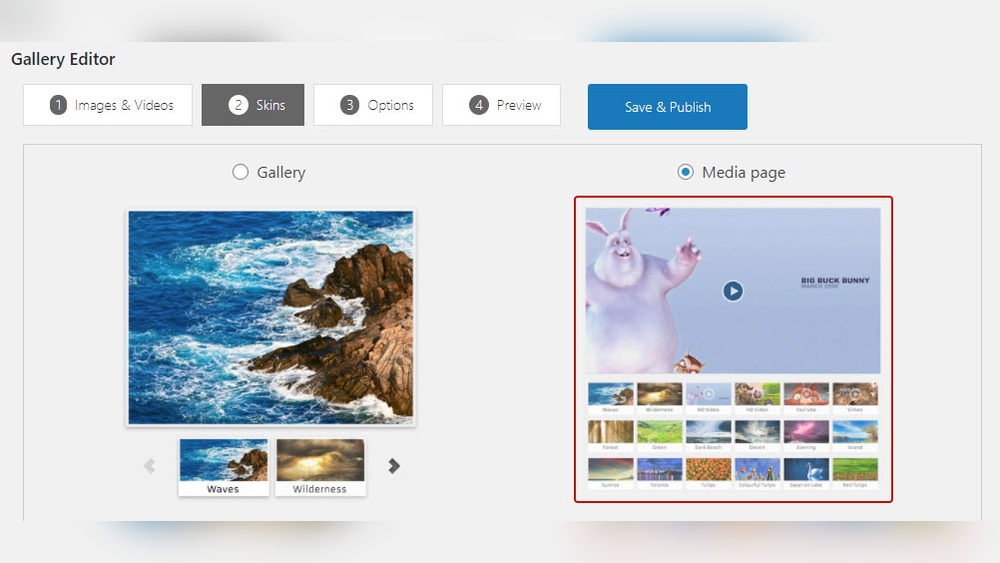
Are you looking to make your WordPress site more engaging with videos? Adding a video gallery can do just that.
Imagine visitors staying longer, watching your content, and coming back for more. It’s easier than you think to create a sleek, organized video gallery that looks professional and works smoothly on any device. In this guide, you’ll discover simple steps to add a video gallery to your WordPress site—no complicated tech skills needed.
Ready to boost your site’s appeal and keep your audience hooked? Let’s dive in!
Credit: wpmet.com
Choosing The Right Plugin
Choosing the right plugin is crucial for creating a video gallery in WordPress. It affects the look, speed, and ease of managing your videos. The right plugin can help your site run smoothly and attract more visitors. Consider your needs and website goals before selecting a plugin.
Free Vs Premium Options
Free plugins offer basic features and are good for small sites. They often have limits on video numbers or customization. Premium plugins provide more features and support. They usually include advanced layouts, better design, and faster updates. Decide what features you need and your budget before choosing.
Key Features To Look For
Check for easy video uploads and multiple format support. Look for responsive design so videos work on all devices. Search for options like video sorting and categories. A plugin with good speed and SEO options will help your site rank better. User-friendly settings save time and reduce frustration.
Compatibility With Themes
Your plugin must work well with your WordPress theme. Some plugins may cause design issues or slow down your site. Test the plugin on your theme before full use. Choose plugins that say they support your theme or are widely compatible. This ensures your video gallery looks great and works smoothly.
Installing The Video Gallery Plugin
Installing a video gallery plugin in WordPress is the first step to showcase your videos neatly. This plugin helps organize videos in a clean and user-friendly way. You can choose from many plugins available in the WordPress repository or upload one manually.
The installation process is simple and quick. Two common methods exist: using the WordPress dashboard or uploading via FTP. Both methods work well and depend on your preference.
Using The WordPress Dashboard
Start by logging into your WordPress admin area. Go to the “Plugins” section and click “Add New.” In the search bar, type “video gallery.” Browse the results and pick one with good ratings and reviews.
Click “Install Now” next to the plugin you want. Wait a few seconds. Then, press the “Activate” button. Your plugin is now ready to use. You can customize it from the plugin settings menu.
Manual Upload Via Ftp
Download the video gallery plugin as a zip file from a trusted source. Extract the folder on your computer. Open an FTP client and connect to your website server.
Navigate to the “/wp-content/plugins/” directory. Upload the extracted plugin folder here. After uploading, go to your WordPress dashboard.
Open the “Plugins” page. Find the new plugin in the list and click “Activate.” The plugin will now be active and ready for setup.
Setting Up Your Video Gallery
Setting up your video gallery in WordPress is simple and rewarding. It lets you display videos neatly on your site. Visitors enjoy watching without leaving your page. This boosts engagement and keeps your content fresh.
Follow clear steps to create a gallery that fits your style. You can add videos from many sources. Customize the look to match your site design. Let’s dive into how to set up your gallery efficiently.
Creating A New Gallery
First, go to your WordPress dashboard. Find the plugin or feature for video galleries. Click on “Add New Gallery” to start. Give your gallery a clear, descriptive name. This helps you find it later easily.
Choose the folder or category for your gallery. This keeps your site organized. Save your new gallery before adding videos. A new gallery is now ready for content.
Adding Videos From Different Sources
Videos can come from many places. Upload files directly from your computer. Or, embed videos from YouTube and Vimeo. Use the “Add Video” button to insert links or files.
Check video formats supported by your gallery plugin. Most accept MP4, AVI, and MOV files. Paste video URLs for online content. Each video you add shows as a thumbnail.
Customizing Layout And Style
Control how your gallery looks with simple settings. Choose grid, list, or slider layouts. Pick colors and fonts that match your site theme. Adjust spacing between videos for a clean look.
Many plugins offer drag-and-drop tools. Use these to reorder videos easily. Preview your gallery before publishing. Make sure it looks good on mobiles and desktops.
Embedding The Gallery On Your Site
Embedding a video gallery on your WordPress site makes your content more interactive. Visitors can easily watch videos without leaving your page. This section explains simple ways to place your gallery on different parts of your site.
Using Shortcodes
Shortcodes are small code snippets that insert content quickly. Most video gallery plugins generate shortcodes automatically. Copy the shortcode from your plugin’s settings. Paste it into any post, page, or widget area. The gallery will appear where you place the shortcode.
This method is fast and works for all themes. No coding skills are needed. Shortcodes keep your site clean and organized.
Adding Gallery To Pages Or Posts
Open the WordPress editor for the page or post. Click the block where you want to add the gallery. Use the “Shortcode” block or a custom block from your plugin. Paste the shortcode inside this block. Update or publish the page.
The video gallery will show up in the chosen spot. Visitors can watch videos directly on the page. This method fits well with blog posts and landing pages.
Placing Gallery In Widgets
Go to WordPress dashboard and open “Appearance” > “Widgets.” Find a widget area like the sidebar or footer. Add a “Text” or “Custom HTML” widget to that area. Paste the gallery shortcode inside the widget. Save the changes.
Your video gallery will display in the widget area across your site. This placement works great for sidebars and footers. Visitors can see videos while browsing other pages.
Optimizing Video Performance
Optimizing video performance is crucial for a smooth user experience. Videos can slow down your website if not managed well. Proper techniques help keep your site fast and responsive. This section covers key ways to improve video loading and playback on WordPress.
Lazy Loading Videos
Lazy loading delays video loading until the user scrolls near it. This reduces initial page load time. It saves bandwidth and improves performance on mobile devices. WordPress plugins can enable lazy loading for video galleries easily. The result is faster page rendering and better user experience.
Choosing Video Formats
Select video formats that balance quality and file size. MP4 is widely supported and offers good compression. WebM is another format with smaller file sizes and good quality. Using multiple formats ensures compatibility across browsers. Smaller file sizes help your videos load faster.
Improving Page Load Speed
Page speed affects user retention and search rankings. Compress videos before uploading to reduce file size. Use a content delivery network (CDN) to serve videos quickly worldwide. Limit the number of videos on a single page to avoid slowdowns. Regularly test your site speed to find and fix bottlenecks.

Credit: www.youtube.com
Enhancing User Experience
Enhancing user experience is key to keeping visitors on your WordPress site. A well-designed video gallery makes your content easy to find and enjoyable to watch. It helps visitors interact with your videos smoothly, which increases engagement and satisfaction. Paying attention to details like layout, descriptions, and controls improves how users feel about your site.
Responsive Design Tips
Make sure your video gallery looks good on all devices. Use flexible grids and relative units to adjust video sizes. Test the gallery on phones, tablets, and desktops. Responsive design prevents videos from appearing too big or too small. It creates a seamless experience across screen sizes.
Adding Captions And Descriptions
Captions help users understand the video content quickly. Short descriptions provide context and improve search engine visibility. Use clear and simple language in captions and descriptions. This also aids visitors with hearing difficulties. Captions and descriptions make your videos more accessible and useful.
Enabling Video Playback Controls
Playback controls give users control over their viewing experience. Include options like play, pause, volume, and fullscreen. Controls allow users to watch videos at their own pace. This reduces frustration and improves satisfaction. Easy-to-use controls keep visitors engaged longer.
Troubleshooting Common Issues
Adding a video gallery to WordPress can sometimes cause small problems. These issues can stop your gallery from showing or videos from playing. Fixing these common problems helps keep your site running smoothly. Below are quick tips to solve frequent troubles.
Gallery Not Displaying
First, check if the gallery shortcode is correct. Mistakes in the shortcode stop the gallery from showing. Clear your browser cache and refresh the page. Sometimes old files cause display problems. Make sure your theme supports the gallery plugin. Some themes block certain plugins. Try switching to a default theme to test this.
Video Playback Problems
Check if video files are in a supported format like MP4. Unsupported formats won’t play in browsers. Ensure your videos are not too large; big files load slowly or fail. Update your browser and WordPress to the latest version. Outdated software often causes playback issues. Disable any ad blockers or browser extensions that may stop videos from loading.
Plugin Conflicts
Plugin conflicts happen when two plugins do not work well together. Deactivate all plugins except the video gallery plugin. Check if the gallery works now. Reactivate plugins one by one to find the conflict. Update all plugins regularly to avoid compatibility issues. Always use plugins from trusted sources to reduce risks.
Alternative Methods For Video Galleries
There are several ways to create video galleries in WordPress beyond using plugins. These alternative methods can save time and work well for different needs. They offer flexibility and control over how videos appear on your site. These options are easy to use, even for beginners.
Using Page Builders
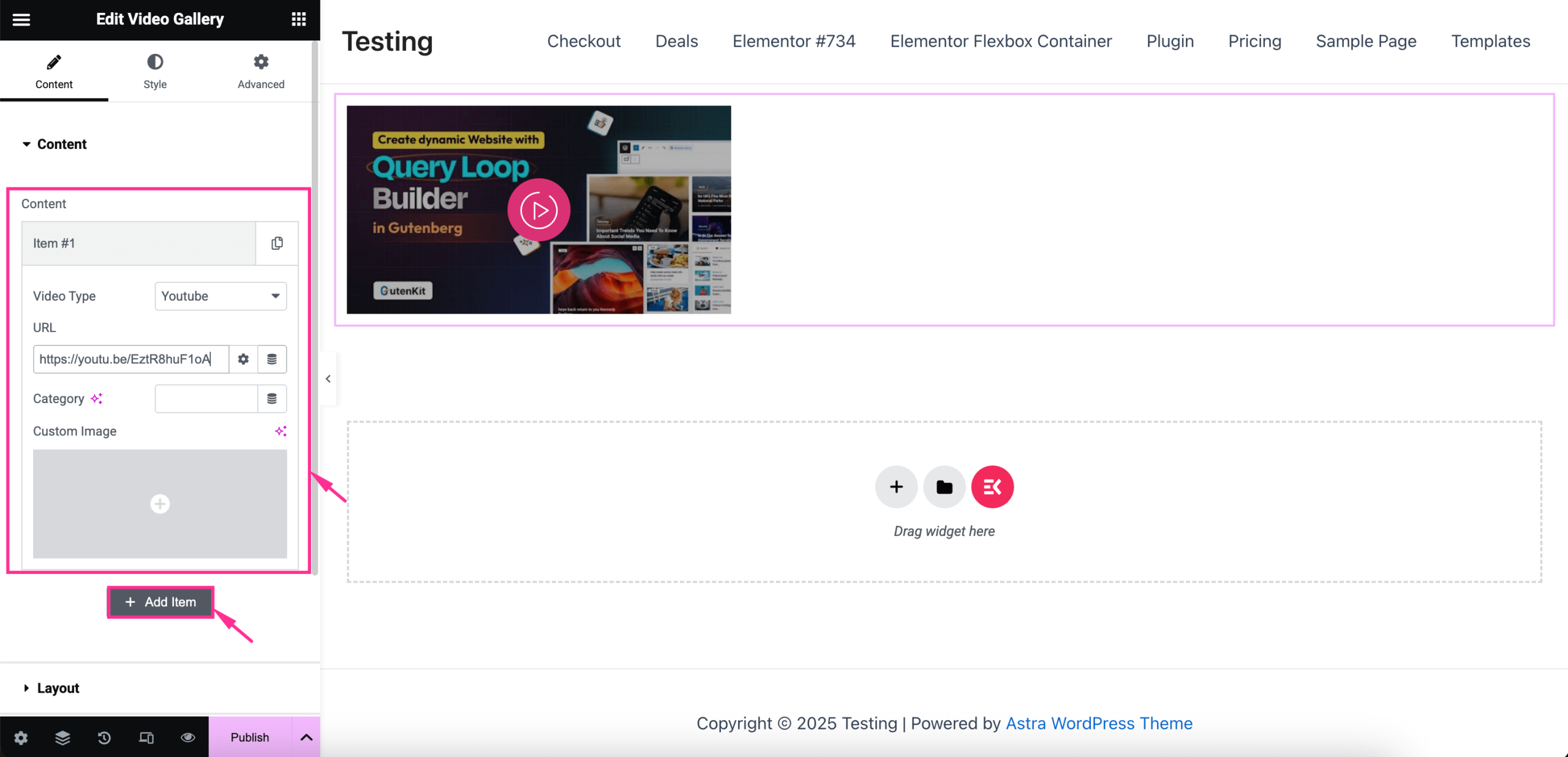
Page builders like Elementor and Beaver Builder let you design video galleries quickly. They offer drag-and-drop tools to place videos anywhere on your page. You can create grids, carousels, or custom layouts without coding. Many page builders support video widgets that accept multiple video links. This method keeps your site design clean and mobile-friendly. You can also combine videos with text and images for better storytelling.
Embedding From External Platforms
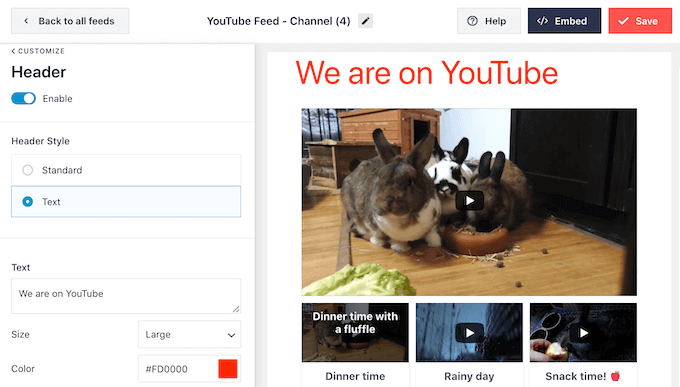
Embedding videos from platforms like YouTube or Vimeo is simple and effective. Copy the video URL and paste it directly into the WordPress editor. WordPress automatically converts the link into an embedded video player. You can organize these videos using WordPress blocks or columns to form a gallery. This method reduces hosting load and speeds up your site. Embedded videos also come with built-in controls and quality settings for viewers.
Credit: www.wpbeginner.com
Frequently Asked Questions
How Do I Create A Video Gallery In WordPress?
To create a video gallery, install a video gallery plugin. Then, add your videos and customize the layout. Publish the gallery on any page or post easily.
Which Plugin Is Best For WordPress Video Galleries?
Popular plugins include Envira Gallery, Video Gallery by Total Soft, and WP Video Gallery. They offer easy setup and responsive designs for all devices.
Can I Add Youtube Videos To My WordPress Gallery?
Yes, most video gallery plugins support YouTube links. Simply paste the video URL into the gallery plugin to display embedded videos on your site.
Is It Possible To Customize Video Gallery Appearance?
Yes, most plugins allow you to change layouts, thumbnails, and styles. Customization helps match the gallery to your website’s branding and design.
Conclusion
Adding a video gallery to WordPress makes your site more lively and fun. Visitors enjoy watching videos that show your work or ideas. Choose the right plugin or use built-in features to create your gallery. Keep it simple and organize videos well for easy viewing.
Regularly update your gallery with fresh content to keep visitors interested. This small step can boost your site’s appeal and keep people coming back. Start today and share your videos with the world!



