
Are you looking to customize your WordPress site beyond the basic settings? Adding a theme editor can open up a world of possibilities, allowing you to tweak your site’s design and functionality to perfectly match your vision.
Imagine having the power to modify your theme’s code directly, giving you complete control over your website’s appearance and performance. But how do you add a theme editor to WordPress? Don’t worry—you’re not alone in asking this question, and we’re here to guide you through the process.
By the end of this article, you’ll have the confidence and skills to enhance your WordPress site with ease. So, let’s dive in and unlock the potential of your website!
Credit: www.greengeeks.com
Understanding WordPress Theme Editor
The Theme Editor lets you change your website’s look. It is a tool inside WordPress. You can find it in the dashboard. Here, you can edit theme files. These files control how your site appears.
Editing themes can help make your site unique. You can add your own touch. Change colors, fonts, and layouts. This makes your website special. It’s like painting a picture. You choose the colors and style.
But be careful. Changing code can break your site. Always save a backup first. This way, you can fix any mistakes. Practice makes perfect. Start small and learn as you go. Soon, you’ll feel confident.
Credit: nichetwins.com
Accessing Theme Editor
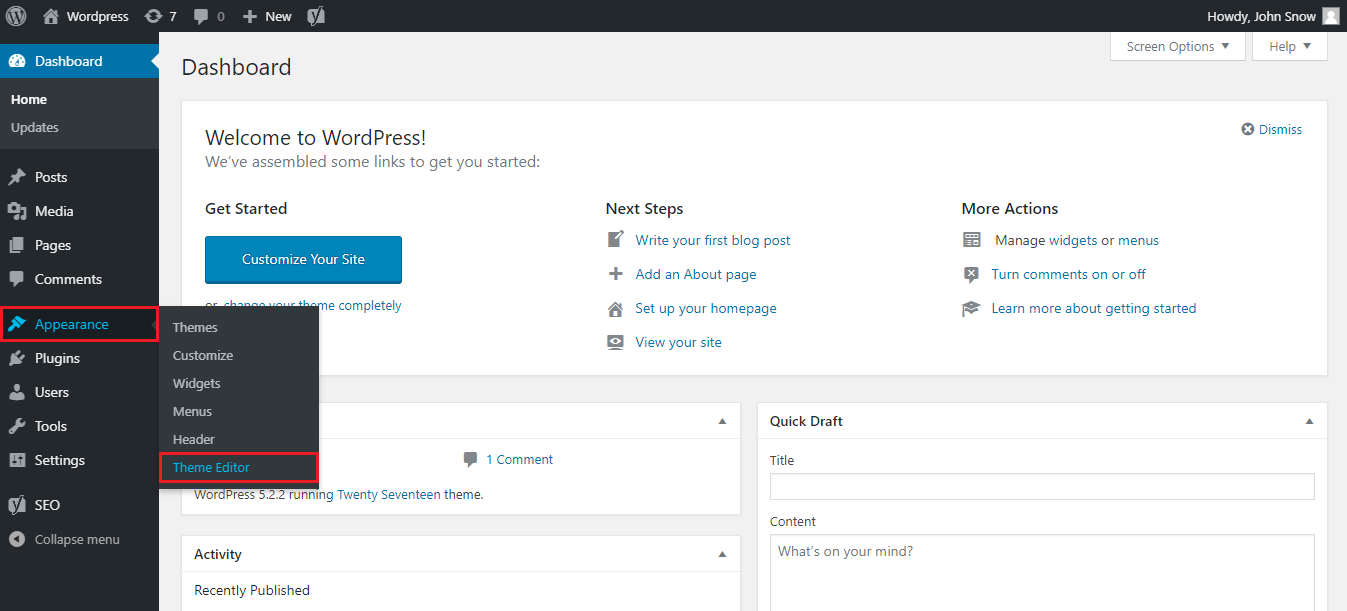
Start by logging into your WordPress Dashboard. It is the main control area. Once inside, look for the menu on the left. This menu has many options for your site. Each option helps you control different parts of your site.
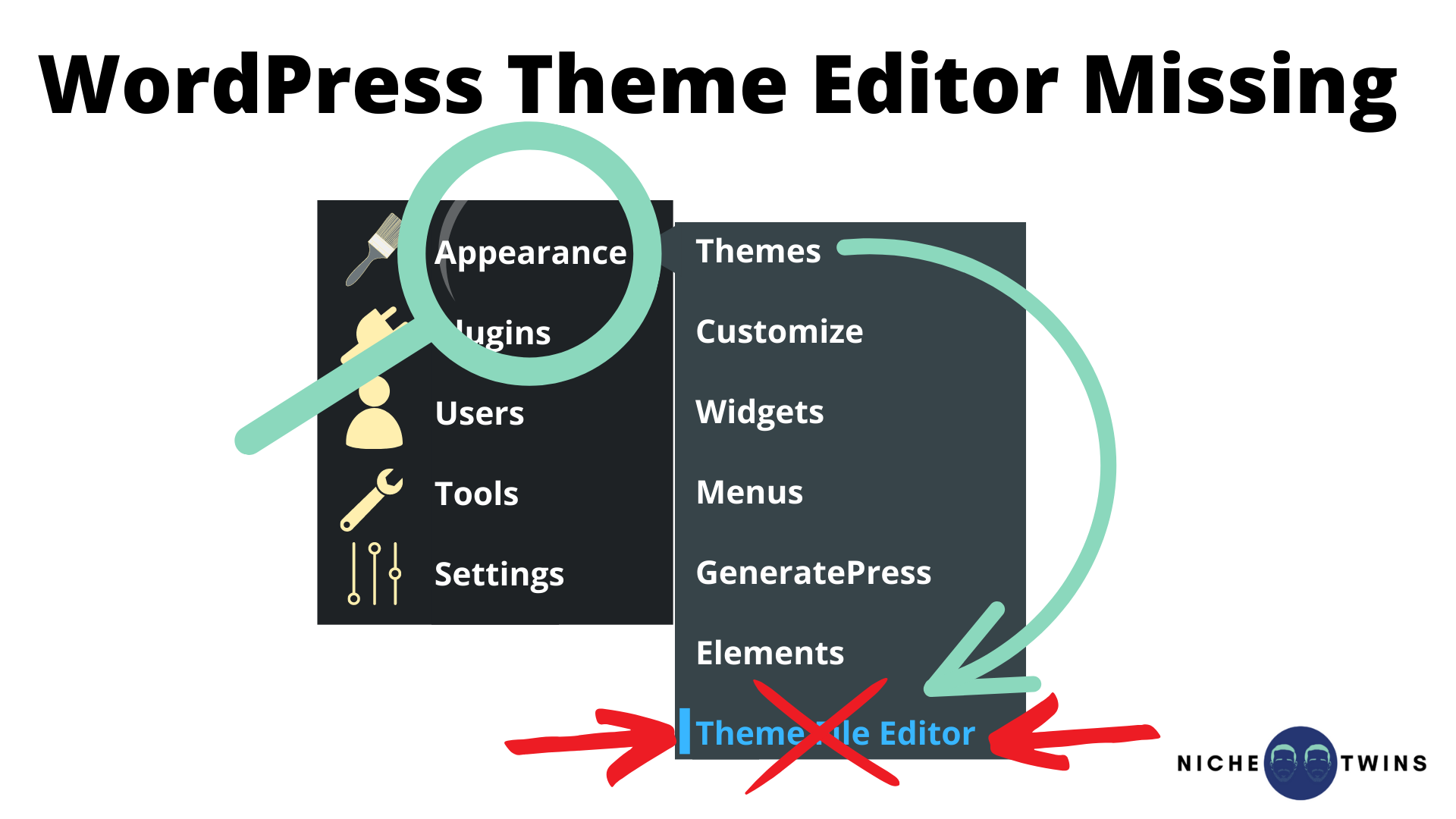
Find the Appearance menu. It is usually near the top. This menu lets you change how your site looks. Inside, you can see options like Themes and Customize. These options help you pick and change themes. The Theme Editor is also here. You can use it to edit theme files directly.
Enabling Theme Editor
Ensure you have proper permissions to use the Theme Editor. Only admin users can access it. Log in as an admin to make changes. Check your user role in the WordPress dashboard. Navigate to Users and find your profile. It should say “Administrator.” If not, you need admin access.
Locate the wp-config.php file in your WordPress files. Use an FTP client or file manager. Open the file in a text editor. Add this line: define('DISALLOW_FILE_EDIT', false);. This line enables the Theme Editor. Save your changes and upload the file back. Refresh your WordPress dashboard. The Theme Editor should now be available. Always backup your files before editing.
Editing Theme Files
Choosing the right file is very important. Theme files are like instructions. They tell your website how to look. You find these files in your WordPress dashboard. Go to Appearance, then click Theme Editor. Here, you see a list of files on the right side.
Every file has a special job. Some change colors. Others change fonts. Make sure to pick the right one. If unsure, ask someone for help. It’s okay to be careful. Wrong changes can make your site look bad. Always check twice before you edit.
| File Type | Purpose |
|---|---|
| style.css | Controls colors and fonts |
| index.php | Main page layout |
| header.php | Top part of the site |
| footer.php | Bottom part of the site |
Best Practices For Editing
Always create a backup of theme files before editing. It protects your work from mistakes. Use plugins for easy backups. This step is crucial for safety. Keep copies on your computer or in cloud storage. Restore files if errors occur. Backups save time and effort.
Child themes help keep changes safe. They let you modify themes without losing updates. Use child themes for a smooth process. They work with parent themes easily. Make a child theme for each edit. This keeps your theme secure from updates. Child themes are simple and effective.
Troubleshooting Common Issues
Adding the Theme Editor in WordPress can be tricky. Navigate to Appearance, then select Theme File Editor. Ensure proper permissions are set to avoid errors.
Restoring Original Files
Sometimes, themes break or change. This can be a real problem. Restoring original files can help. First, locate the backup of your theme. You did save a backup, right? Next, access your WordPress dashboard. Go to your theme settings. Upload the backup files there. This should fix most issues. If not, check for updates. An old theme can cause problems. Always keep your theme updated.
Error Messages And Fixes
Errors can pop up when editing themes. Do not panic. Read the error message carefully. It often tells you what’s wrong. Missing files? Try re-uploading them. Syntax errors in code? Double-check your changes. Sometimes, a plugin causes trouble. Disable plugins one by one. See if that fixes the issue. Backup your site before trying fixes. This keeps your data safe.
Security Considerations
Ensure site security while adding the Theme Editor in WordPress. Use secure file permissions and regularly update plugins. Always back up your website to prevent data loss and unauthorized access.
Protecting Sensitive Data
Sensitive data needs strong protection. Use passwords that are hard to guess. Change them often. Avoid using the same password for different sites. Keep your plugins updated. Old versions can have security holes. Check your theme editor’s settings. Ensure they are safe. Backup your data regularly. Restoring data is easier when it’s backed up. Never share your login details. Keep them private to prevent breaches.
Using Secure Connections
Secure connections are vital for safety. Use HTTPS for your site. It encrypts data and keeps it safe. Check if your host offers SSL certificates. They help secure connections. Avoid public Wi-Fi for site management. Use private networks for important tasks. Connect through a VPN for extra safety. It masks your IP address. Always log out after using shared computers. This prevents unauthorized access. Regularly monitor your site for unusual activity.
Credit: www.coderepublics.com
Frequently Asked Questions
How Do I Add An Editor To My WordPress Site?
Log into your WordPress dashboard, click “Users,” then “Add New. ” Enter the new editor’s details. Choose “Editor” from the role dropdown menu and click “Add New User. ” They can now edit content. Ensure their email is correct for account access.
You can edit or remove roles later.
Why Is The Appearance Editor Not Showing In WordPress?
The appearance editor might not show due to theme restrictions, WordPress version, or missing permissions. Ensure your theme supports it and check user roles. Update WordPress and deactivate conflicting plugins.
How Do I Enable Site Editor In WordPress?
Go to your WordPress dashboard. Navigate to Appearance, then click Editor. Select the site editor option to enable it. Ensure your theme supports full site editing for access.
Why Can’t I Edit My Theme In WordPress?
You might lack permissions or be using a limited user role. Themes may also be locked by developers. Update your user role or check theme settings for restrictions. Ensure you have the latest WordPress version.
Conclusion
Adding a theme editor to WordPress boosts customization. This feature lets you tweak design easily. Users gain control over their site’s appearance. Follow steps carefully for a smooth setup. Basic coding skills enhance your experience. Stay updated with WordPress changes.
This keeps your site fresh and functional. Customization attracts more visitors. Visitors enjoy personalized experiences on your site. Explore themes and plugins for more options. Experiment to find what works best. Your site reflects your brand’s unique style. Make edits confidently and improve your site.
Happy editing!



