
Are you looking to give your WordPress pages a fresh, professional look without starting from scratch? Adding a template to your page can save you time and make your site look polished and consistent.
Whether you’re new to WordPress or just want to speed up your design process, this guide will walk you through exactly how to add a template to your page—step by step. By the end, you’ll have the confidence to customize your site effortlessly and make your content stand out.
Ready to transform your WordPress pages with ease? Let’s dive in!
Credit: savvy.co.il
Choose The Right Template
Choosing the right template is key to building a good WordPress page. The template controls the look and layout of your content. Picking a suitable template helps visitors understand your page quickly. It also improves the user experience and keeps your site organized. Spend time to find the best match for your page’s needs.
Explore Available Templates
WordPress offers many templates for different styles and functions. Some templates are simple, while others have many features. You can find templates in your theme or download new ones. Explore all options to see what fits your design goals. Check how each template arranges text, images, and menus. Testing templates helps you find one that feels right.
Select Based On Page Purpose
Think about what your page should do before choosing a template. A blog post needs a clean, readable layout. A portfolio page should highlight images well. Business pages often require space for contact details and services. Match the template to your content type for best results. This keeps your site clear and visitors engaged.
Access Your WordPress Dashboard
Accessing your WordPress dashboard is the first step to add a template to your page. The dashboard is the control center of your website. It lets you manage content, settings, and templates easily.
Start by opening your web browser. Type your website’s URL followed by /wp-admin. For example, www.yoursite.com/wp-admin. This takes you to the login page.
Enter your username and password. These are the credentials you created during WordPress setup. After logging in, you will see the WordPress dashboard.
Locate The Pages Section
On the left side of the dashboard, find the menu. Click on “Pages.” This shows a list of all pages on your site. You can choose a page to edit or create a new one.
Navigate To Page Templates
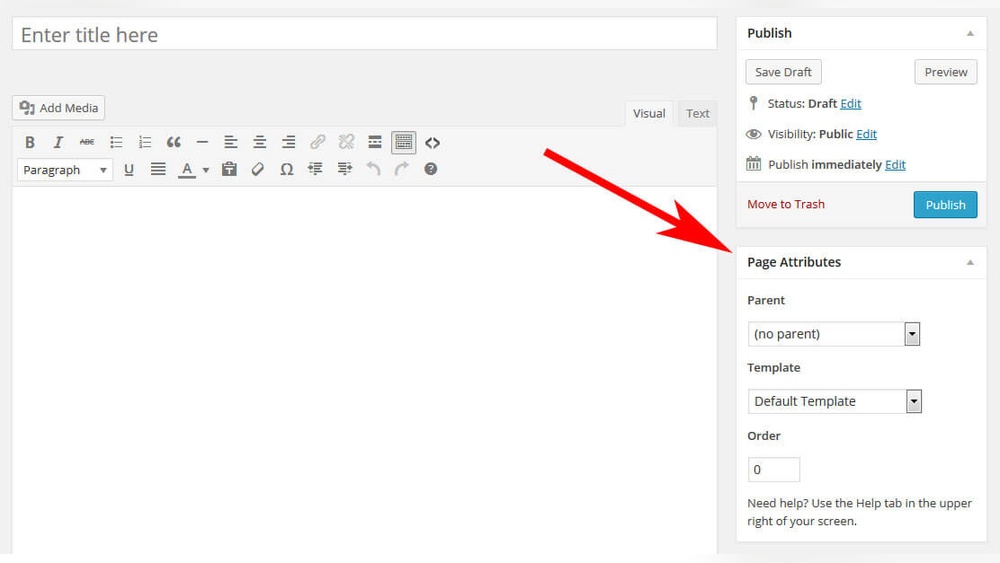
Open the page editor by clicking a page title or “Add New.” Look for the “Page Attributes” box on the right side. Here, you will find the template options.
Choose Your Template
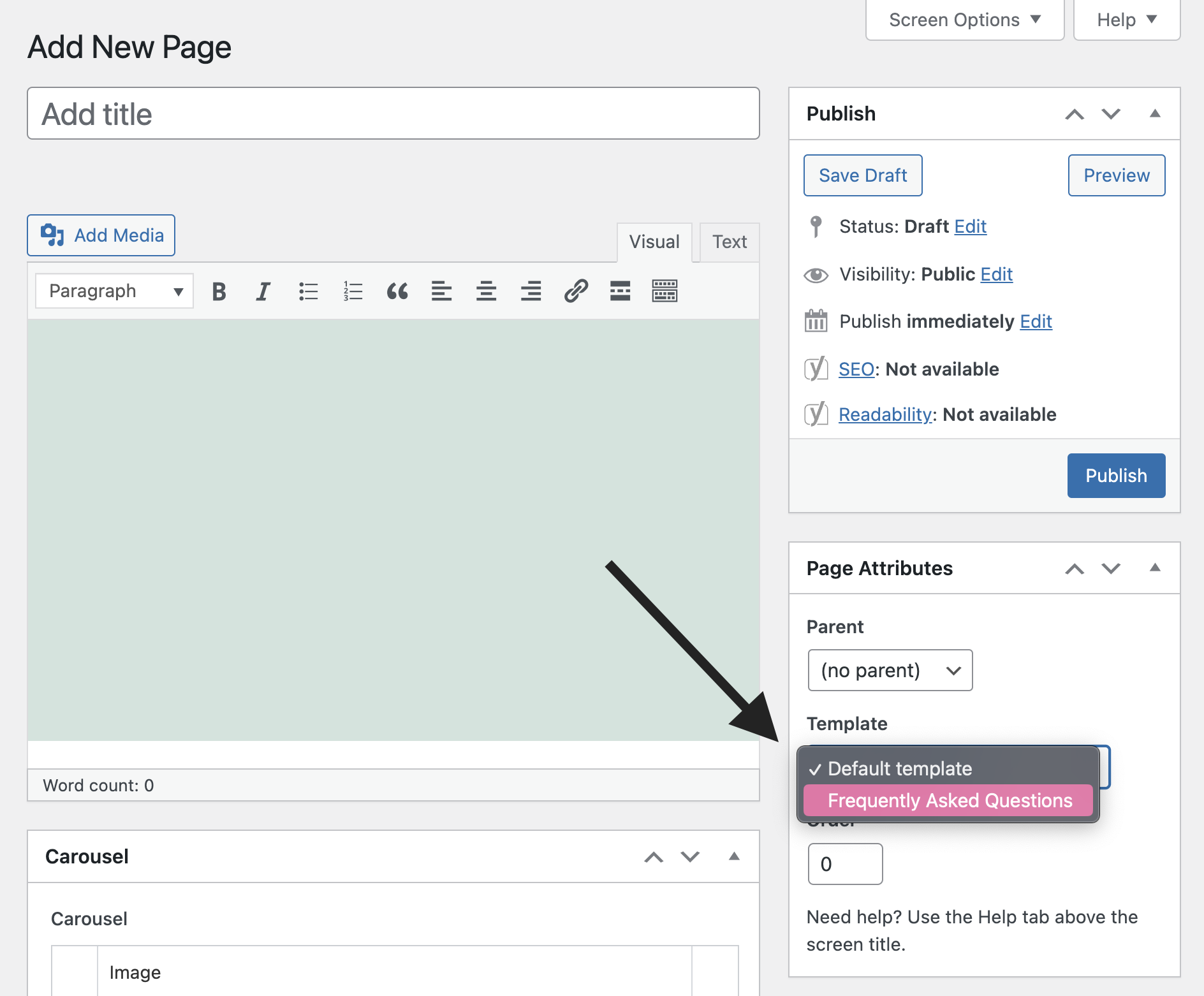
Click the dropdown under “Template.” Select the template you want to use for your page. After choosing, save or update the page to apply the template.
Create Or Edit A Page
Creating or editing a page in WordPress is simple and fast. This step is important to add templates and customize your site. You can start fresh with a new page or update an existing one. Both methods let you choose the right template for your content.
Add New Page
Go to your WordPress dashboard. Click on “Pages” and then “Add New.” A blank page will open for you to start writing. Look for the “Page Attributes” box on the right side. Here, select the template you want to use from the dropdown menu. After picking the template, add your text and images. Finally, click “Publish” to make the page live.
Modify Existing Page
Open the WordPress dashboard and click “Pages.” Find the page you want to edit and click its title. The page editor will open. On the right side, find the “Page Attributes” box. Choose a new template from the dropdown menu if needed. Make any changes to the content as you wish. Click “Update” to save your edits and apply the new template.

Credit: wordpress.com
Assign A Template To Your Page
Assigning a template to your WordPress page changes how it looks and works. Templates control the layout, style, and features of a page. You can choose from different templates your theme offers. This lets you create unique pages easily. Follow these steps to assign a template to your page.
Locate Page Attributes Section
Open the WordPress dashboard and go to Pages. Select the page you want to edit. On the right side, find the “Page Attributes” box. This section holds the template options. Sometimes, you may need to scroll down to see it. If you use the block editor, click the gear icon to open page settings. The Page Attributes area is where you start.
Pick Template From Dropdown
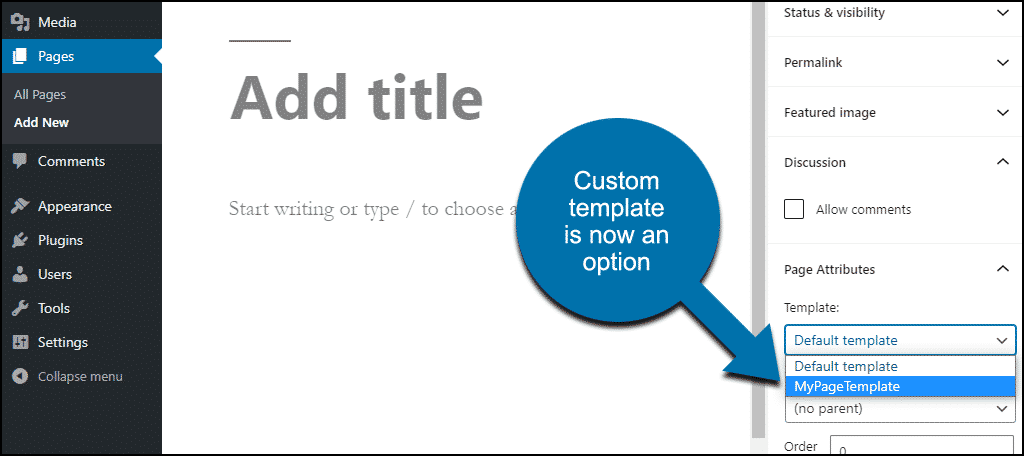
Inside the Page Attributes box, find the Template dropdown menu. Click it to see available templates. Your theme controls which templates appear here. Choose the template that suits your page purpose. After selecting, click the “Update” or “Publish” button. Your page will now use the new template. Check your page on the front end to see the change.
Save And Preview Your Page
Saving and previewing your page is a key step in WordPress. It ensures your work is not lost. It also lets you see how the template looks live. This step helps catch layout or content issues early. Previewing shows the real view visitors will have. Take your time to check every detail.
Update Or Publish
After adding a template, click the “Update” button if the page exists. This saves your changes. For a new page, click “Publish” to make it live. Both buttons are easy to find in the editor. Saving often prevents losing your progress. Make sure to save before previewing.
Check The Page Layout
Preview the page using the “Preview” button in the editor. This opens a new tab showing your live page. Look for correct placement of images and text. Check if the template fits well with your content. Make sure the page looks good on mobile too. Fix any alignment or spacing problems. Previewing helps ensure a polished final page.
Credit: www.greengeeks.com
Troubleshoot Common Issues
Adding a template to a WordPress page usually works smoothly. Sometimes, issues may arise. Troubleshooting common problems helps keep your site running well.
Understanding common issues saves time and effort. It also improves your website’s look and function.
Template Not Showing
Check if the template file is in the right folder. It must be inside your active theme’s folder.
Make sure the template has the correct header comment. WordPress uses this to identify templates.
Clear your browser and site cache. Old cache can block new templates from appearing.
Deactivate plugins one by one. Some plugins may conflict with templates.
Page Layout Problems
Verify your template’s HTML and CSS code. Errors can break the layout.
Check if your theme supports custom templates. Not all themes work with every template.
Look for missing or extra closing tags in your code. These can cause layout issues.
Test the template on a default WordPress theme. This helps find if the problem is theme-related.
Use Plugins For Advanced Templates
Using plugins for advanced templates in WordPress simplifies page design. Plugins offer ready-made templates that save time and effort. They often include drag-and-drop features for easy customization. This method suits users who want stylish pages without coding.
Explore Template Plugins
Search for popular template plugins in the WordPress plugin directory. Some top choices are Elementor, Beaver Builder, and Divi. These plugins offer many template options for different page types. Check reviews and ratings to find reliable plugins. Choose plugins that match your website’s style and needs.
Install And Activate Plugins
Go to your WordPress dashboard and open the Plugins menu. Click “Add New” and type the plugin name in the search box. Find the plugin and click “Install Now.” After installation, click “Activate” to enable the plugin on your site. Once active, you can start using its templates on your pages.
Frequently Asked Questions
How Do I Select A Template For A WordPress Page?
To select a template, open your WordPress page editor. On the right sidebar, find the “Page Attributes” section. Under “Template,” choose your desired template from the dropdown menu. Save or update the page to apply the template instantly.
Can I Add Custom Templates To WordPress Pages?
Yes, you can add custom templates by creating a PHP file in your theme folder. Name it properly with a template header. Upload it via FTP or file manager. The new template will appear in the page editor under the “Template” dropdown.
Does Changing A Template Affect Page Content In WordPress?
Changing a template only alters the page’s layout and style. Your content remains unchanged. Templates control design, so switching them updates the look without deleting any text or media you added.
Where Can I Find Templates In WordPress?
Templates are found in your active theme’s folder. You can also browse and install new themes with different templates from the WordPress dashboard under “Appearance > Themes. ” Some page builders offer additional custom templates too.
Conclusion
Adding a template to a WordPress page is simple and quick. Choose the right template that fits your page’s purpose. Upload or select it from your theme options. Customize the page to match your style and content. This process helps your website look better and work well.
Keep practicing to get comfortable with templates. Your WordPress site will improve step by step. Enjoy creating pages that stand out and attract visitors.



