
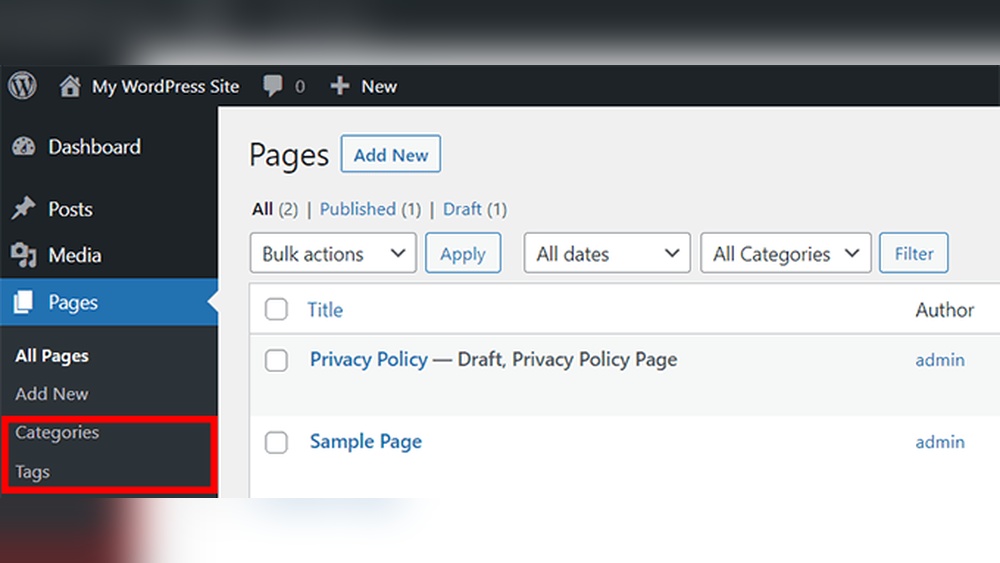
Are you looking for a simple way to organize your WordPress pages and make them easier for visitors to find? Adding tags to your WordPress pages can do just that.
Tags help group related content, boost your site’s SEO, and improve user experience. But if you’re unsure how to add tags to your pages, don’t worry—you’re in the right place. This guide will walk you through every step, so you can start using tags effectively on your WordPress pages right away.
Keep reading to unlock the full potential of your website!
Credit: blog.hubspot.com
Benefits Of Tags For Seo
Tags play an important role in SEO for WordPress pages. They organize content and help search engines understand your site better. Using tags wisely improves how people find and use your pages. This section explains the key benefits of adding tags for SEO.
Improving Content Discoverability
Tags group related topics on your site. This grouping helps search engines find similar content. When users search for a topic, tagged pages appear more easily. Tags create more entry points to your content. This increases the chance that visitors will discover your pages.
Enhancing User Experience
Tags make navigation simple and clear. Visitors can click tags to see related posts or pages. This keeps users on your site longer. Clear tags reduce frustration and help users find more information fast. A good user experience can lead to repeat visits and shares.
Boosting Search Engine Rankings
Search engines use tags to understand page topics better. Proper tags improve content relevance for specific keywords. This relevance boosts rankings in search results. Tags also help avoid duplicate content issues. Well-tagged pages have a stronger SEO foundation and perform better.
Preparing Your WordPress Site
Preparing your WordPress site helps you organize content better. Tags improve navigation and help visitors find pages quickly. Before adding tags, set up your site correctly for best results.
Choosing The Right Seo Plugin
Pick an SEO plugin that supports tags on pages. Popular plugins like Yoast SEO and Rank Math offer easy tag management. Check if the plugin is compatible with your WordPress version. Install and activate the plugin from your dashboard. This tool helps optimize tags for search engines.
Configuring Tag Settings
After installing the SEO plugin, open its settings panel. Find the section related to tags or taxonomies. Enable tags for pages if the option exists. Customize how tags display on your site. Save changes to apply the new settings. Proper configuration ensures tags work smoothly and boost SEO.
Adding Tags To WordPress Pages
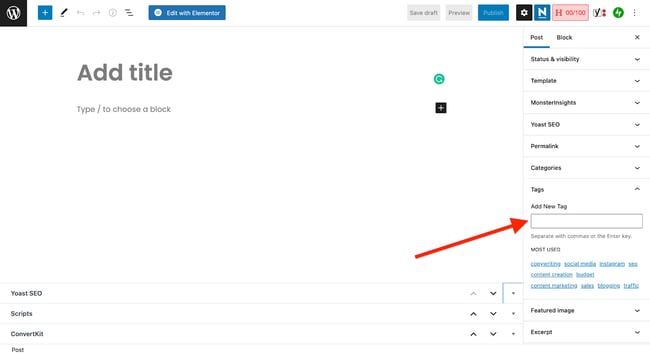
Adding tags to WordPress pages helps organize your content. Tags make it easier for visitors to find related pages. They also improve your site’s SEO by linking similar topics. WordPress does not show tags on pages by default. You need to enable and add them manually. This section explains how to add tags to WordPress pages.
Using The Default WordPress Editor
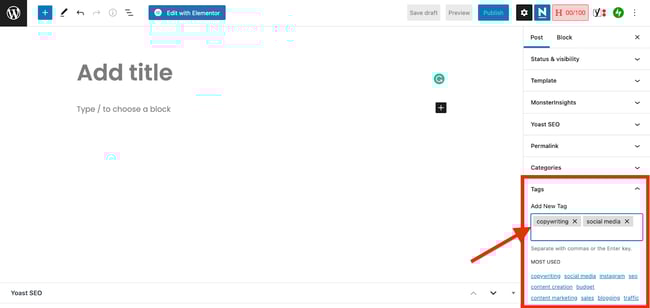
The default WordPress editor lets you add tags to posts easily. But for pages, the tag option is usually hidden. You can check if the tags box is available in the editor sidebar. If you see it, just type your tags separated by commas. Then update or publish your page to save the tags.
Enabling Tags For Pages
By default, WordPress disables tags for pages. You can enable tags by adding a small code snippet. This code tells WordPress to support tags on pages. Add this to your theme’s functions.php file or use a site-specific plugin:
function add_tags_to_pages() { register_taxonomy_for_object_type('post_tag', 'page'); } add_action('init', 'add_tags_to_pages'); After adding this, refresh your WordPress editor. You will see the tags box appear for pages.
Manually Adding Tags
If you prefer, you can add tags manually using a plugin. Some plugins allow tag management for pages without code. Install a plugin that supports page tags and activate it. Then visit your page editor and add tags as you do for posts. This method is user-friendly for beginners.
Credit: blog.hubspot.com
Using Plugins For Advanced Tagging
Using plugins for advanced tagging on WordPress pages offers more control and flexibility. Plugins can help manage tags better than the default WordPress tools. They provide extra features like tag suggestions, bulk editing, and custom tag displays. These tools save time and improve site organization.
Plugins also help improve SEO by making tags more relevant and easier to use. They allow you to automate tagging processes and customize how tags appear on your site. This makes your content easier to find for visitors and search engines.
Popular Tag Management Plugins
Some plugins stand out for tag management. “Tag Manager” offers easy tag editing and bulk updates. “Simple Tags” helps create and manage tags efficiently. “WP Auto Tagger” automatically adds tags based on your content. These plugins simplify tag handling and keep your site tidy.
Automating Tag Suggestions
Plugins can suggest tags based on your page content. They scan text and find relevant keywords. This saves time and ensures consistent tagging. Automation reduces manual work and helps keep tags accurate. Some plugins learn from your tagging habits to improve suggestions.
Customizing Tag Display
Tag display customization enhances user experience. Plugins let you change tag styles, layouts, and positions. You can show tags as clouds, lists, or buttons. Custom designs make tags more attractive and easier to use. This helps visitors explore related content quickly.
Best Practices For Tagging
Tags help organize content on WordPress pages. Using tags well improves site navigation and search. It helps visitors find related content quickly. Follow best practices to use tags effectively. This keeps your site clean and user-friendly.
Choosing Relevant Tags
Pick tags that match the page content exactly. Use words visitors might search for. Avoid broad tags that cover many topics. Specific tags improve the chance of discovery. Each tag should add clear meaning to the page.
Avoiding Over-tagging
Use only a few tags per page. Too many tags confuse visitors and search engines. Limit tags to the most important keywords. Over-tagging looks like spam and can hurt SEO. Focus on quality, not quantity, for better results.
Maintaining Consistency
Use the same tags across similar pages. Consistent tags create a clear site structure. Avoid creating duplicate tags with similar words. Standardize spelling and phrasing for tags. This helps both users and search engines understand your content better.
Credit: www.wpbeginner.com
Monitoring Tag Performance
Monitoring tag performance is key to improving your WordPress pages. Tags help organize content and boost SEO. Tracking how well tags work shows what attracts visitors. It guides changes to make your site better.
Tracking Seo Impact
Check how tags affect search engine rankings. Use tools like Google Search Console to see keyword positions. Watch for traffic changes linked to specific tags. Notice which tags bring more visitors to your pages.
Using Analytics Tools
Analytics tools provide data on user behavior. Google Analytics shows which tags users click most. It reveals visitor time spent on pages with certain tags. Use these insights to understand tag effectiveness.
Adjusting Tags Based On Data
Change tags that underperform or confuse visitors. Add new tags that reflect popular search terms. Remove irrelevant tags that do not help SEO. Keep tags clear and relevant to improve page ranking.
Frequently Asked Questions
How Do I Add Tags To WordPress Pages?
To add tags on WordPress pages, install a plugin like “Tags for Pages. ” After activation, tags will appear on page editors for easy addition and management.
Can I Use The Default WordPress Tags For Pages?
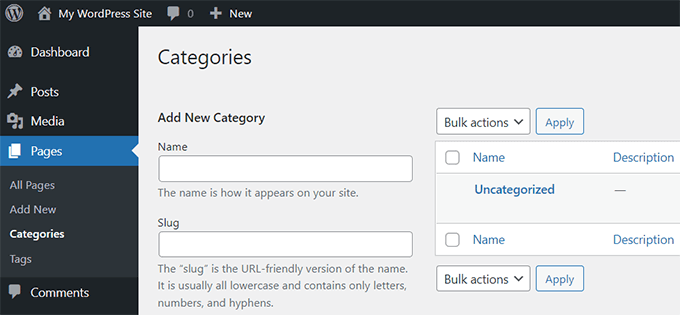
By default, WordPress tags are only for posts. To enable tags on pages, you need a plugin or custom code to extend tag support.
Why Add Tags To WordPress Pages?
Adding tags improves page organization and SEO. It helps users find related content quickly and boosts your site’s search engine ranking.
Are Tags On Pages Visible To Visitors?
Yes, if your theme supports it or you add tag display code. Otherwise, tags remain in the backend for SEO and admin use.
Conclusion
Adding tags to WordPress pages helps organize your content clearly. It makes your site easier to navigate and improves search results. Use simple, relevant tags that match your page topics. Check your tags regularly to keep them useful and updated.
This small step can boost your website’s user experience and SEO. Start tagging your pages today and see the difference.



