
Are you looking for a simple way to make your WordPress posts easier to navigate? Adding a table of contents can help your readers find exactly what they need without scrolling endlessly.
It not only improves user experience but also boosts your SEO. In this guide, you’ll learn exactly how to add a clear, clickable table of contents to your WordPress site—step by step. By the end, your readers will stay longer, explore more, and keep coming back.
Ready to make your content more organized and user-friendly? Let’s dive in!
Credit: blog.hubspot.com
Benefits Of A Table Of Contents
A table of contents helps organize your WordPress posts clearly. It shows readers the main points quickly. This feature makes long articles easier to read and understand. It also helps visitors find specific sections without scrolling endlessly.
Improved Navigation
A table of contents lets users jump to sections fast. Readers can skip parts they already know. It saves time and makes the site more user-friendly. Easy navigation keeps visitors on your page longer.
Enhanced User Experience
Visitors enjoy content that is simple to follow. A table of contents breaks down complex topics. It reduces frustration and increases satisfaction. Happy readers are more likely to return to your site.
Seo Advantages
Search engines like clear and organized content. A table of contents helps search bots understand your page. It can improve your ranking in search results. This makes your site easier to find online.
Credit: www.greengeeks.com
Methods To Add A Table Of Contents
Adding a Table of Contents (TOC) helps readers find information quickly. It improves the user experience and keeps visitors longer. There are several ways to add a TOC in WordPress. Choose the method that fits your skills and website needs.
Using WordPress Plugins
Plugins make adding a TOC simple and fast. Popular plugins like Easy Table of Contents and Table of Contents Plus offer automatic generation. They scan your headings and build a clickable list. Plugins often allow customization of style and position. Most require little or no coding knowledge. This method suits users who want quick results.
Manual Creation With Html And Css
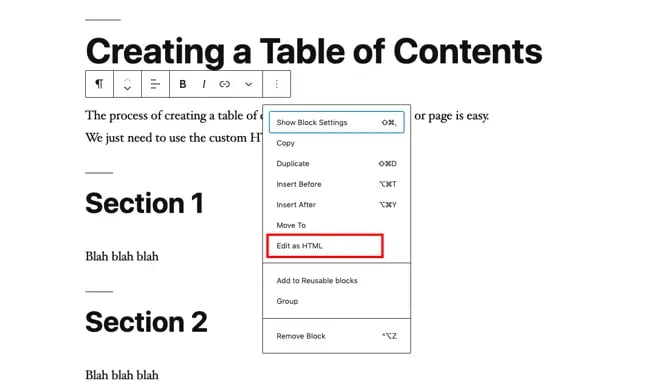
Manual creation gives full control over the TOC’s look and function. You write the HTML code for the list of links. Each link points to a heading on the page using anchor tags. CSS styles the TOC to match your site design. This method needs basic coding skills. It is perfect for those who want a custom TOC without plugins.
Utilizing Block Editor Features
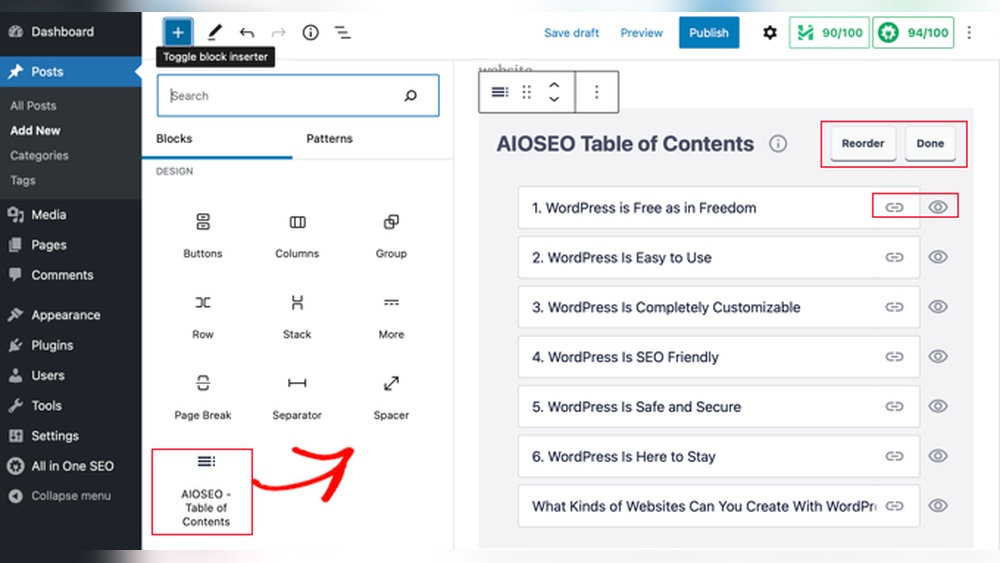
The WordPress block editor includes tools to build a TOC. Some themes and blocks support TOC blocks directly. You can add a TOC block and configure it inside the editor. It automatically links to headings on the page. This method is easy and uses WordPress’s built-in features. It works well for users comfortable with the block editor.
Top Plugins For Table Of Contents
Adding a table of contents helps readers find information fast. It improves the user experience on your site. Many WordPress plugins make this task simple and quick. These plugins offer easy setups and clear layouts.
Choose a plugin that fits your style and needs. Here are some popular options that work well for most blogs.
Easy Table Of Contents
Easy Table of Contents is simple to use and set up. It automatically creates a table of contents from your headings. You can customize its look to match your site. It works well with posts, pages, and custom post types.
The plugin supports smooth scrolling and is mobile-friendly. It helps your readers jump to sections easily. No coding skills are needed to use this plugin.
Luckywp Table Of Contents
LuckyWP Table of Contents offers clear and neat tables. It lets you add a table of contents manually or automatically. You can choose from different designs and styles.
This plugin supports drag-and-drop to reorder items. It also works well with SEO plugins. It helps improve your site’s search engine ranking by organizing content better.
Table Of Contents Plus
Table of Contents Plus is a popular choice among bloggers. It creates detailed tables of contents and site maps. You can control which headings to include or exclude.
The plugin is lightweight and fast. It helps visitors navigate long posts with ease. It works without slowing down your website.
Step-by-step Plugin Setup
Adding a Table of Contents (TOC) to your WordPress site helps visitors find information fast. Using a plugin makes this process simple. Follow these steps to set up the plugin quickly. This guide covers installing, configuring, and inserting the TOC in your posts or pages.
Installing The Plugin
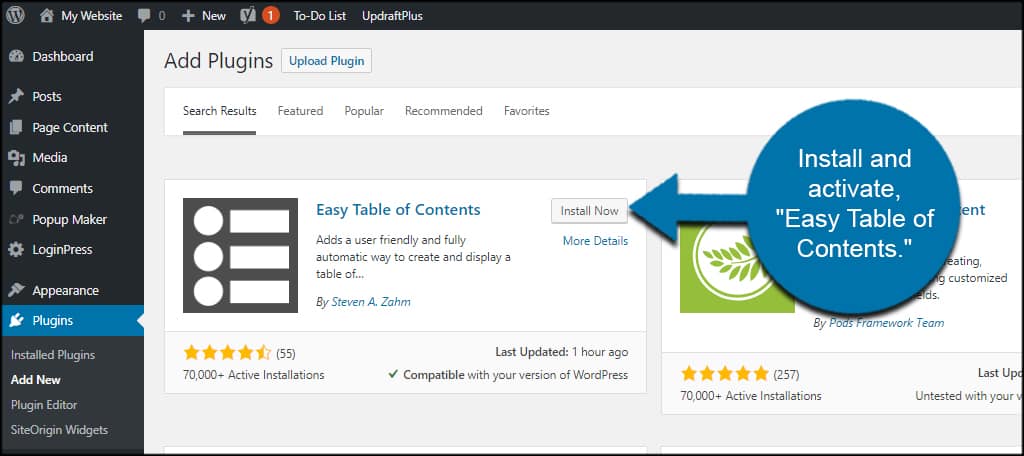
Log in to your WordPress dashboard. Go to the “Plugins” menu and click “Add New.” Type “Table of Contents” in the search bar. Find a popular plugin like “Easy Table of Contents.” Click “Install Now” and wait a moment. After that, click “Activate” to enable the plugin on your site.
Configuring Settings
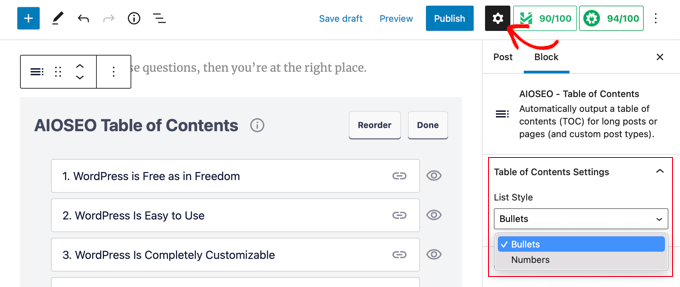
Go to the plugin’s settings page from the dashboard. Choose where the TOC should appear. You can select posts, pages, or both. Set the heading levels to include in the TOC, like H2 and H3. Pick a style for the table, such as colors and width. Save your settings to apply the changes.
Inserting Toc In Posts And Pages
Edit a post or page where you want the TOC. The plugin may insert the TOC automatically if enabled. Or, use a shortcode to place it manually. Add the shortcode [toc] where you want the table. Preview the page to check the TOC’s position and look. Adjust settings if the TOC does not appear as expected.
Customizing Table Of Contents Appearance
Customizing the table of contents (TOC) appearance helps match it with your website style. It makes the TOC clear and easy to use. You can change colors, fonts, position, and heading levels. These tweaks improve user experience and keep your site neat.
Adjusting Colors And Fonts
Changing TOC colors helps it stand out or blend with your page. Pick colors that match your site’s theme. Use easy-to-read fonts to keep the TOC simple. Avoid bright or hard-to-read colors. This makes your TOC friendly and clear for visitors.
Setting Toc Position
Place the TOC where readers can find it fast. Common spots are before the main content or in a sidebar. Some plugins let you fix the TOC on the screen while scrolling. Choose a position that fits your layout and helps navigation.
Choosing Heading Levels
Select which heading levels to show in the TOC. Usually, headings H2 and H3 work best. Including too many levels can clutter the TOC. Picking the right levels keeps it clean and useful. It guides readers through the main topics clearly.
Credit: www.wpbeginner.com
Troubleshooting Common Issues
Adding a Table of Contents (TOC) to your WordPress site should be easy. Sometimes, issues appear that stop the TOC from working properly. This section helps solve common problems. Follow these tips to fix your TOC and improve your site’s navigation.
Toc Not Showing Up
The TOC may not display because it is disabled in settings. Check your plugin or theme options to ensure the TOC is enabled. Make sure the content has enough headings for the TOC to build.
Clear your site cache and browser cache. Old files can block new changes from showing. Refresh the page to see if the TOC appears.
Conflict With Other Plugins
Sometimes, other plugins interfere with the TOC. Deactivate plugins one by one to find the conflict. Focus on caching, SEO, or page builder plugins first.
Try switching to a default WordPress theme to check for theme conflicts. Update all plugins and themes to their latest versions. Outdated software often causes problems.
Mobile Responsiveness
Your TOC must look good on phones and tablets. Test the TOC on different devices to check its size and position. Some TOC plugins offer mobile-friendly options; enable them if available.
Use CSS tweaks to fix any display issues on small screens. Keep the TOC simple and easy to scroll. A mobile-friendly TOC improves user experience and site usability.
Best Practices For Toc Usage
Using a Table of Contents (TOC) in WordPress helps readers find information fast. A well-made TOC improves user experience and keeps visitors on your page longer. Follow best practices to make your TOC useful and clear. This keeps your blog organized and easy to read.
Optimal Toc Length
Keep your TOC short and to the point. Include only main sections and important subheadings. Avoid listing every small detail or minor point. A long TOC can overwhelm readers and slow down page loading. Aim for 5 to 10 entries for the best balance.
Clear And Concise Headings
Use simple and clear headings in your TOC. Each heading should describe the section in a few words. Avoid complex or technical terms that confuse readers. Clear headings help visitors scan and find what they need quickly.
Regular Updates With Content Changes
Update your TOC whenever you add or remove content. An outdated TOC causes frustration and confusion. Check your TOC after each major edit to keep it accurate. This helps maintain a good user experience and trust.
Frequently Asked Questions
How Do I Add A Table Of Contents In WordPress?
To add a table of contents, use a plugin like Easy Table of Contents. Install and activate it, then configure settings. Alternatively, use block editor’s built-in TOC blocks for manual insertion.
Which Plugin Is Best For WordPress Table Of Contents?
Easy Table of Contents and Table of Contents Plus are popular. They offer automatic generation, customization, and SEO-friendly anchor links. Choose based on your site’s needs and user interface preferences.
Can I Customize The Table Of Contents Design In WordPress?
Yes, most TOC plugins allow customization. You can change colors, fonts, and heading styles. This ensures the table of contents matches your website’s theme and improves user experience.
Does Adding A Table Of Contents Improve Seo?
Yes, a table of contents improves SEO by enhancing site structure. It helps search engines understand content hierarchy and improves user navigation, reducing bounce rates and increasing engagement.
Conclusion
Adding a table of contents helps readers find information fast. It improves your site’s structure and user experience. Use simple plugins or manual coding to add it easily. Keep your headings clear and organized for best results. A good table of contents makes your posts neat and reader-friendly.
Try adding one today to help visitors navigate your content better. Small changes like this can make a big difference.



